
How you connect
Open WhatsApp → Settings. Under How you connect, choose one of two:- Without WABA
- With my own WABA
You send from a number your provider gives you. There is no Meta setup.
- A hosted number: a number of your own, kept in your provider’s WhatsApp Business Account. Settings shows it, hosted by FireFlo, with nothing more to set up. Replies come to your Inbox.
- A shared number: one of the provider’s numbers, shared by several customers. Staff, or your reseller, choose which one you send from. A shared number is send-only: people’s replies don’t reach your Inbox, and its messages open no Inbox conversation. Follow them in the message log. If you need replies, connect your own number or ask for a hosted one.
Callback URL for your Meta app
With your own Meta app, paste the Callback URL and Verify token shown in OMNI into Meta for Developers (your app → WhatsApp → Configuration), then click Verify and save. Under Webhook fields, subscribe tomessages. The section turns green as soon as
Meta’s first call arrives. If you make a new verify token, paste it into Meta again.
Numbers
WhatsApp → Settings → Numbers lists every number in your WhatsApp Business Account. A line at the top says whether the account’s webhooks are subscribed and where Meta sends them, with Subscribe when they aren’t: without it Meta sends no replies and no delivery reports. Each number shows its display name and its name review, its registration, its quality and daily limit, and calls. The number OMNI sends from is marked In use. On a hosted number you see that number; on a shared number you see it read-only.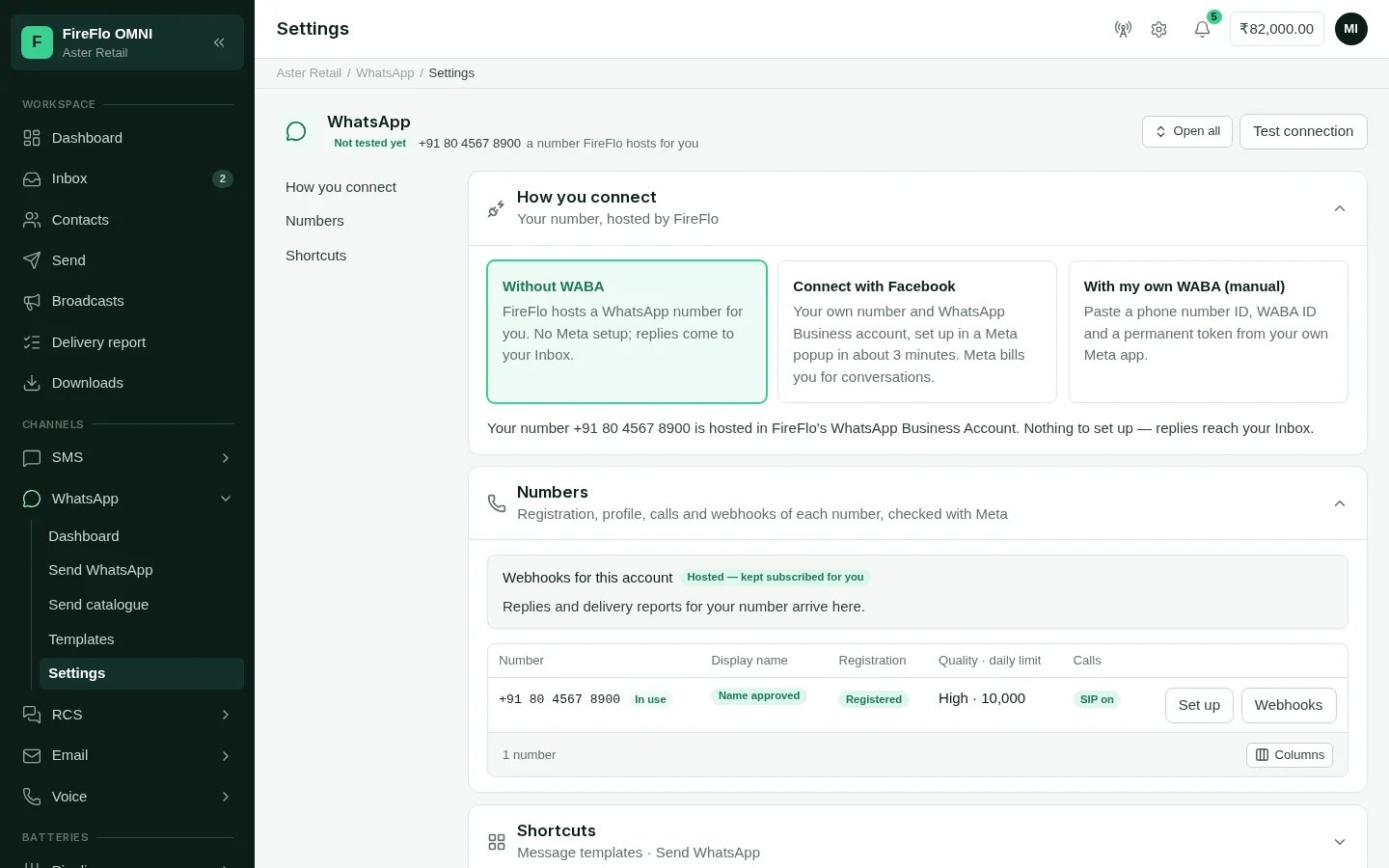
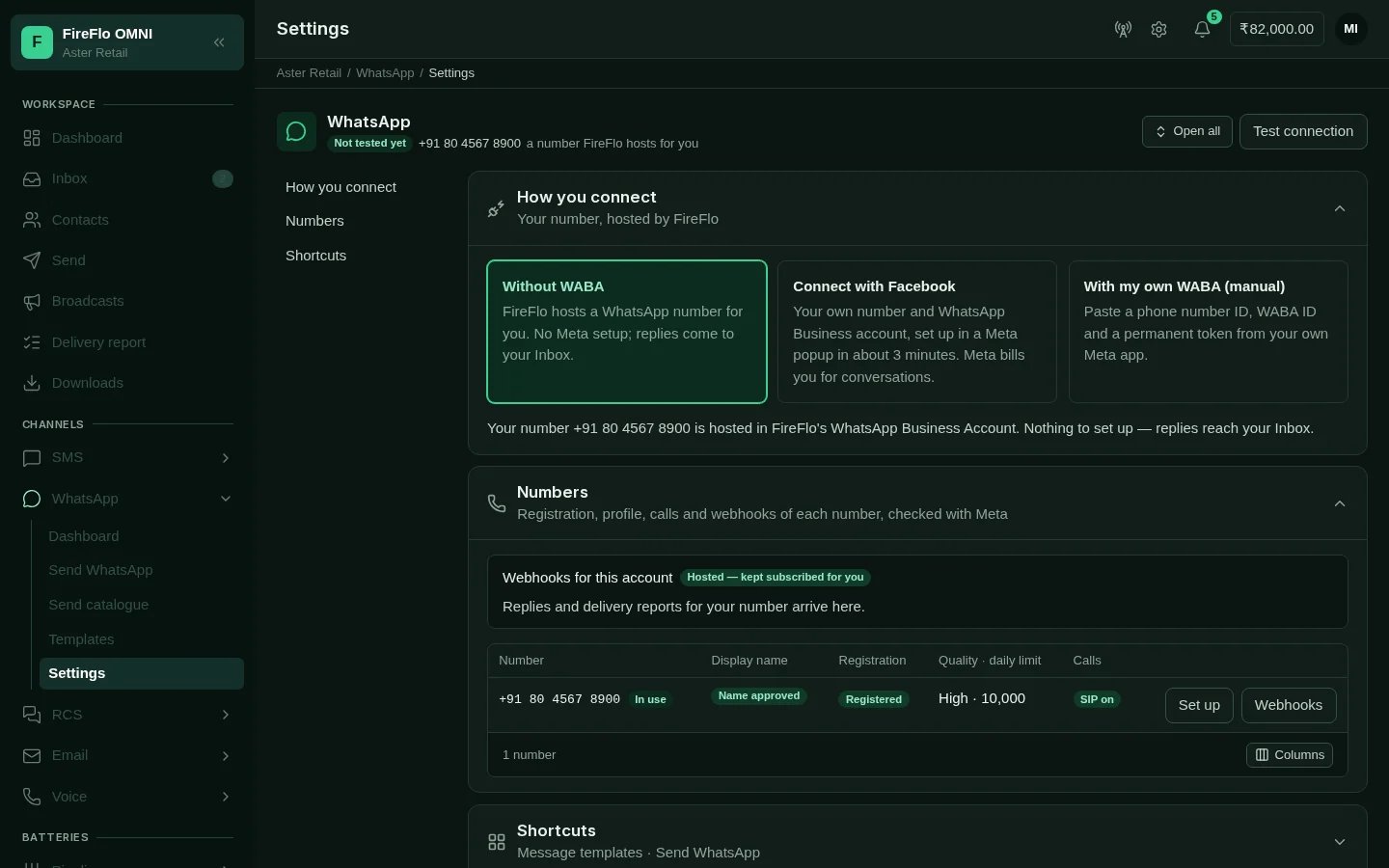
WhatsApp → Settings → Numbers: each number's display name, registration, quality and daily limit, with one number open beside the list.
Webhooks on a row opens what Meta sent for that number: messages, statuses, calls,
and template and account notices, with filters by kind, result and day, a search, and
what Meta sent when you open a row.
Voice calls over SIP
In a number’s Calling (SIP) tab: enter your SIP server’s host name and port, see what to enter on your PBX, show the SIP password (read from Meta when you ask, never stored in OMNI) or reset it, choose the media encryption (SDES, which most PBXs need, or DTLS), and turn SIP off so Meta stops sending calls to your server. Copy set-up guide gives the values as text for whoever runs your phone system. It works on hosted numbers too. Meta requires a daily messaging limit of 2,000 or more before calling can be switched on. This is separate from Voice.Send rate
Messages per second caps how fast your numbers send: on the connection, and, to override it, on a number. The default is 500 per sending number; 0 means no limit. When Meta answers that a number is sending too fast, OMNI slows that number down instead of failing the messages.Conversations and the 24-hour window
WhatsApp lets a business write freely to someone only for 24 hours after their last message. Inside that window you can send anything from the Inbox. Outside it, you can only send an approved template — which is how a conversation restarts. The Inbox shows when a thread’s window is closed (“window closed · templates only”); send a template from ⋯ → Template in the reply box. In Advanced the template panel adds the language, category and price, the header by link or by file, and the ending of a link button. See WhatsApp templates. Inside the window, the Inbox can send:- Text, including saved quick replies, and a reply that quotes one of the person’s messages.
- Media: images up to 5 MB, video and audio up to 16 MB, documents up to 100 MB, with their file name and a caption.
- Reply buttons (up to three, of up to 20 characters each) and list menus. The person’s tap comes back as their answer.
- Reactions to the person’s messages, with eight emoji. Press one again to take it back.
- Products, with the Catalogue battery.
Send WhatsApp
WhatsApp is sent from the Send page, which works the same way for every channel: Who, From, Message and When, with the message drawn on a phone as WhatsApp shows it. WhatsApp → Send WhatsApp opens it with WhatsApp chosen; its own address still works. Sends start conversations with an approved template.1
Who
Type numbers, pick contacts, or choose a file (CSV, XLSX or XLS), a segment or, with
Customer data, an audience. A send to more than 10 typed numbers, or to a file, a
segment or an audience, is reviewed first and runs as a
broadcast.
2
From and Message
From shows the number it goes from. Choose an approved template and fill in its
blanks: Type a value, or with a file, a segment or an audience in Who, a field,
so each person gets their own value.
3
A link or a file, where the template takes one
A template with a picture, video or PDF header can go to any number of people,
be scheduled and be used in a broadcast. Attach a file stores the file and sends
its link; Paste a link takes one link for everyone, or a column so each person
gets their own. The same goes for a link button with a changing part — its address
starts with what Meta approved and only the ending changes — and for a button made
with Opens a file chosen when sending.
4
When, cost and send
When sends now or later; until then you can cancel it or send it early. Beside
Send, the page shows what the send will cost before you confirm: the amount and
whether it comes from your WhatsApp pocket or your wallet; for a reseller’s customer,
the units it uses and how many are left; on your own WhatsApp account, Billed by
your provider. Each message is priced by its template’s category — marketing,
utility or authentication — and type names are the ones on your price list. People
who opted out are left out.
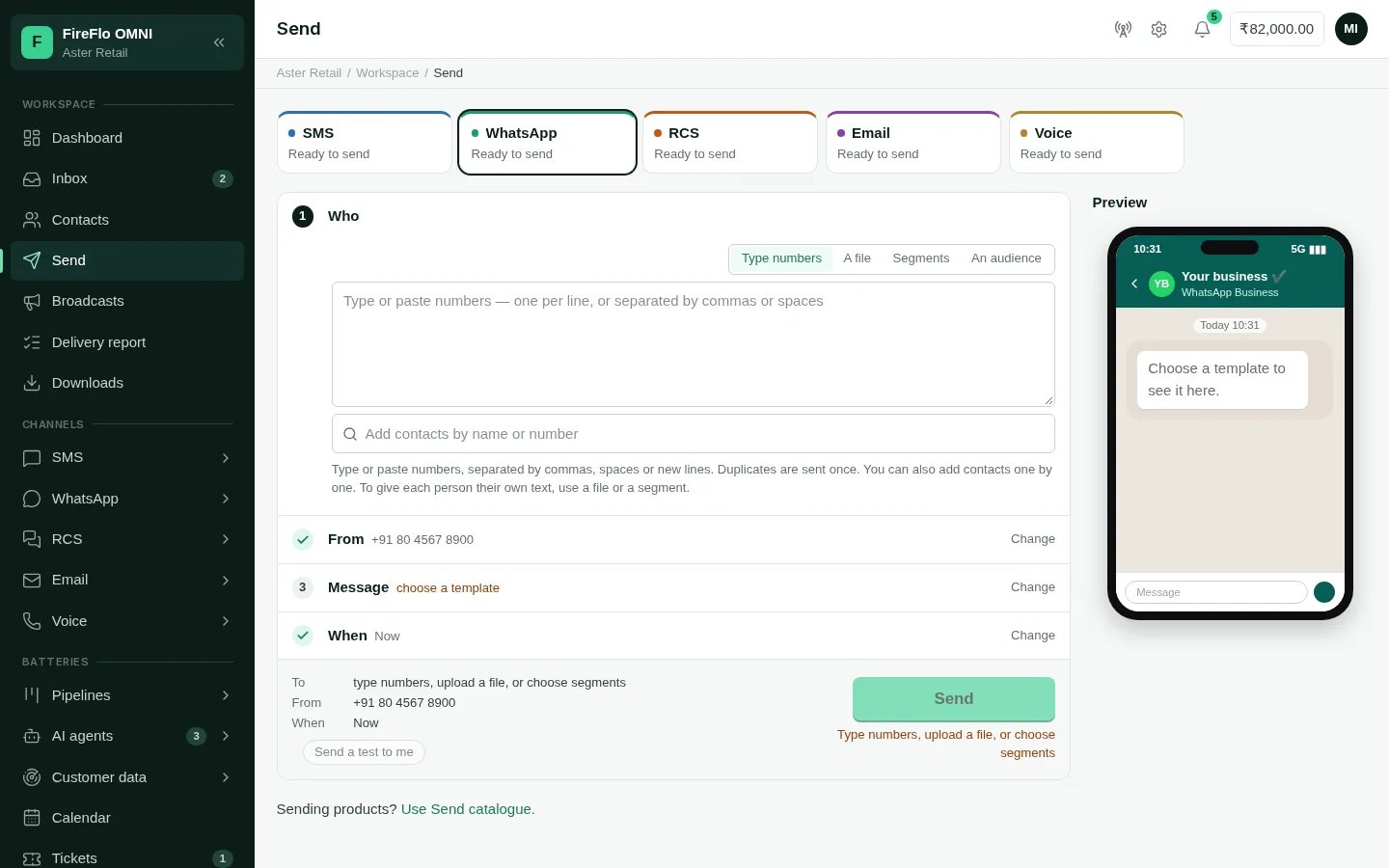
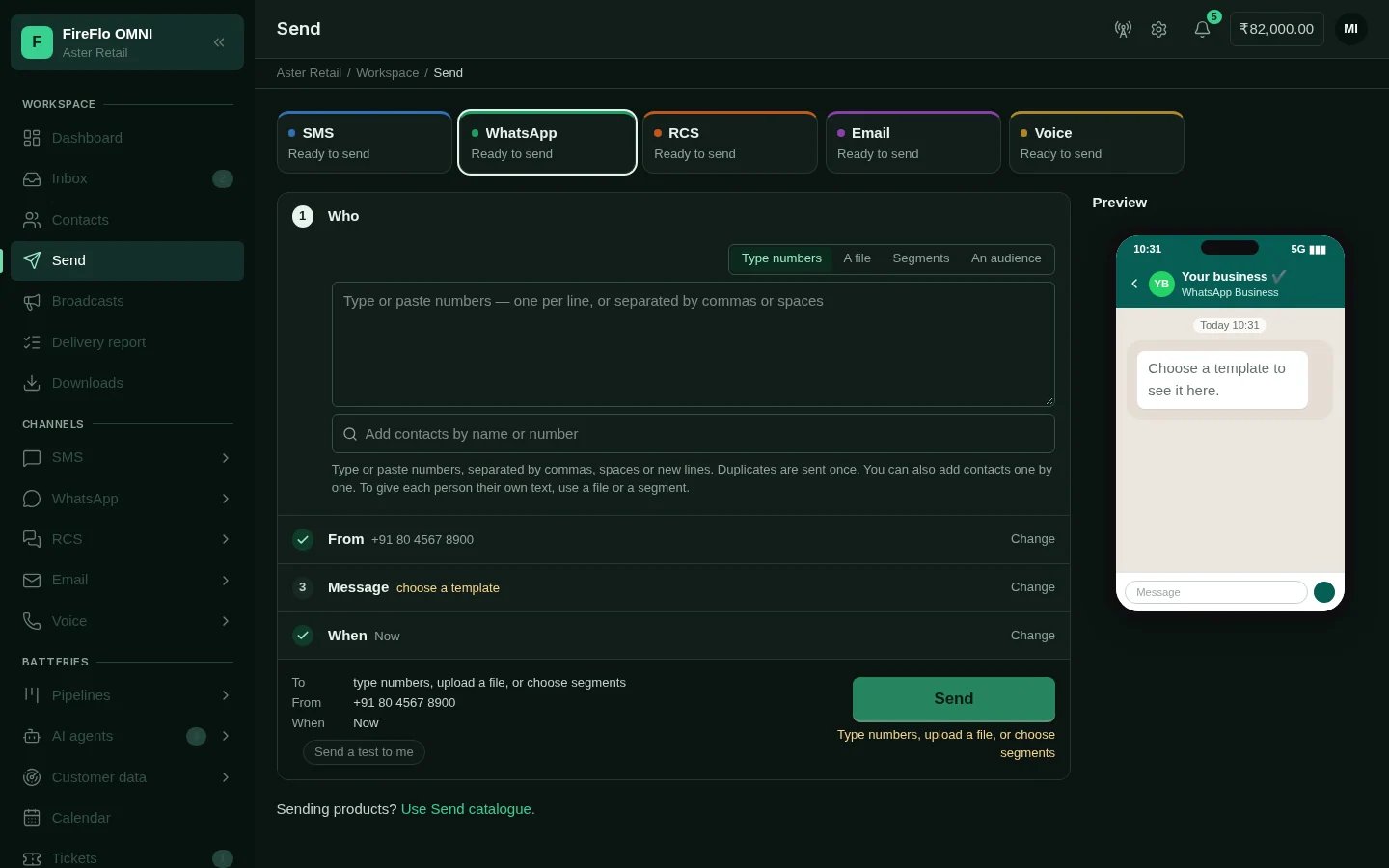
Send with WhatsApp chosen: an approved template, its blanks and the phone preview.
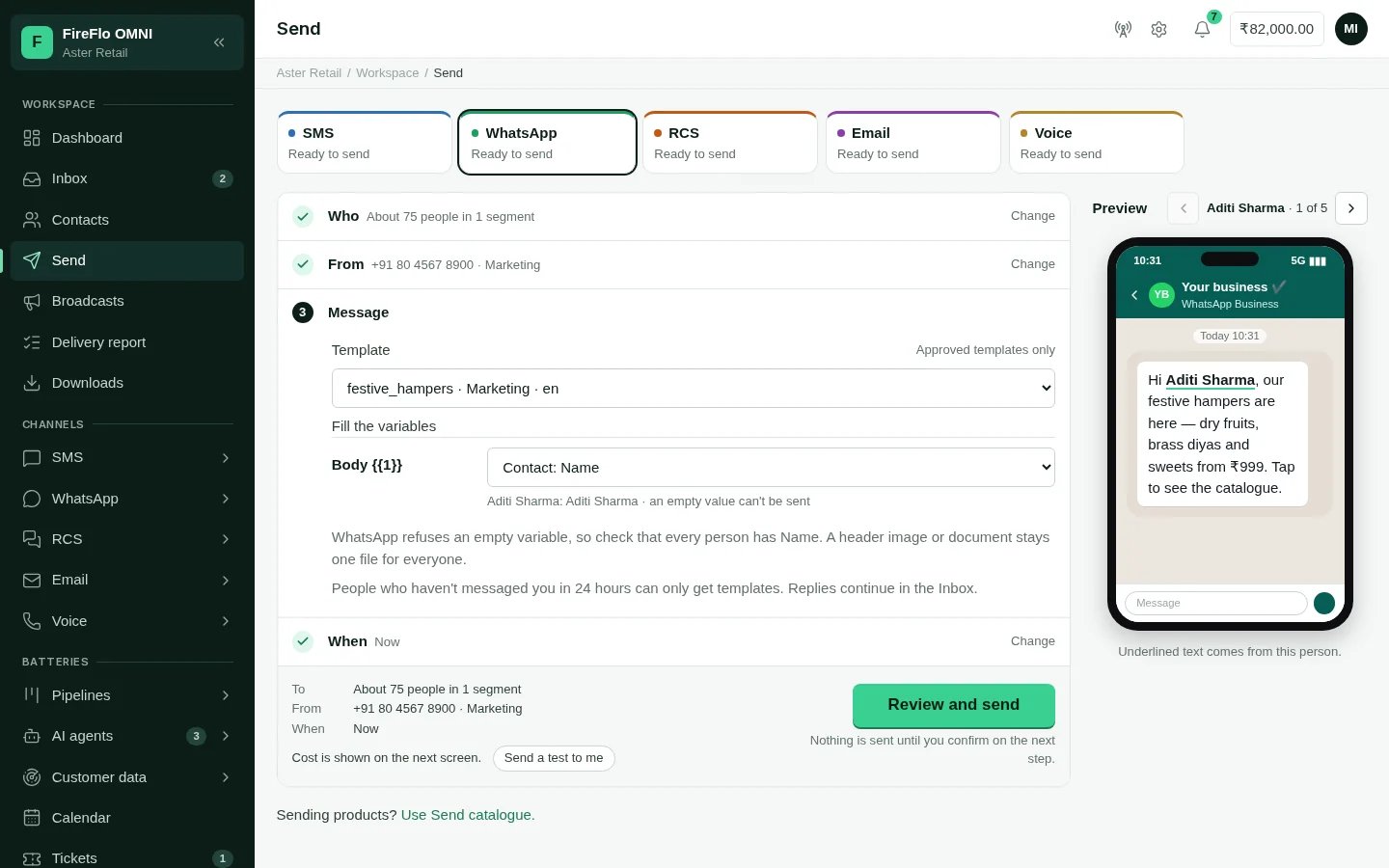
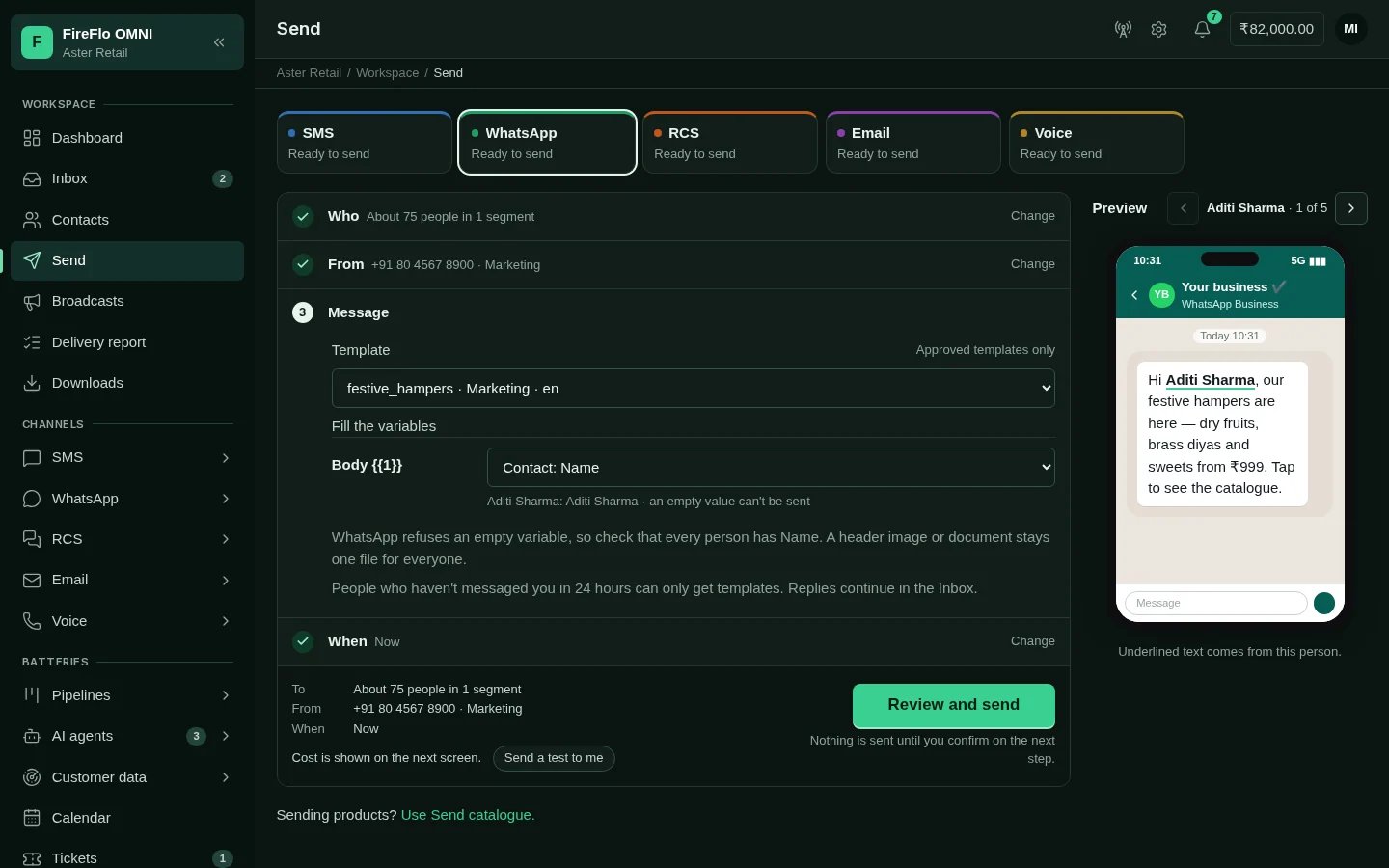
A marketing template sent to an audience, its blank filled from each contact's name.
Send catalogue
With the Catalogue battery, WhatsApp → Send catalogue sends products from your catalogue: the whole catalogue, a set, chosen products or one product, to one person, several people or a segment. You can also send them from a contact. Orders people place from a WhatsApp cart land in Catalogue as orders. Send catalogue is offered only on your own WhatsApp Business Account with a Meta catalogue connected. On a shared number there is no Send catalogue, and the Catalogue pages show their WhatsApp parts only once a Meta catalogue is connected.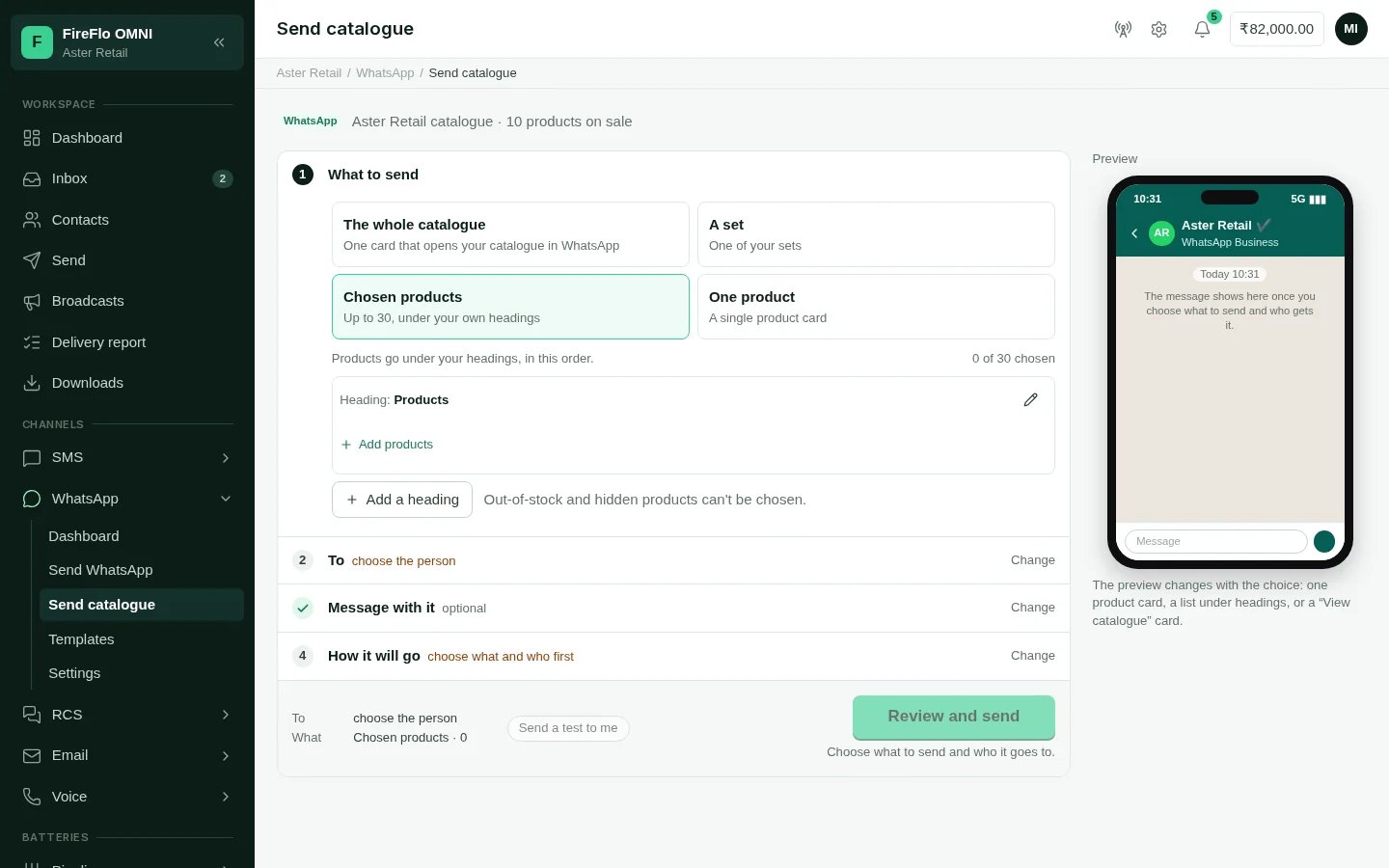
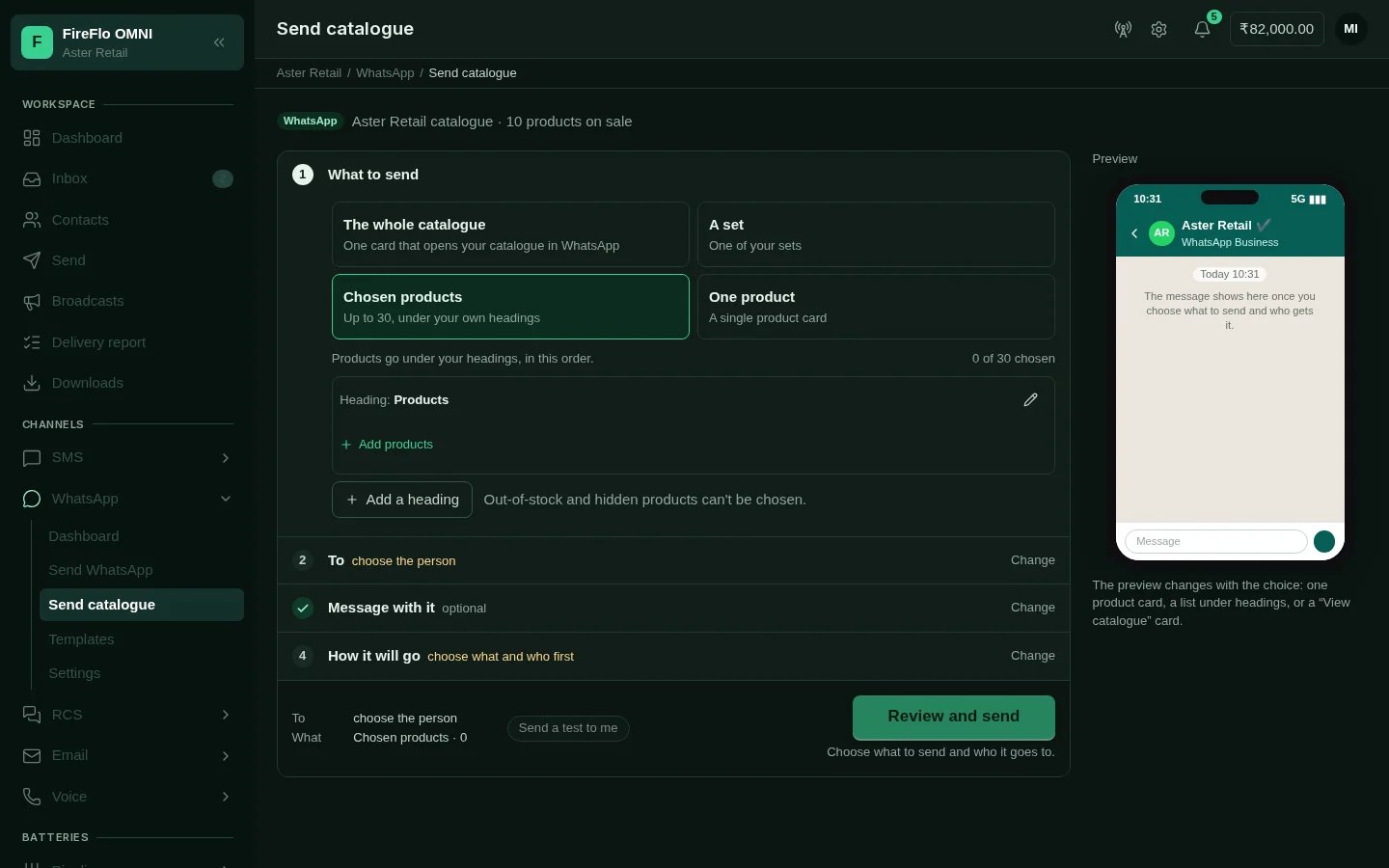
Send catalogue: products chosen, and the product message as it shows on a phone.
The WhatsApp dashboard
WhatsApp → Dashboard is laid out like every channel’s dashboard: pick Today, 7 days, 30 days or Custom, and each figure is compared with the period before.- Messages sent, Delivered (the share of messages that got an answer), Read — which says its base, such as “3 of 4 delivered” — Replies, Open conversations with the time to a first reply, and Cost, shown only to people who may see Billing.
- Messages per day, and the path from sent to reply. Read is not reported for people who switched read receipts off.
- Conversations in and out, Agent load (open threads by assignee, right now) and Template health: each number’s quality and daily limit, read from Meta.
- What went wrong, by country, when people reply and recent broadcasts.
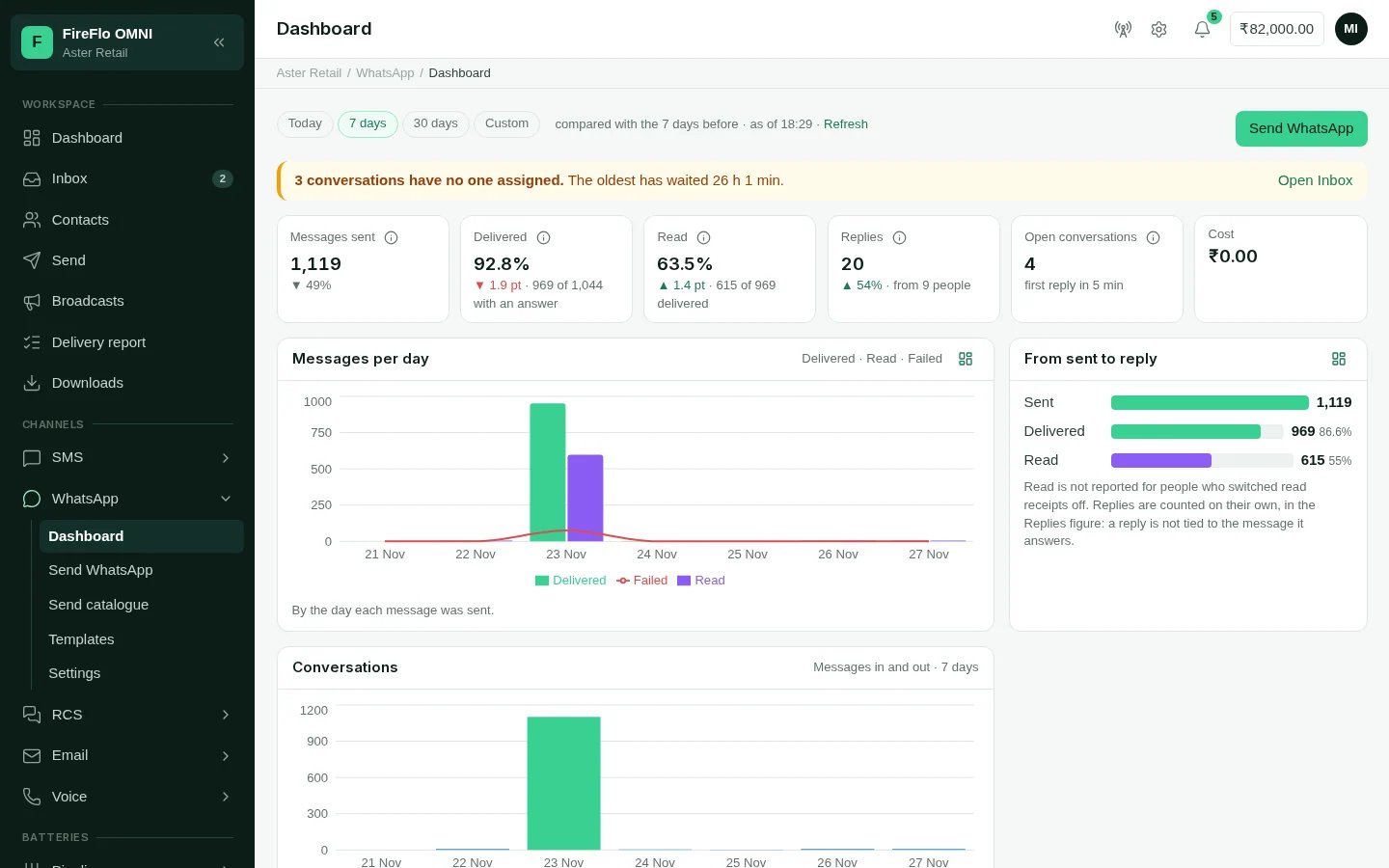
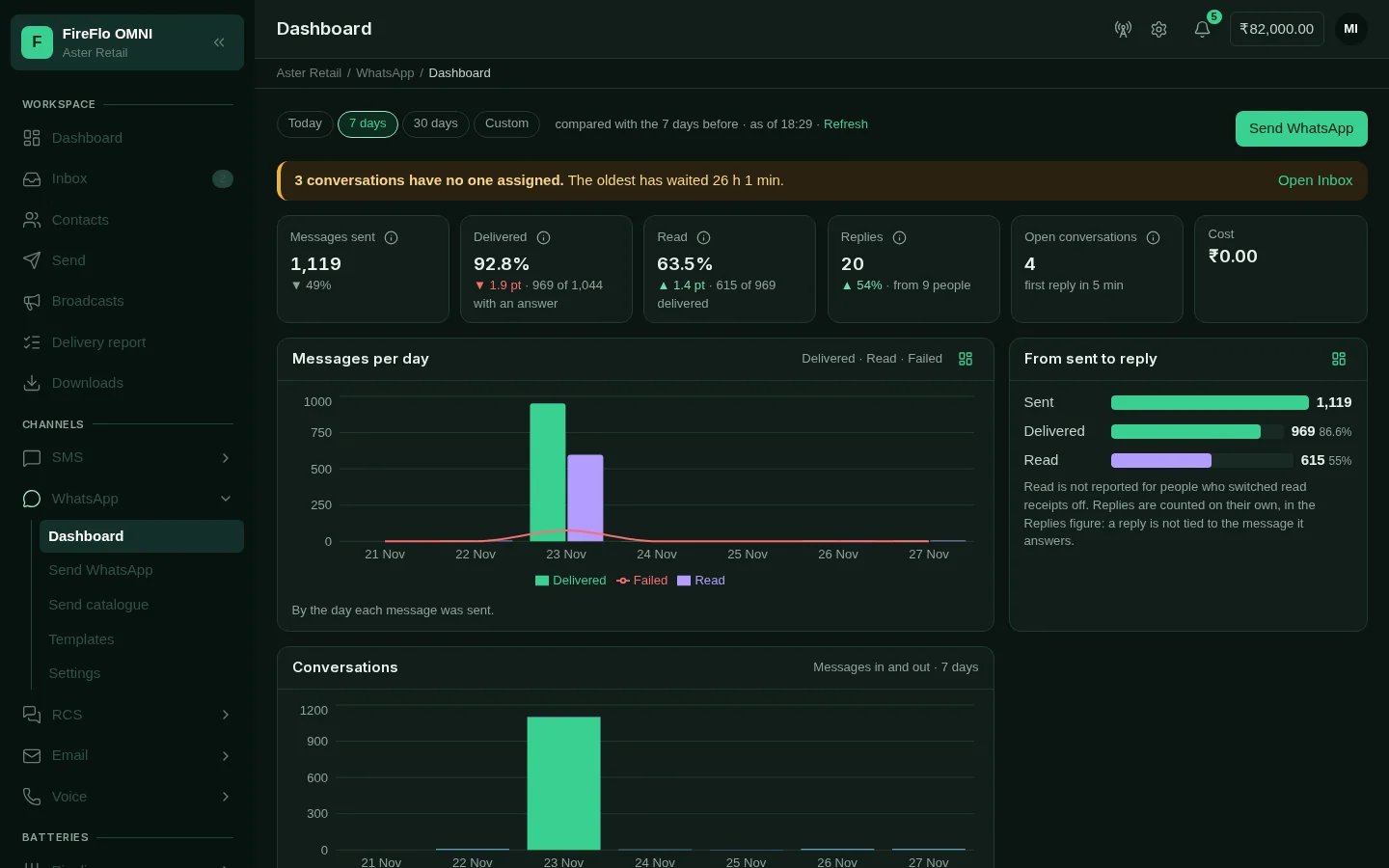
The WhatsApp dashboard: six figures, messages per day, the path from sent to reply and template health.
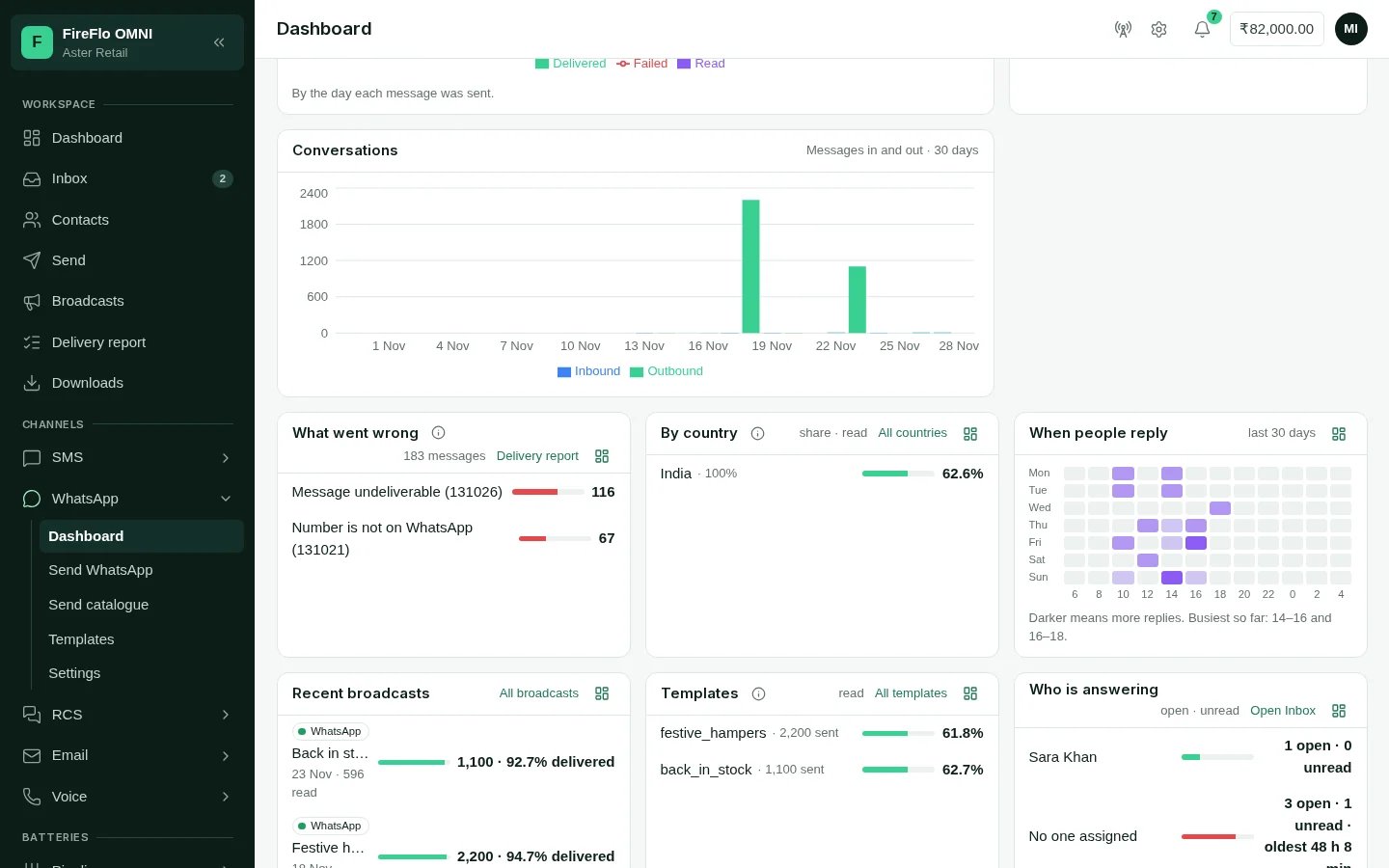
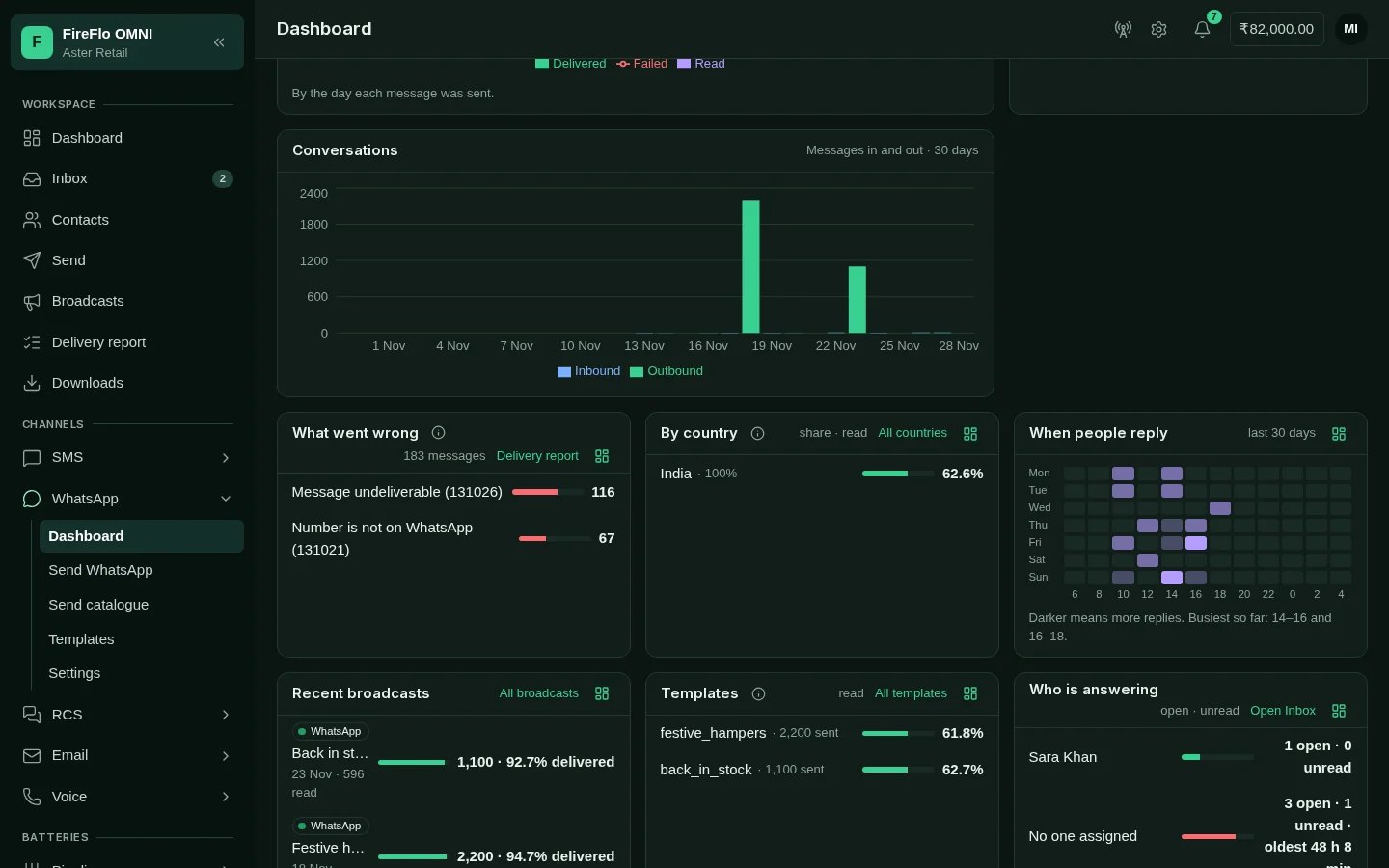
Further down: what went wrong, by country, when people reply and recent broadcasts.