
Set up SMS
Choose how you connect
Set your default country
AU.Switch stamping on if your messages need stamps
Request a sender ID and add templates
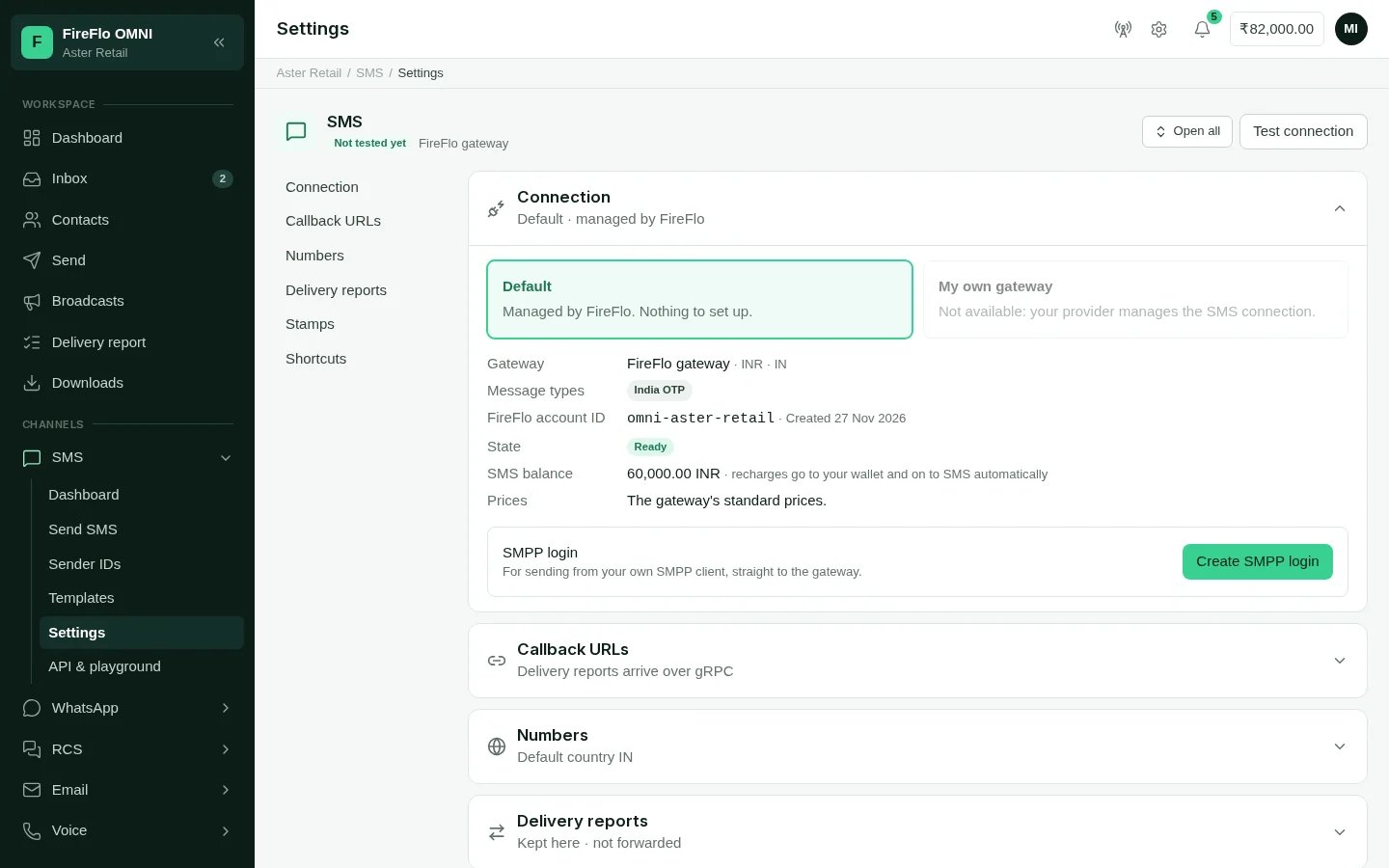
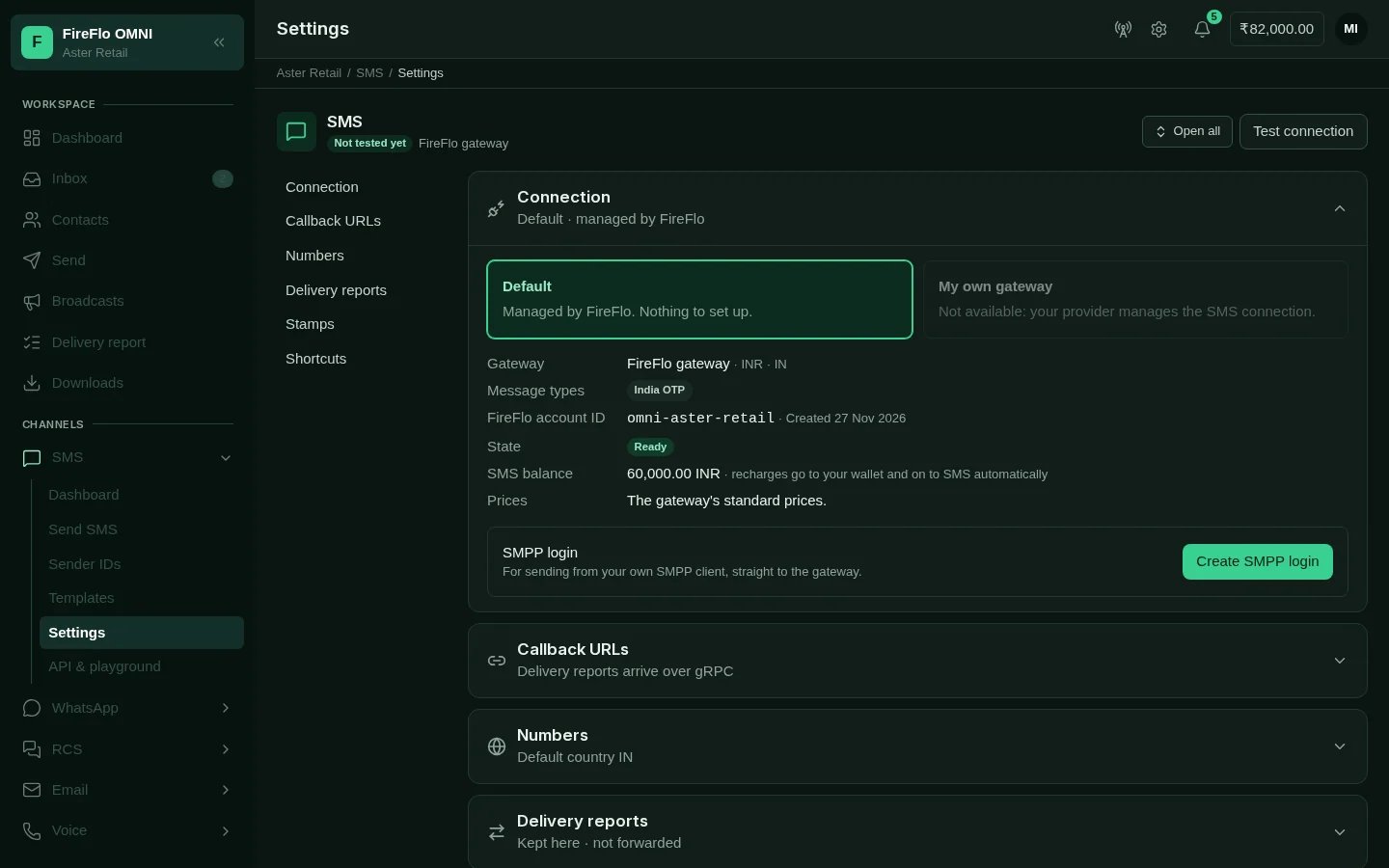
SMS → Settings: the FireFlo gateway connection, its message types, its state and the SMS balance.
Delivery reports
Delivery reports come back from the gateway as they happen and update every screen. They are always kept in OMNI. Under Delivery reports you can also forward delivery reports to your own endpoint: a copy is posted to your https address as each one arrives.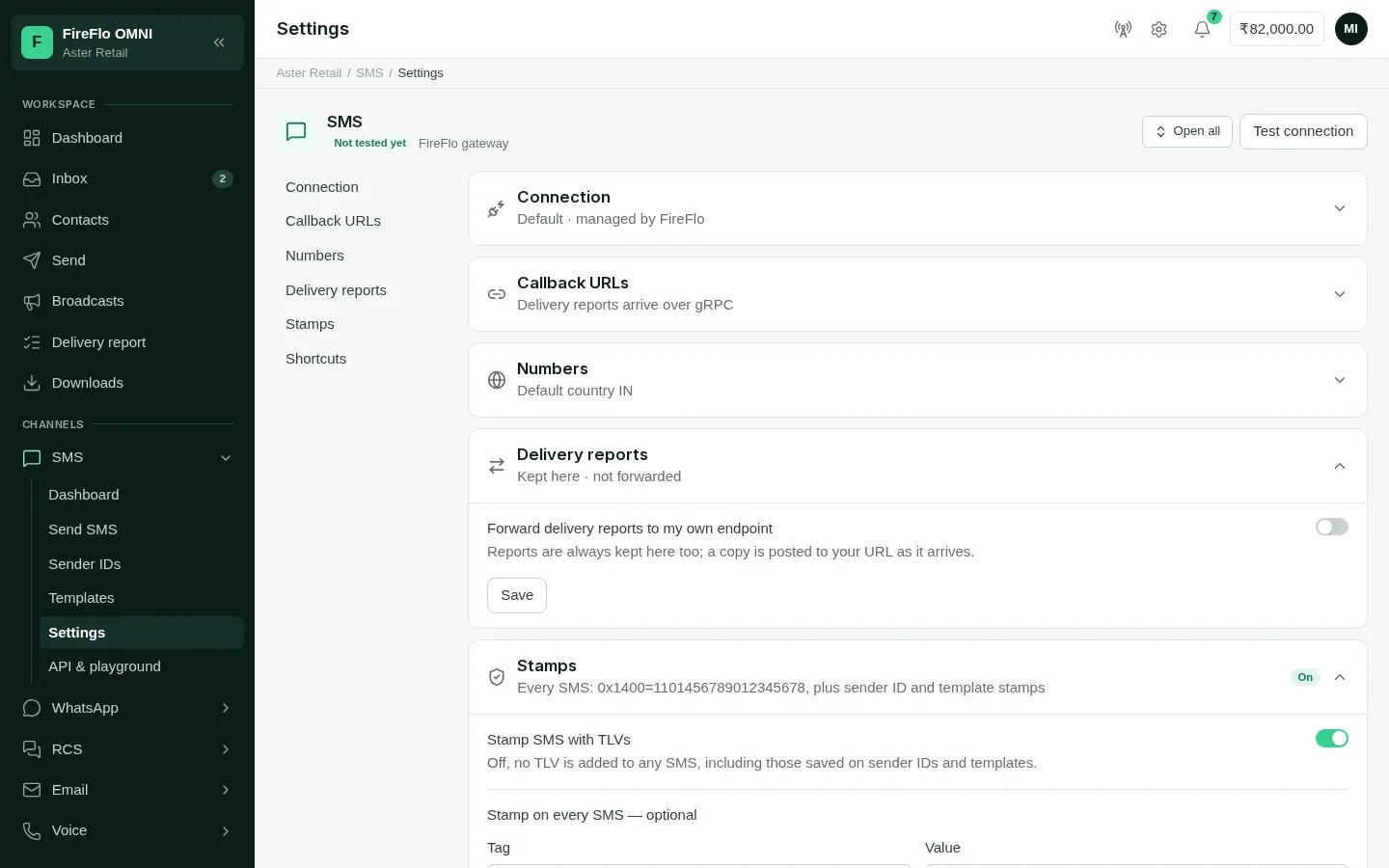
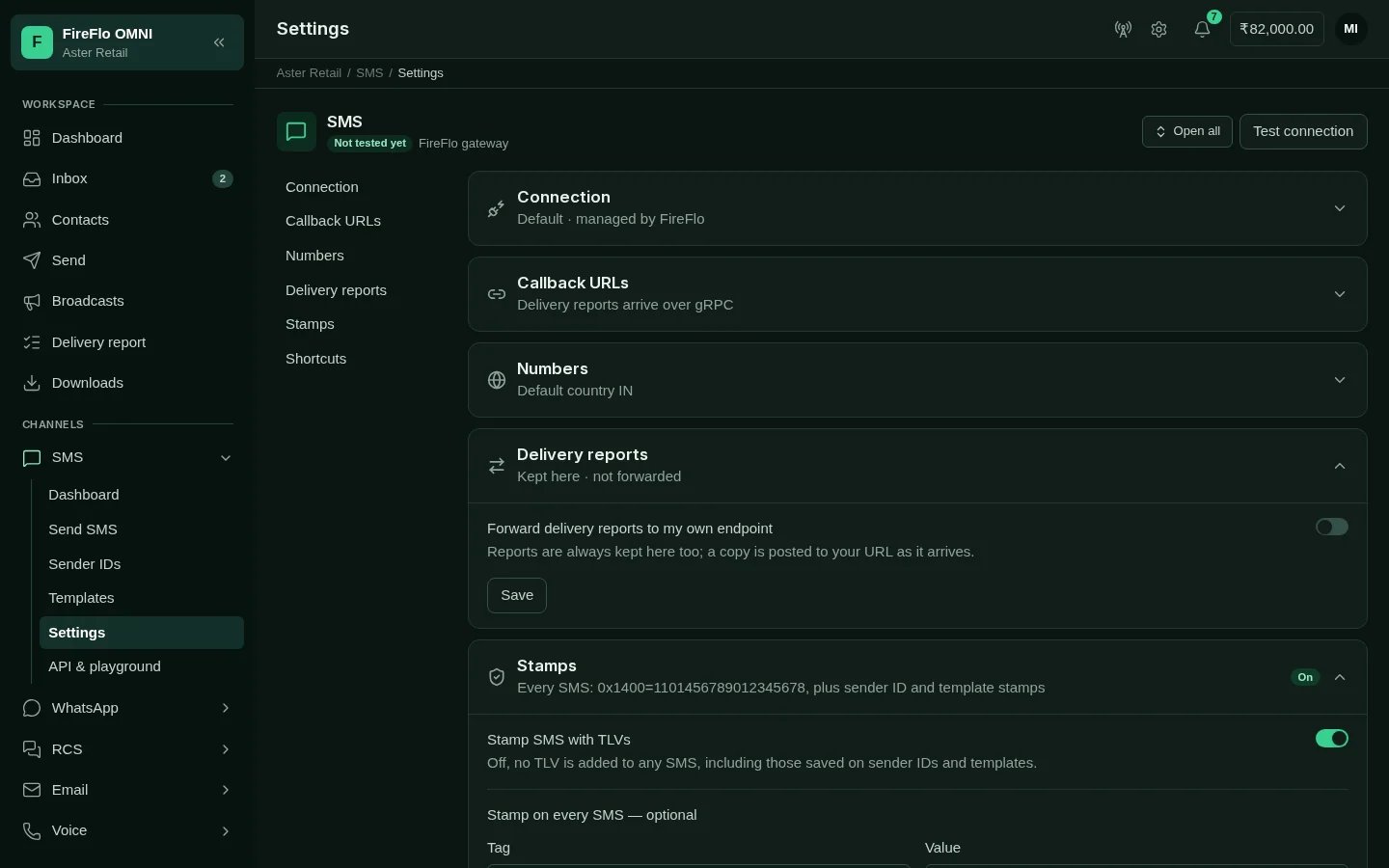
Delivery reports: kept in OMNI, with a copy forwarded to your own endpoint if you want one.
On your own gateway
Settings shows two Callback URLs:- Delivery reports — sent with every message automatically. Nothing to set up.
- Replies (inbound SMS) — give this to your gateway provider so replies reach your Inbox.
Send SMS
SMS is sent from the Send page, which works the same way for every channel: Who, From, Message and When, with the message drawn on a phone beside them. SMS → Send SMS opens it with SMS chosen; its own address still works. What is particular to SMS:From
Message
When
Check the cost and send
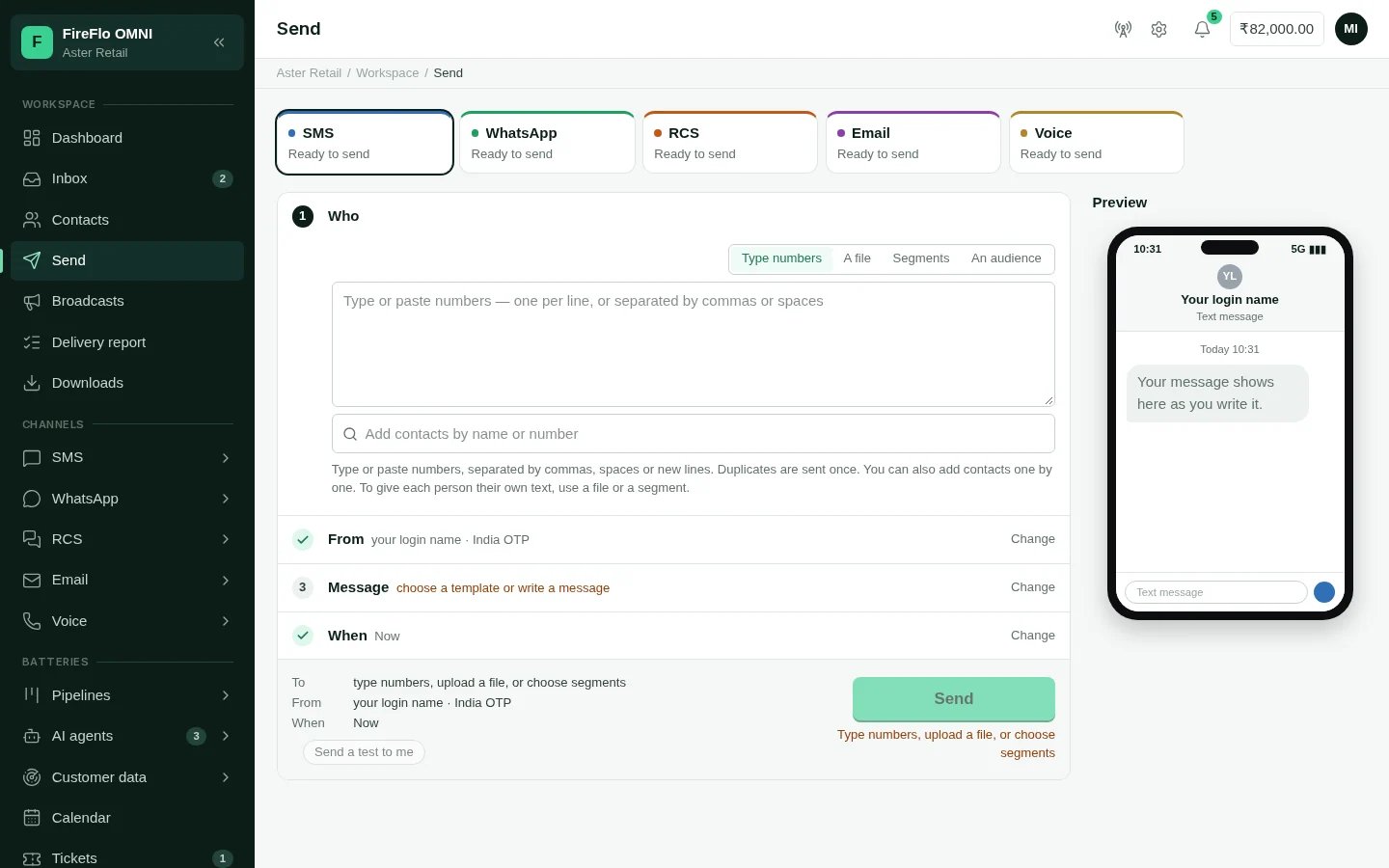
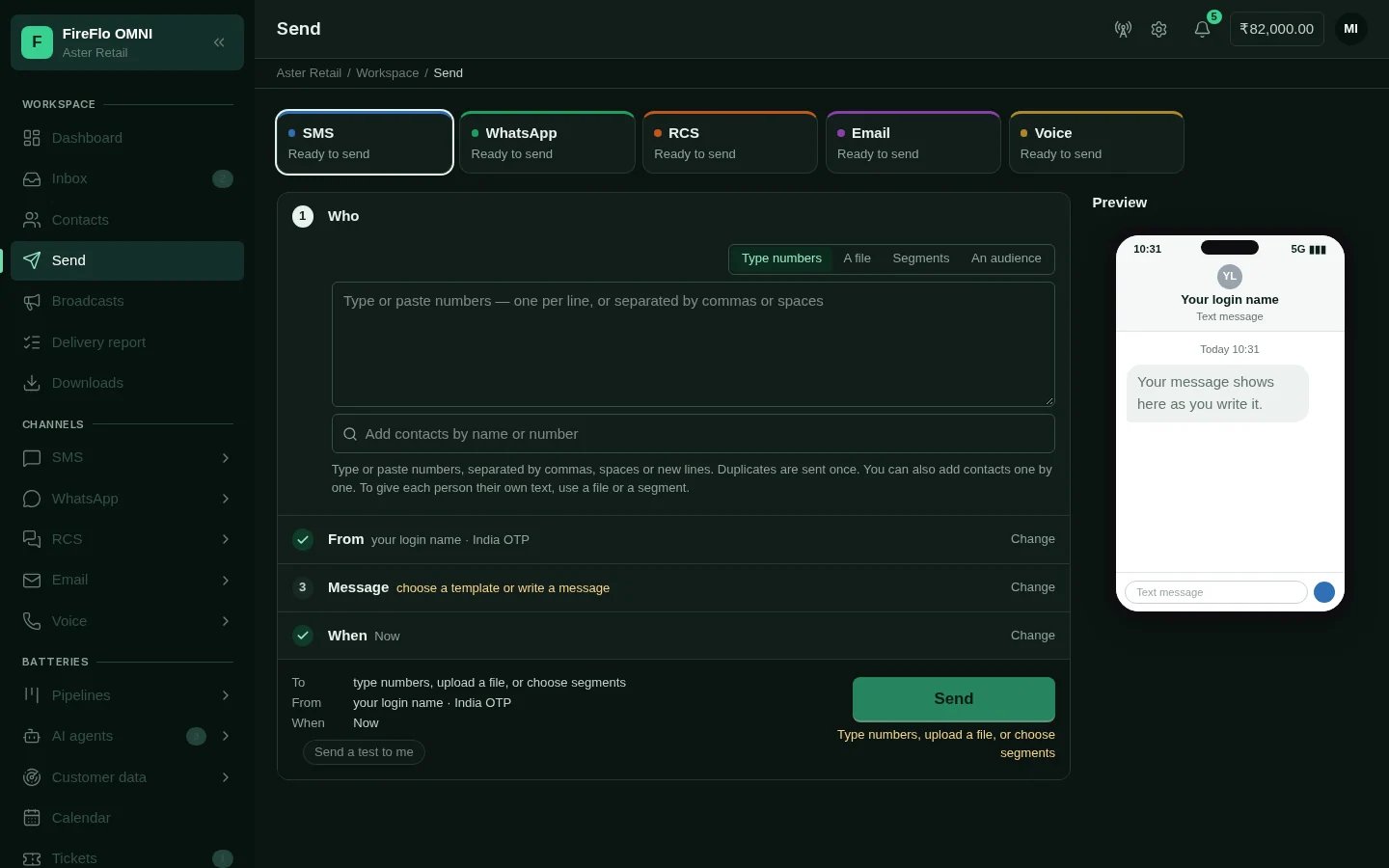
Send with SMS chosen: who it goes to, the sender ID and SMS type, the message, when, and the preview.
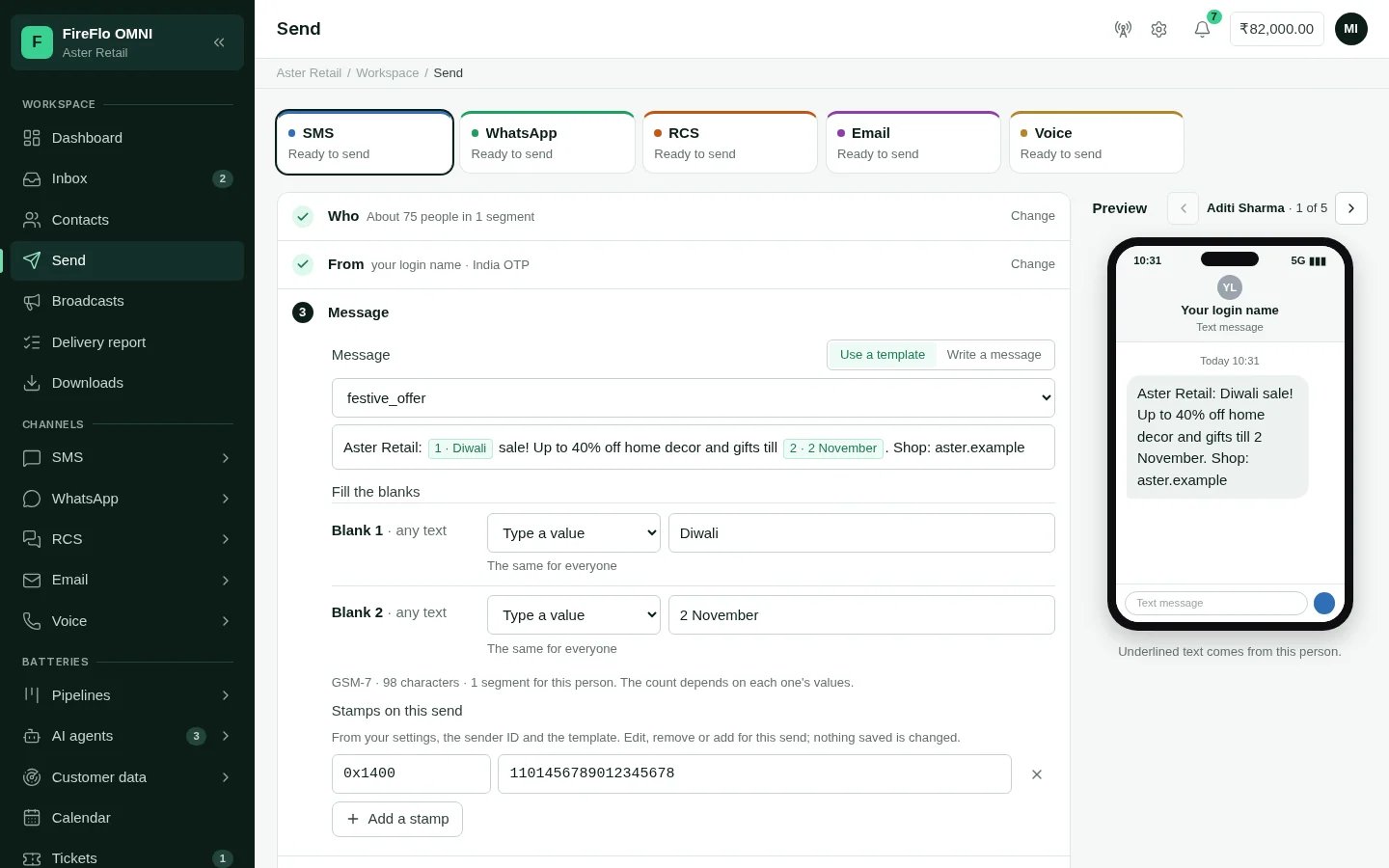
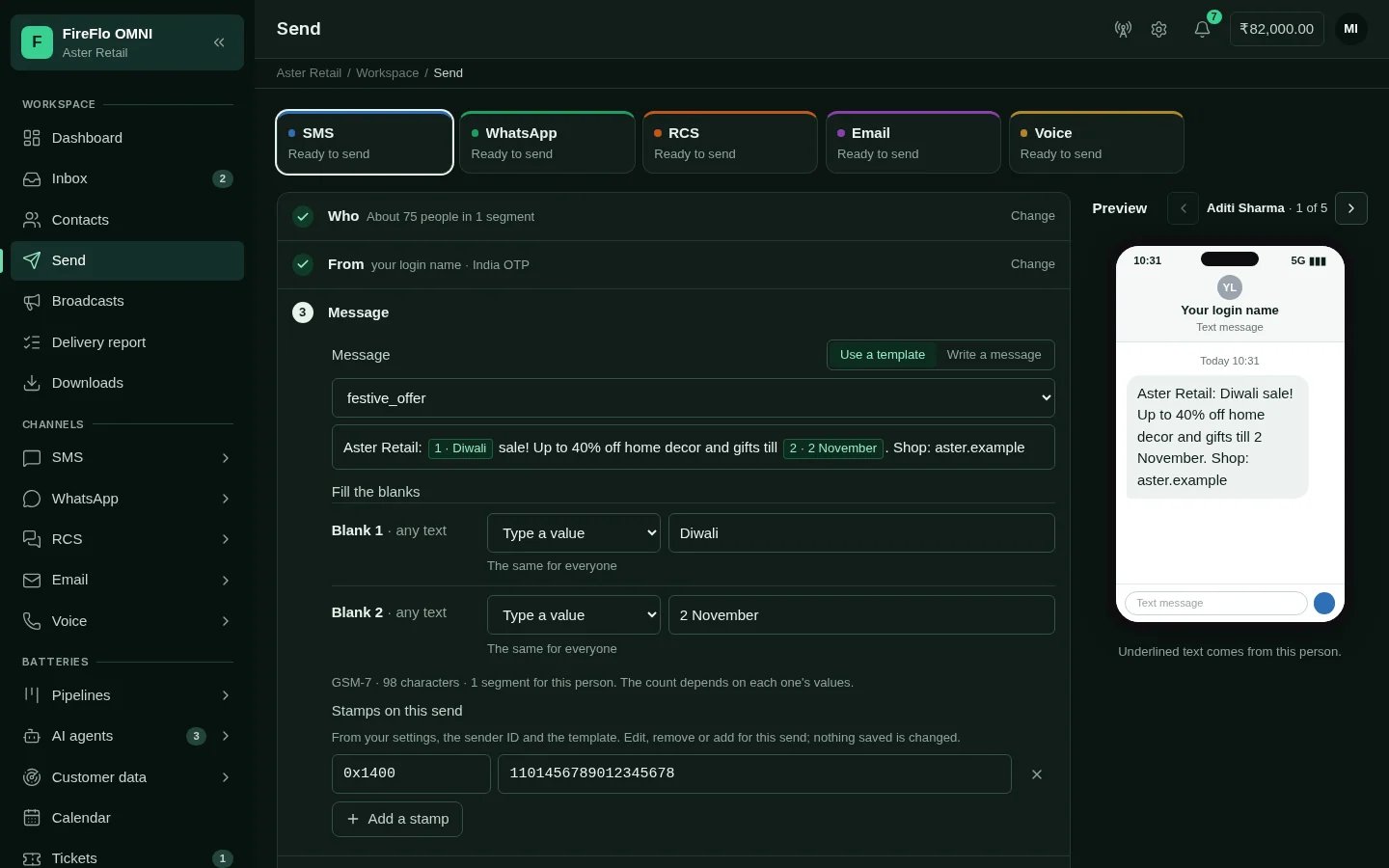
A template sent to a segment: each blank typed once for everyone, and the preview stepping through the people.
Unicode
OMNI picks the alphabet for you. A message whose every character is in the standard SMS alphabet (GSM-7) holds 160 characters, or 153 in each part of a longer one. A message with any other character — text in Hindi, Arabic or another script, an emoji, a curly quote pasted from a document — is sent as Unicode, which holds 70 characters, or 67 in each part. An emoji takes two of those. One such character is enough to make the whole message Unicode. When only one or two characters are what did it, a line under the counter names them, for example Sent as Unicode because of “’”: 70 characters a part instead of 160. Replace the character with a plain one to bring the message back to the longer limit. In a broadcast each person’s message gets the alphabet its own text needs, so one name in another script does not shorten everyone else’s.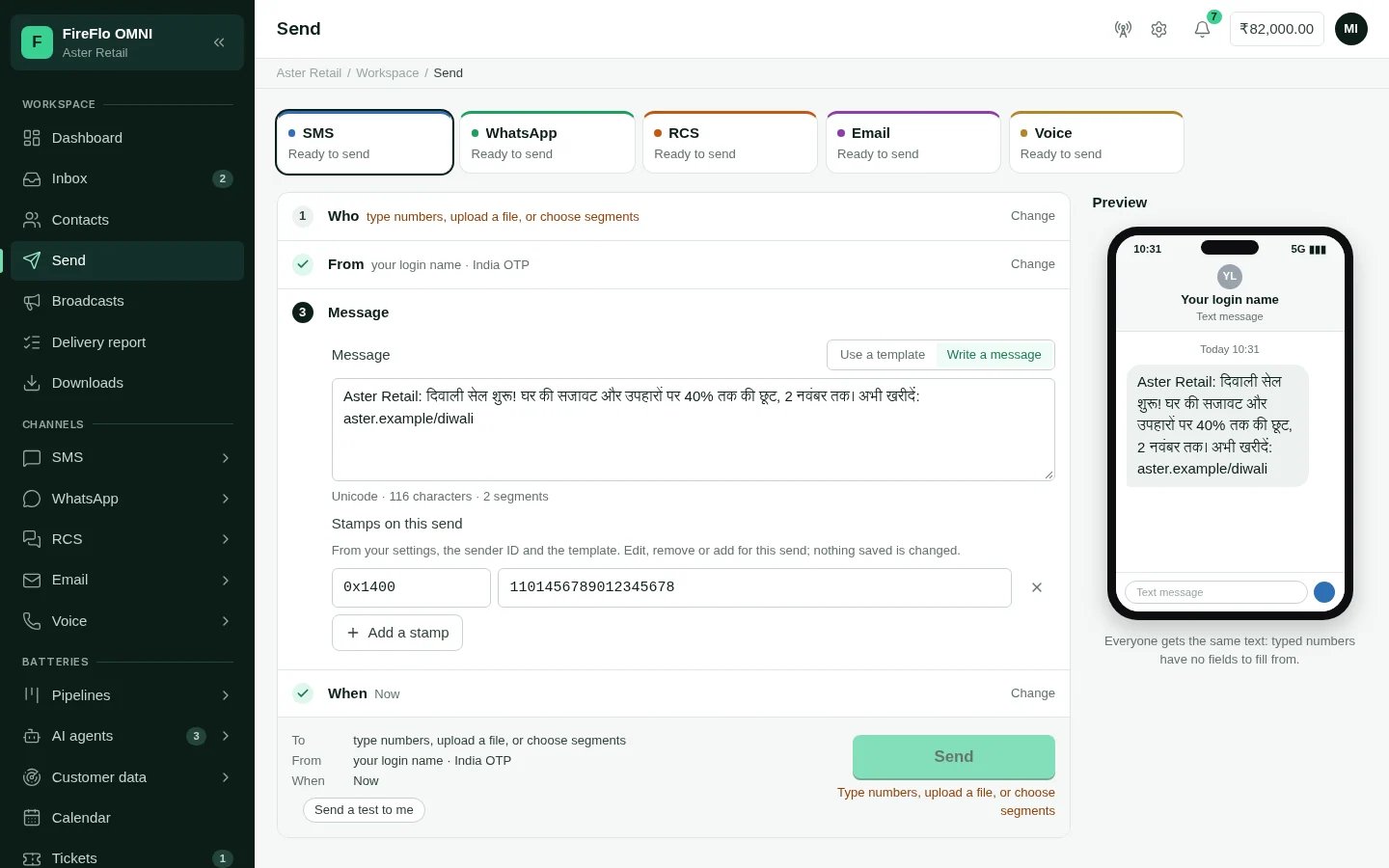
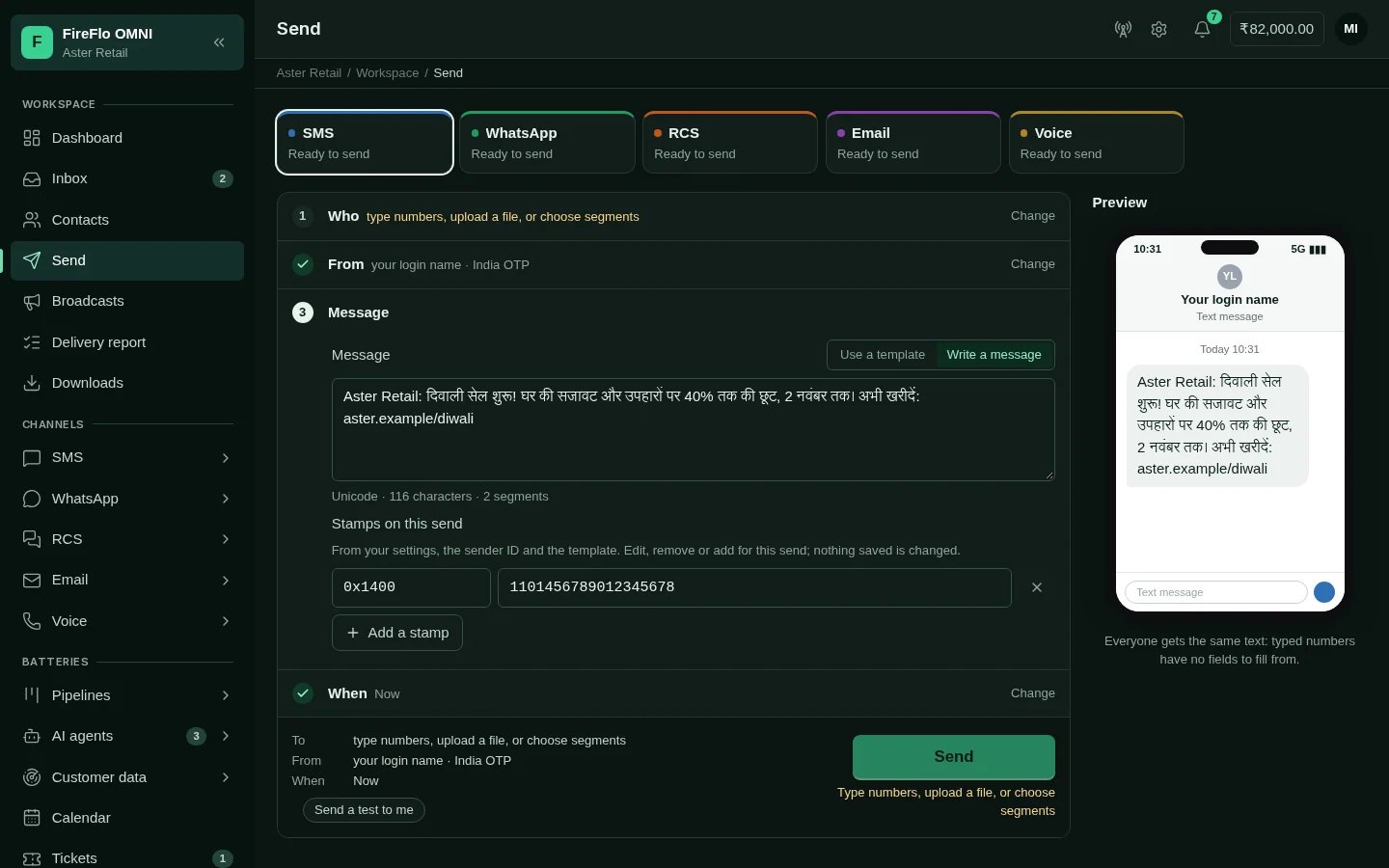
A message in Hindi: sent as Unicode, with its length and the number of parts it takes.
The SMS dashboard
SMS → Dashboard is laid out like every channel’s dashboard: pick Today, 7 days, 30 days or Custom, and each figure is compared with the period before.- Submitted (messages and segments), Delivered, Failed, Awaiting a report, Link clicks (with Short links) and Cost — cost is shown only to people who may see Billing. Delivered is the share of the messages that got an answer.
- SMS per day, and the path from submitted to reply: submitted, accepted, delivered, clicked and replied.
- What went wrong: each reason in plain words with the carrier’s code beside it, and a link to the Delivery report.
- What the carrier said — the delivery report’s status, kept word for word as the gateway gave it. It tells apart Awaiting a report (no report yet), Never sent and No stat from the carrier, and agrees with the figures above it.
- By country, when people click, recent broadcasts and the breakdowns by SMS type and by sender ID.
- Health: your gateway account, and your sender IDs and templates by status. Only approved ones are offered when you send.
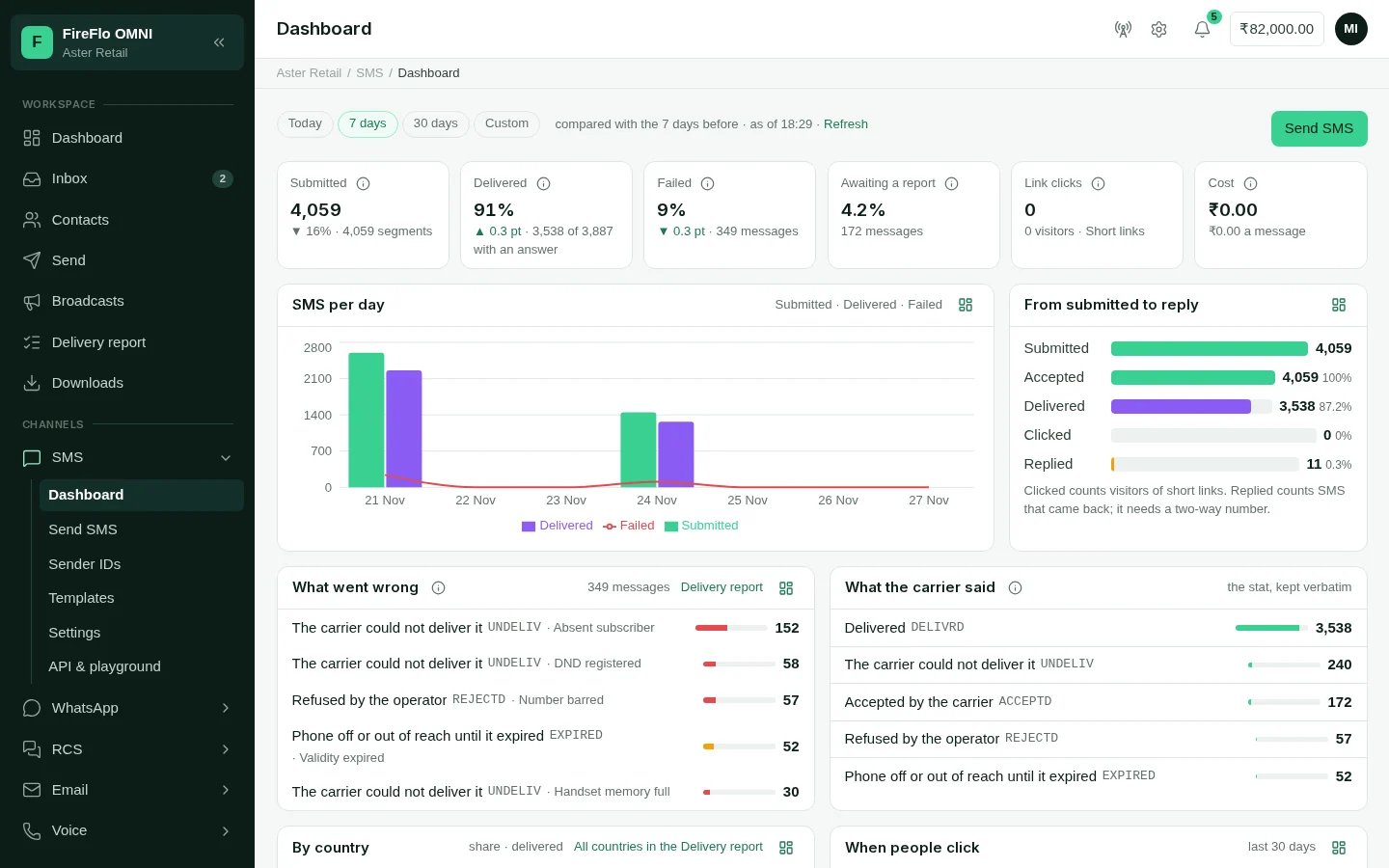
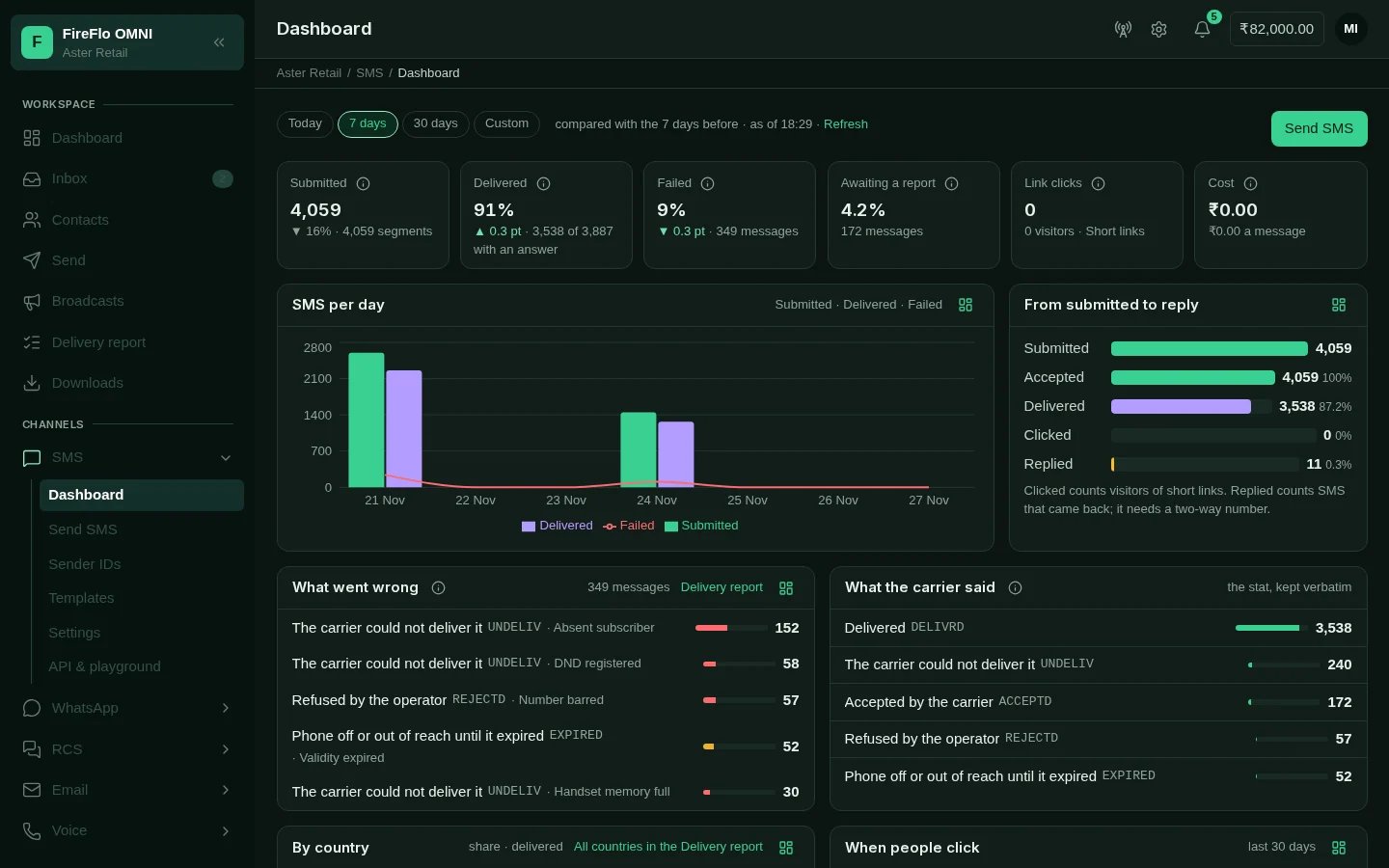
The SMS dashboard: six figures, SMS per day and the path from submitted to reply.
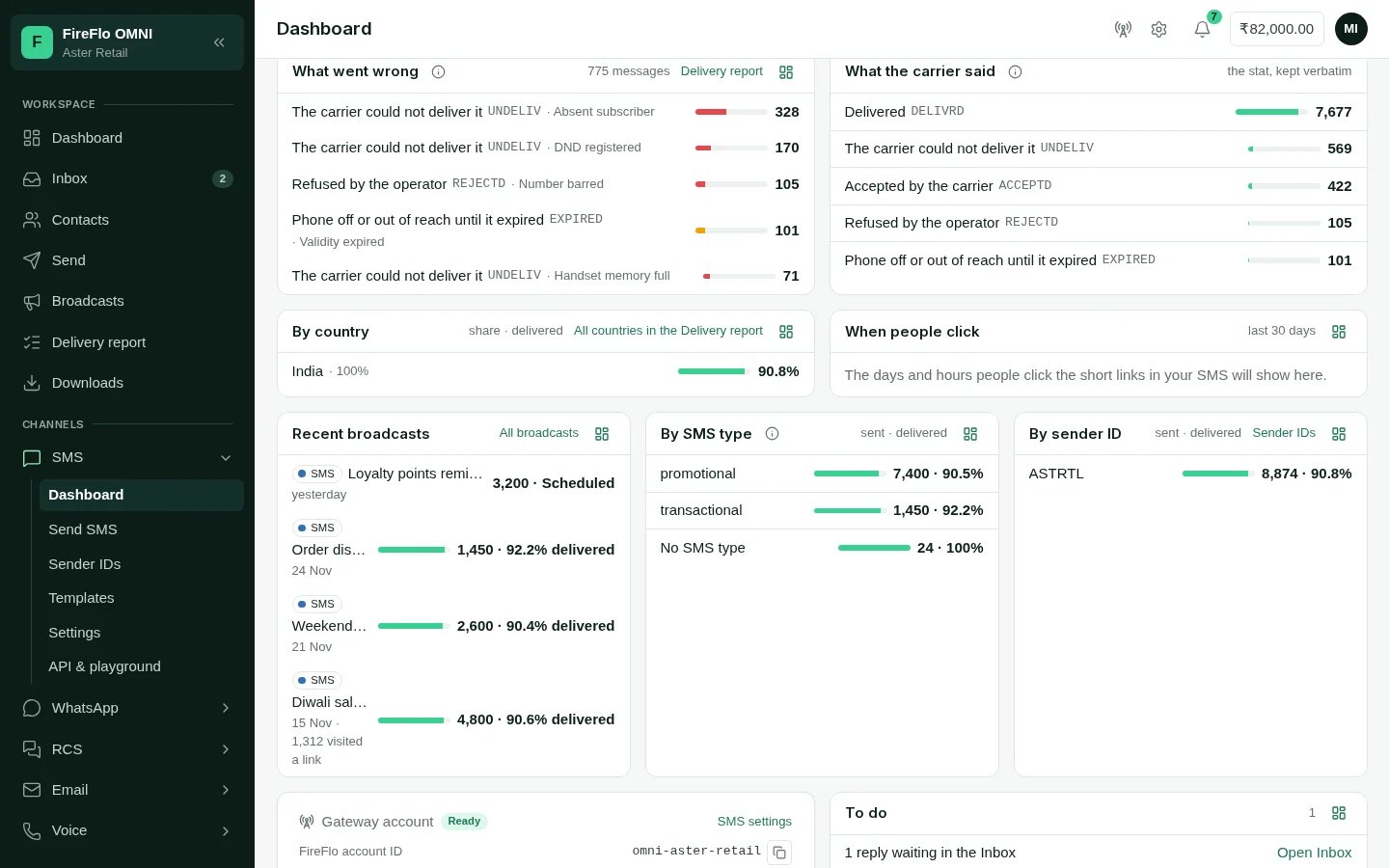
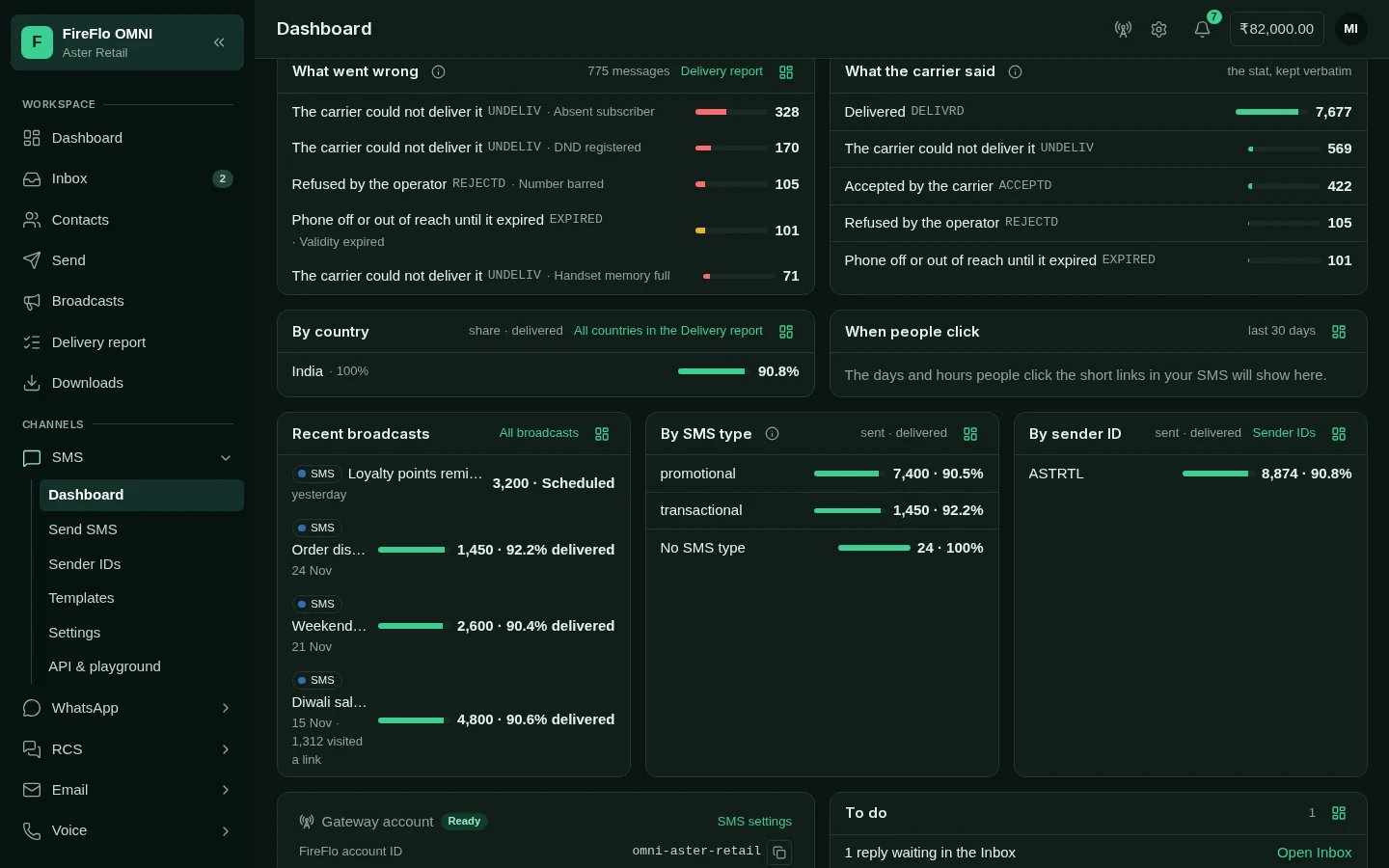
Further down: what went wrong, what the carrier said word for word, by country and recent broadcasts.
API & playground
People who can configure channels also see API & playground, when the plan includes API access: the FireFlo gateway’s own API — its calls for health, balance, sending and sender IDs — with its documentation, a live runner and code samples. For sending from your own software, most integrations use the OMNI API instead, which also manages sender IDs and templates.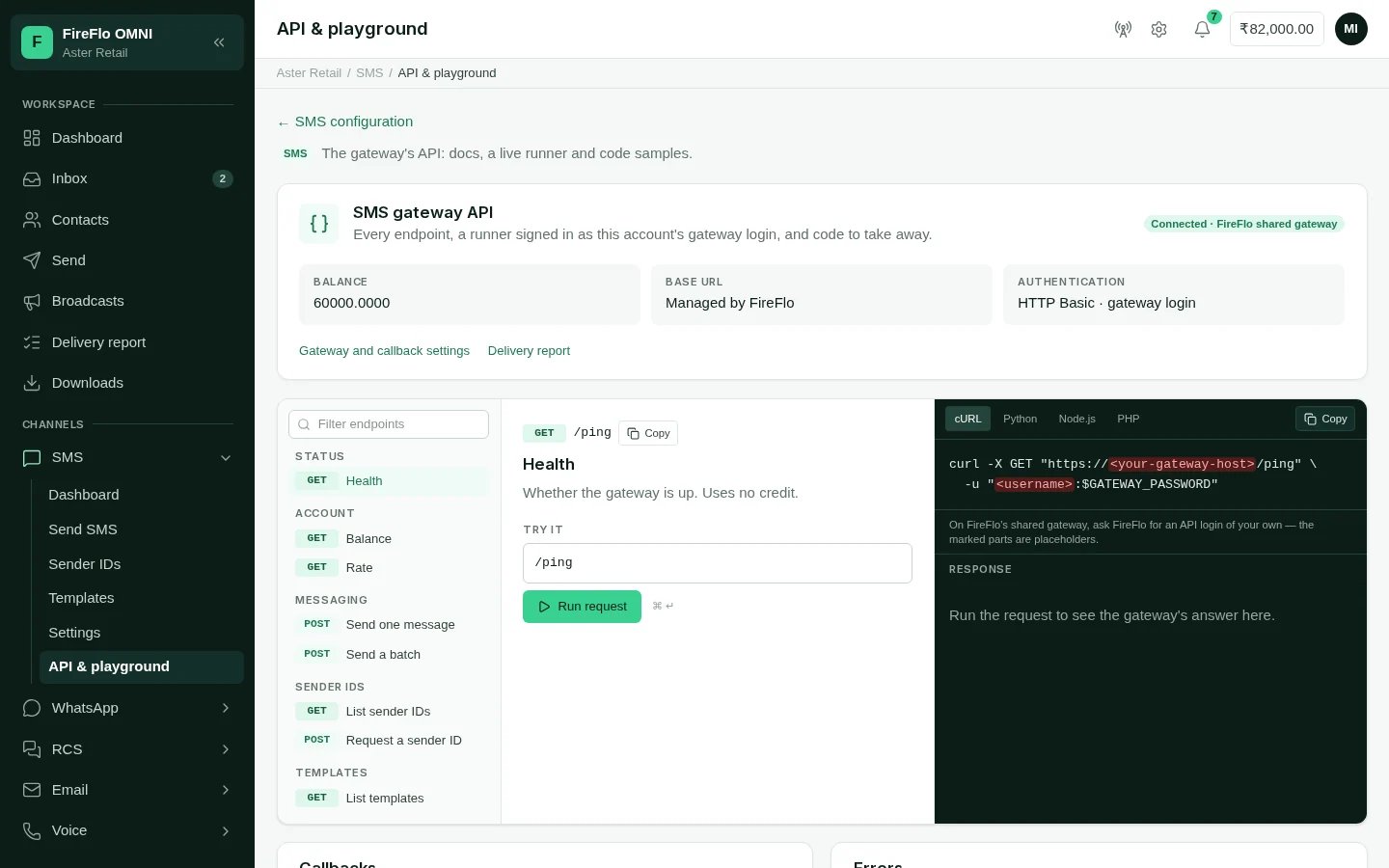
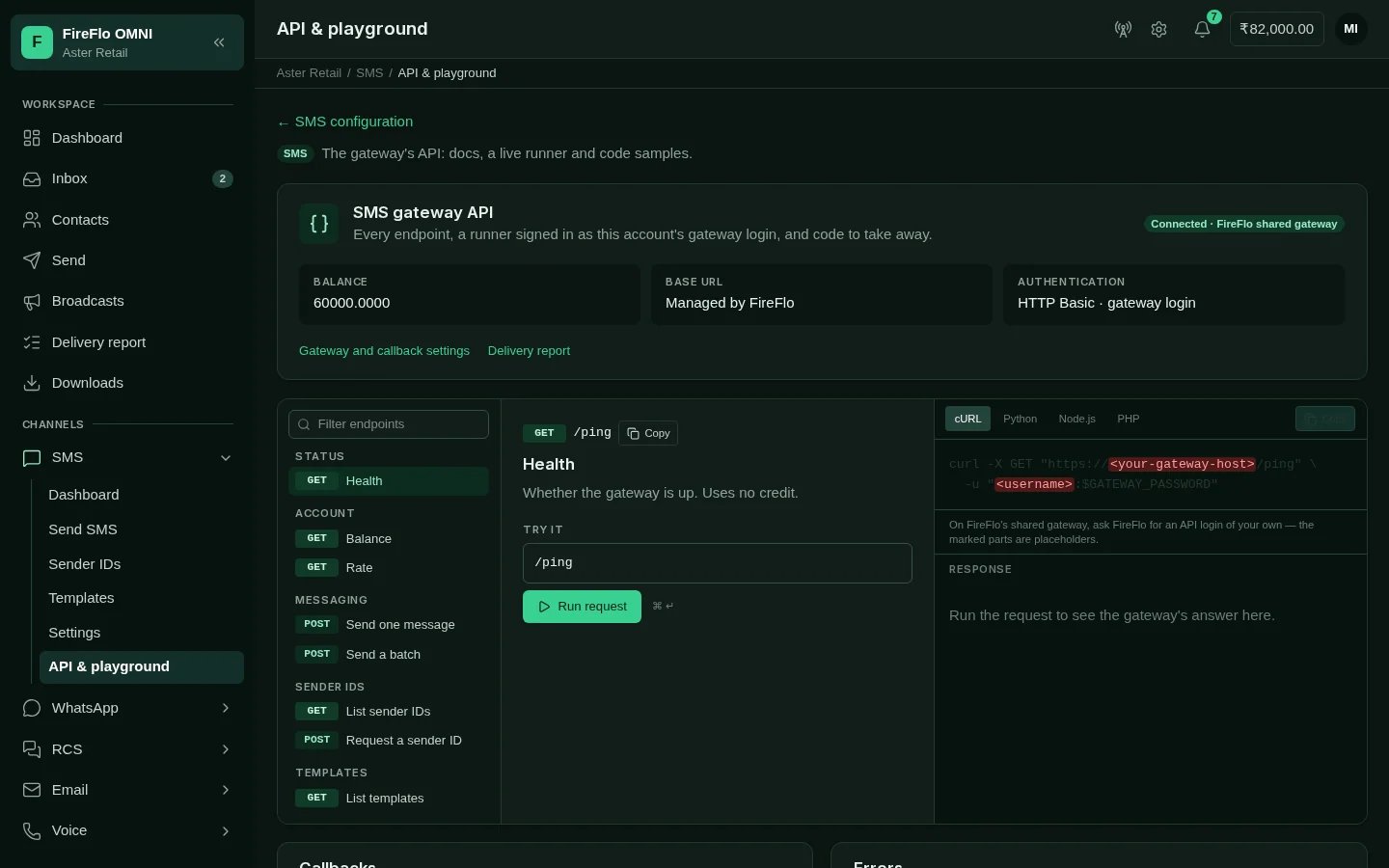
API & playground: the gateway's own calls, to read and to try.
Replying by SMS in the Inbox
Replies arrive in the Inbox in the person’s SMS thread, and you answer from the same reply box as on every channel.- Sender and type are asked once. When your account has more than one approved sender ID or more than one SMS type, the first SMS reply to a person asks which to use — “Send this SMS as” — offering first the sender they wrote to. The answer is remembered for that person, on any device, and asked again only when something must be chosen.
- One quiet line under the text shows who the SMS is from, its type, the characters and parts, and how many TLVs go with it. ⋯ → Sender, type and TLVs changes them. An AI draft a person sends uses that person’s remembered values.
- A template from the Inbox: ⋯ → Template opens one panel, in Easy or Advanced (remembered for you; Easy at first). Easy is the template, its blanks, the preview and Send. Advanced adds the sender ID, the SMS type, the cost and Sent with this SMS: the TLVs with their tag and value, which you can change, add, remove or put back for that one message. With stamping off for your account there is no TLV block. The SMS is sent through the conversation, so it is checked, stamped, charged and filed like a typed reply.
- Consent follows the SMS type. An SMS sent from the Inbox is checked for consent by its type: a type whose consent check is Marketing is refused for someone who stopped SMS offers. FireFlo sets the check for each type, as Transactional or Marketing; a type with none set counts as Marketing when “promo” or “marketing” is in its name.
- An SMS reply sent from the Inbox stays in the conversation; it doesn’t appear in the broadcasts list.
Opt-outs and limits
- STOP stops a person on every channel; do-not-contact and quiet hours are always honoured. With the Customer data battery, people can stop SMS alone, or SMS marketing alone.
- When your provider enforces approval, a message from an unapproved sender ID, or one that matches no approved template, is refused. See Sender IDs, templates and stamps.
- For a reseller’s customer, an SMS broadcast pauses when the customer runs out of units, or the reseller out of credit, and carries on when units arrive. A refusal the gateway reports late still fails that message.