
Your plan must include Catalogue.
The WhatsApp parts of Catalogue — Sync, the WhatsApp column, On WhatsApp — show
only when a Meta catalogue is connected on your own WhatsApp Business Account. See
WhatsApp catalogue.
Products
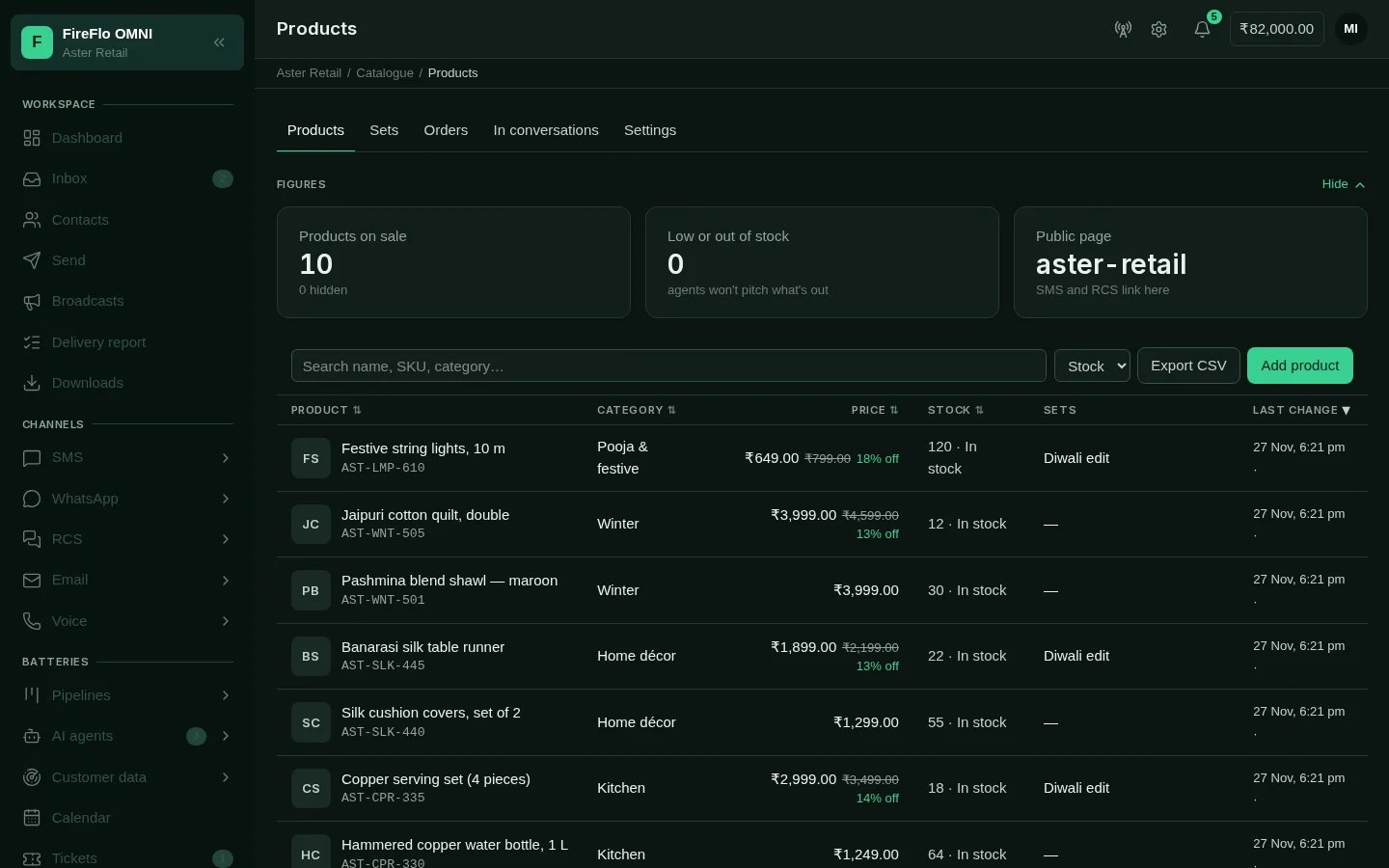
The Products tab lists every product with its price and stock and, with a Meta catalogue connected, whether it is on WhatsApp. Search by name, SKU or category, and filter by stock (Running low, Out of stock) or by WhatsApp sync (On WhatsApp, Waiting to sync, Sync failed, Not on WhatsApp). Export CSV downloads every product.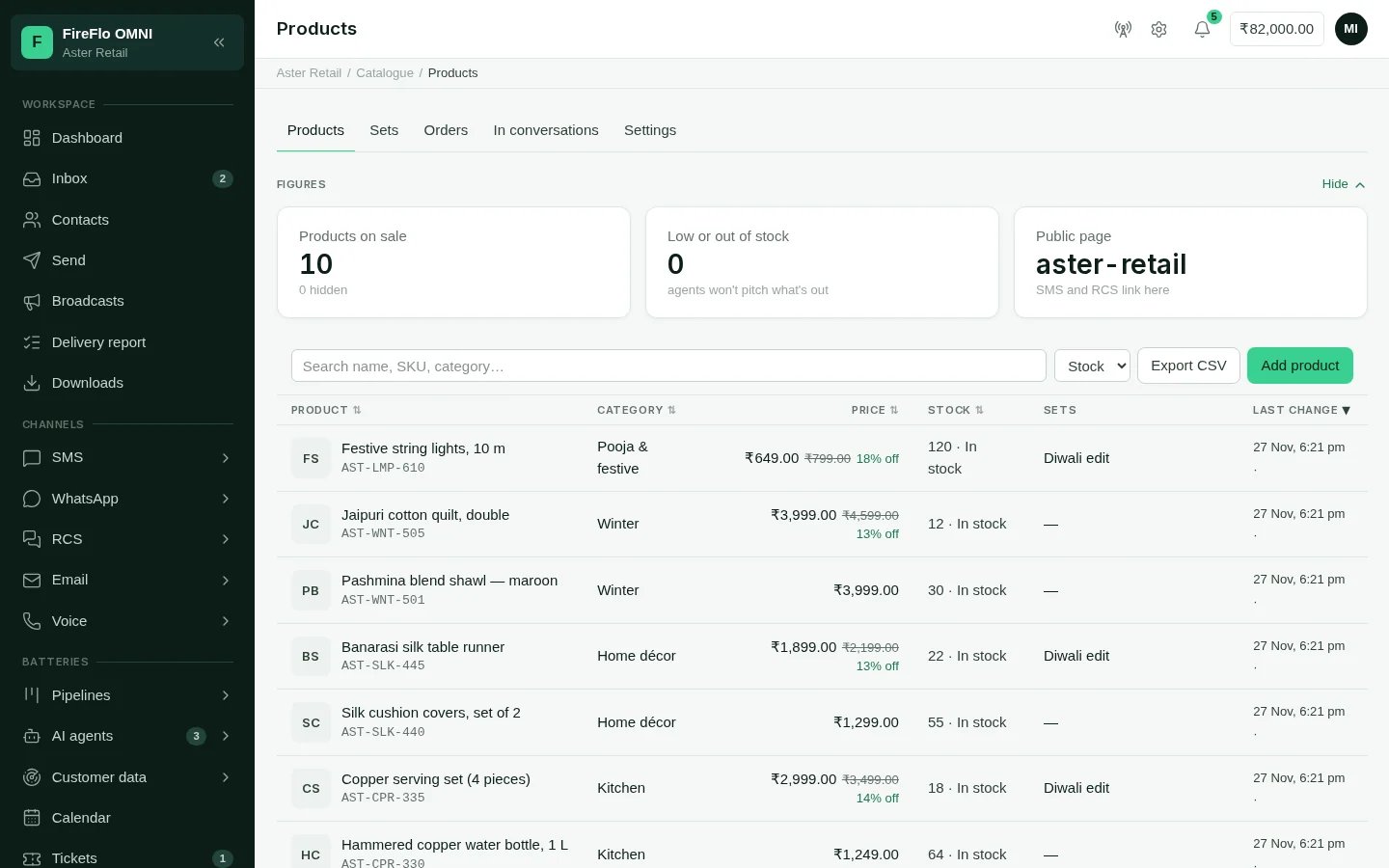
Products
Add or change a product
Choose Add product, or open a product to change it. Save with Save and sync.
Beside the form you see the product as a WhatsApp card and its public page link, and
Changes — every edit, by people and agents. A change an agent made carries an
Undo.
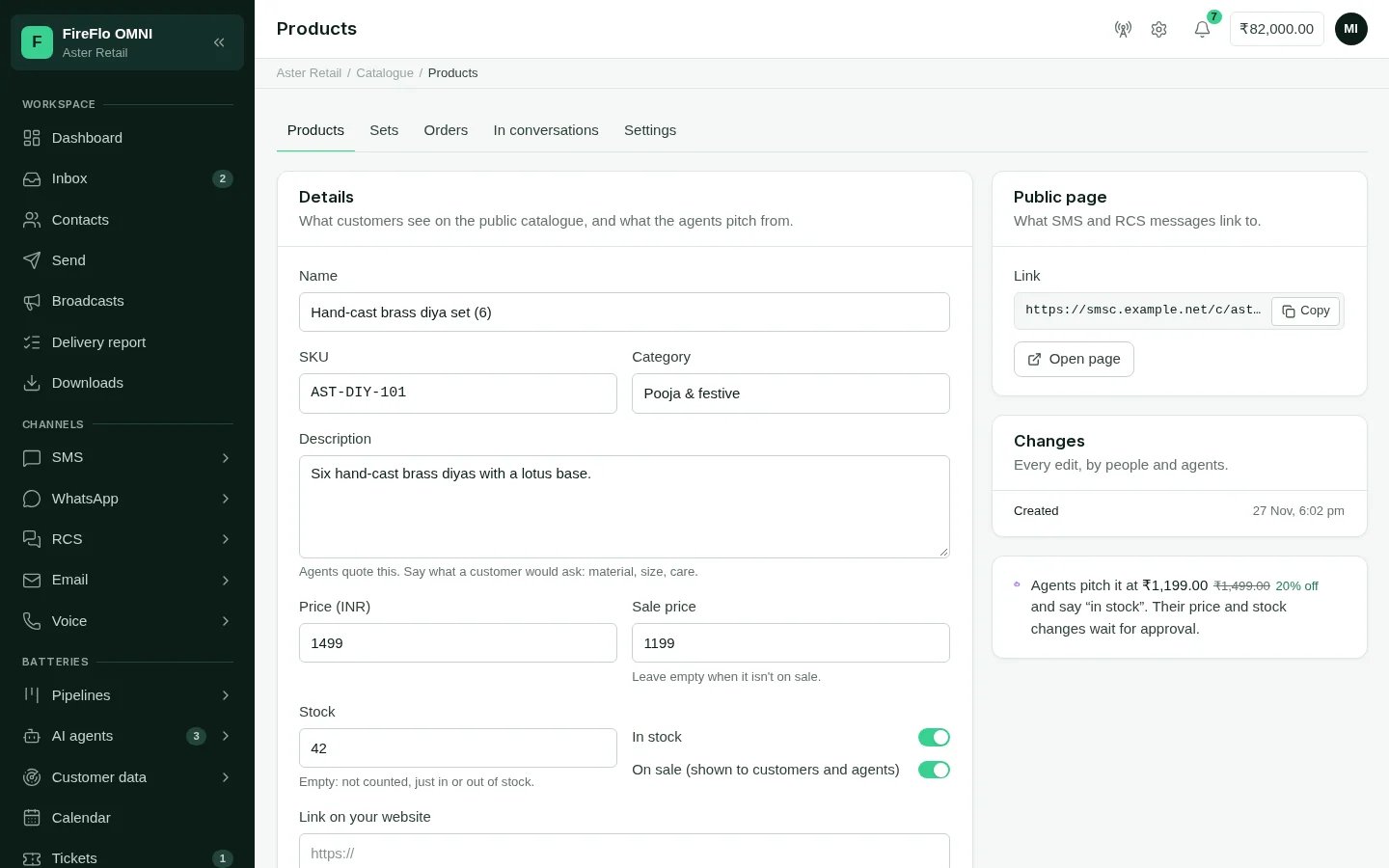
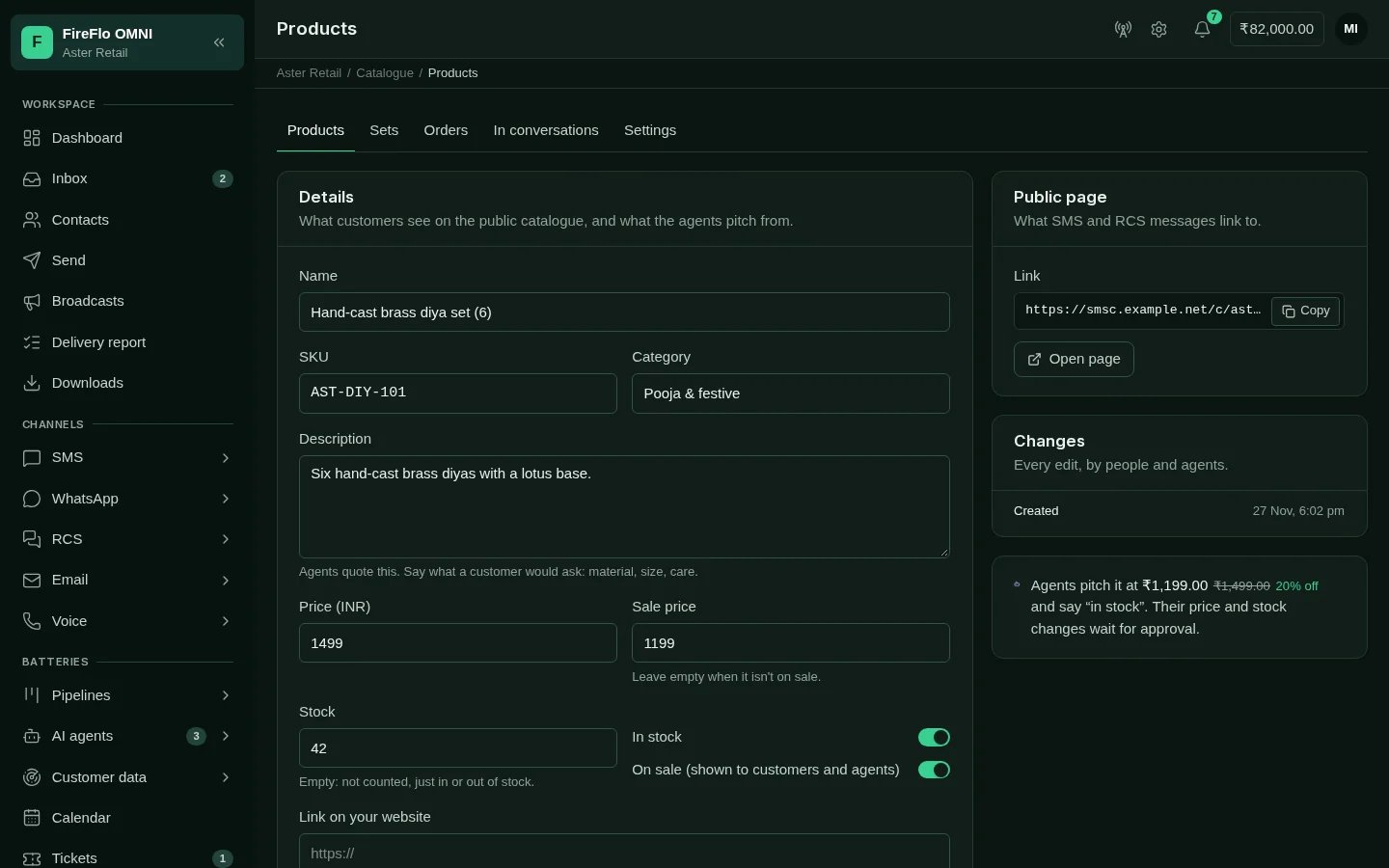
A product's page: prices and stock, its public page link, and what agents pitch.
Sets
A set is a collection of products an agent or a broadcast can send together — “Diwali edit”, say. A set goes out as one WhatsApp product list, or as one link on SMS and RCS.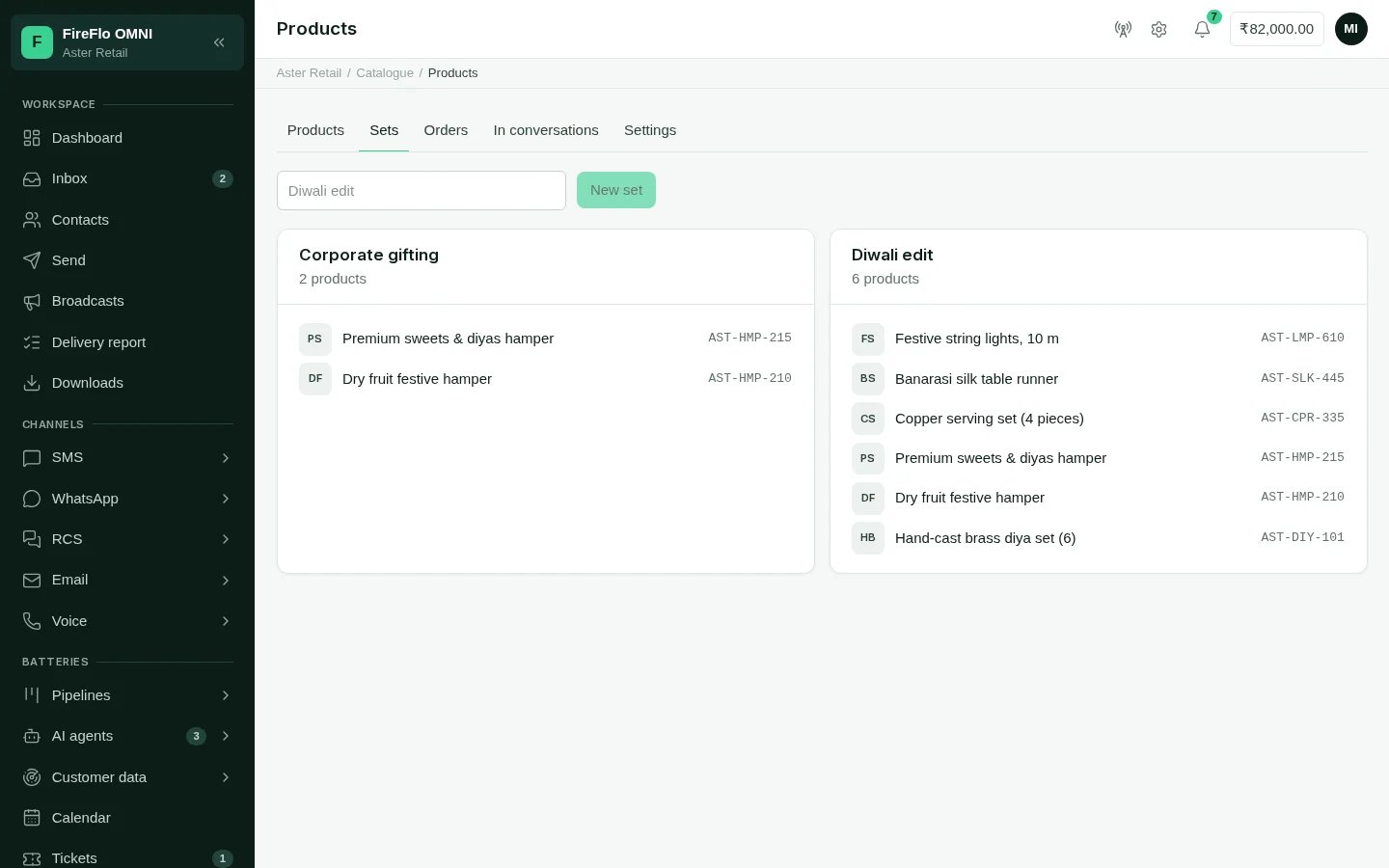
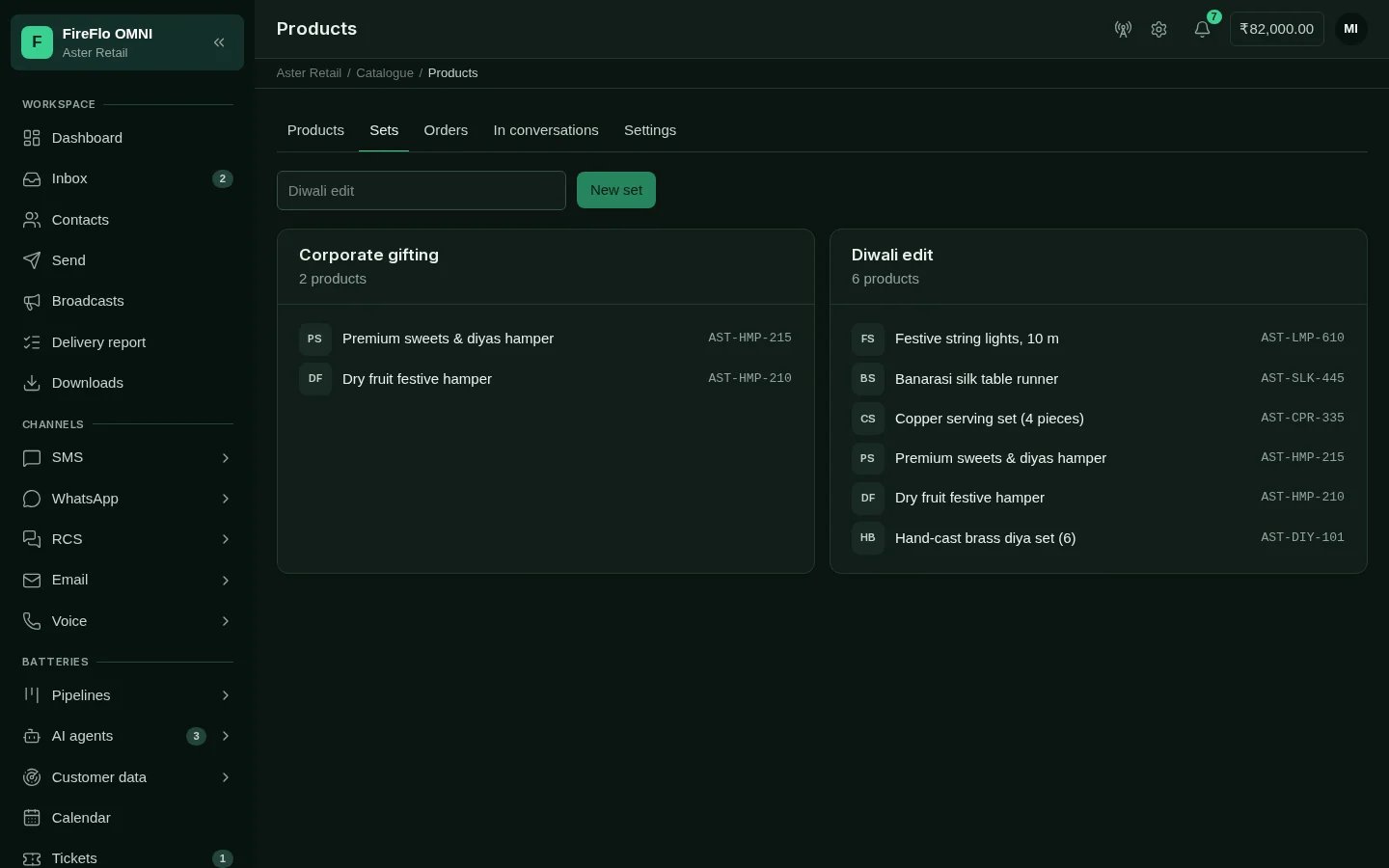
Sets: the products grouped to be sent together.
Product messages on each channel
How a product reaches a customer depends on what their channel can do:
Every product message goes out like any other message on that channel, so consent and
WhatsApp’s 24-hour window apply. In a broadcast,
{{catalogue_link}} leads to your public
catalogue page.
When a customer writes to you from a product card on WhatsApp, the Inbox shows Asked
about with the product beside their message.
Send catalogue
With a Meta catalogue connected on your own WhatsApp Business Account, Send catalogue picks products and sends them on WhatsApp. Use it from WhatsApp → Catalogue, or from a contact. New broadcast then also offers your catalogue templates. The In conversations tab shows how your own products look to a customer — on WhatsApp, and on SMS and RCS. Nothing on that tab is sent.Orders
Orders lists every order, newest first. An order comes from:- WhatsApp cart — a customer orders from your product cards;
- AI agent — an agent drafts an order from what the customer asked for, and a person approves it;
- By hand.
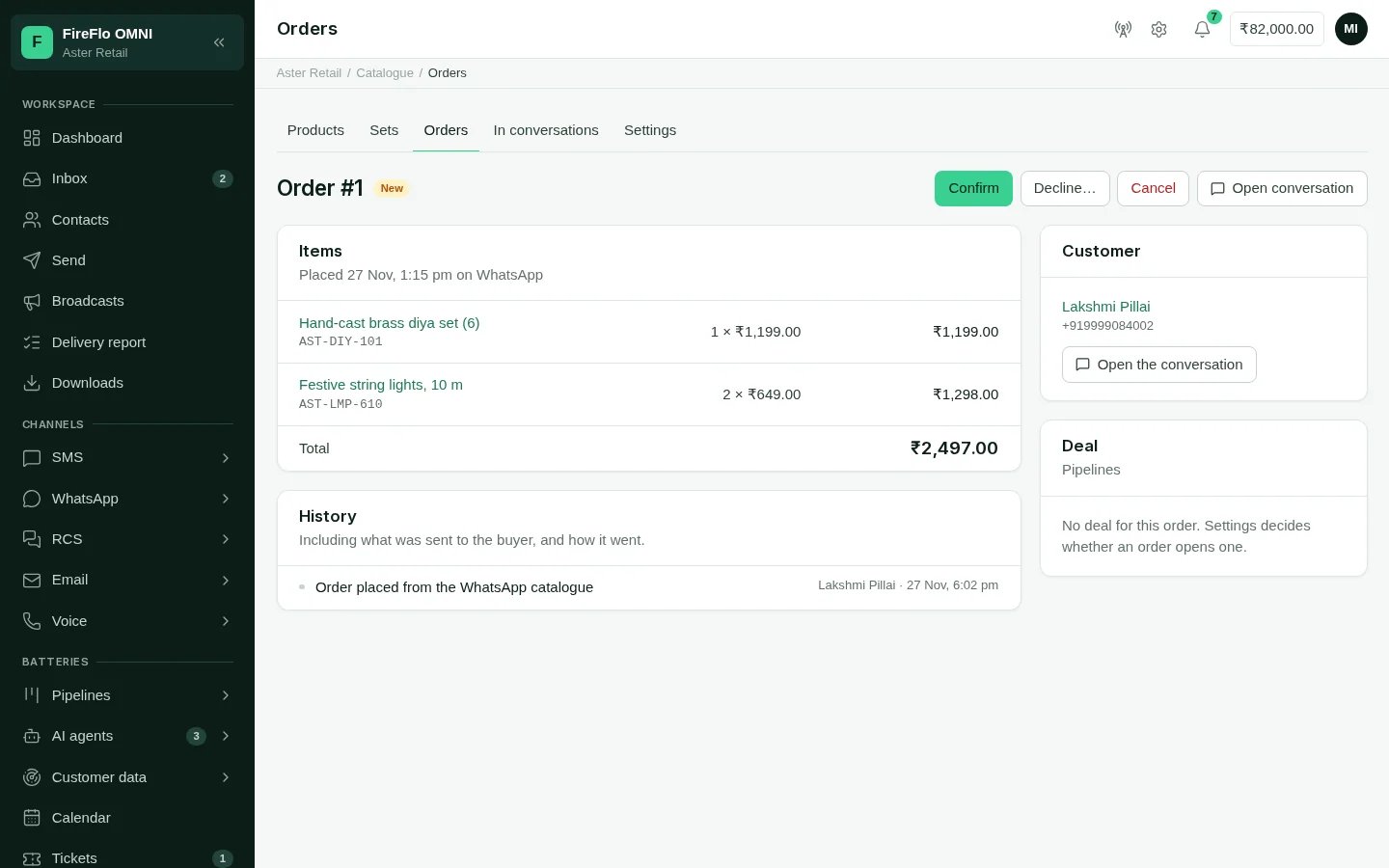
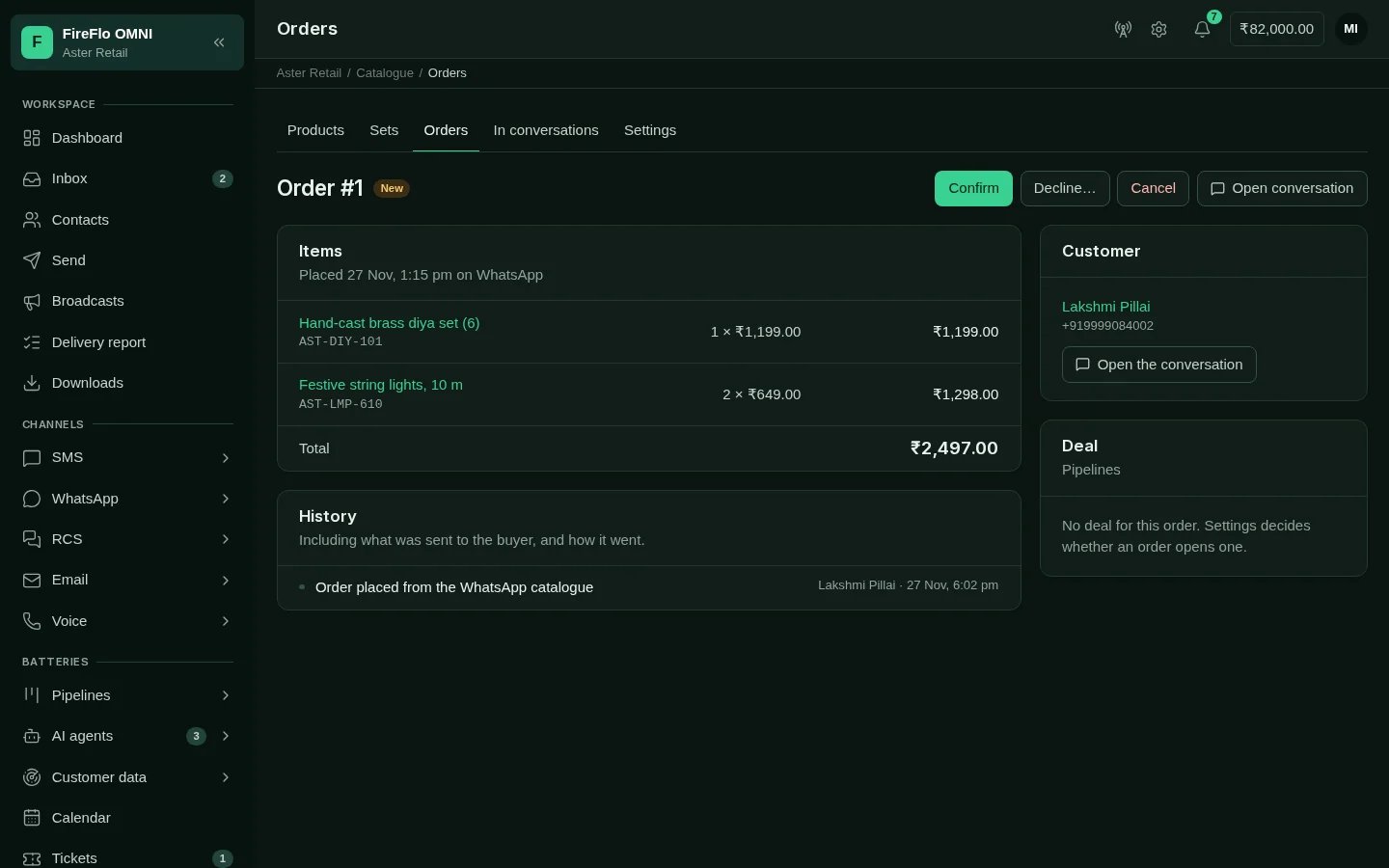
One order: its items, total and timeline, with Confirm to reply on its channel.
1
Confirm or decline
Confirm and reply sends your confirmation message on the channel the order came in
on. Decline… lets you write why — “Sorry — that weave is sold out.” — and sends it.
2
Fulfil
When it has gone out, choose Mark fulfilled.
Settings
WhatsApp catalogue
Products are edited in OMNI and pushed to the Meta catalogue connected to your own WhatsApp Business Account. Changes made by people or agents reach WhatsApp within a few minutes.1
Make a catalogue on Meta
Create one in Meta Commerce Manager for your WhatsApp Business Account, if you don’t
have one.
2
Connect it
In Catalogue → Settings → WhatsApp catalogue, choose the catalogue and Connect and
send products.
3
Bring in what's already there
Import from Commerce Manager pulls the products you already have on WhatsApp.
Public catalogue
The page SMS and RCS messages link to. It shows only products on sale, with no stock counts. Set its page name and copy the catalogue link. You can also choose when the page says “only N left”.Orders
- Open a deal for each order — with Pipelines, each order also opens a deal, so it moves through a board like other business.
- Reply when an order is confirmed — your message, with
{name},{order}and{total}filled in.
What agents may do
With AI Agents, this is the default for new agents; each agent’s page can change its own.
Agents quote prices and stock exactly as your catalogue gives them, and never pitch a
product that isn’t listed. Workflows gain a Send products block.
Who may use Catalogue
An Owner or Admin can change these on the Roles screen. See
Team and roles.