
The menu
The menu lists the screens you work in, in groups:
When your plan includes the API, Developer Tools holds API & playground, API keys,
Webhooks, Templates, Messages and Requests. See Developers. For FireFlo’s
own staff, the modules group reads Platform · modules.
Send and Broadcasts are in the menu for every account. Without a channel, they
say why nothing can be sent, and past broadcasts stay readable. A channel that is not
switched on is not shown on Send, New broadcast, Broadcasts, the Delivery report,
Analytics → Usage and the dashboard; the Channels, Modules and pricing pages still list
every channel.
Set-up behind a gear. Where a module has a set-up page that is not in the menu, a
gear at the top right of the module’s page opens it.
A badge beside an item shows waiting work, such as unread conversations in the Inbox.
A folded group still shows the total on its header, so nothing waiting is hidden.
Top menu or sidebar. On a desktop the menu runs across the top by default. To have it
down the side instead, open your account menu (your initials, top right) and choose
Use the sidebar. In the sidebar, a channel’s or battery’s screens open under its
entry; you can fold the other groups, and press [ to shrink it to icons and
back. The panel remembers your choice: it comes back when you sign in
again, and on another browser or device.
On a phone the bar at the bottom holds Dashboard, Inbox and Contacts, with Menu
for everything else.
The account icons
The icons at the top right are about the account rather than the day’s work:
The account’s people and their roles are under Team → Users. See
Team and roles.
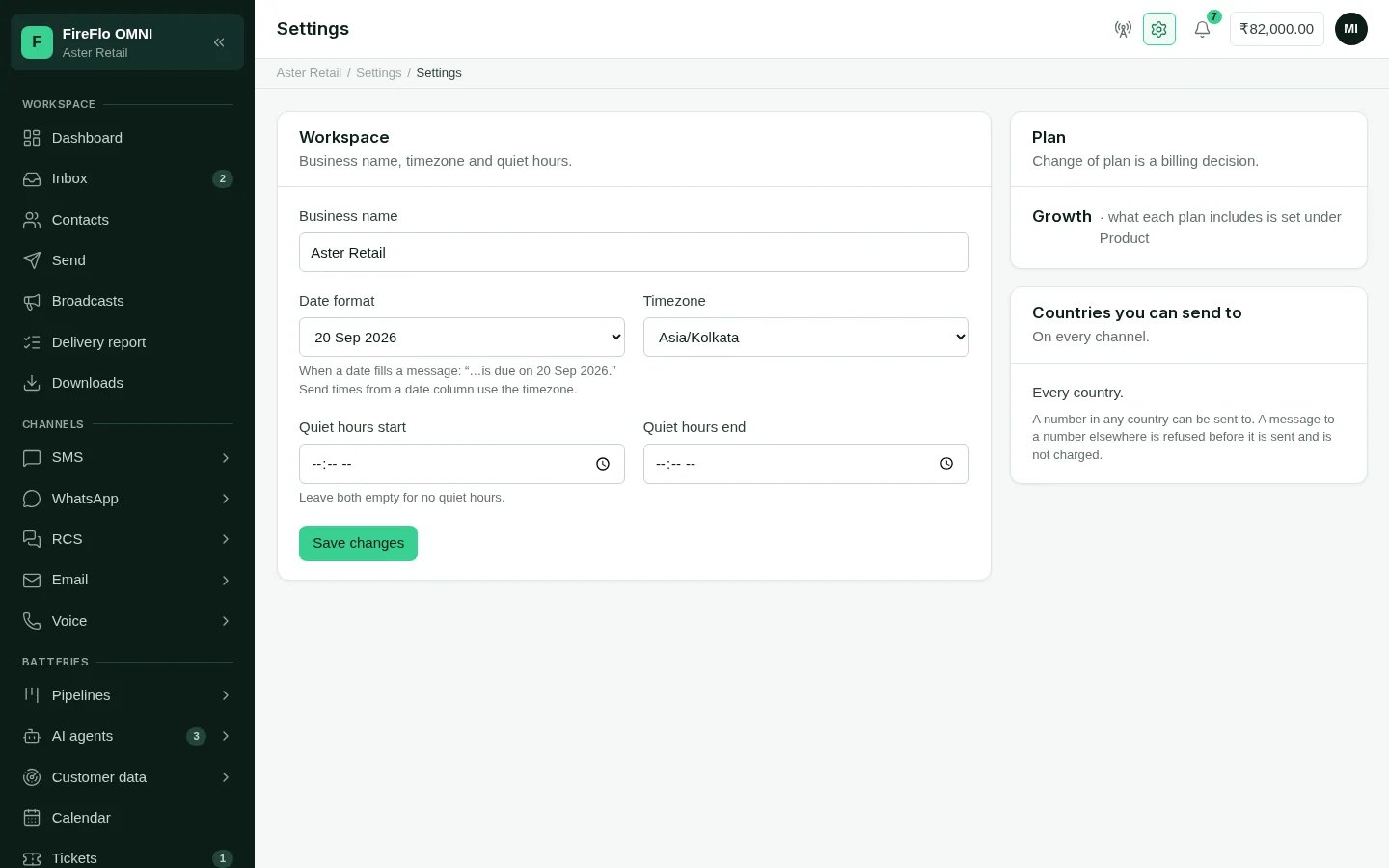
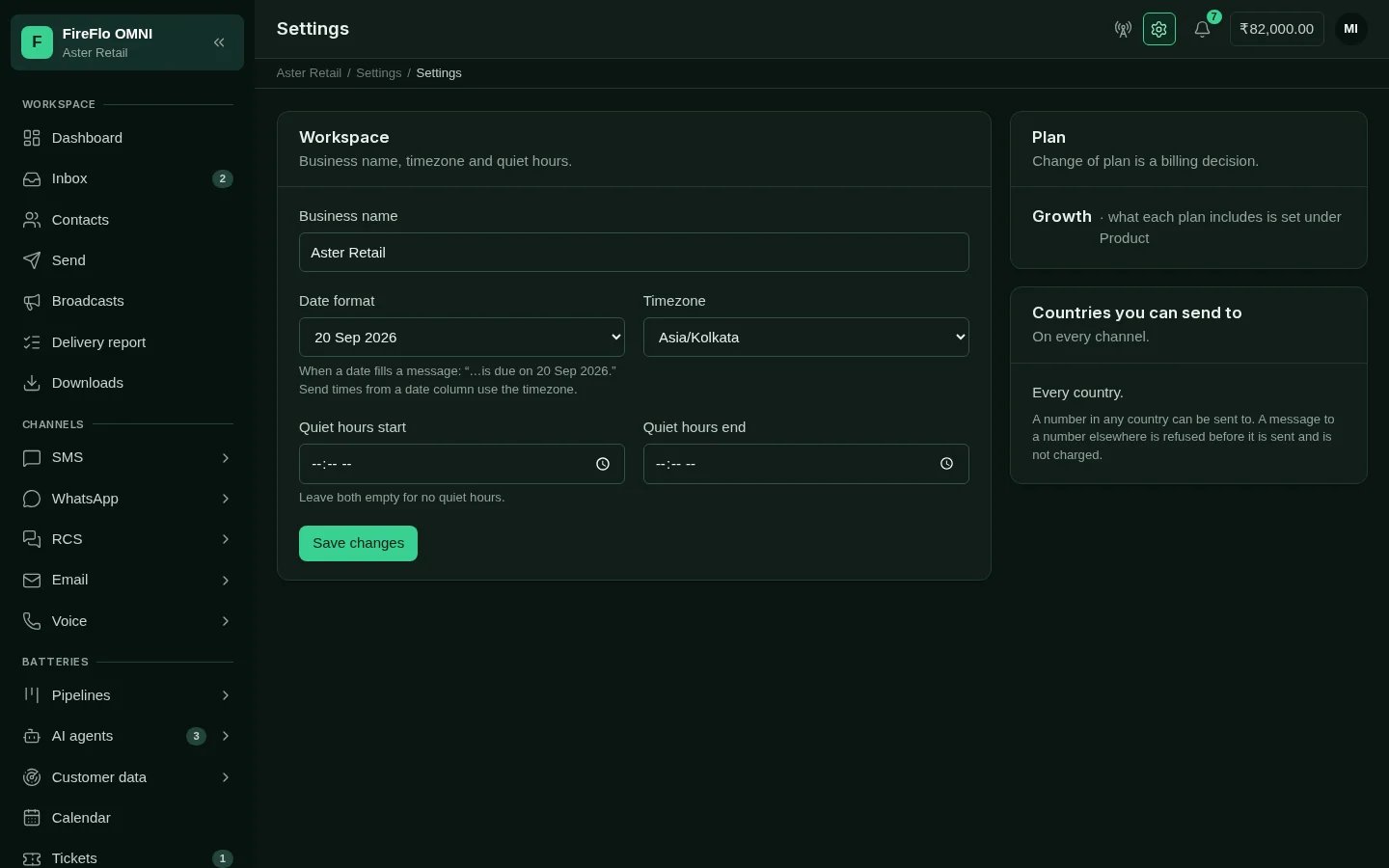
Settings: the account's business name, timezone, date format and quiet hours.
Balance, notices and your account menu
- Balance: when your role may see it, your prepaid balance sits in the top bar. It turns red below zero. Select it to open Billing.
- Notices: the bell holds short news for you, such as a new booking, each with a link to where it happened, and a count of unread ones.
- Your account menu (your initials) shows your account and roles, switches between the top menu and the sidebar, sets the Appearance (Light, Dark or System), and signs you out. Your menu and appearance are remembered for you wherever you sign in. Sign-in security, in the same menu, is where you change your password.
Passwords
Forgot your password? On the sign-in page, choose Forgot?, enter your work email and choose Send link. You are told the same thing whether or not the address has an account. The email has a link that opens the sign-in page on Choose a new password. The link works once, and stops working when you sign in. If it has expired, the page says so and lets you ask for a new one. Change your password under Sign-in security: enter your current password, then the new one. Your other devices are signed out; the one you are using stays signed in. Someone who signs in by link and has no password yet is offered Set a password there instead, with no current password to enter. Choosing a password works the same wherever you set one — signing up, a link from an email, or Sign-in security:- As you type, a bar under the field says how strong the password is (Too short, Weak, Fair, Good, Strong). It is advice; OMNI still refuses a password that is too short, all numbers, or too common, and says why.
- The eye in the field shows or hides what you typed.
- Choose Confirm password to bring a second field, type the password once more, then choose Proceed. If the two don’t match, you are asked to start again.
Lists and tables
Columns. The last control on the right of a list table’s footer, after the rows, the count and the pages, is Columns. Tick or untick a column to show or hide it; the first column, tick boxes and action columns always show. Reset to default puts the table back as it comes. Your choice is remembered on this browser only, for you and for that table (on Contacts, for each list view): another browser or device starts from the default columns. Small tables, grids, and tables that turn into cards on a phone have no Columns button. Hide / Show figures. On long lists, such as Downloads, the row of figures above the list folds to one slim line with Hide, and opens again with Show. It is open on a computer and folded on a phone until you choose, and remembered on this browser only.Banners about your plan
A banner across the top tells you when your plan needs attention: how many trial days are left, when your paid time ends, or that a payment is due. While a payment is due, sending, campaigns and agents are paused until FireFlo records it. The banner links to How to pay on the Plan page.When something is missing
If a screen you expect isn’t there, one of three things is true:- Your role doesn’t allow it. Ask an Owner or Admin. See Team and roles.
- Your plan doesn’t include it. See Plan and modules.
- A channel isn’t switched on. A channel that is not on is not shown in the menu, on Send, Broadcasts, the Delivery report, Usage or the dashboard. See Channels.