
The call log
Voice → Calls lists every call: the ones that rang in, and the ones placed from OMNI or from your phones. Each row shows when, who (the contact, or the number), how it was made, the outcome, the length, and whether it was Recorded.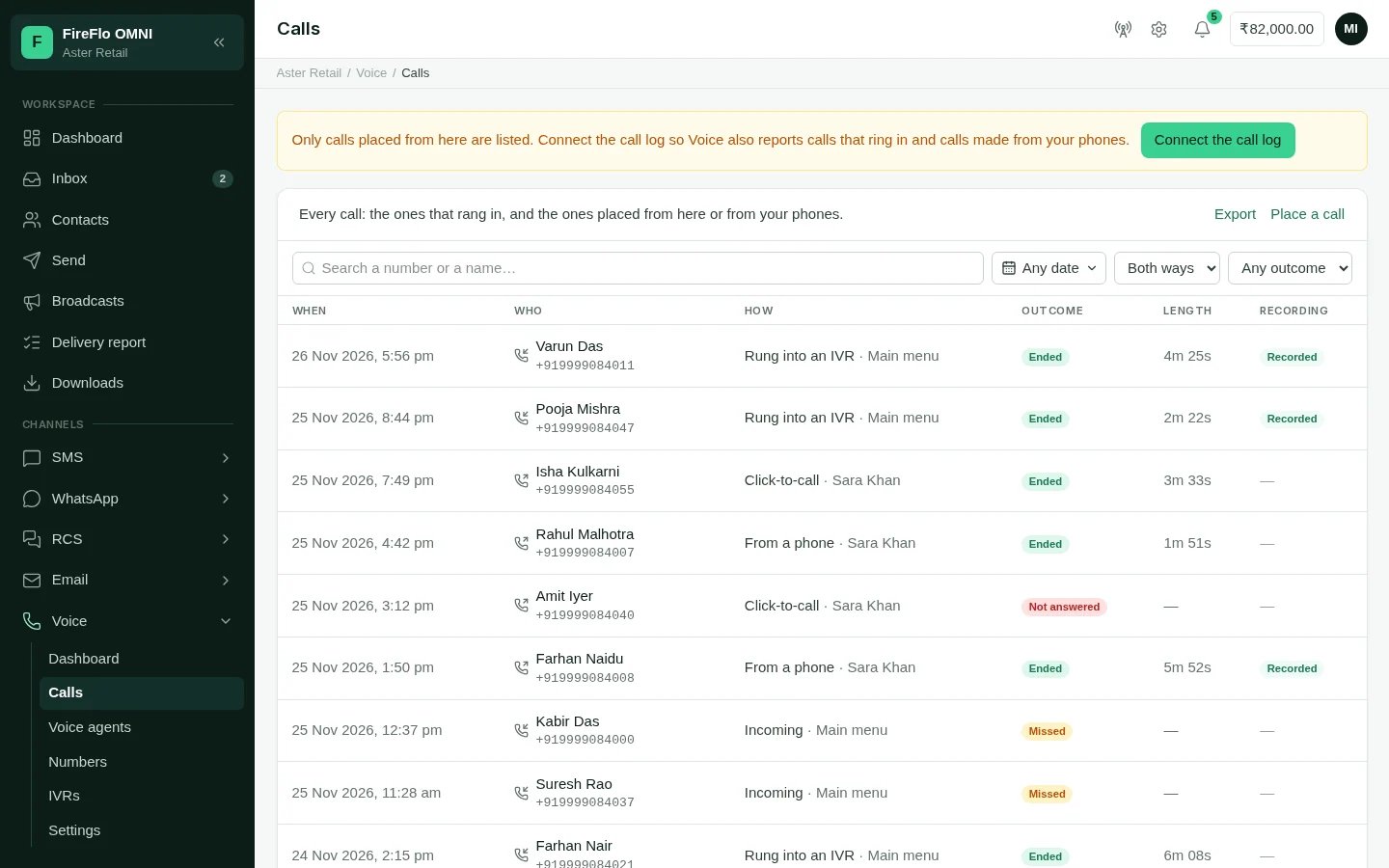
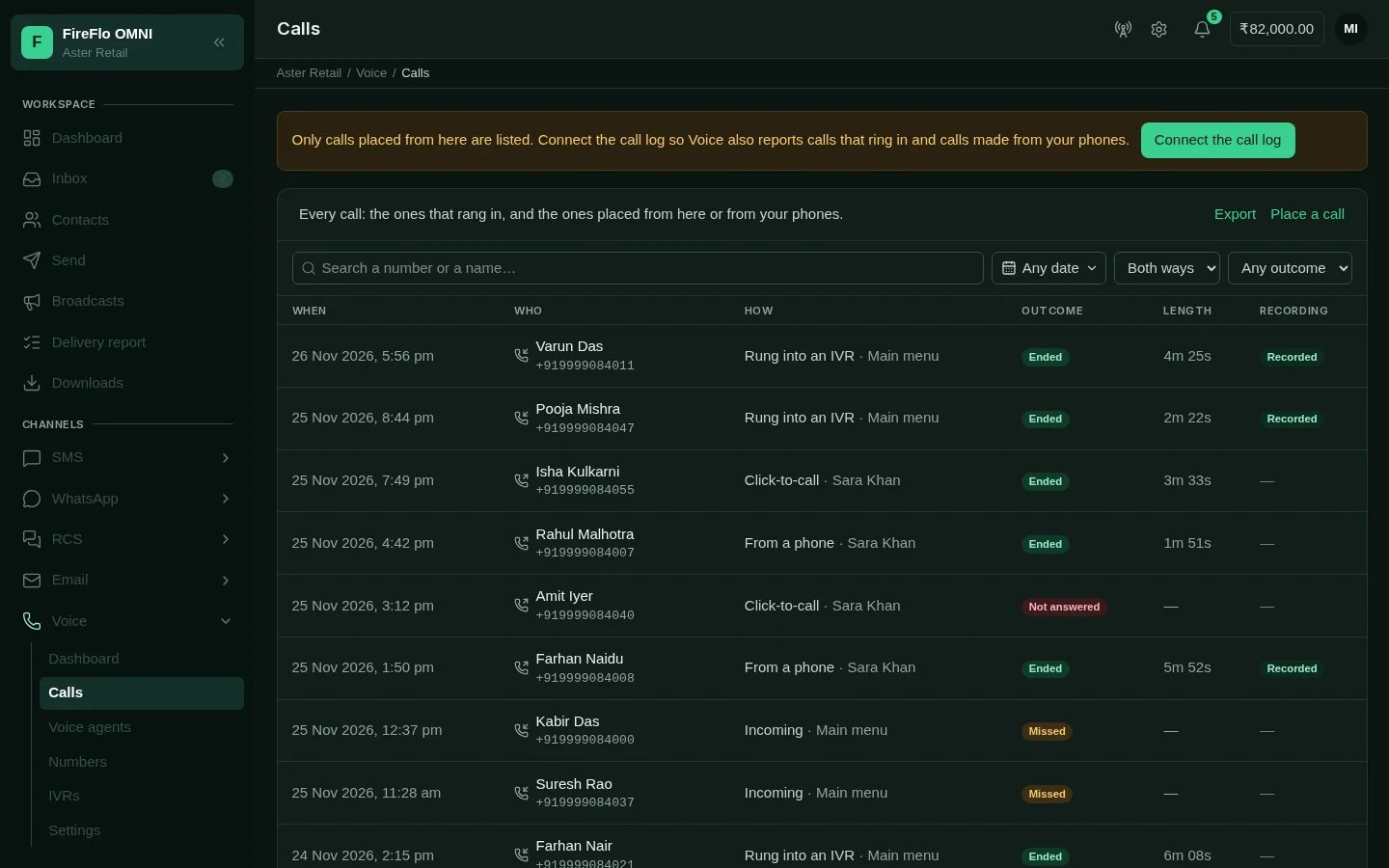
Voice → Calls: every call, with its outcome and recording.
Search by number or name, and filter by dates, direction (Incoming or Outgoing)
and outcome. A missed call is one that rang in and nobody took.
Export keeps the calls, as filtered, as a spreadsheet under
Downloads. On FireFlo’s Voice, the export has no prices.
Connect the full call log
Calls placed from OMNI are always logged. To also log calls that ring in and calls made from your phones, the full call log must be connected — the Calls page asks for it until it is:- on your own Voice, someone who can configure channels connects it from Voice → Calls. Voice then reports calls as they happen, and OMNI also reads the call log every 10 minutes for anything missed;
- on FireFlo’s Voice, FireFlo connects it — ask support@fireflo.au. You then see the calls on the numbers FireFlo gave your account.
A call’s page
Open a call to see its recording and its facts: the direction, your number it rang on, the number it showed as, who took it or placed it, its outcome, its length, why it ended and — on your own Voice — what it was charged.- Recordings play in OMNI, and you can skip through them.
- What was said shows the conversation’s summary, its flags and each turn, when Voice has them.
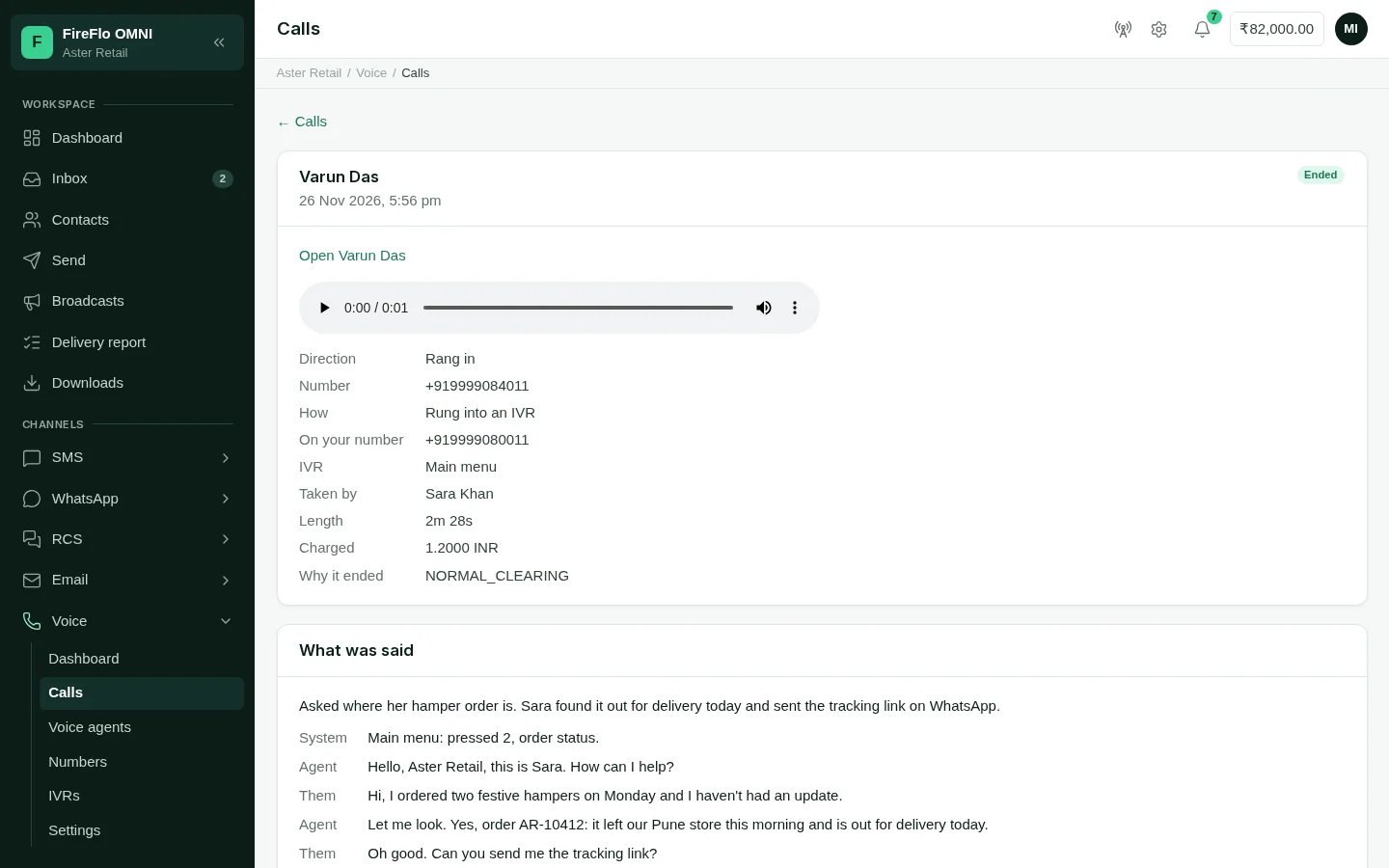
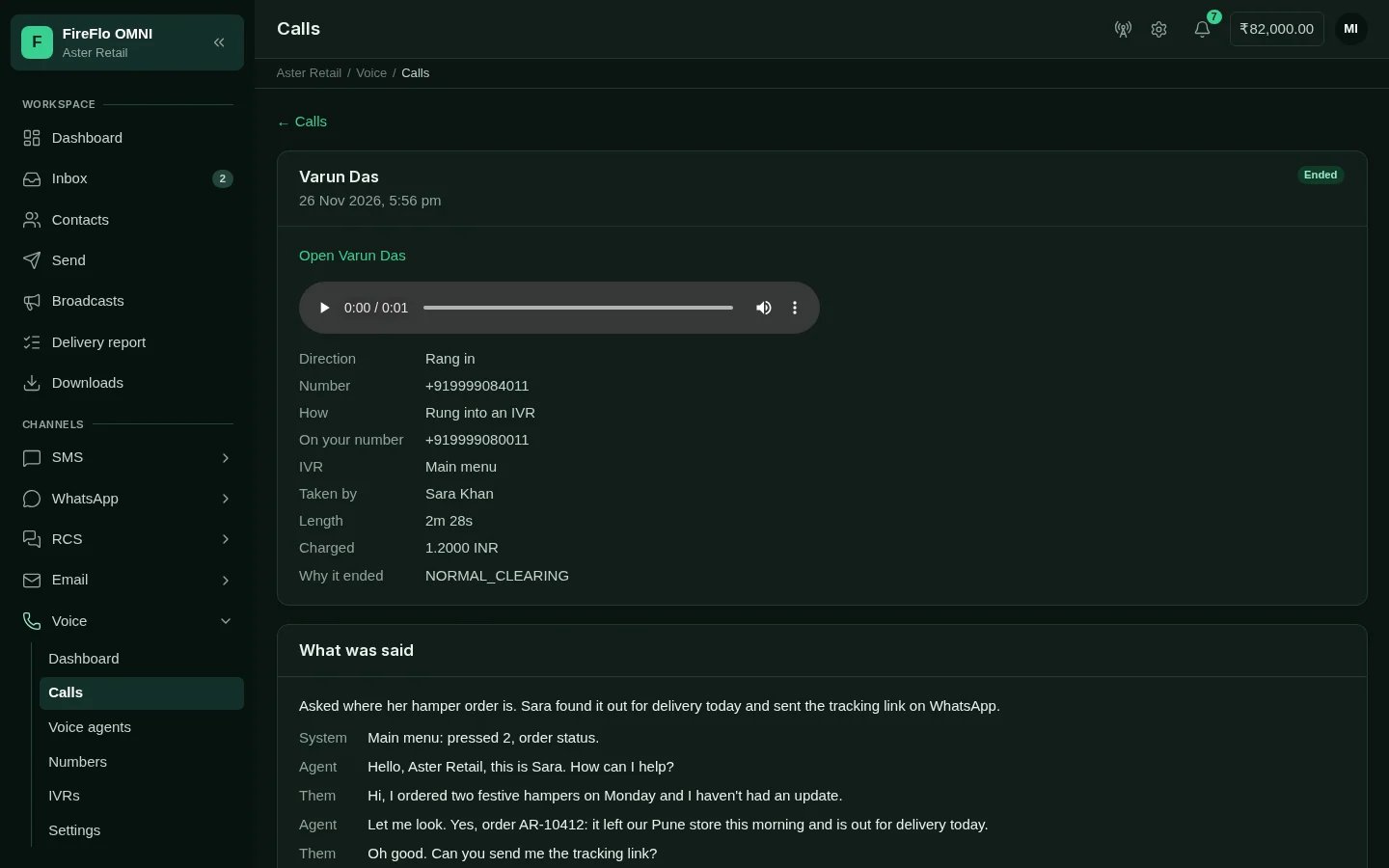
A call's page: its outcome and length, the recording, and what was said.
On the contact
Each contact’s timeline shows their calls, with a Calls filter and Listen to play a recording in place. The contact page counts their calls and missed calls. A caller who isn’t a contact yet is kept under their number and joined to the contact once there is one.Click-to-call: your phone
Call on a contact’s page, or Place a call on Voice → Calls, rings your phone first; when you pick up, Voice dials the person.1
Choose your phone
Under Your phone, pick the extension that rings for you and choose Use this
phone. On FireFlo’s Voice, FireFlo sets your extension — ask support@fireflo.au.
2
Call
Choose Call (or enter a Number on Place a call). Your phone rings; pick up and
Voice dials them. Follow the call opens its page.
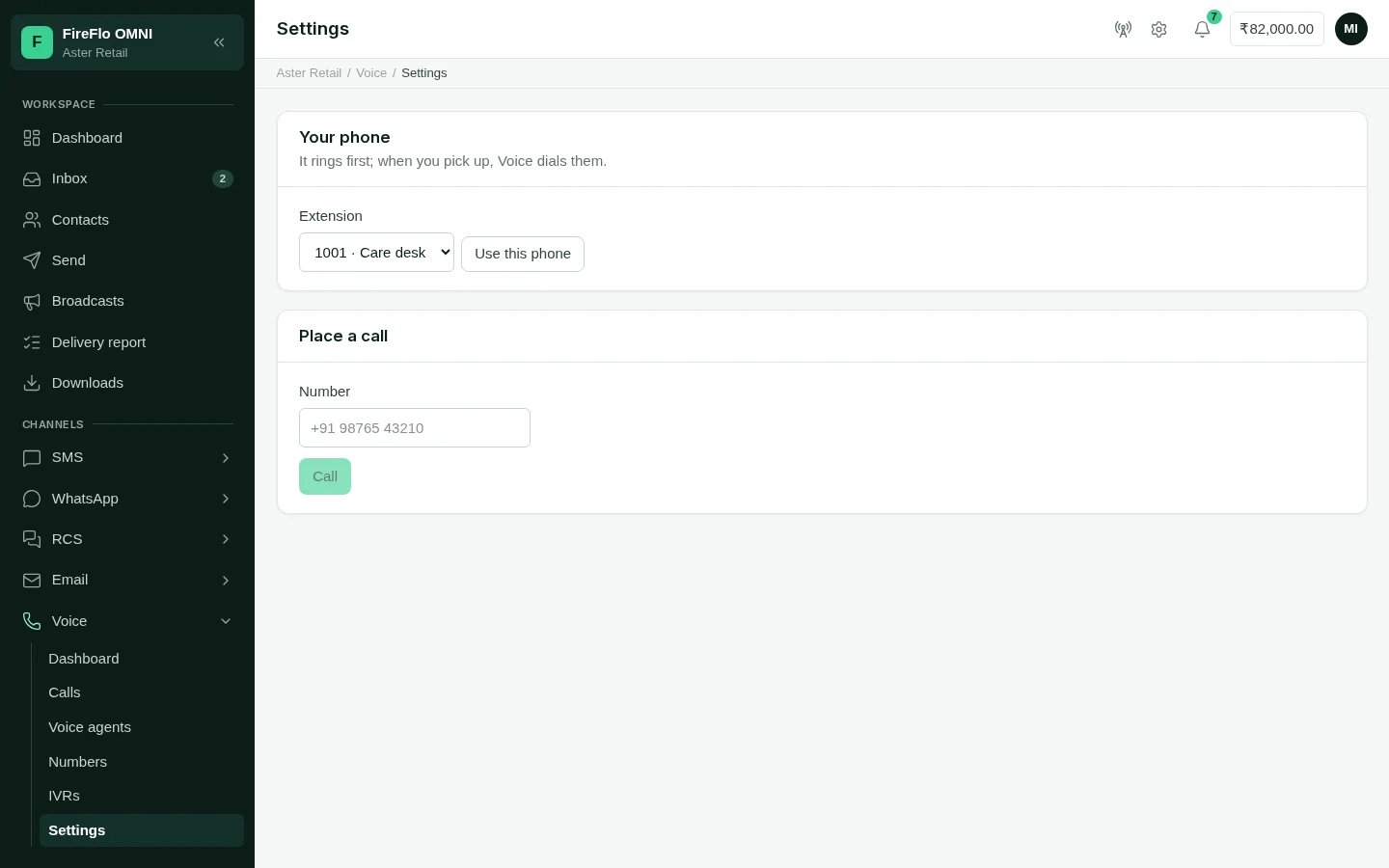
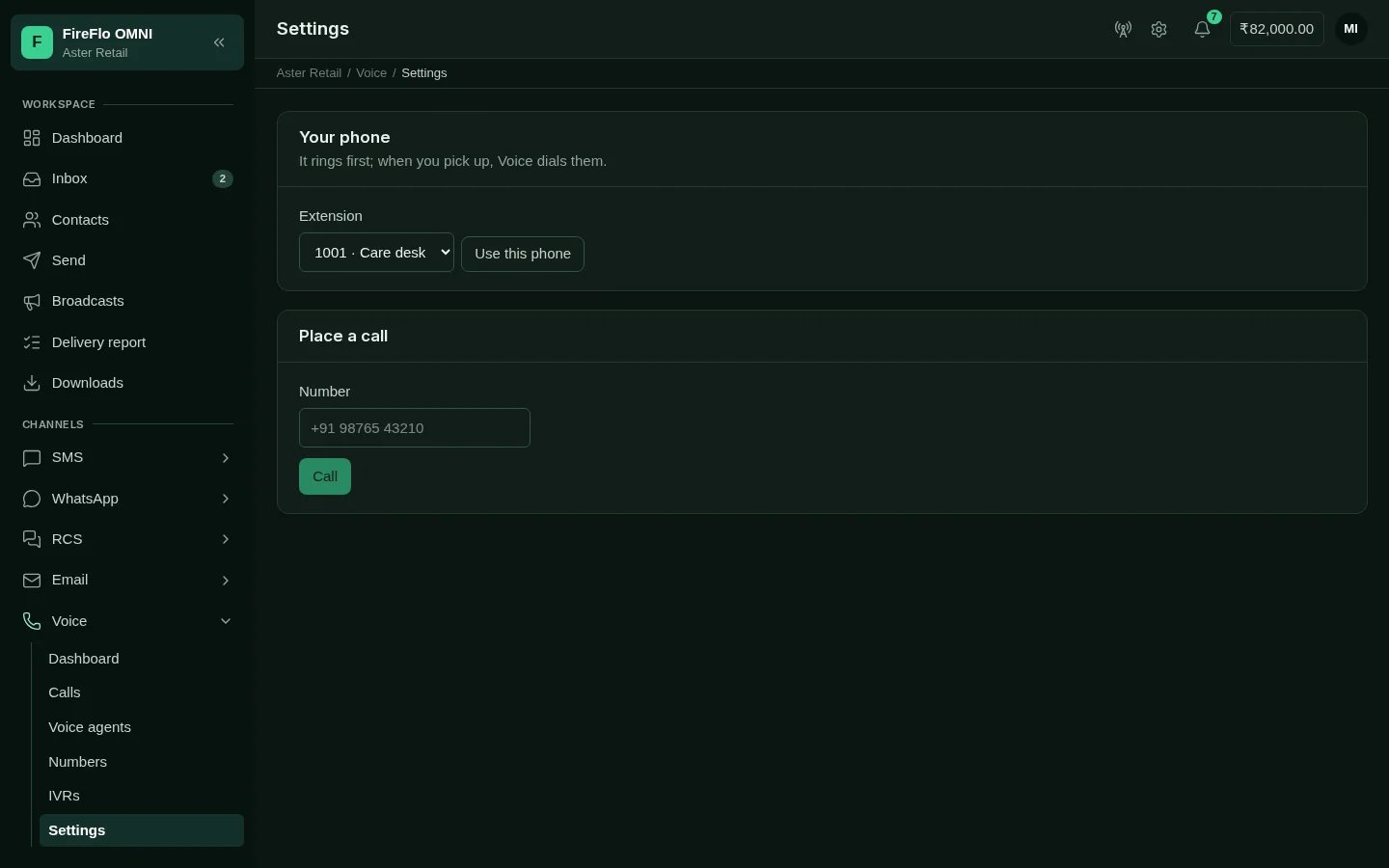
Place a call: your phone rings first, then Voice dials the person.
Ring into an IVR
Ring into IVR on a contact’s page calls them and plays them one of your published IVRs. See Ring someone into an IVR.Voice broadcasts
Voice broadcasts need your own Voice organisation, which is billed for the calls.
1
Make an IVR that runs on calls you place
In Voice → IVRs, make one
with Runs on calls you place, design it and publish it.
2
Start a broadcast on Voice
Choose Voice on the Send page, or start a New broadcast on
Voice, and choose the IVR. For each
{{tag}} it says, give a column of your list or your own
text — What the IVR says for each person.3
Choose the number and the hours
Calls show one of your numbers, or your caller ID. Calling hours and the
days calls may be made default to Monday to Saturday, 09:00 to 20:00, in the
account’s time zone.
4
Review and send
Every Voice send goes through Review first. People who opted out or are marked
do-not-contact are left out. Voice rings the rest within the calling hours.
Each person’s broadcast call is on their timeline.
Voice agents
Voice agents need your own Voice organisation, which is billed for their calls,
and Voice’s AI module. If the module is off, OMNI says so plainly.
Call a contact with a voice agent
1
Open the contact
On their page, choose Call with a voice agent.
2
Pick an agent
OMNI shows the line it opens with.
3
Tell it what it needs
Under What the agent knows,
{{name}} is the contact’s name. Add anything else
its script uses, as a name and a value — appointment → Tuesday at 3pm.4
Call
The agent rings them. Follow the call opens its page, where What was said
shows the summary, the flags and each turn as Voice reports them.
From your own software
The OMNI API lists calls and places them — ringing someone into an IVR or having a voice agent call them — with the same screening.Who may
The plan must include Voice.