
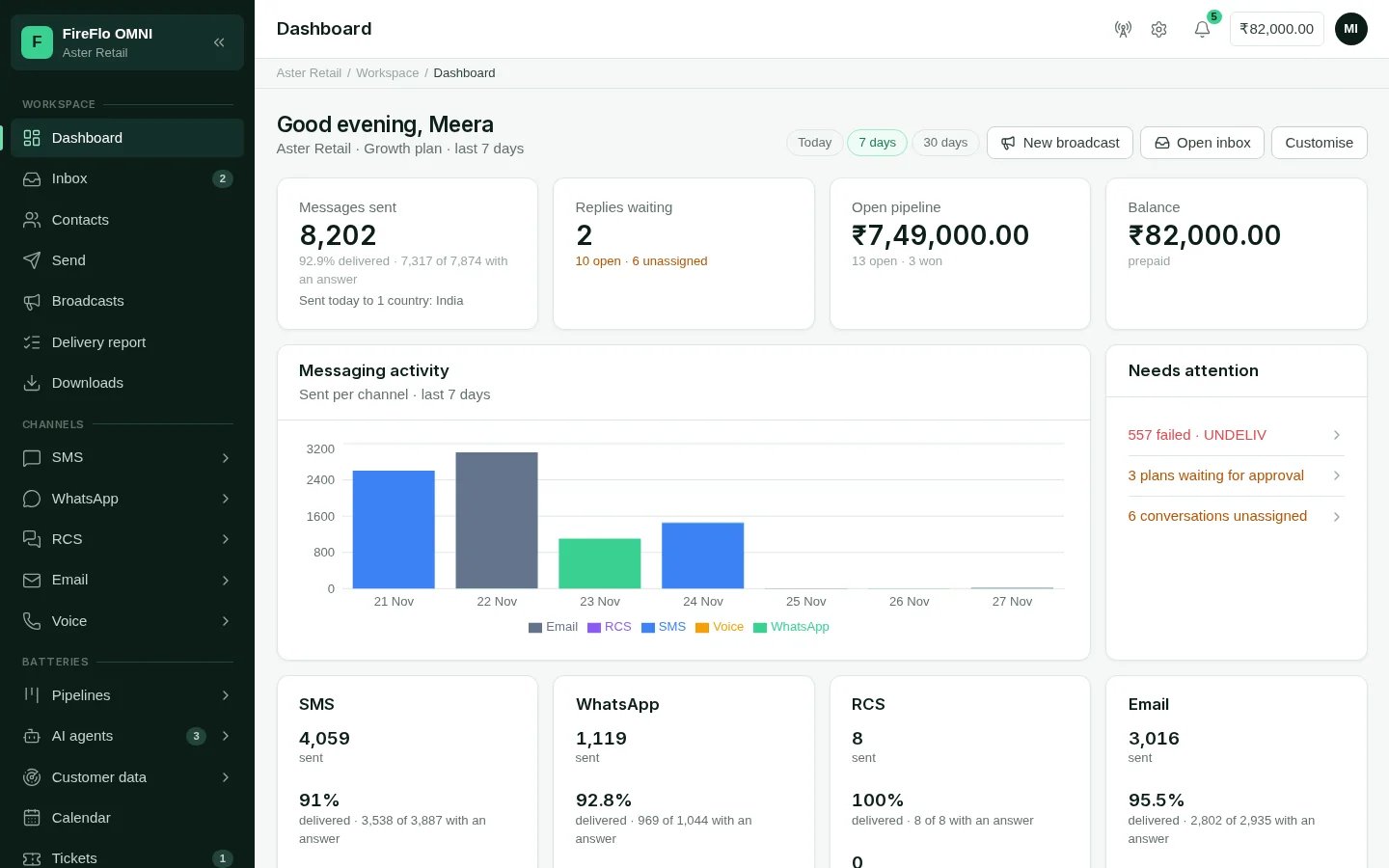
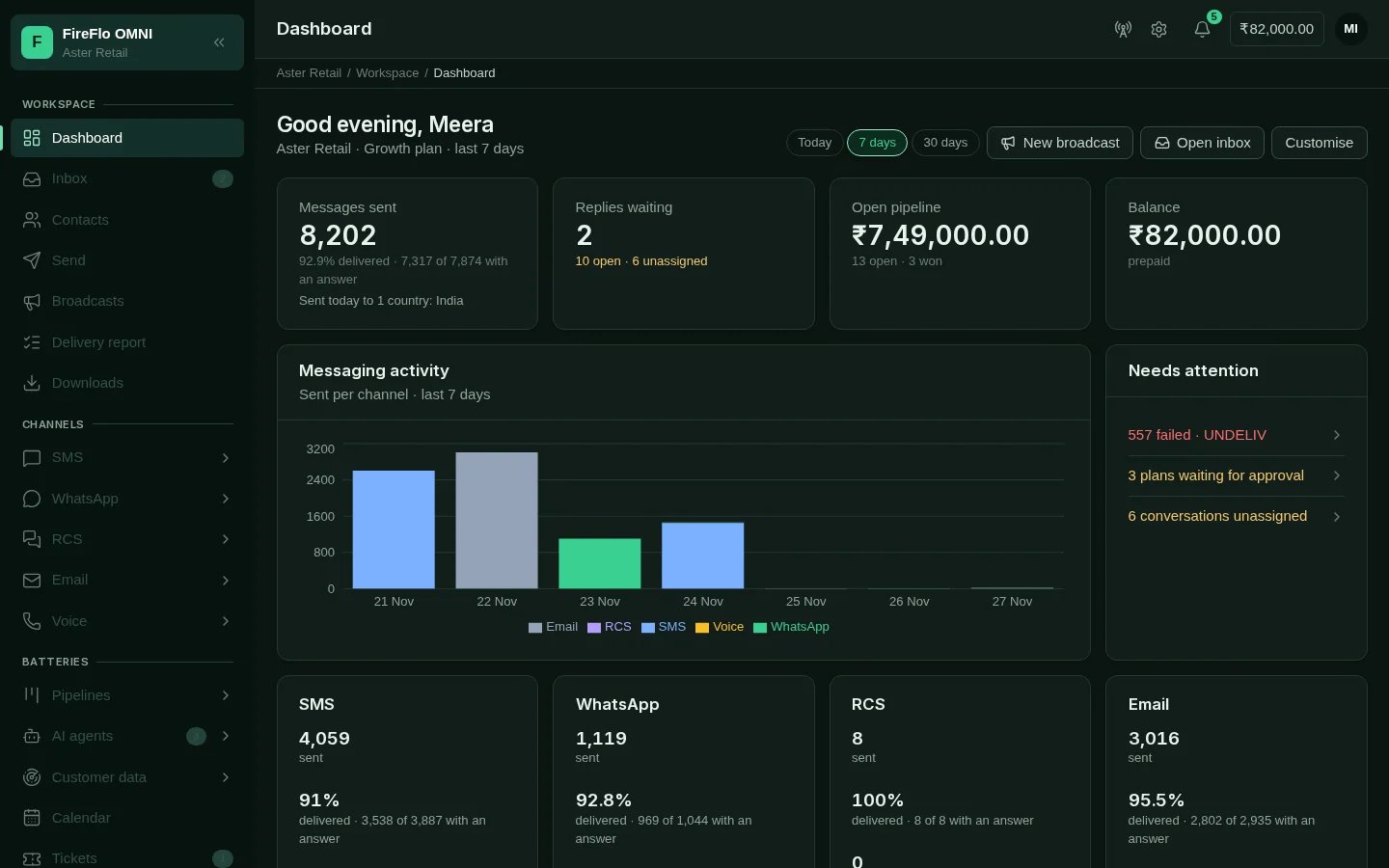
The main dashboard: messages sent, replies waiting, activity per channel and what needs attention.
The main dashboard
At the top, a greeting, your account and plan, and the period: Today, 7 days or 30 days. With the right role, New broadcast and Open inbox are one click away, and Customise arranges the cards. The standard cards are:
Only channels that are on are shown. A card for a channel or module that is not on is
not drawn, and comes back when it is switched on again.
In Recent broadcasts, ”% delivered” is the only percentage; the channel’s own
figures are counts (“2 opened · 1 bounced”). A cancelled broadcast reads “N ·
Cancelled”. The main dashboard and each channel dashboard use the same words for the
same broadcast.
Arranging your dashboard
The main dashboard is a board each person arranges for themselves. Choose Customise; nothing changes until you press Save, and Cancel leaves it as it was.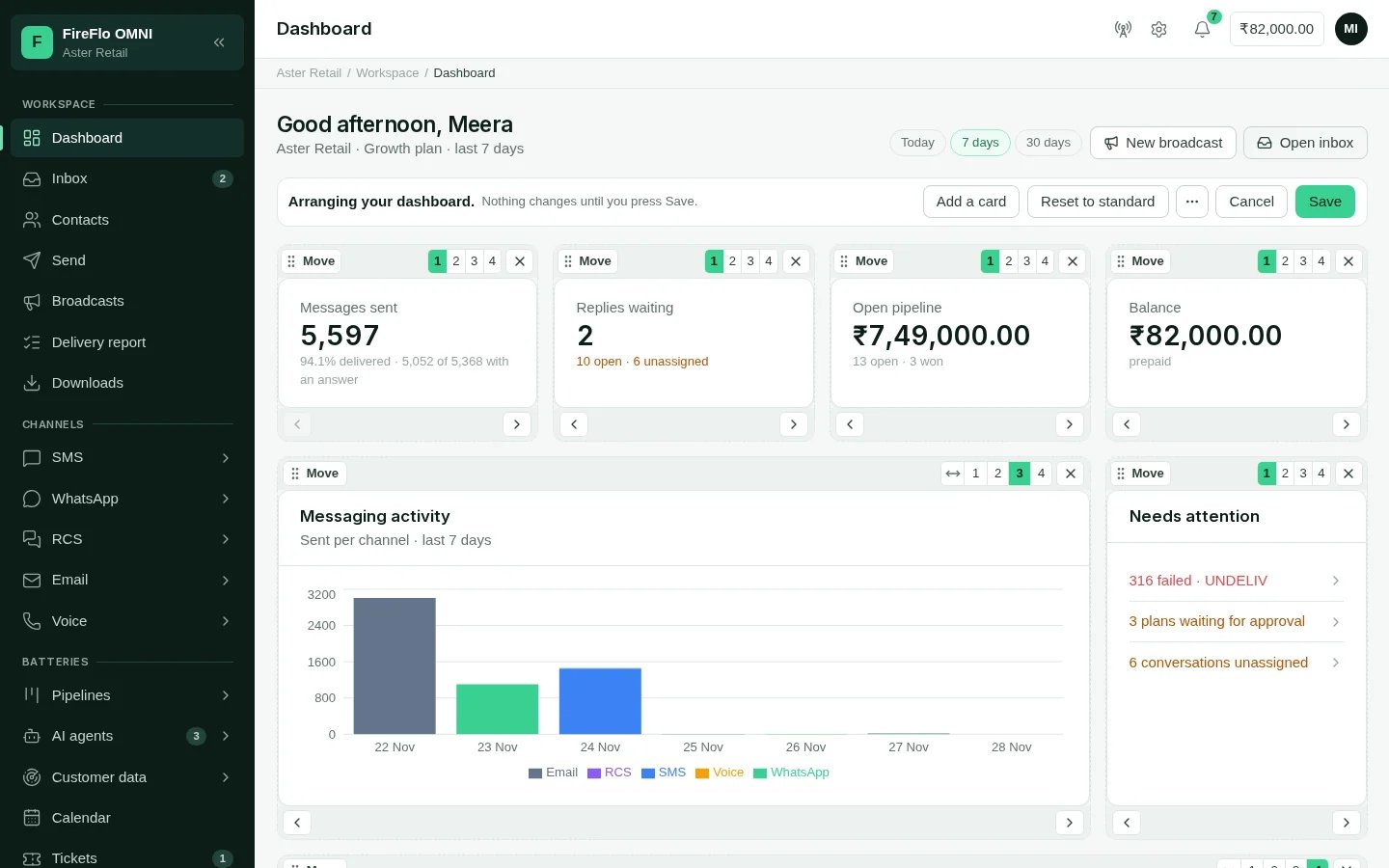
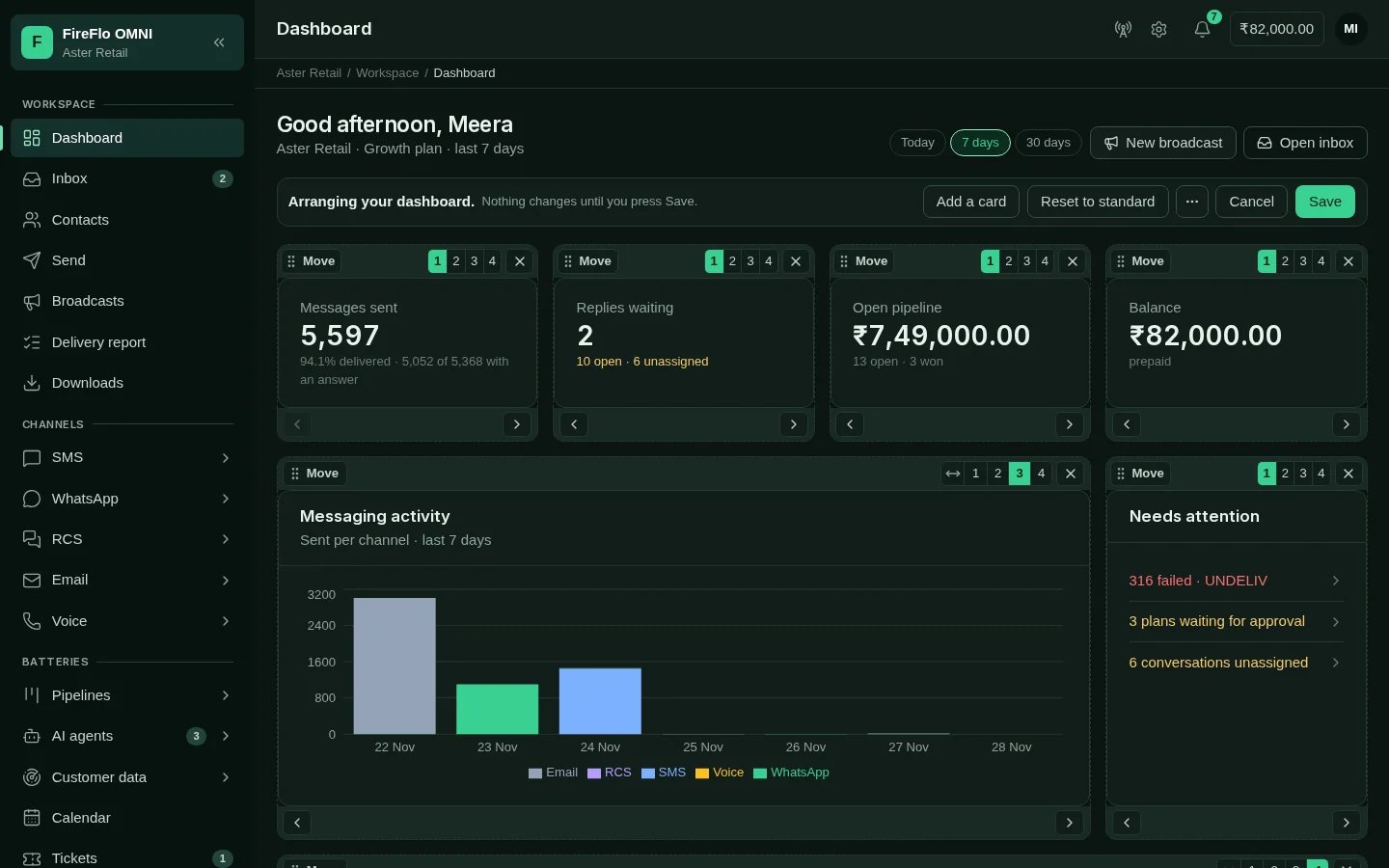
Customise: each card can be moved, resized or taken off.
- Move a card by dragging it, or with its arrows.
- Set its width: 1 to 4 columns.
- Take it off with its ×; it asks first.
- Add a card opens the library (below).
- Reset to standard puts the standard cards back.
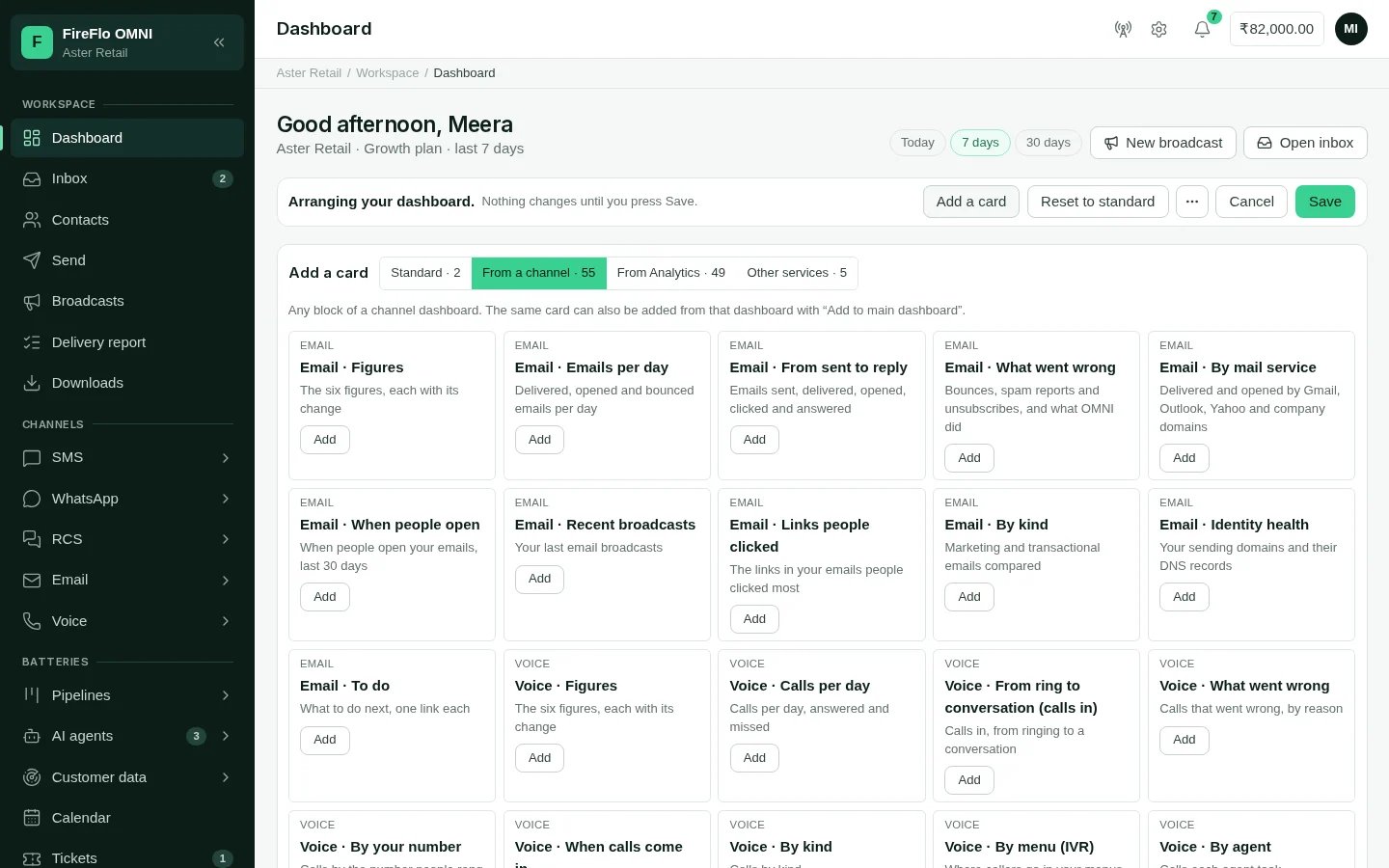
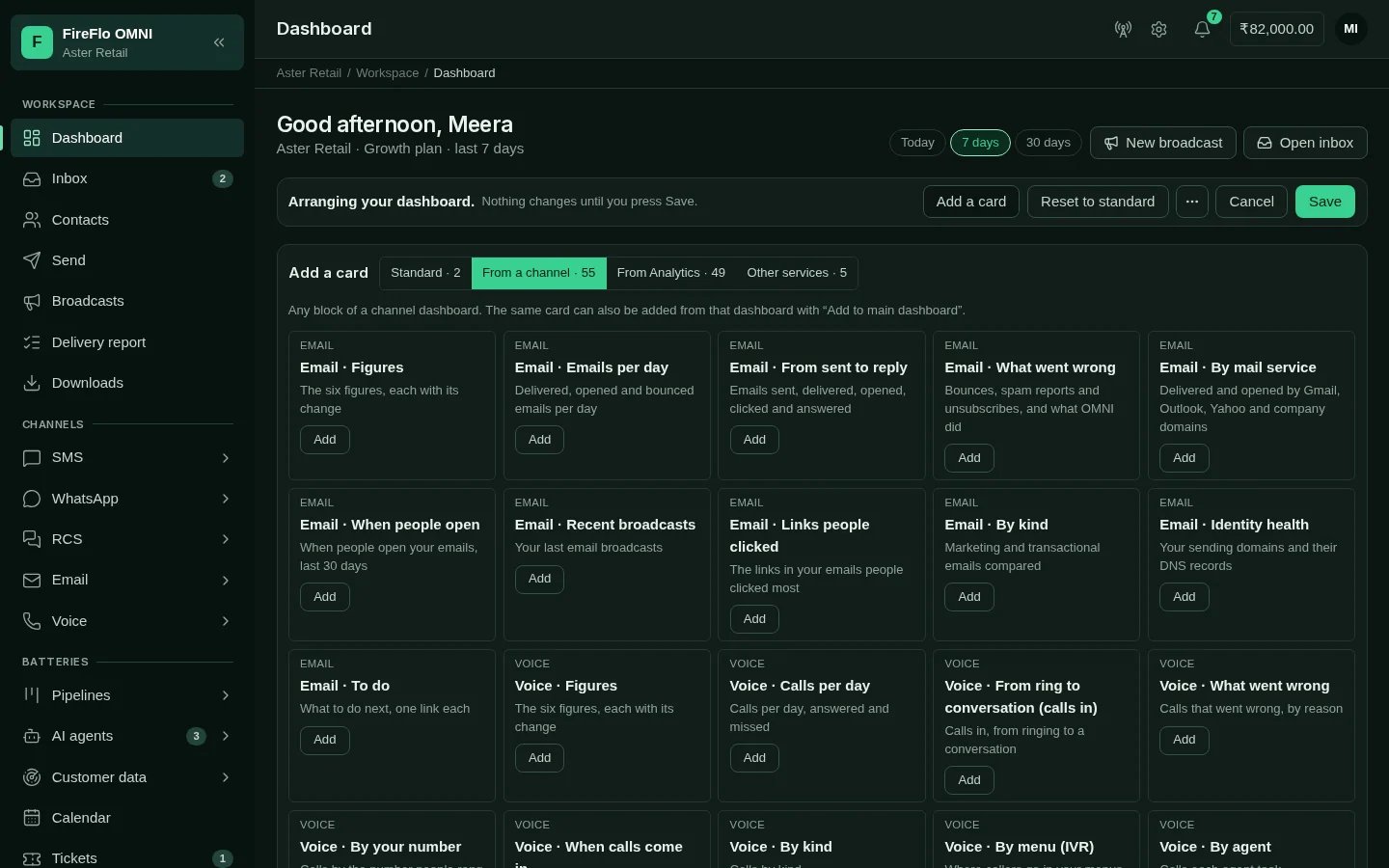
Add a card: the library, here with the blocks from the channel dashboards.
Channel dashboards
SMS, WhatsApp, RCS, Email and Voice each have a Dashboard in their own menu, all on one layout.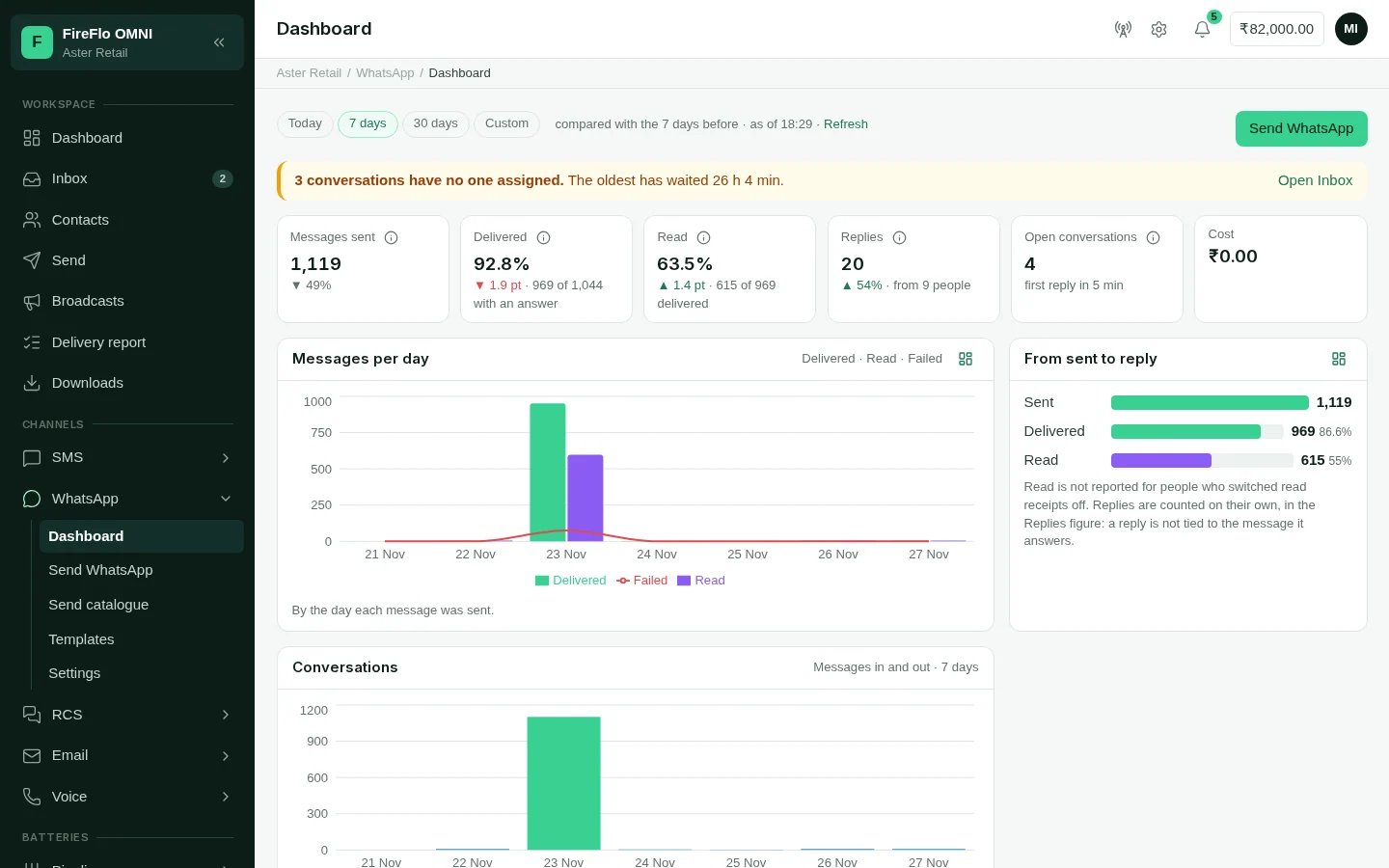
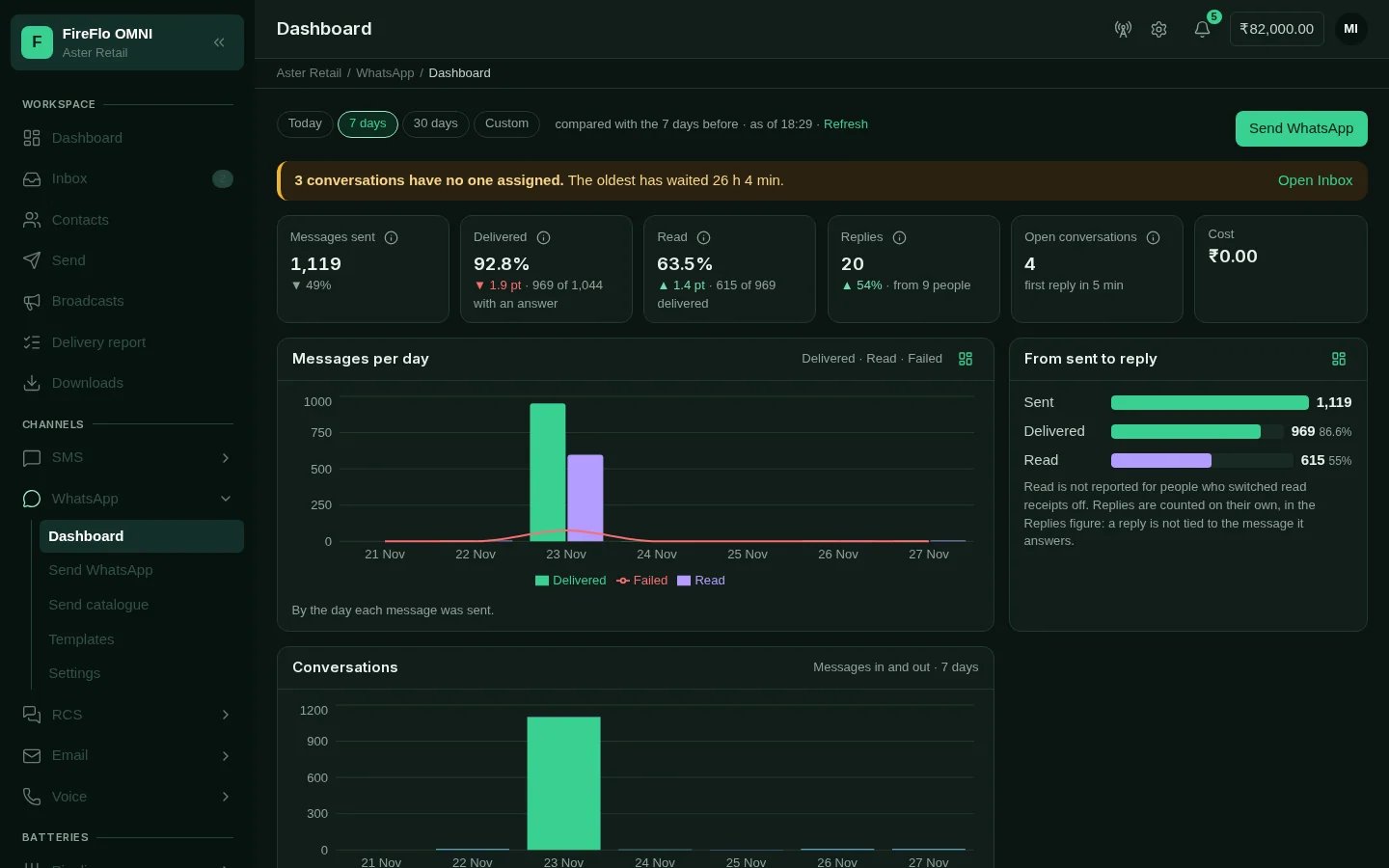
A channel dashboard: the period, the attention line, six figures, messages per day and the path from sent to reply.
- The period: Today, 7 days, 30 days or Custom dates, compared with the period before.
- One attention line when something needs action, with a link to where to act.
- Six figures, each with its change on the period before. The info button beside a figure says what it counts.
- A chart per day.
- The path from sent to delivered, read and replied; for Voice, from ring to conversation.
- What went wrong, where (top countries) and when people respond.
- Recent broadcasts, the channel’s own blocks, its health, and a short To do.
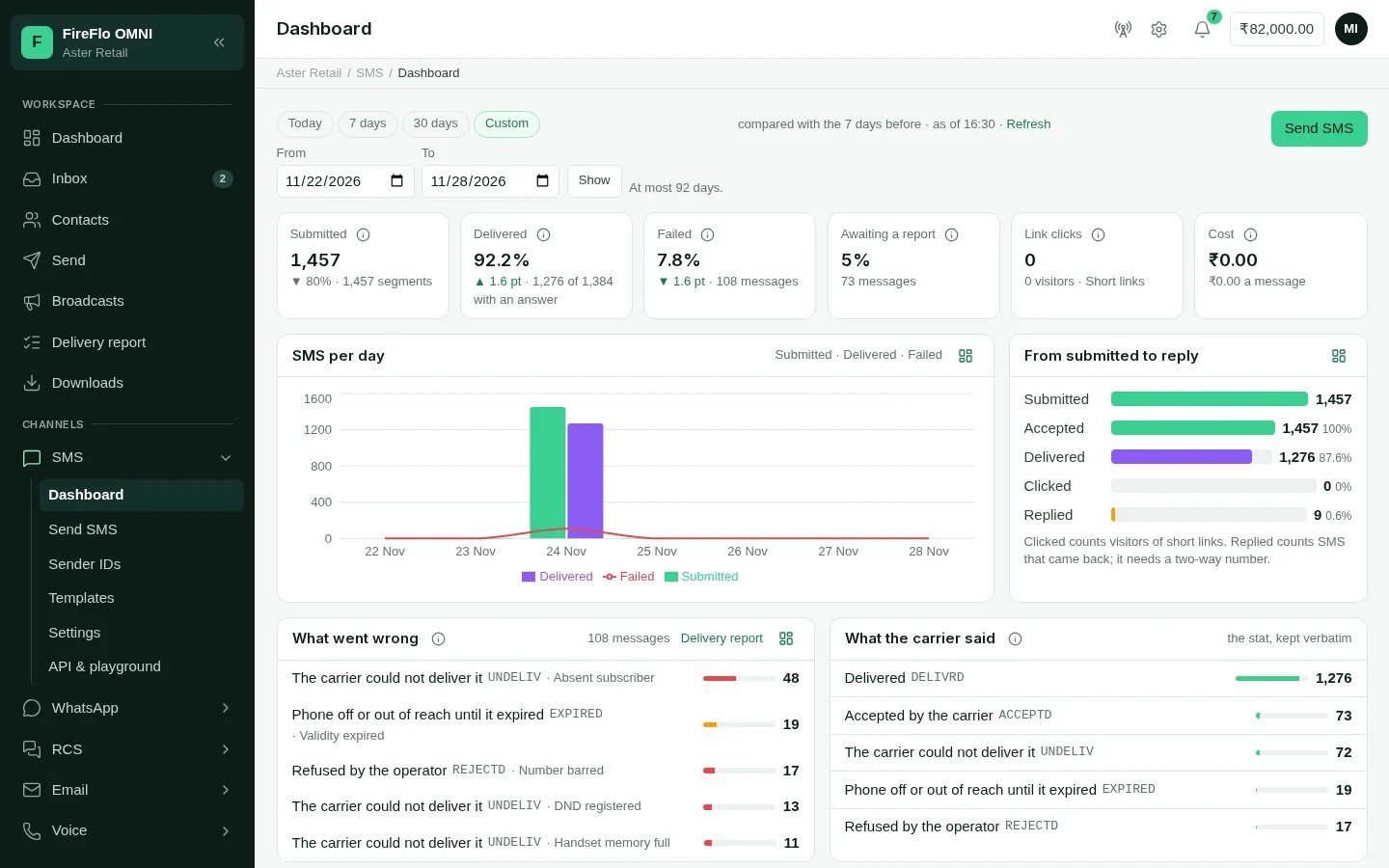
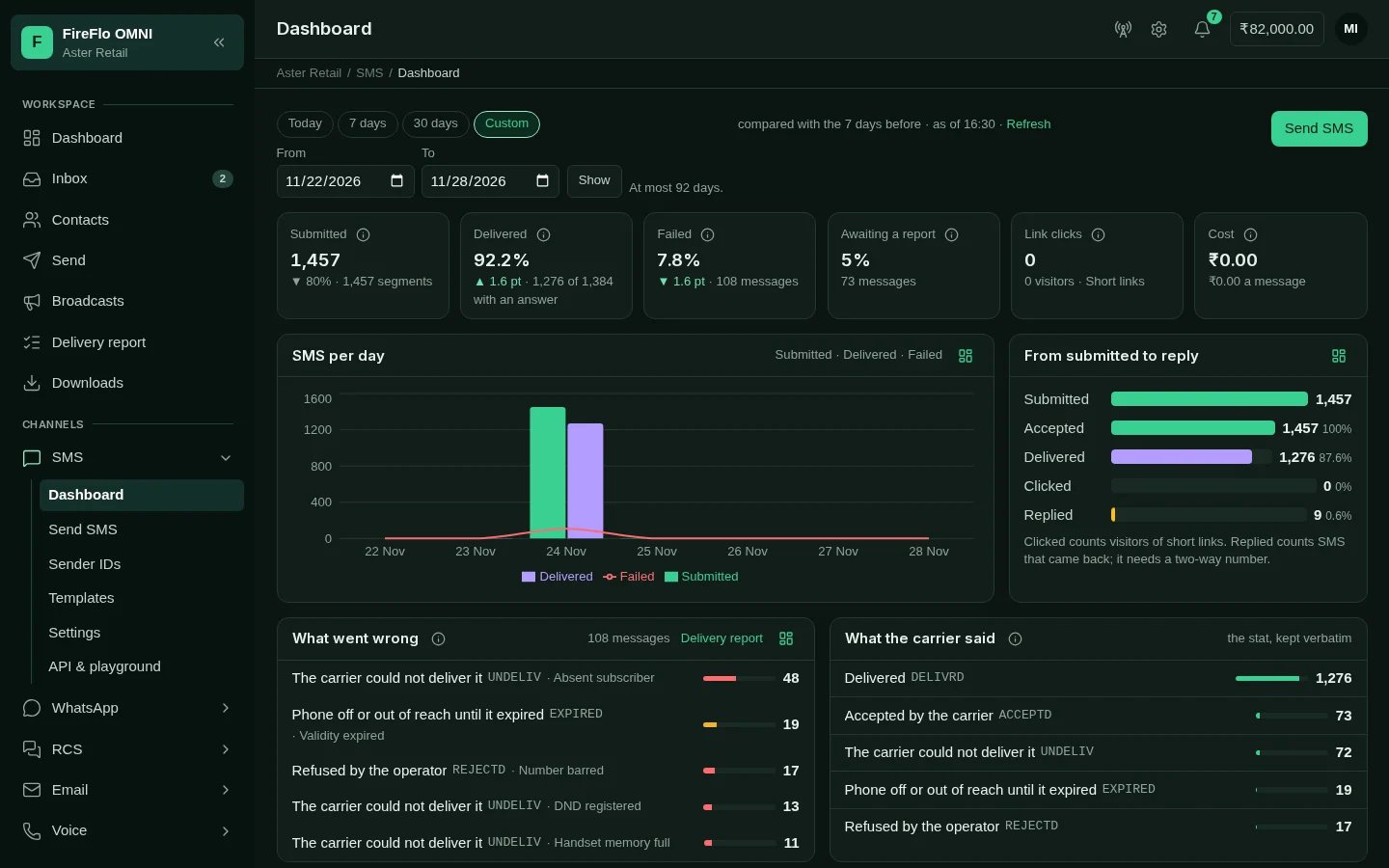
Custom: choosing the from and to dates.
What “sent” and ”% delivered” mean
Every dashboard and the Delivery report count the same way:- Sent is every message handed over: delivered, failed (including one refused as it was handed over) and still waiting for an answer. Queued and cancelled messages are not sent.
- % delivered is delivered out of the messages that got an answer, and the line under it says so: “70% delivered · 14 of 20 with an answer”.
- A Read figure says what it is a share of (“3 of 4 delivered”).