
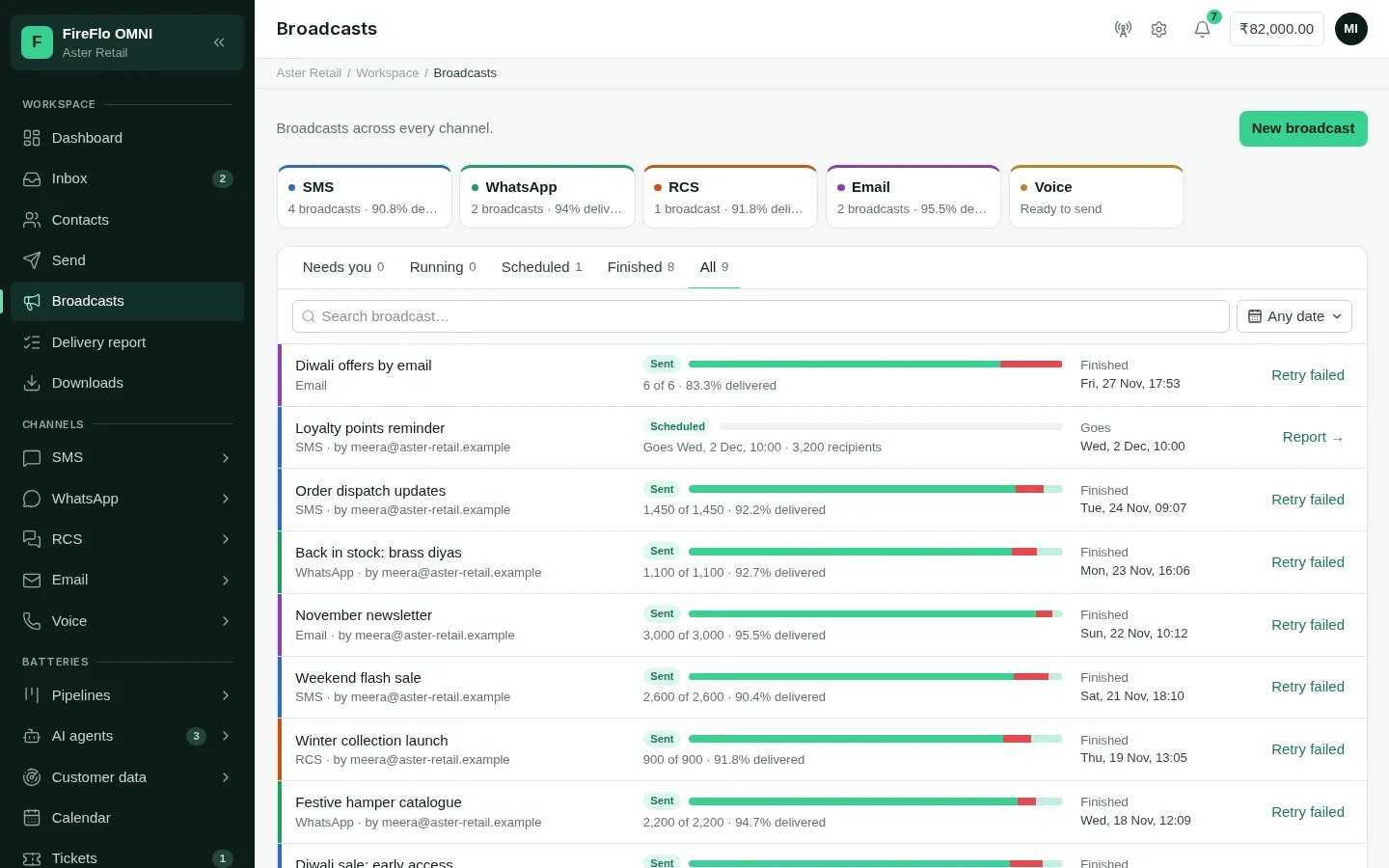
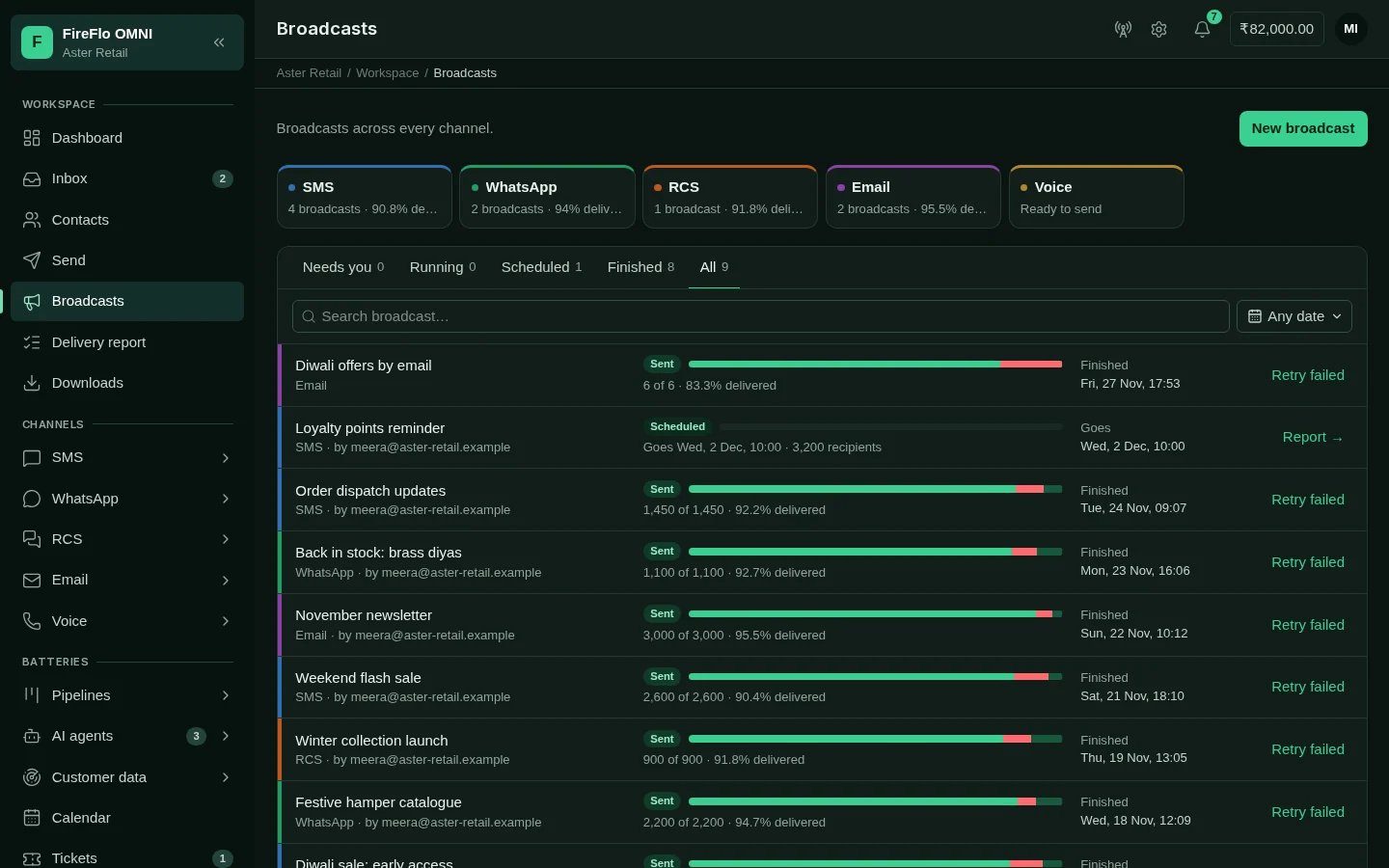
Broadcasts: every broadcast across every channel, sorted by what it needs.
The list
The channels your account has switched on sit across the top as tiles, each with how many broadcasts it has and the share delivered. Choose a tile to see only that channel’s broadcasts. A channel that is not on is not shown. Tabs sort the broadcasts, each with its count:
Each broadcast has one row: its name, channel and who started it; one bar for
delivered, failed and still waiting, with how many went and the share delivered; and
when it finished or when it goes. A cancelled broadcast reads Cancelled · N not
sent. Search by name and pick a date. Choose a row, or Report, to open it, and
Retry failed to queue the failed messages again.
Starting a broadcast
Choose New broadcast. It uses the same builder as the Send page, with the broadcast’s name on top and the review as its last step.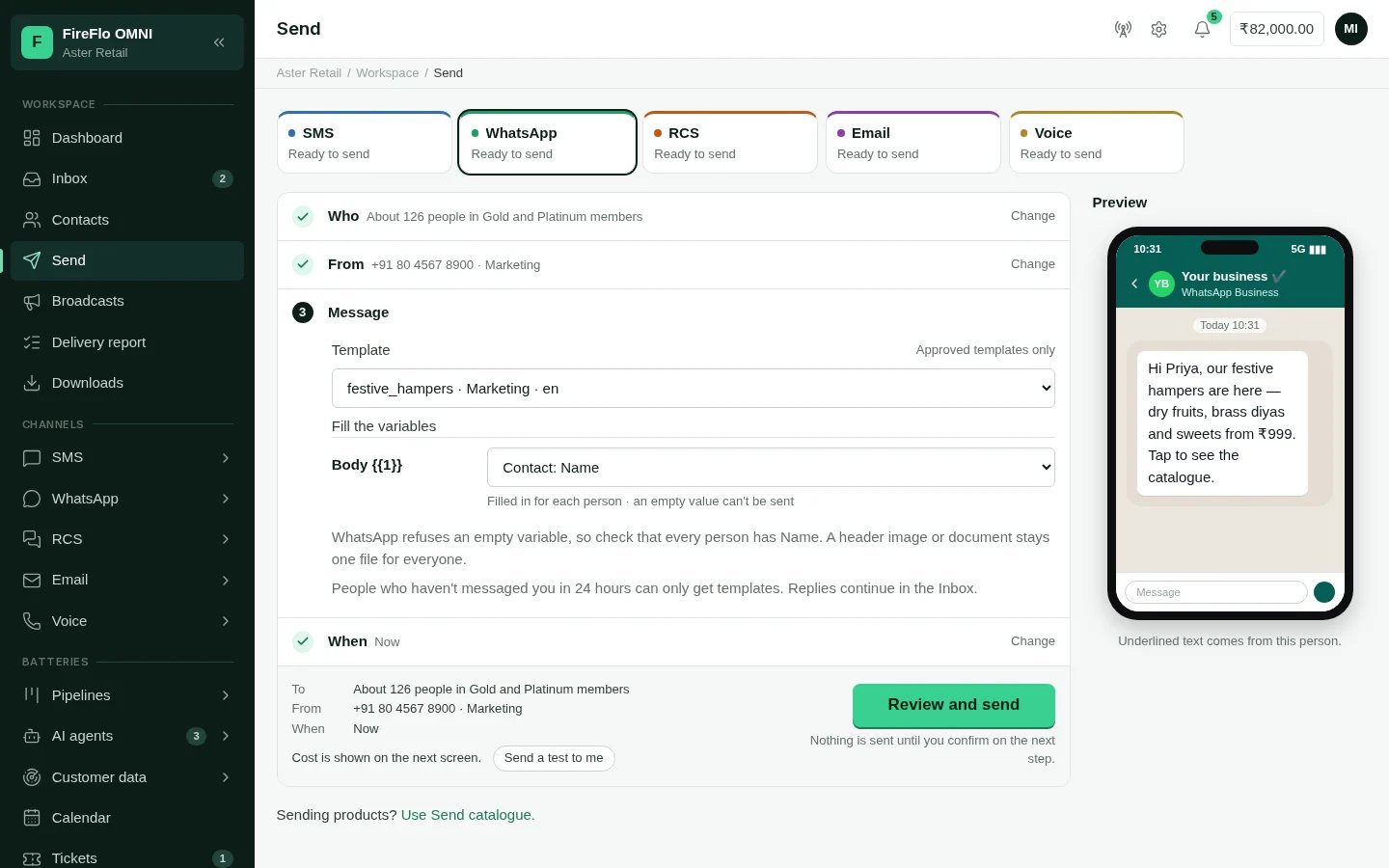
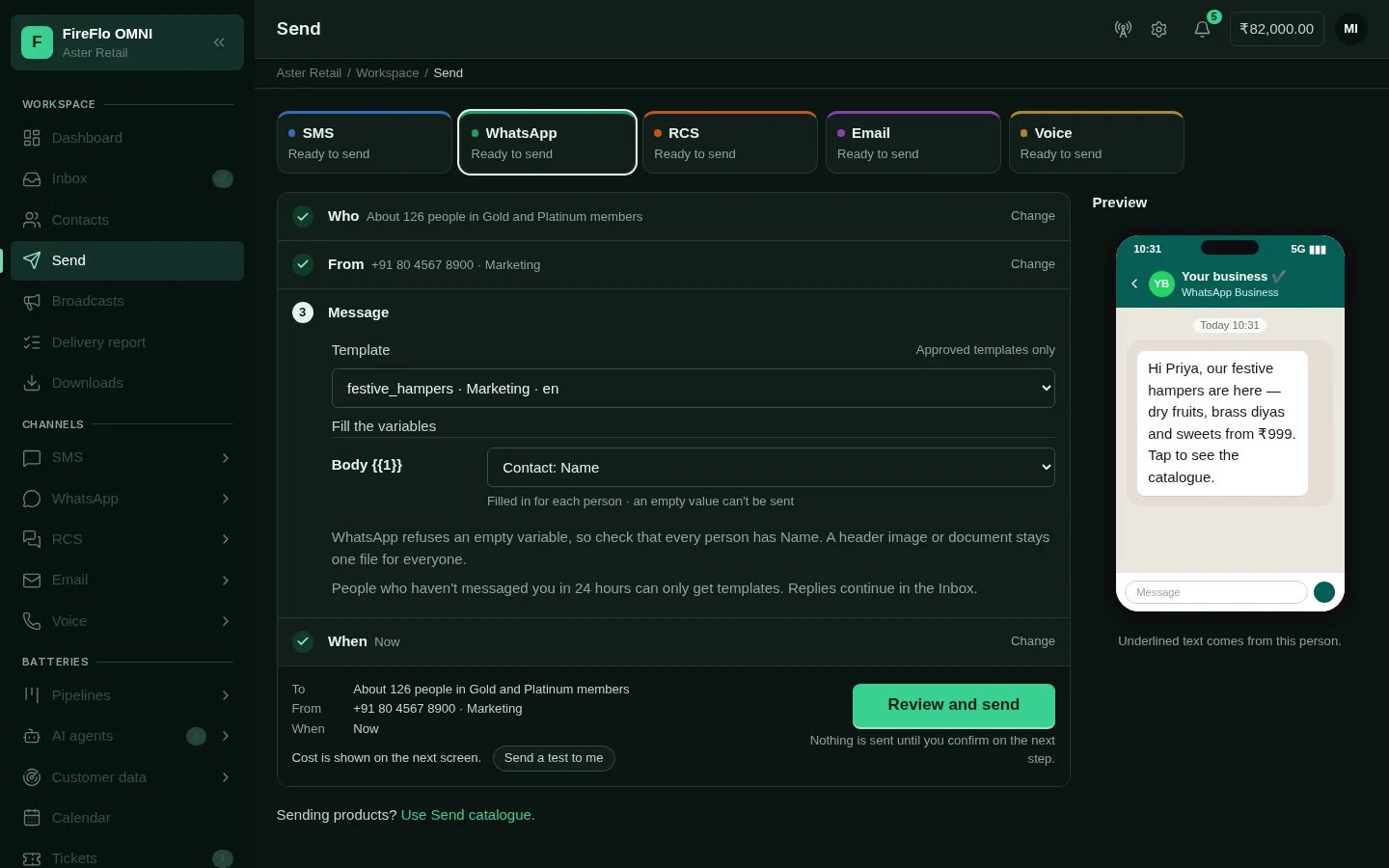
New broadcast uses the Send builder: the channels, Who, From, Message and When, and the phone preview.
1
Channel
The first step lists your channels as ready, or not ready yet with what to
do. Only channels that are switched on are listed.
2
Who, From, Message, When
One page, with the message on a phone beside it. The preview underlines what came
from the row and steps through the rows.
- Who: type numbers (type or paste them; everyone gets the same text), upload a file (CSV or Excel, up to ten lakh rows), choose contact segments, or an audience from Customer data. For a file, check the column that holds the numbers. You can also save the file’s other columns to contact profiles.
- From and, on SMS, the message type. Say whether it is marketing (skips people who stopped offers) or an update they expect (skips only people who stopped everything).
- Message, in the form the channel needs: an approved template on WhatsApp or RCS, a sender ID and, where your provider requires one, an approved template on SMS. Each blank can be typed, or filled from a column or contact field so each person gets their own value. Where a template takes a link or a file, attach one or paste one; see Send. See Channels.
- When should it go?
Times use your account’s timezone (Settings). Rows whose date is blank, unreadable,
past, or more than 30 days away are skipped.
3
Review
The same review as on Send: how many messages will be sent, how many are
skipped and why, the cost, and who gets it by country. See
The review. On RCS, Who sends it shows which bot sends
to each country. Nothing is sent or scheduled until you confirm here.Where your account has AI Agents, Afterwards hands the
people the broadcast reaches to an agent’s workflow: only those who reply (the
default), everyone it was delivered to, or everyone it was sent to. Up to 50,000
conversations start per broadcast.
Why rows are skipped
The review gives a reason for every skipped row, such as:- not a valid phone number, or a number Excel shortened;
- the same number as an earlier row;
- the person stopped these messages, or has no opt-in for marketing;
- Do not contact, or inside the person’s quiet hours;
- a date that is missing, unreadable, past or too far away;
- the message can’t be written for that row, or the channel can’t reach that country.
A broadcast’s report
Open a broadcast to see how it is going.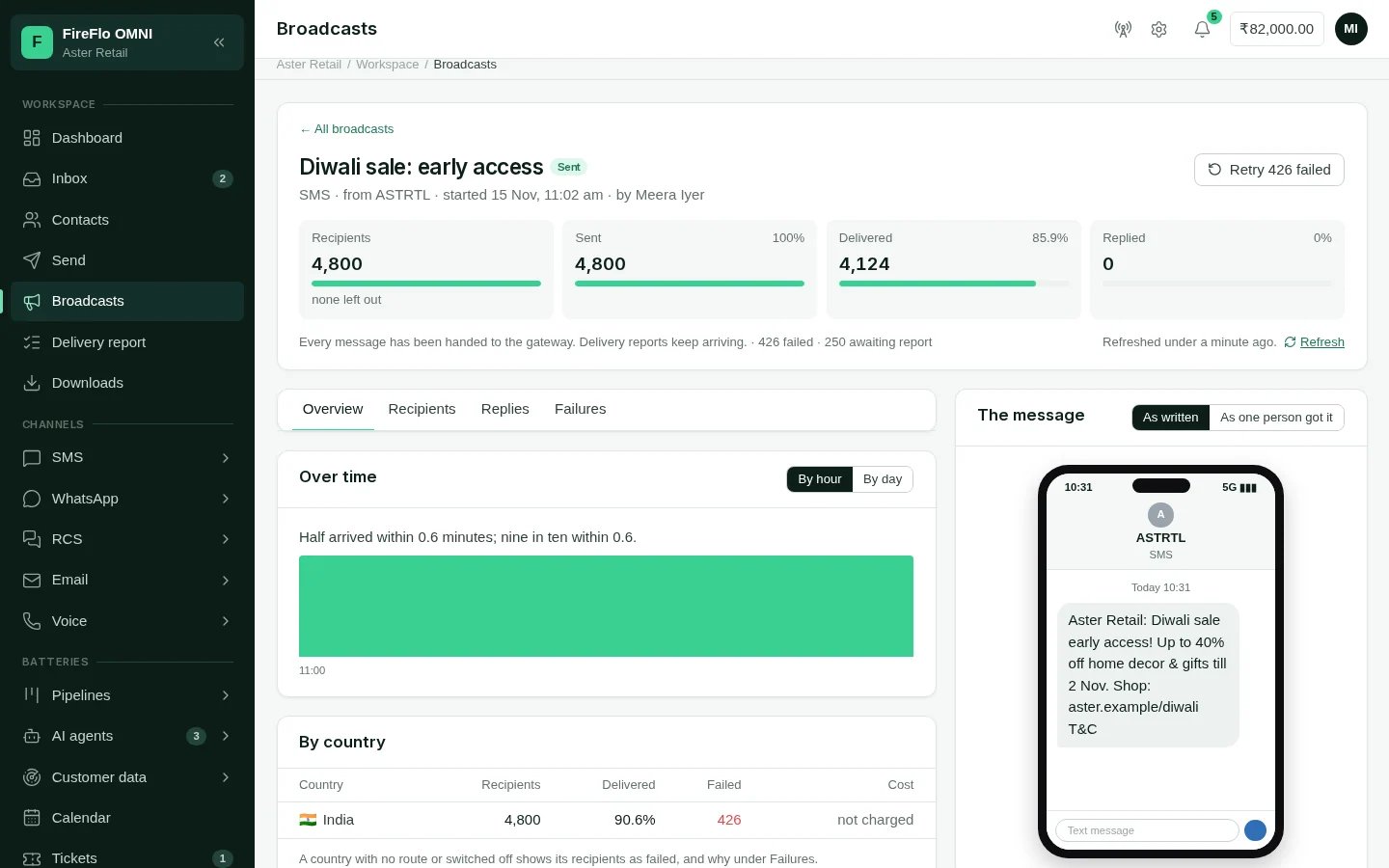
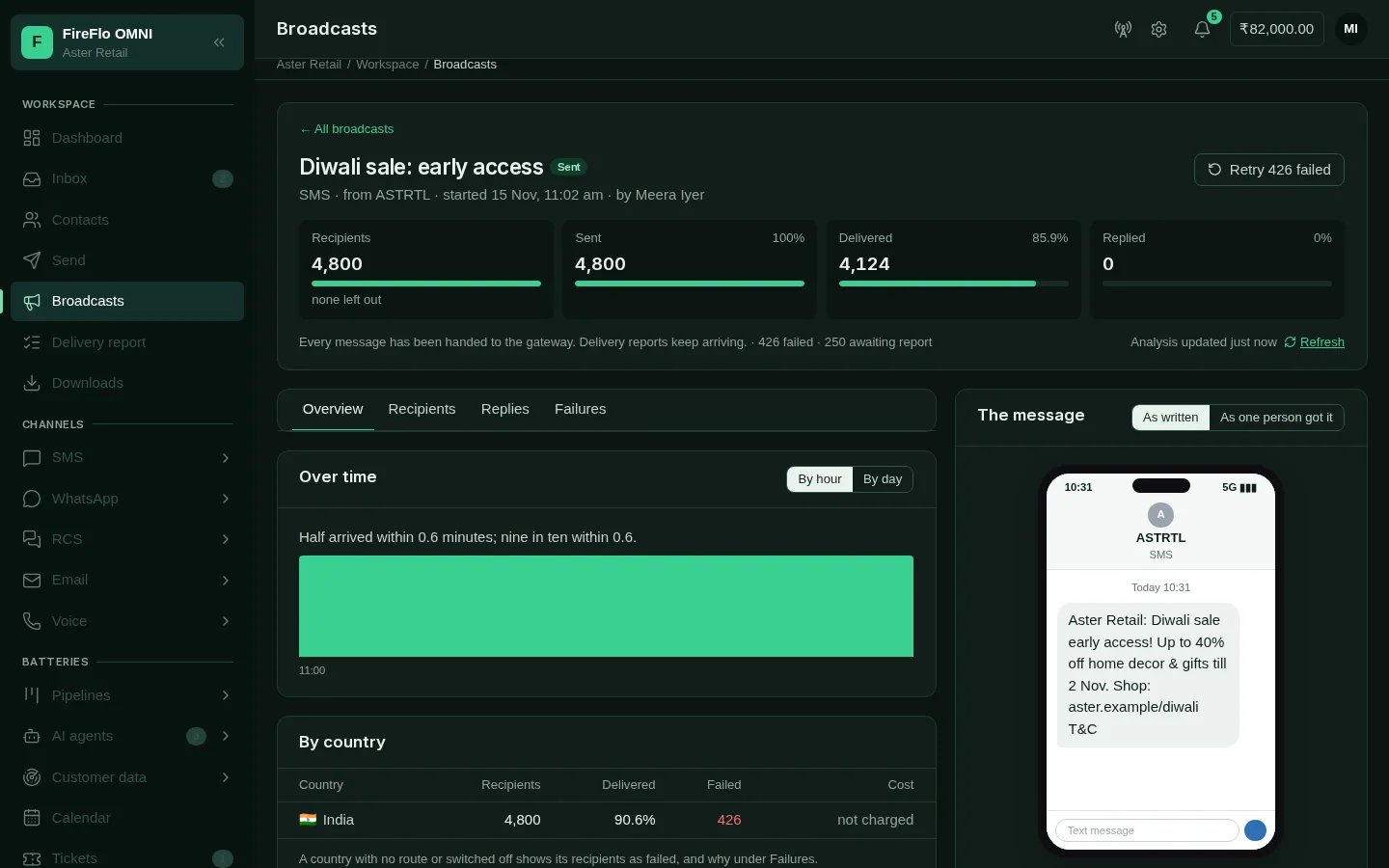
A broadcast's report: its steps as figures, the tabs, and the message beside them.
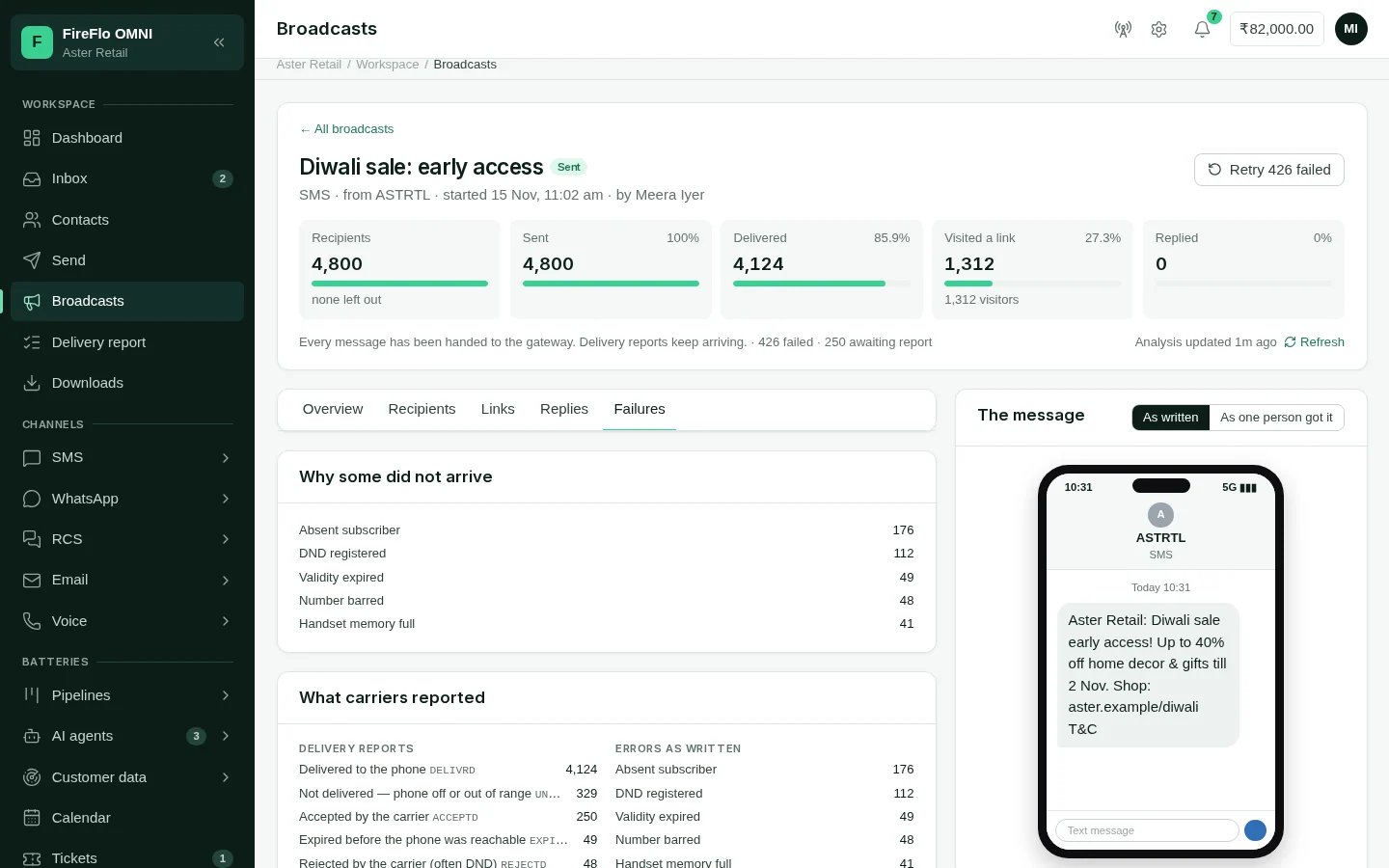
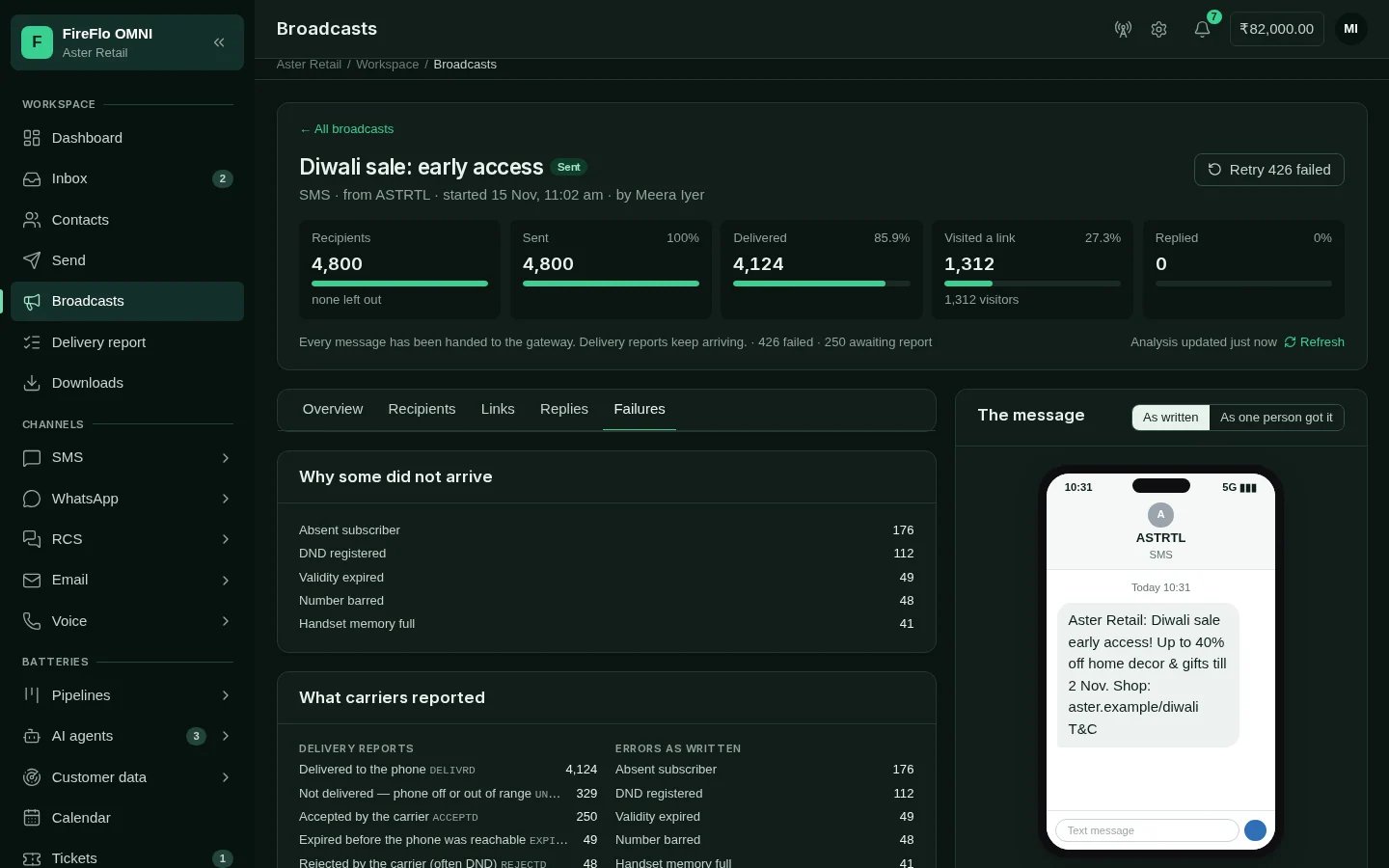
Failures: each reason a message did not arrive, with how many it hit.
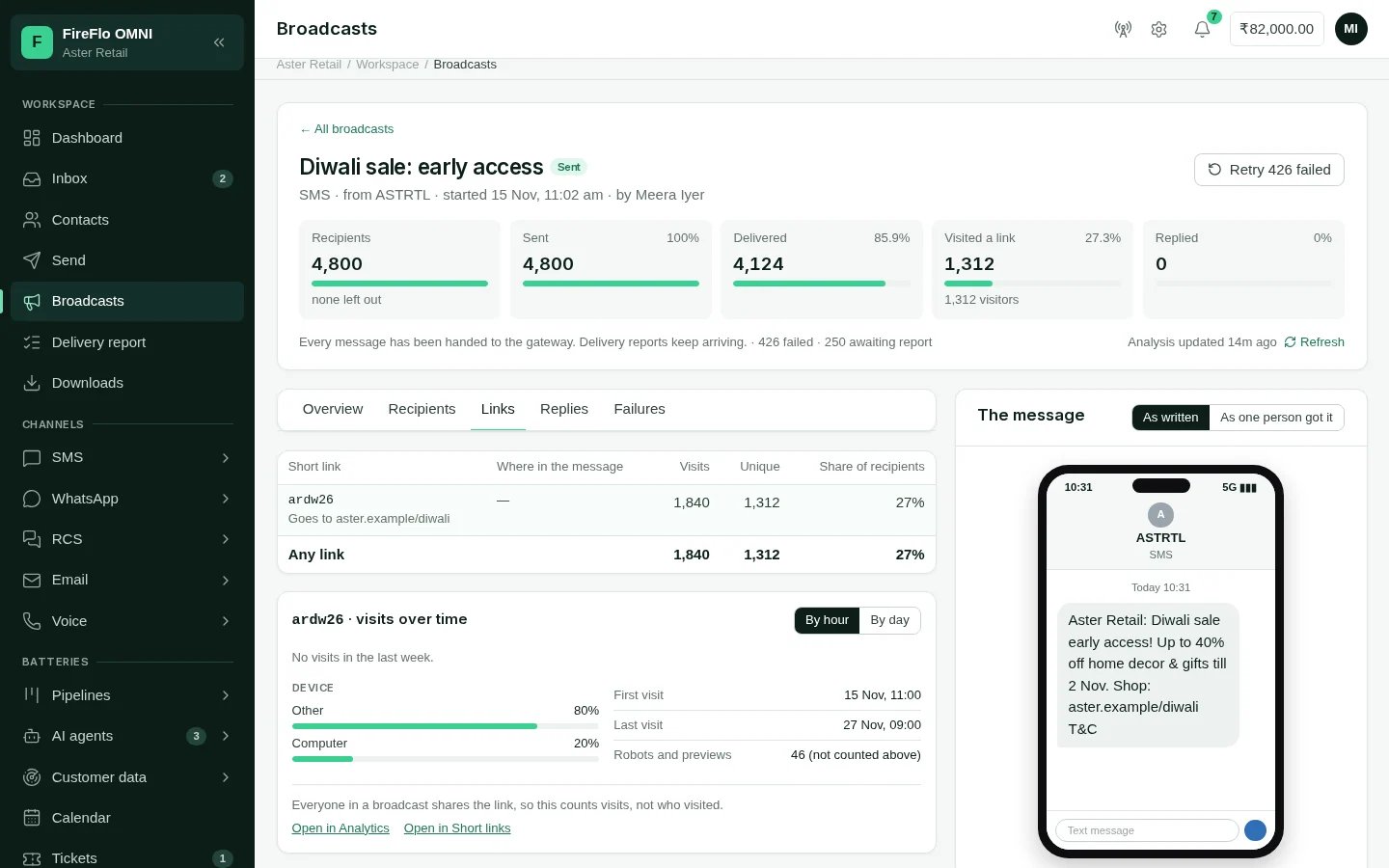
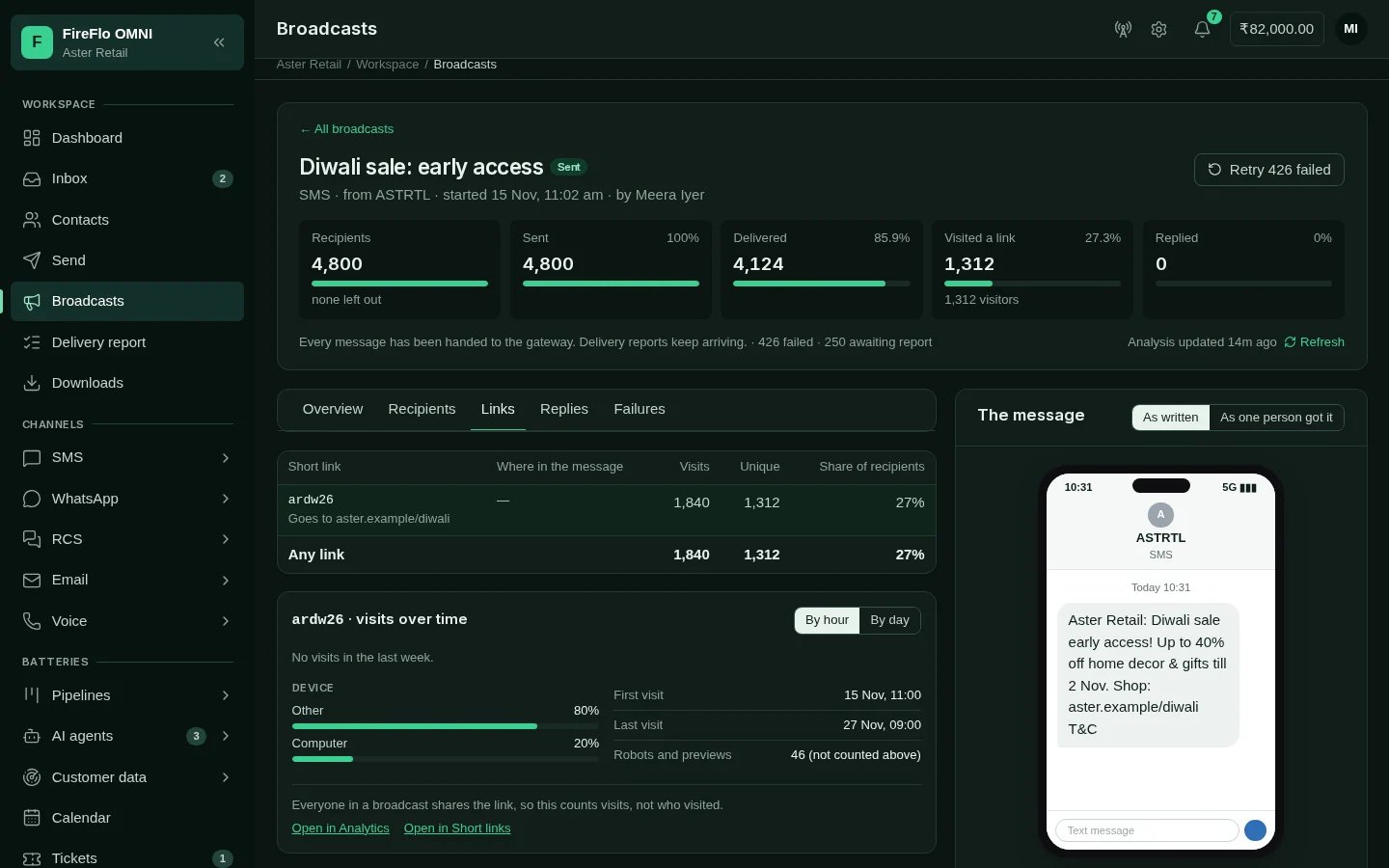
Links: each short link the broadcast carried, and the share of recipients who visited.