The AI Agents battery adds agents that work for you. Each agent does one job — sales, support, appointments or operations — on your own AI key. Every action an agent takes is planned, logged, and waits for a person’s approval wherever you say so. AI Agents also includes Knowledge: the FAQs, files and web pages your agents answer from.
Your plan must include AI agents. The plan also sets how many agents can be live at once. If agents are in your plan but switched off for your account, the screens say so, and your agents and their history are kept.

Overview

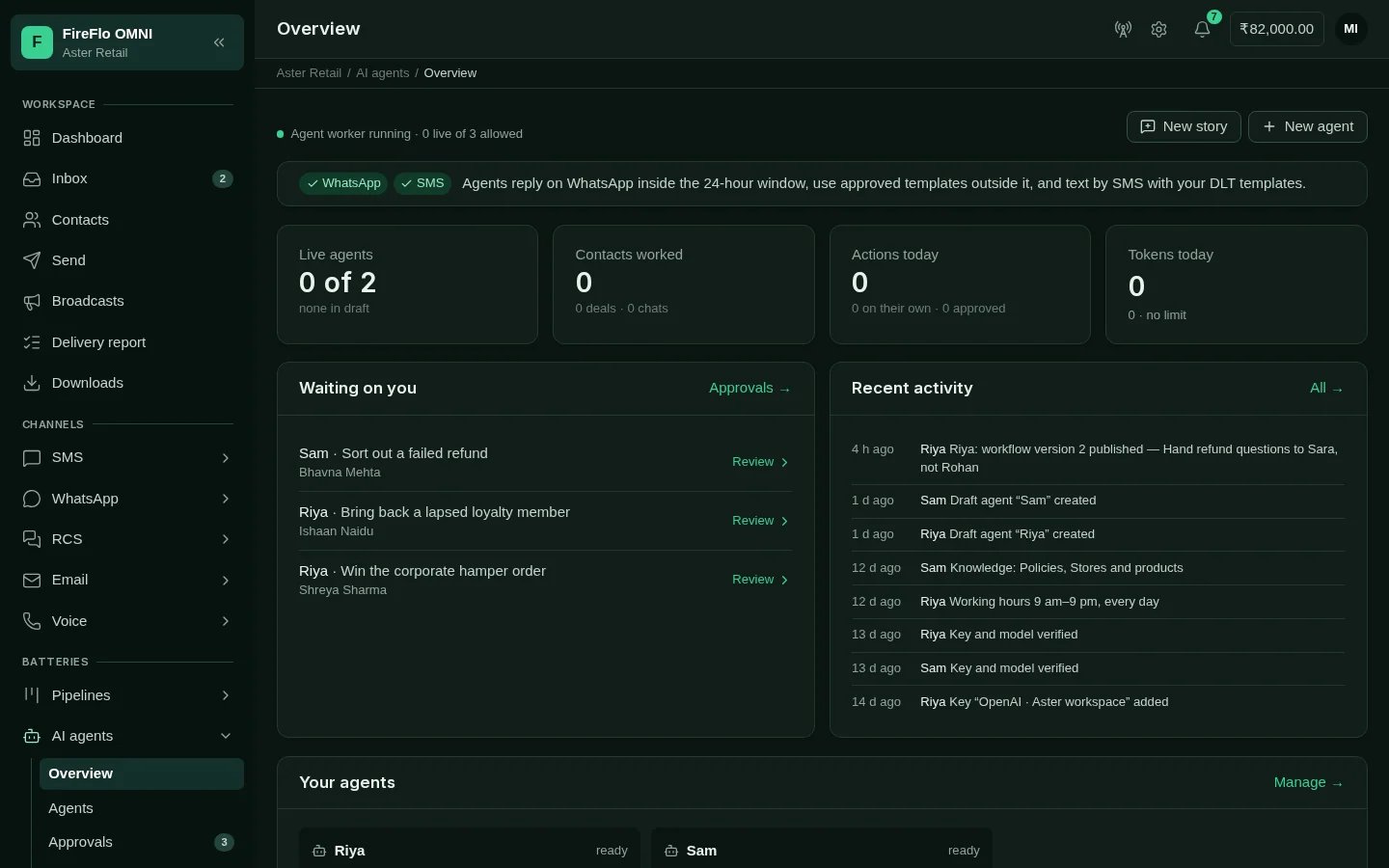
AI agents → Overview answers “what are my agents doing right now?”
  • Your channels, and which ones agents can use.
  • Live agents, Contacts worked, Actions today and Tokens today.
  • Waiting on you — plans to approve and conversations handed over to a person.
  • Recent activity, and Your agents with the channels and pipelines each one works.
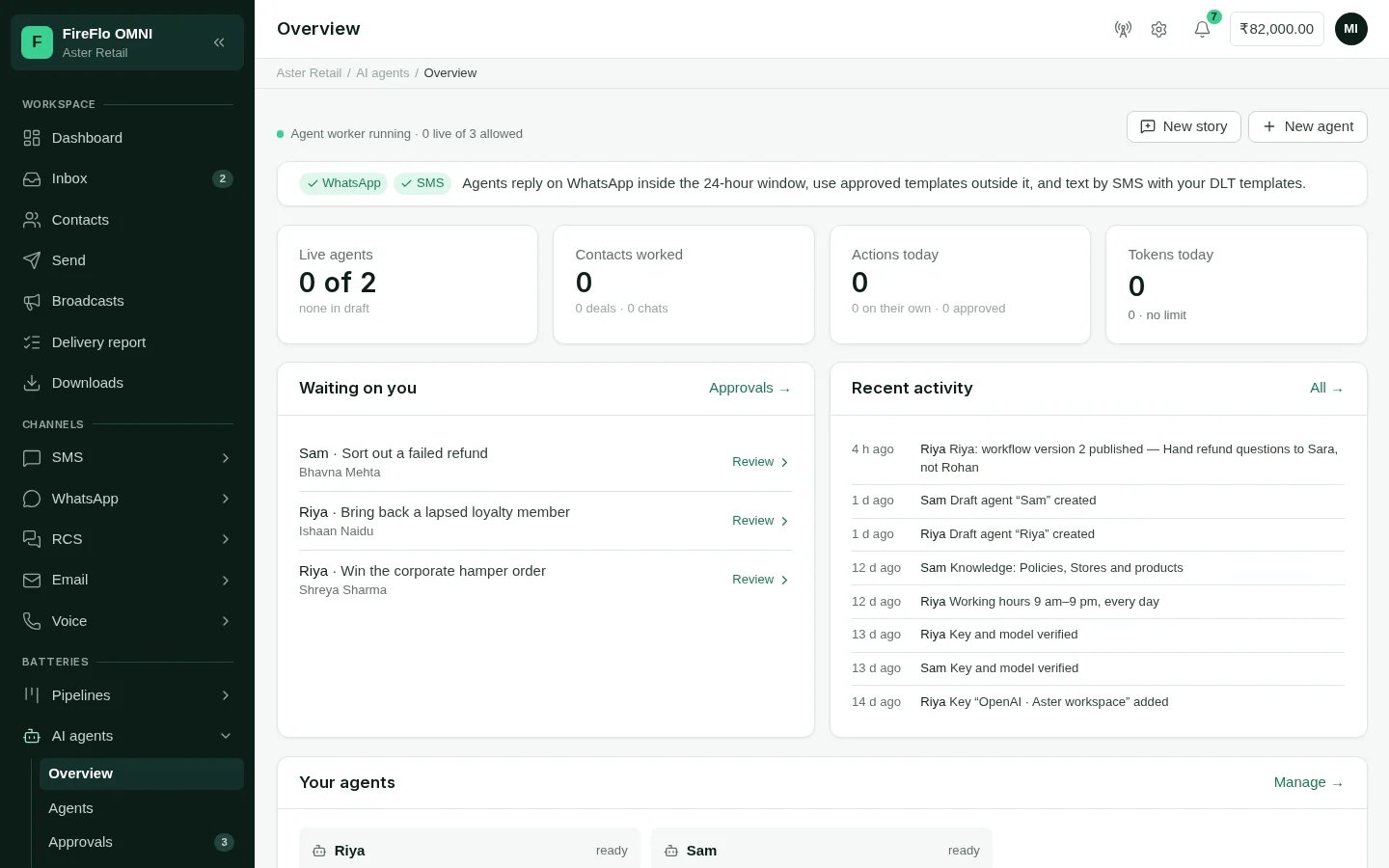
A line at the top shows whether the agent worker is running. If it has not reported in for a while, agents do not plan or act until it is running again.
The AI agents overview: live agents, contacts worked, actions and tokens today, what is waiting on you, recent activity and your agents.The AI agents overview: live agents, contacts worked, actions and tokens today, what is waiting on you, recent activity and your agents.

The AI agents overview: what your agents did today and what waits on you.

Kinds of agent

Every agent is one kind. The kind decides which actions it may take and what it does by default. Each kind’s card says which modules it uses, and a kind is offered only when those modules are on. Only SalesBot needs a pipeline to go live; SupportBot and the Appointment Bot can go live without one. Deal blocks and deal actions show only when Pipelines is on. A contact can have one sales agent and one support agent at the same time, but never two agents of the same kind. The kind of a live agent cannot change — make a new agent instead.

Set up an agent

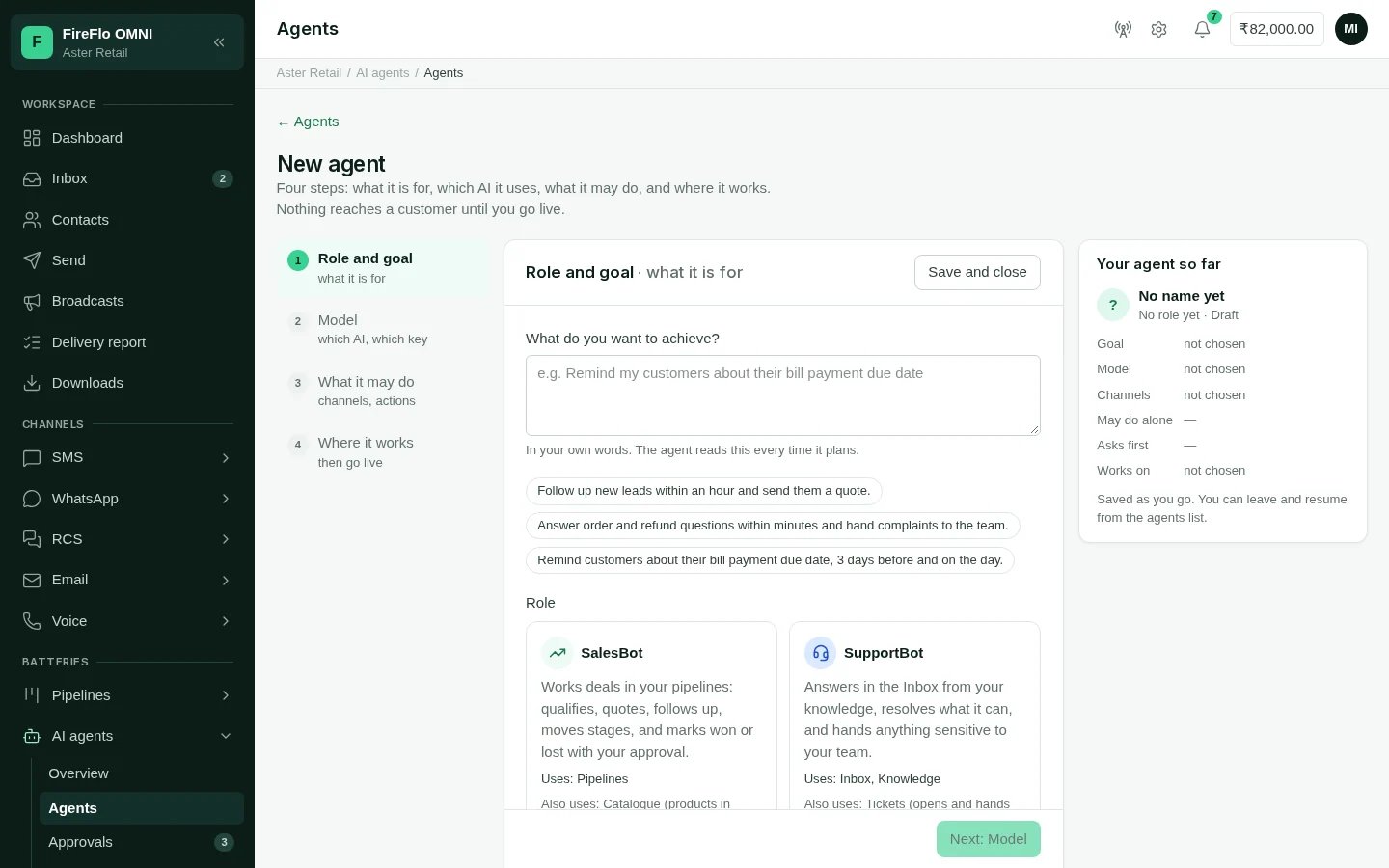
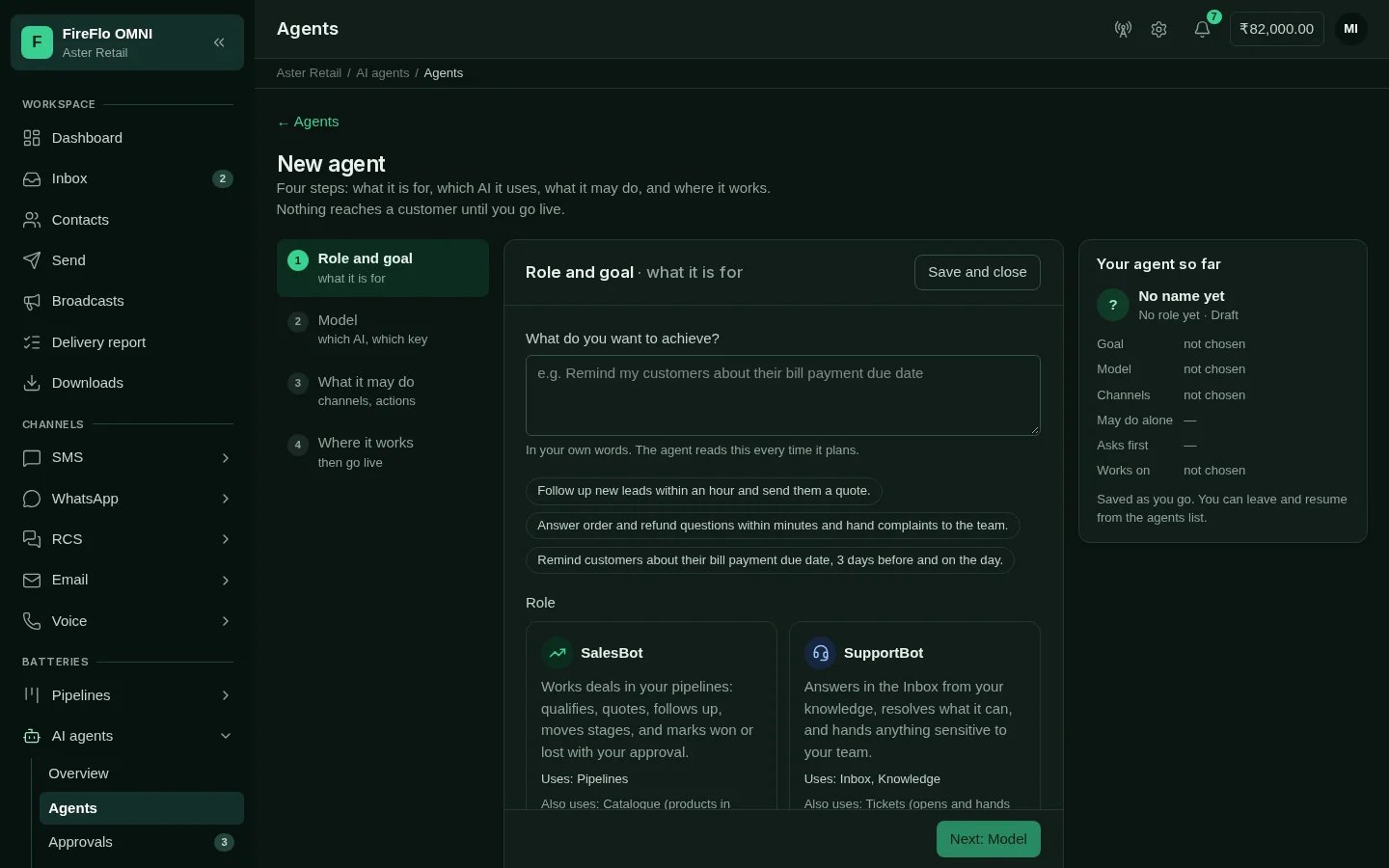
AI agents → Agents lists your agents with their status, model, pipelines, tokens used today and what is waiting for approval. Choose New agent to set one up in four steps. Nothing reaches a customer until you go live.
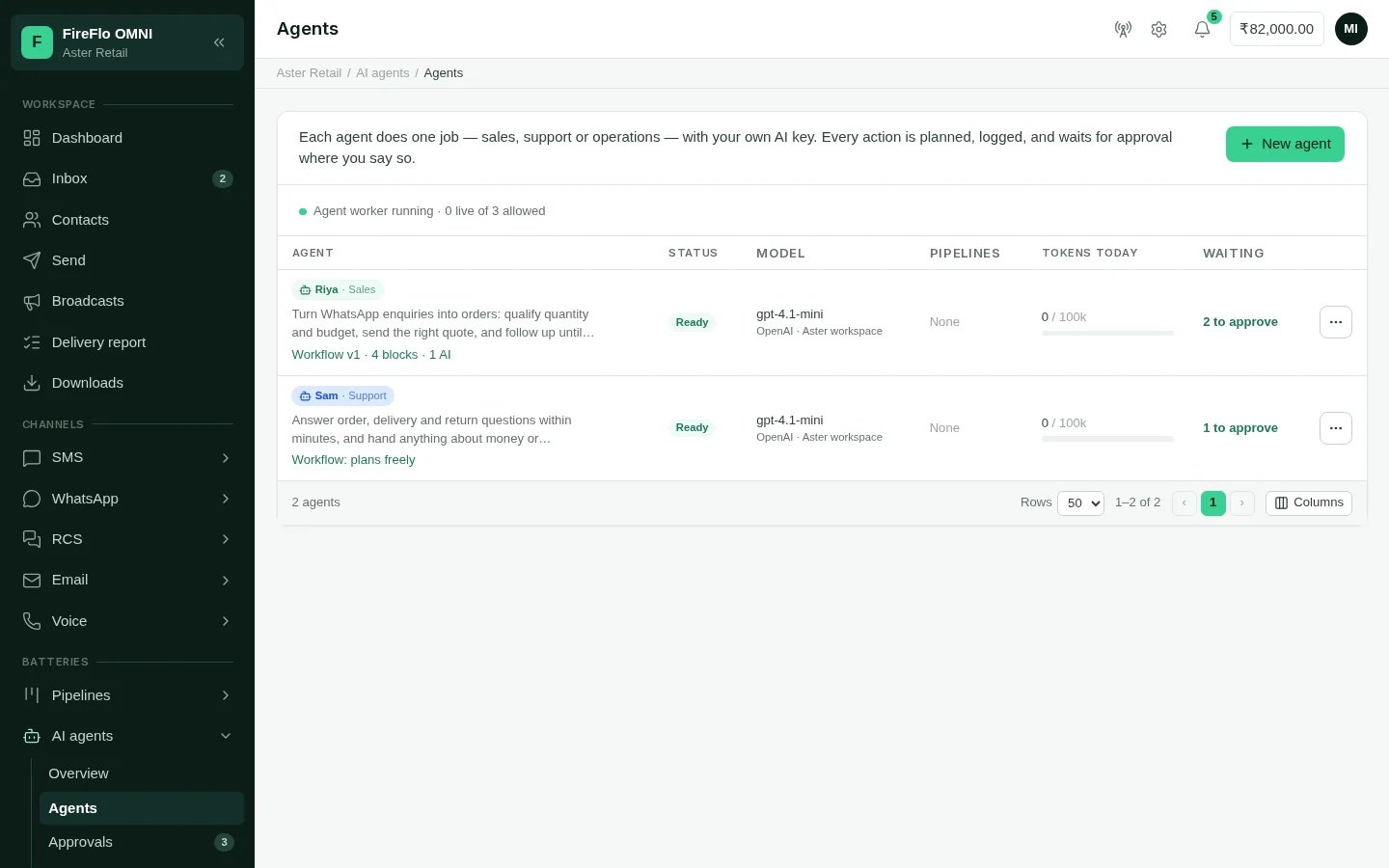
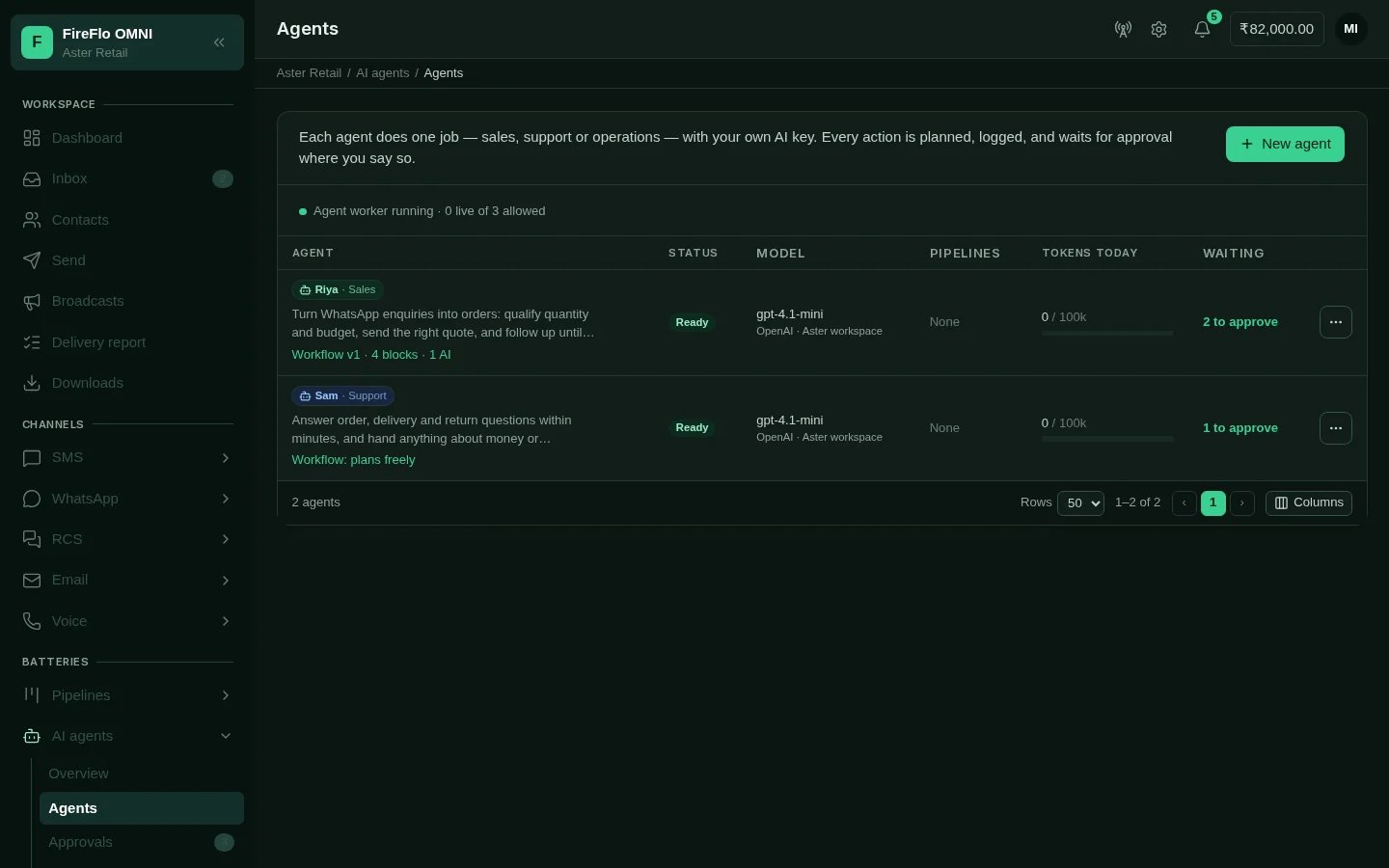
The agents list with each agent's role, channels and state, and the New agent steps.The agents list with each agent's role, channels and state, and the New agent steps.

AI agents → Agents: each agent with its status, model, pipelines, tokens today and plans waiting.

1

Role and goal

Say in your own words what the agent should achieve — for example, “Answer order and refund questions within minutes and hand complaints to the team.” The agent reads this every time it plans. Pick the kind of agent and give it a name. Customers may see the name, so pick a name rather than a job title.
2

Model

Choose one of your AI keys and a model, or add a key here — How to get a key beside the form gives the steps for each provider (see AI providers). The key is tested where you choose it, and the next step stays off until it answers.
3

What it may do

The agent’s instructions, its channels and its main actions. More settings holds Conversations, Knowledge, Hand-overs, Planning, Hours and Limits, already set to their usual values.
4

Where it works

Choose the pipelines the agent works, if any. Each pipeline brings its own strategy — goal, stage playbooks, approval rules and token budget. Then choose Go live. You can disengage a pipeline at any time; pending work on it stops.
A summary of the agent fills in beside the steps as you go (on a phone, a Review sheet). Save and close keeps the agent as a draft, and you can carry on from the agents list.
The New agent steps, starting with the agent's role and goal.The New agent steps, starting with the agent's role and goal.

New agent: the four steps, and the agent so far beside them.

To plan, agents send contact names, numbers, recent messages and memory to your chosen AI provider, under your own key and its terms.

The Settings tab

A live agent’s page has three tabs: Overview, Workflow and Settings. Edit settings opens Settings: every setting in groups, each group saved on its own. If you try to leave with unsaved changes, OMNI warns you first. Changing the model or the key tests it before saving, so a failed test changes nothing.

What you configure

Actions

These are the actions an agent can be allowed. Hand-over can never be switched off: an agent must always be able to give up.
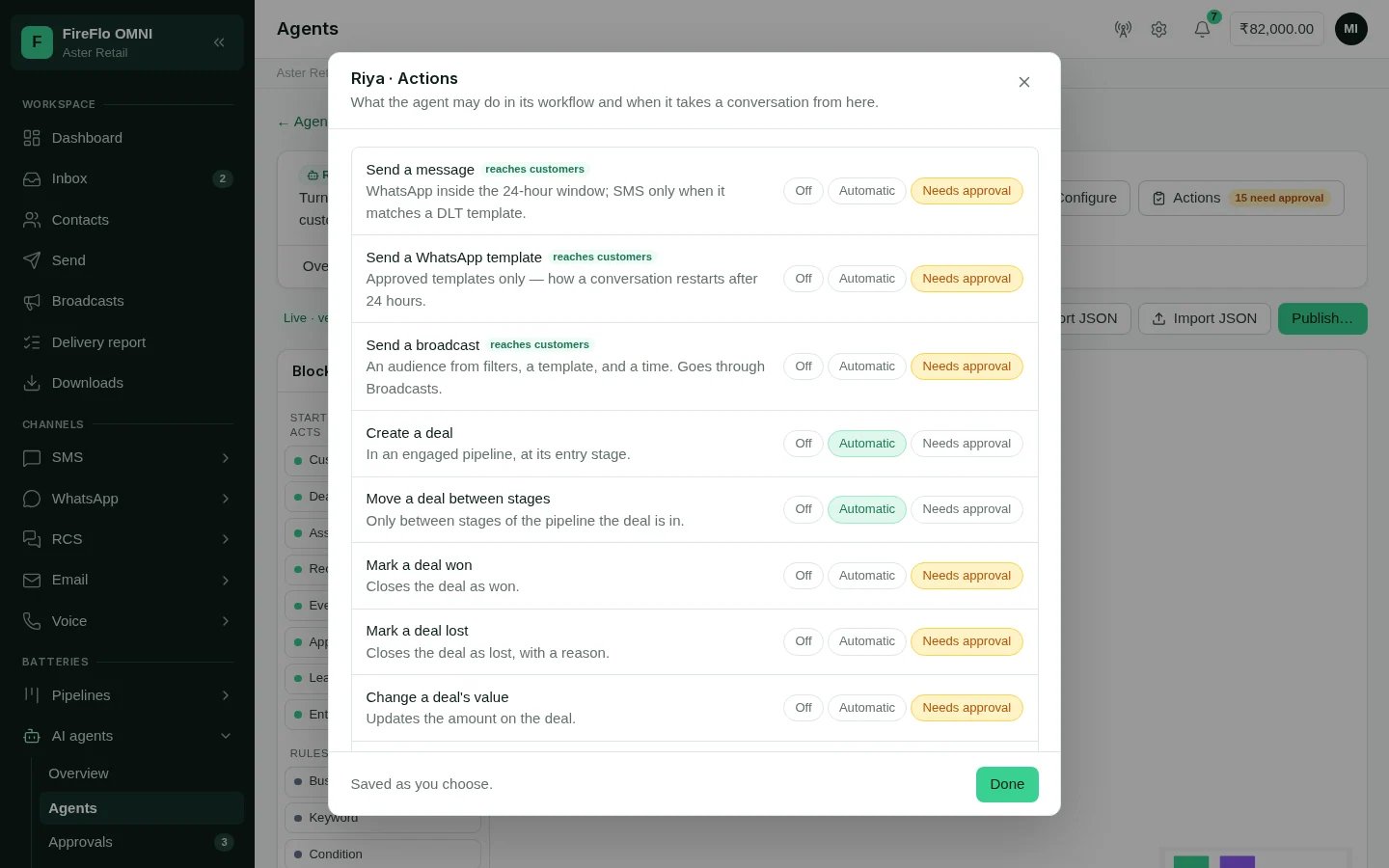
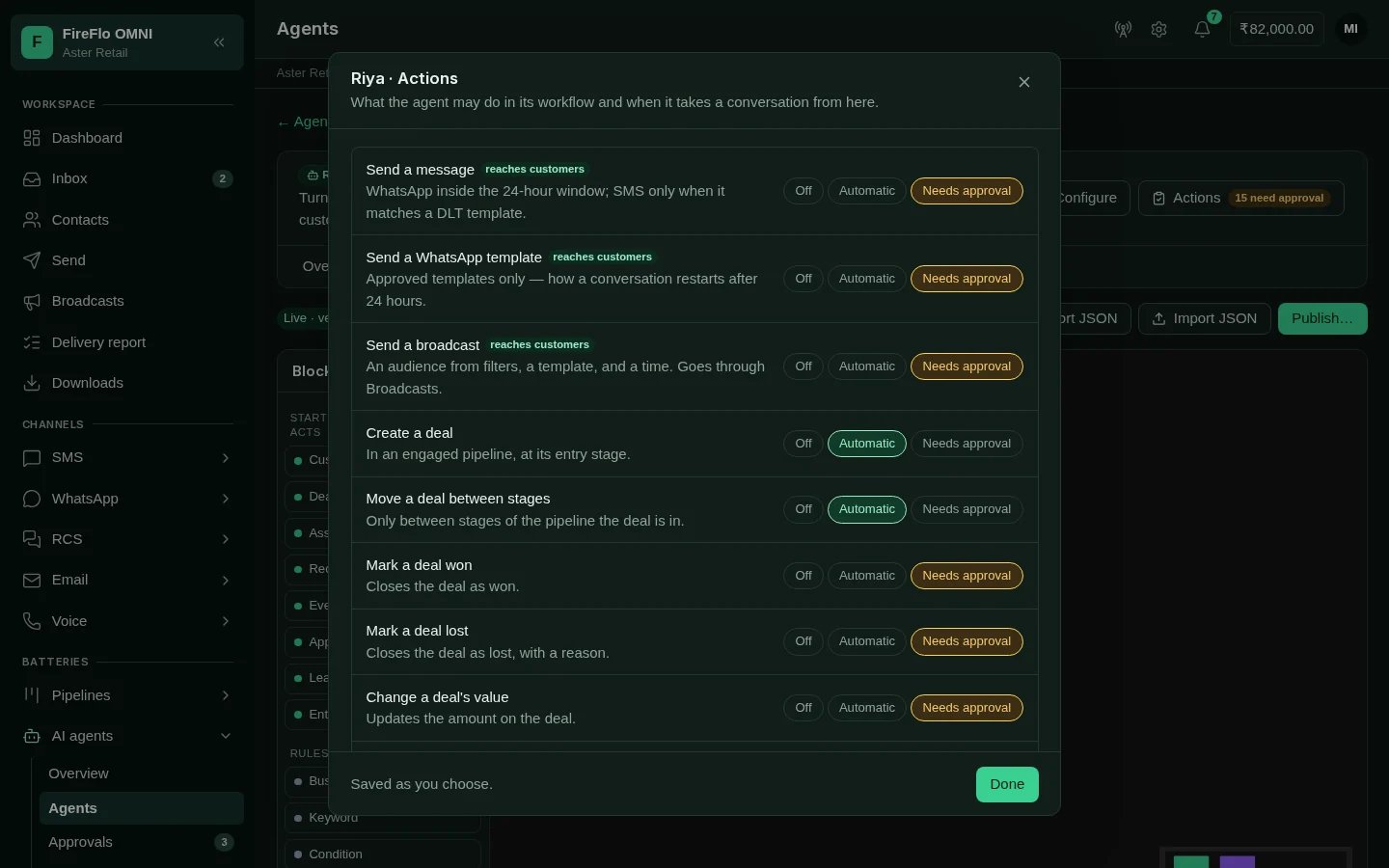
An agent's Actions dialog, each action set to Automatic, Needs approval or Off.An agent's Actions dialog, each action set to Automatic, Needs approval or Off.

An agent's actions, each set to Off, Automatic or Needs approval.

Other batteries add actions of their own when your plan includes them: booking, rescheduling and cancelling appointments (Calendar); finding, sending, adding and changing products and drafting orders (Catalogue); updating and solving tickets (Tickets). A pipeline’s strategy can override an agent’s settings for deals in that pipeline, and a stage can narrow them further: an action a stage does not list is off there.

How agents reply on each channel

An agent’s message goes on the channel it was planned for, and stays there: a message approved for WhatsApp is never quietly sent as SMS. When a message is time-sensitive, the agent may plan a fallback — “WhatsApp, then SMS if not delivered in 15 min” — which the plan step shows. While editing a plan before approving, × on the fallback takes it off. With Fall back to other channels when a message isn’t delivered on in the agent’s settings, messages that need no approval go on the agent’s next channel when one isn’t delivered. Fallback needs the OMNI API in your deployment. Template requests an agent drafts appear under Template requests on the Approvals screen. Check the wording, then approve to submit it. OMNI checks every 10 minutes whether it has been decided; waiting conversations carry on once it is approved.

AI in the Inbox

An agent steps back as soon as a person steps in, and you choose, chat by chat, how much the AI does.

Who answers a chat

The AI button in a chat’s header shows who answers it — Team, AI drafting, AI replying, Paused or Needs a person — and switches between three modes. It also changes which agent works the chat. An agent can be set to draft for every chat it holds; by default it replies by itself. Only text the AI writes is held as a draft: a workflow’s own fixed messages, buttons and templates go out as they are. Pending action is a tab in the Inbox listing the chats with a draft waiting, oldest first, each showing the draft’s first line. Rows carry a chip: Draft ready, AI replying, Paused or Needs a person. See The Inbox.

Sharing conversations with your team

  • A teammate replies in the Inbox, or the conversation is assigned to a person: every agent working that contact pauses for them (when Step back when a person replies is on). Anything the agent had planned is cancelled.
  • How long it steps back is set in the agent’s settings: a number of minutes, after which it takes over again, or 0 to wait until someone hands the conversation back. You can also choose that it leaves the conversation with the team.
  • When an agent hands over to a person, it pauses for that contact, leaves a line in the chat, and leaves your team a short summary — what the customer wants, what it tried and what is needed. With Tickets, the summary is a note on the ticket.
  • Steps an agent takes in a chat name the agent — “Asha (AI) · labelled: Exchange”.
Under each AI reply in the Inbox you can mark it Good answer or Wrong answer; wrong answers show in Missing answers. On a contact’s page and in the Inbox, the AI agents card shows who is working the contact and their current plan, and Memory shows what agents know about the person. Anything your team writes, edits or pins in Memory is never changed by an agent.

Plans and approvals

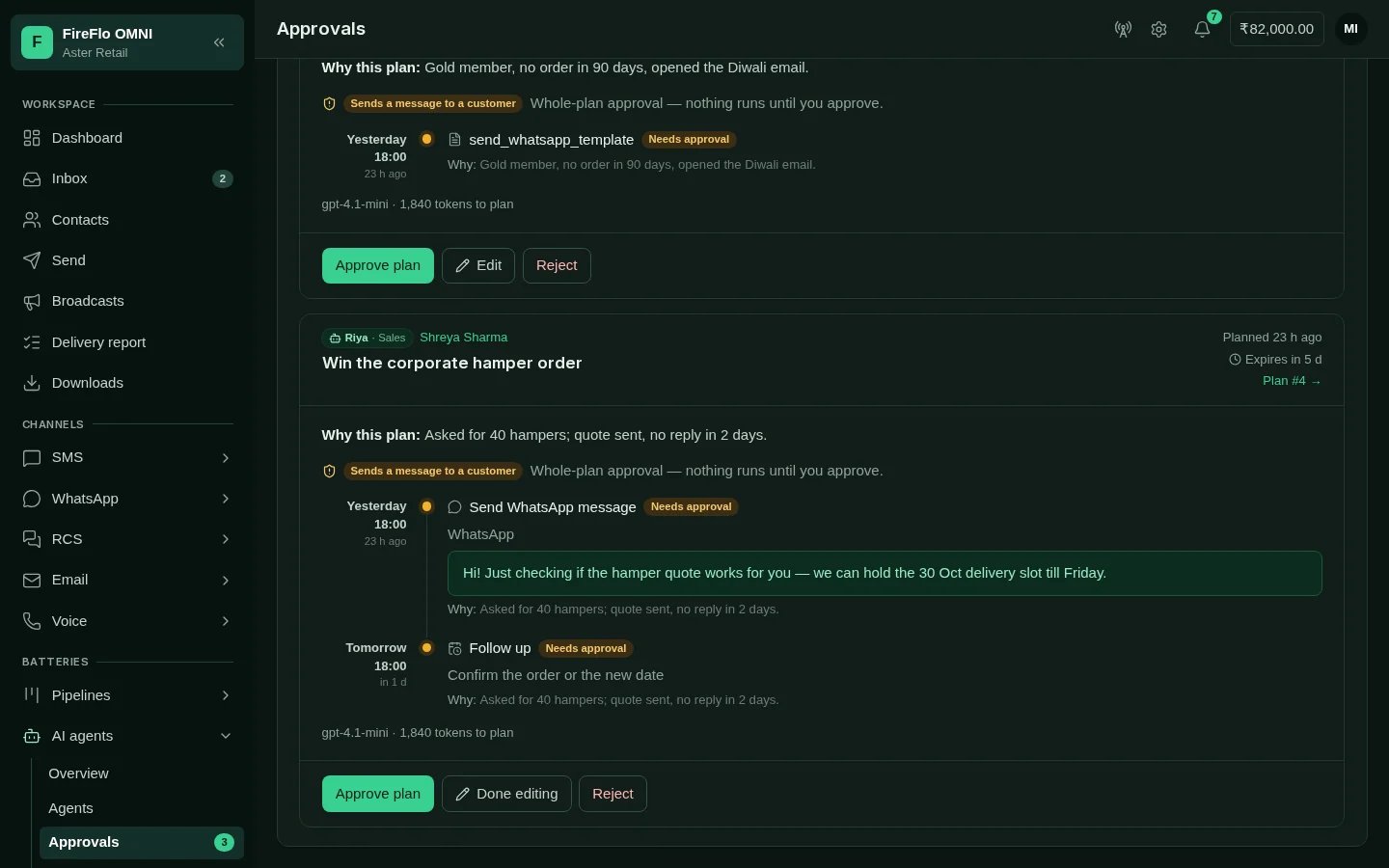
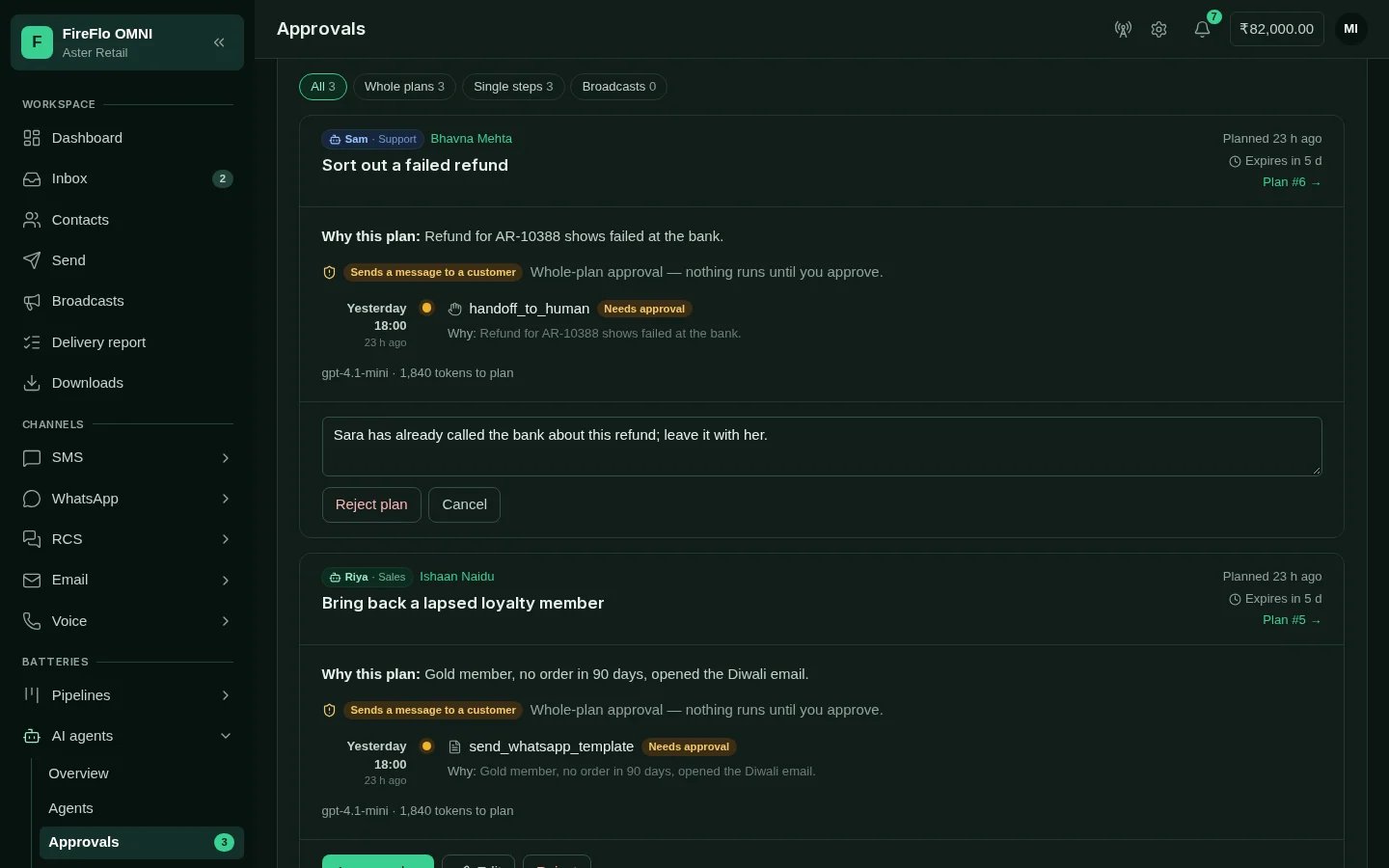
Each time an agent works a contact, it makes a plan: a goal, the reason for it, and a list of steps. A plan starts when a contact is assigned to the agent, the customer replies, a deal changes stage, a follow-up falls due, a person chooses Run now on the contact, or a workflow block asks for it. AI agents → Approvals lists the plans waiting for a person, and the Operations Bot’s proposals. Before approving you can edit a note, an amount or a message’s text, take off a message’s fallback, or drop a step — what you approve is exactly what runs.
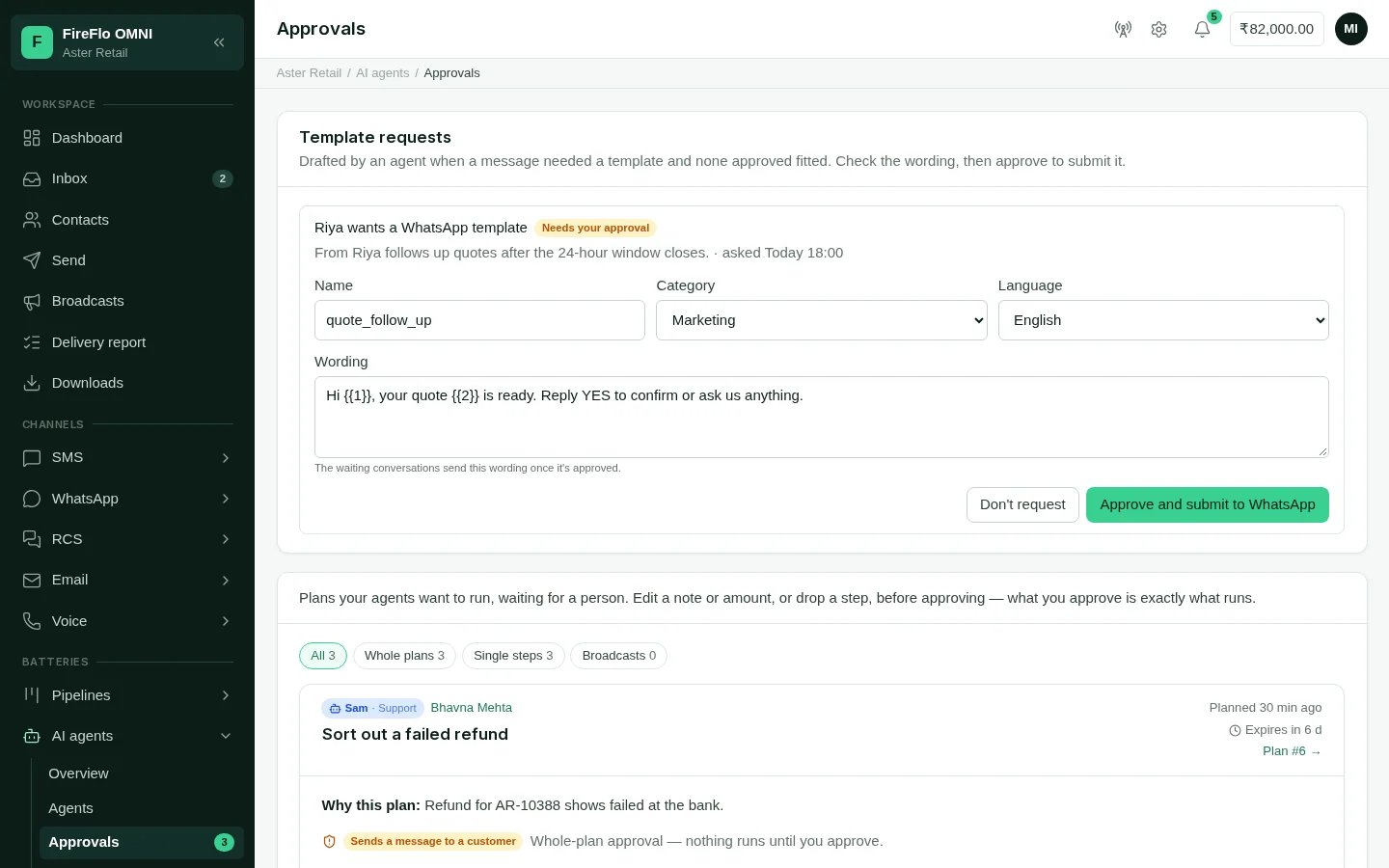
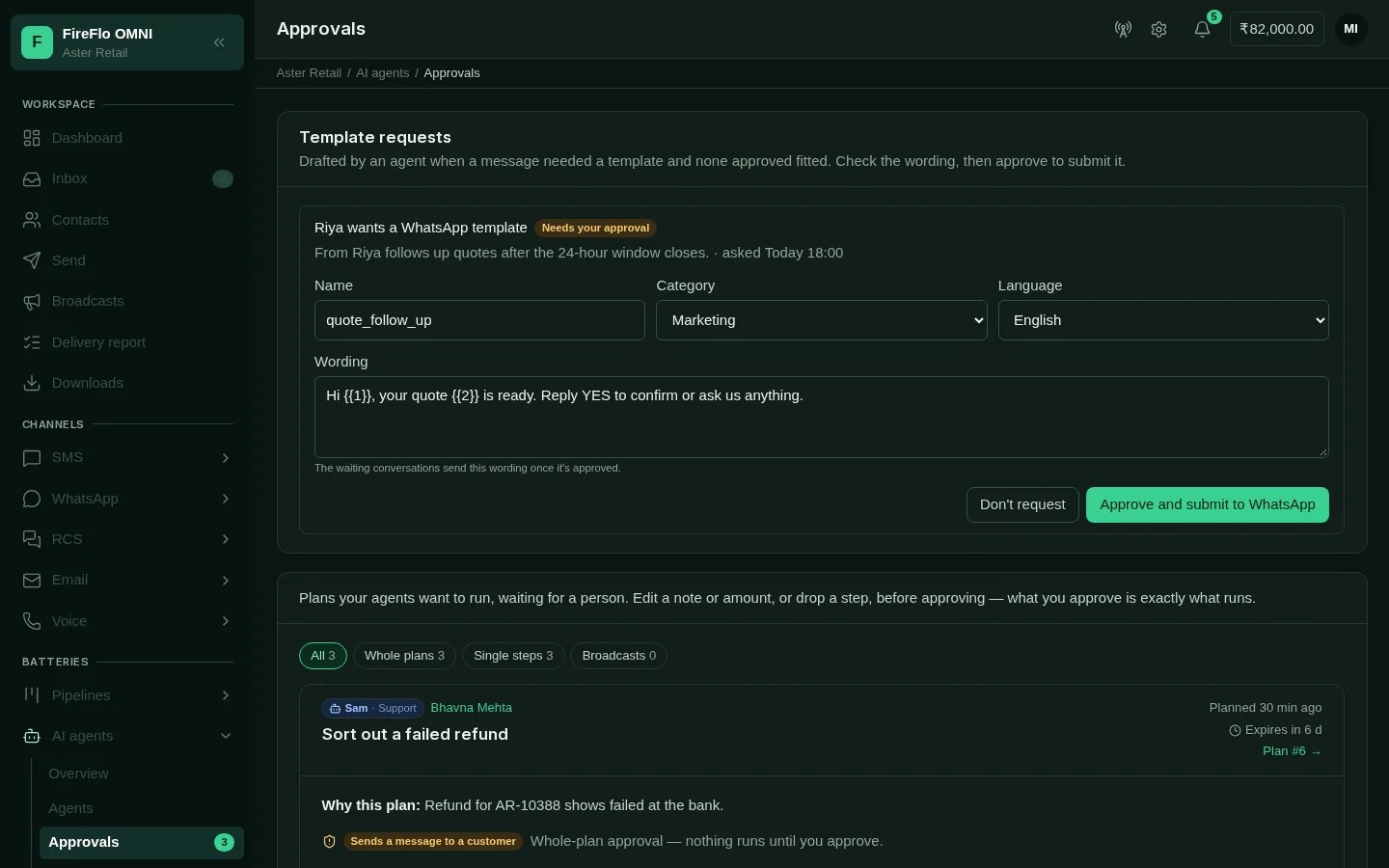
The approvals list with a plan open, showing its goal and steps with Approve and Reject.The approvals list with a plan open, showing its goal and steps with Approve and Reject.

Plans waiting for approval, each with its goal and steps.
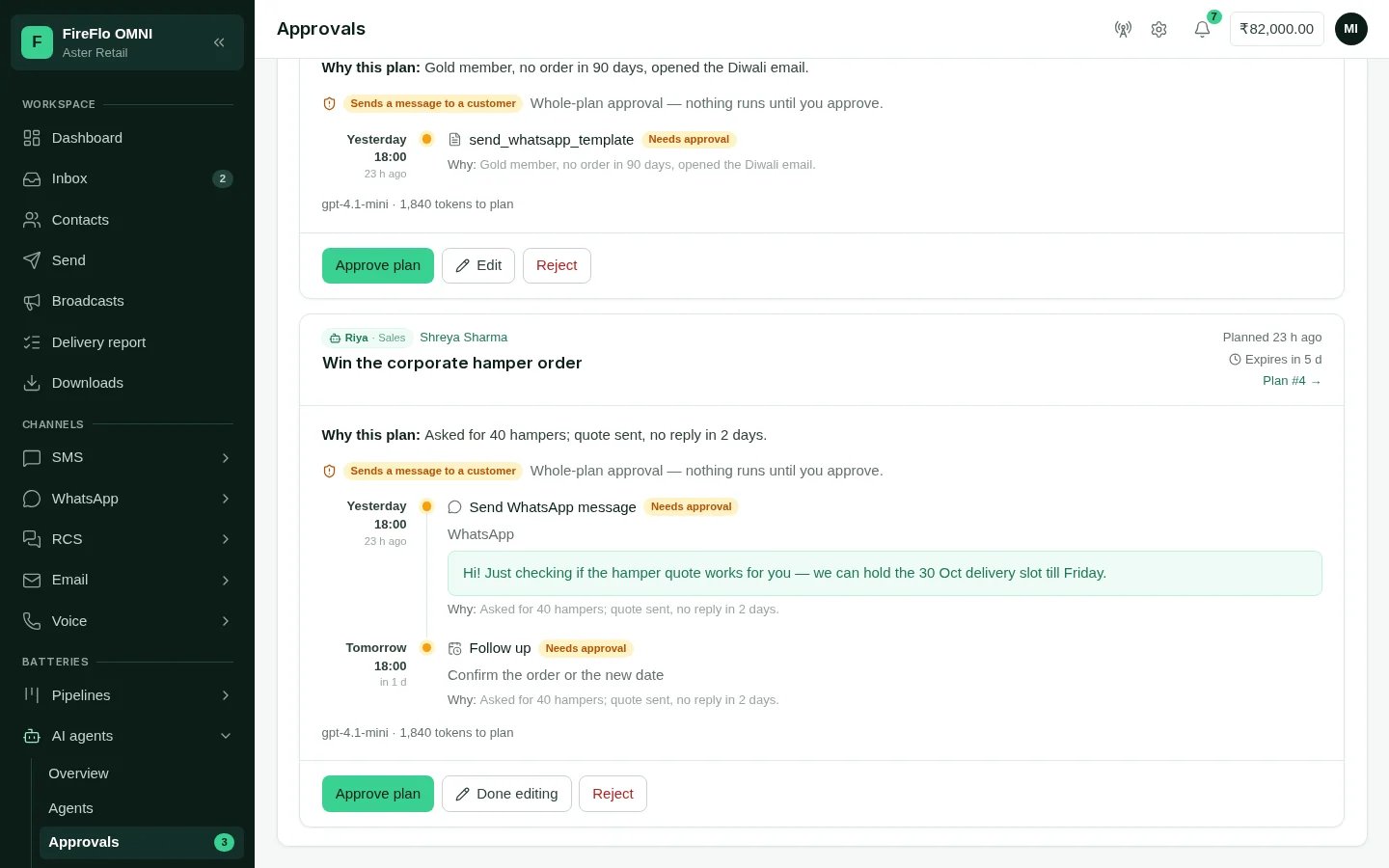
A plan being edited before approval, with its message text open to change.A plan being edited before approval, with its message text open to change.

Change a step before approving; what you approve is what runs.
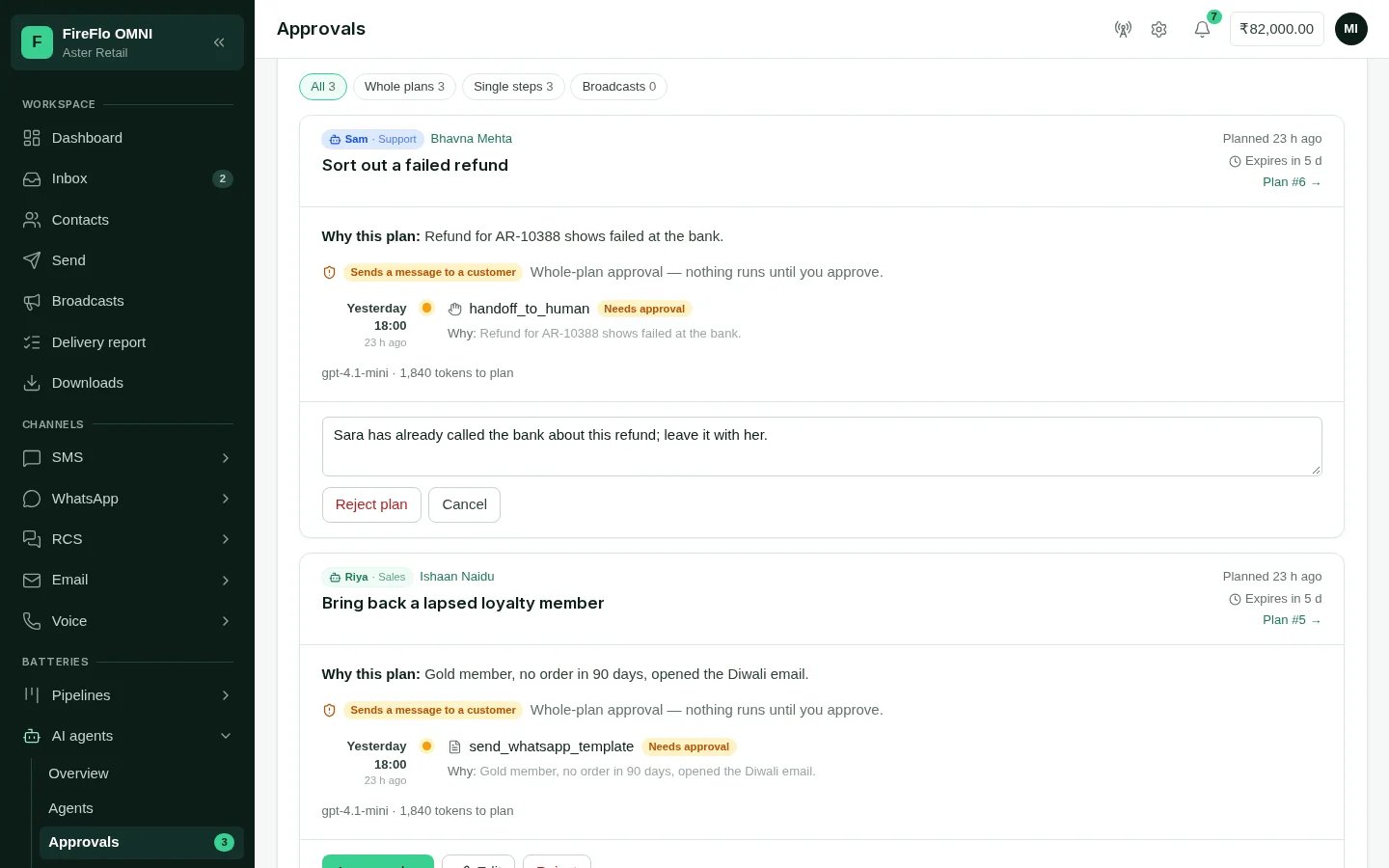
To reject, tell the agent why; it reads your note the next time it plans for that contact.
A plan an agent proposed being rejected, with the note the agent reads next time it plans.A plan an agent proposed being rejected, with the note the agent reads next time it plans.

Rejecting a plan, with the note the agent reads next time.

An unanswered plan is dropped after a time you set (24 hours by default), not run late.

Workflows

Each agent has a workflow: a diagram of blocks that decides what happens in a conversation, and when the AI is called at all. Open it from the agent’s Workflow tab.
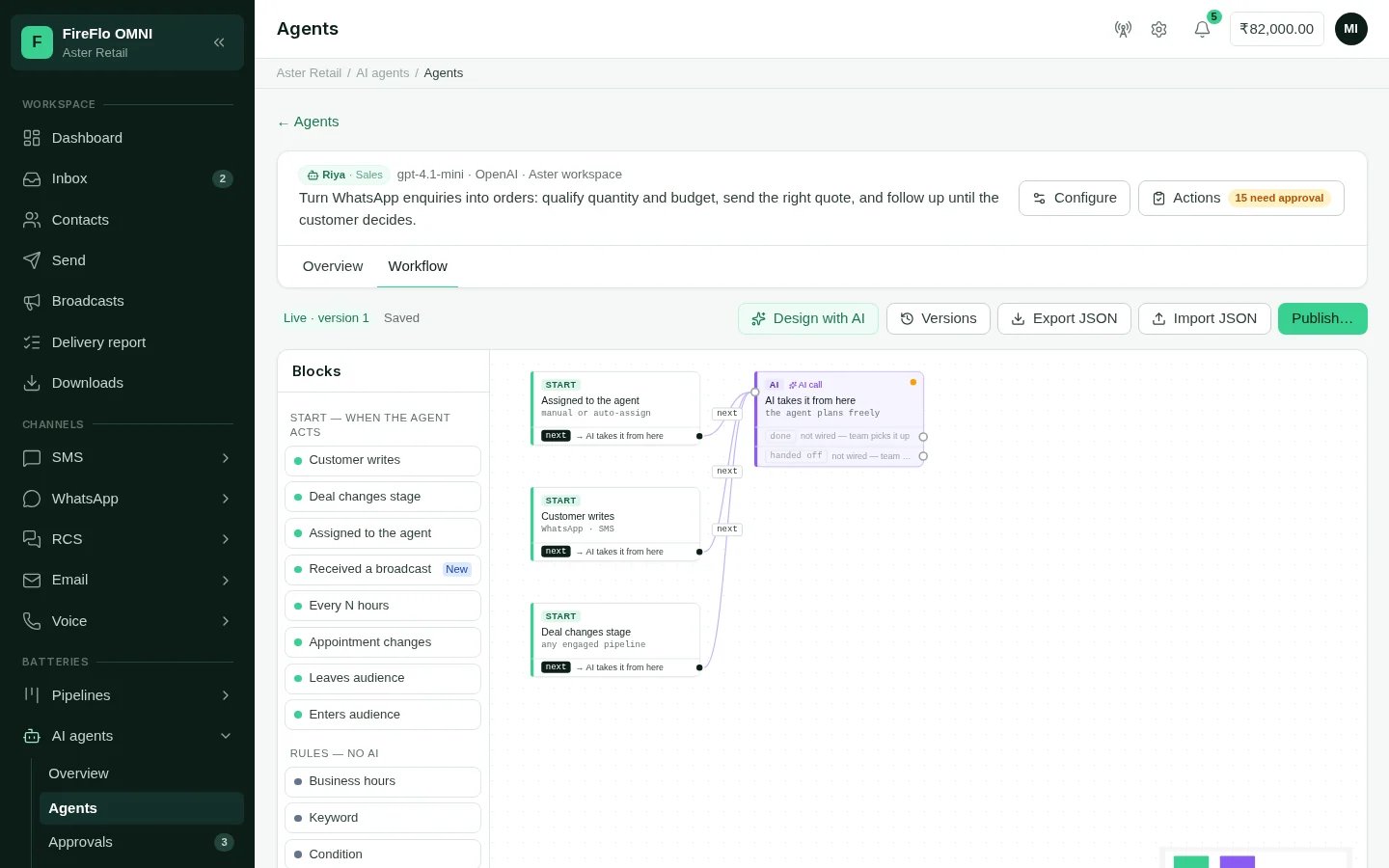
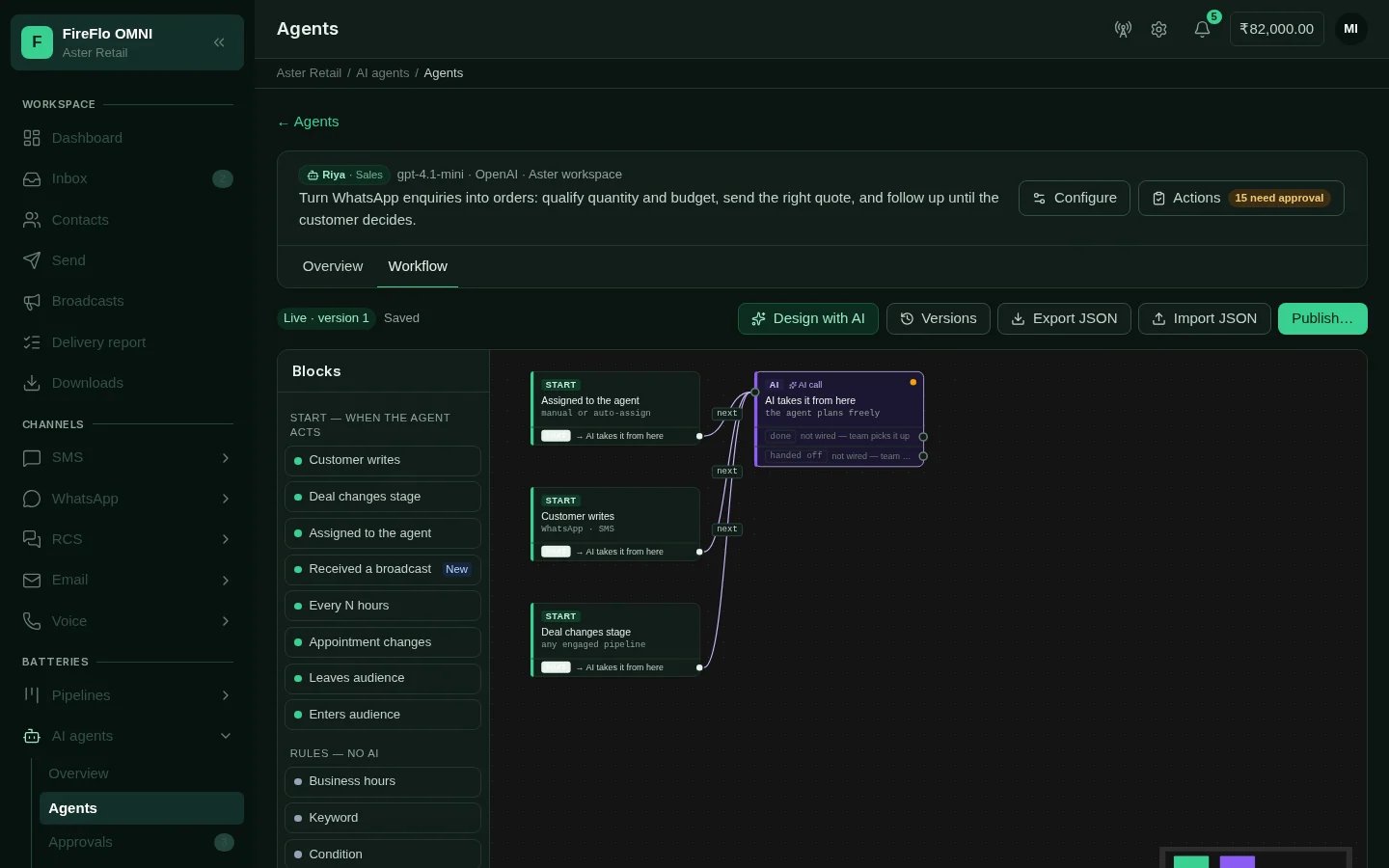
An agent's workflow diagram with start, rule, send and AI blocks joined by lines.An agent's workflow diagram with start, rule, send and AI blocks joined by lines.

An agent's workflow: start blocks joined to the blocks that follow.

Deal blocks show only when Pipelines is on. Other batteries add blocks when your plan includes them: appointment blocks (Calendar), Send products (Catalogue), Ticket is, Set ticket and Add ticket note (Tickets), and start blocks for someone entering or leaving an audience (Customer data).

Send message

  • The text can hold contact fields. For each field, choose what happens when it is empty for a contact: use a text instead, leave it empty, or don’t send.
  • Channels in order: the block tries the first channel, and moves on to the next when a channel can’t send or the message is not delivered within the time you set.
  • Shorten links — with Short links set up, links in the text are shortened.
  • Preview shows the message as one contact you choose would get it.
  • Besides sent, the block has a not sent outcome, so you decide what happens when no channel could send.
RCS carries approved templates only, so in a Send message block’s channel order RCS always moves on to the next channel. To send on RCS, use Send approved template.

Send approved template

Sends one of your approved templates on WhatsApp, SMS or RCS. Each blank is filled from a contact field or a fixed text.

Wait and Wait for delivery

  • Wait holds the conversation for a time — from 1 minute to 60 days — or until a day and hour. It waits inside the agent’s sending hours: 09:00–21:00 in the contact’s time zone, unless you change them on the agent. It makes no AI call.
  • Wait for delivery follows the last message the workflow sent, and goes on by what became of it: read or delivered, not read, failed, or no report in time.

Received a broadcast

Received a broadcast starts the workflow for the people a broadcast reaches. Choose the agent under Afterwards on a broadcast’s Review step, and who it takes:
  • only those who reply (the default);
  • everyone it was delivered to;
  • everyone it was sent to.
At most 50,000 conversations start per broadcast. The broadcast’s report shows how many started and finished. Everyone in a broadcast shares one short link, so a workflow can’t branch on who clicked it.

Update contact

Choose the fields to set and their values — a text, today’s date, or their reply — and the tags to add or remove.

Drafts, test runs and versions

  • You edit a draft. Checks show anything broken, and how many AI calls each path makes.
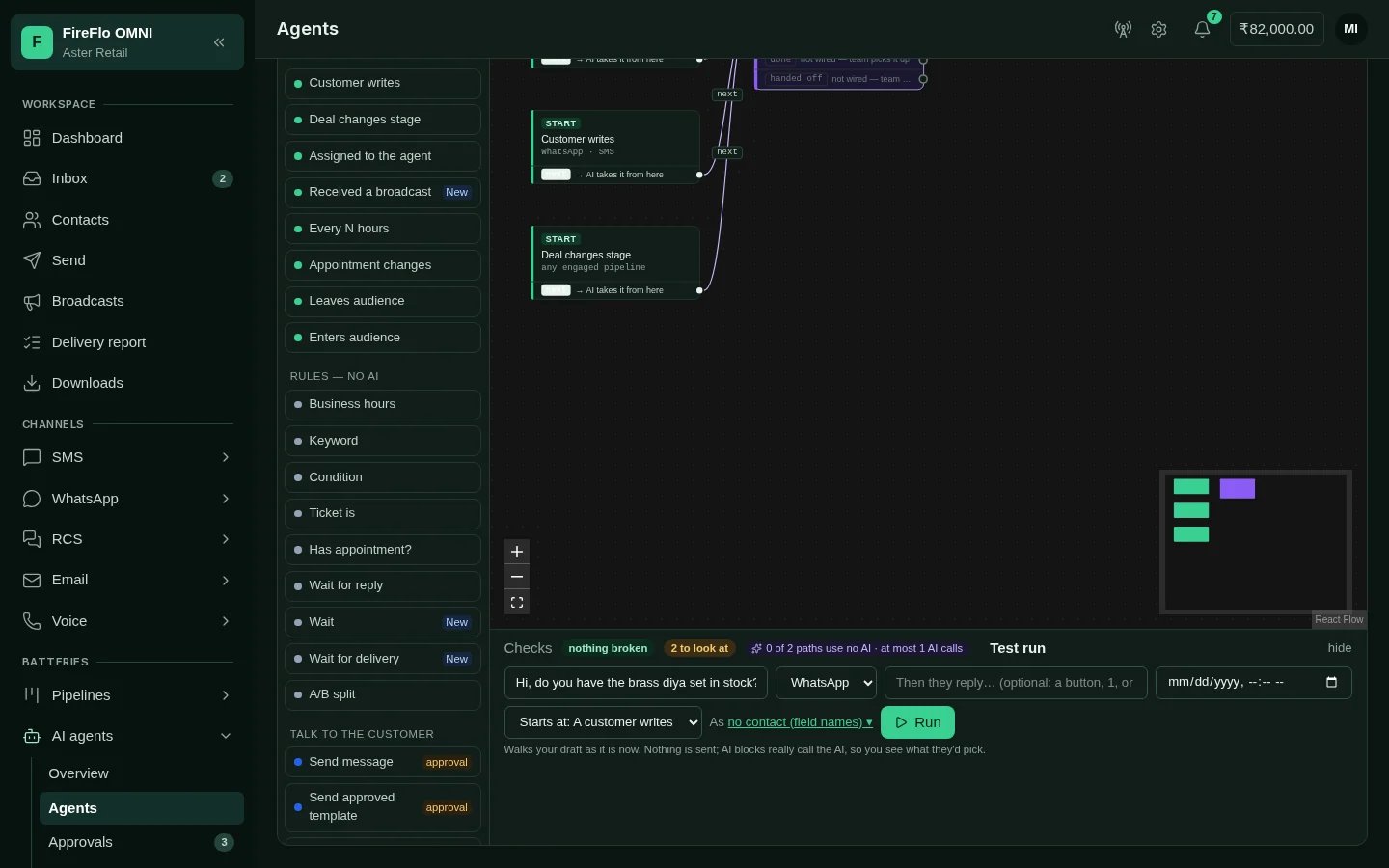
  • Test run a sample message on a channel to see the path it takes. Nothing is sent.
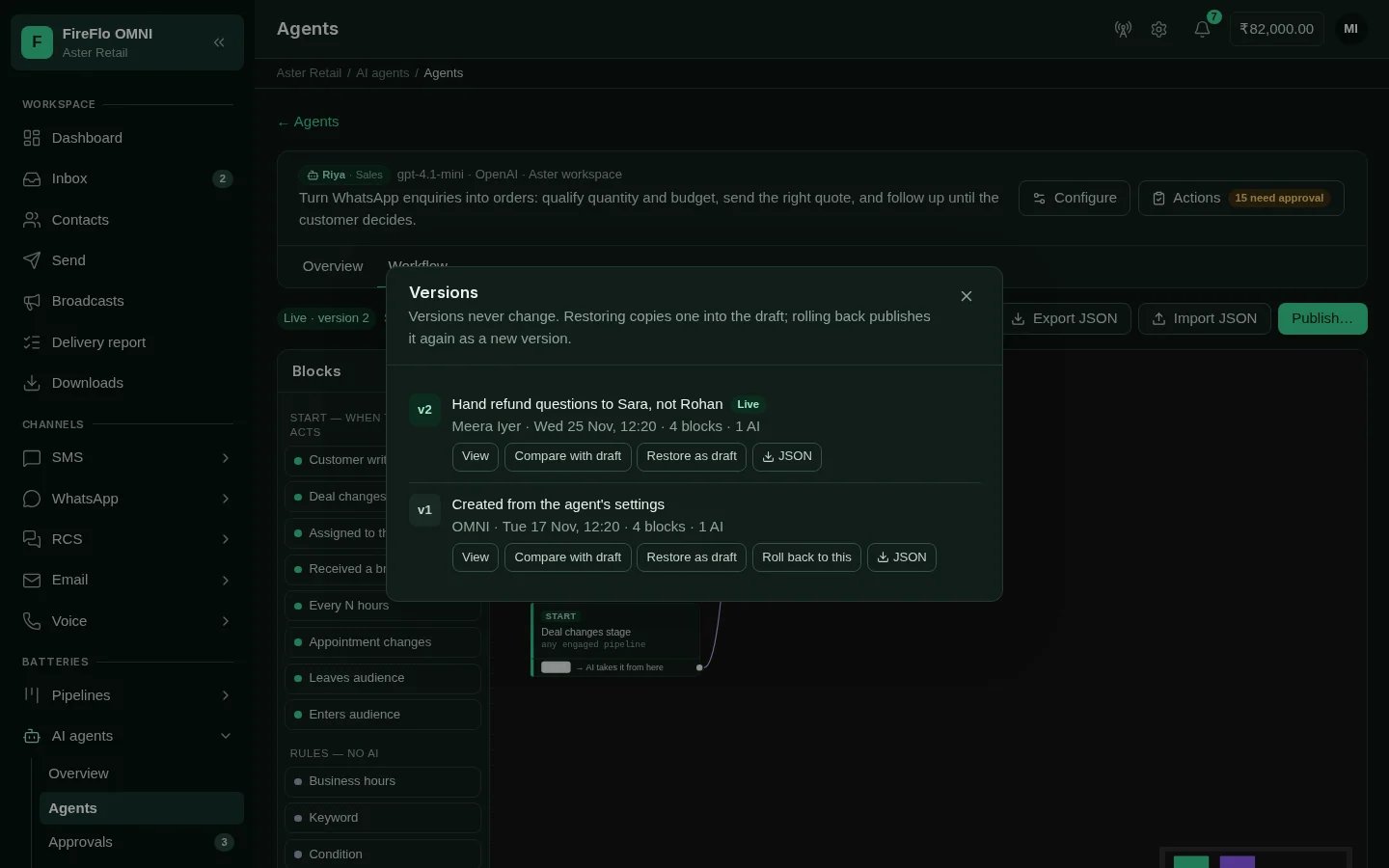
  • Publish with a short note. Published versions never change; you can compare one with the draft, restore it as the draft, or roll back to it.
  • Design with AI proposes a workflow from a brief. Export JSON and Import JSON move a workflow between agents or accounts; an import replaces only the draft.
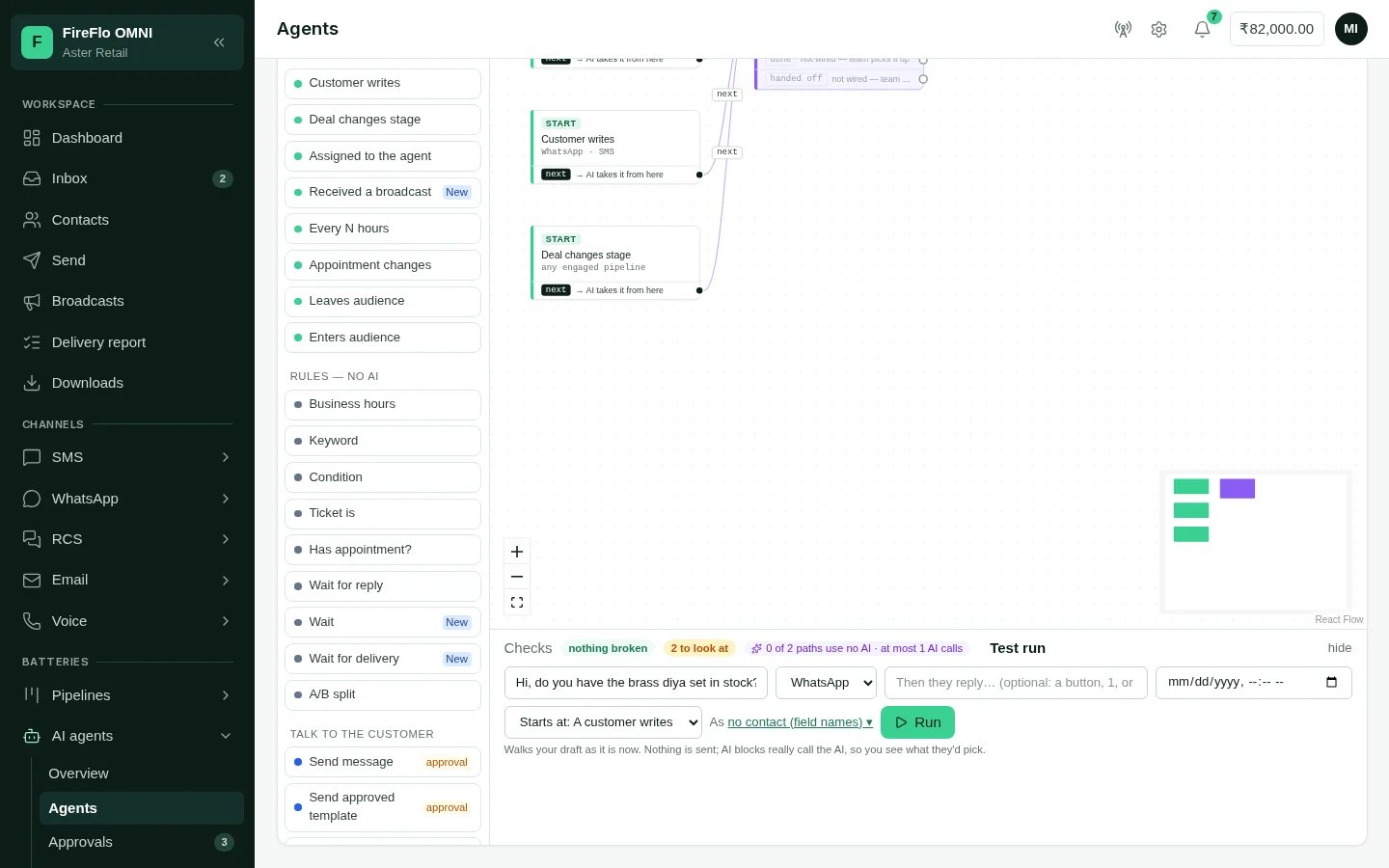
The workflow's Test run panel under the diagram, following a sample message through the blocks.The workflow's Test run panel under the diagram, following a sample message through the blocks.

Test run follows a sample message through the blocks; nothing is sent.
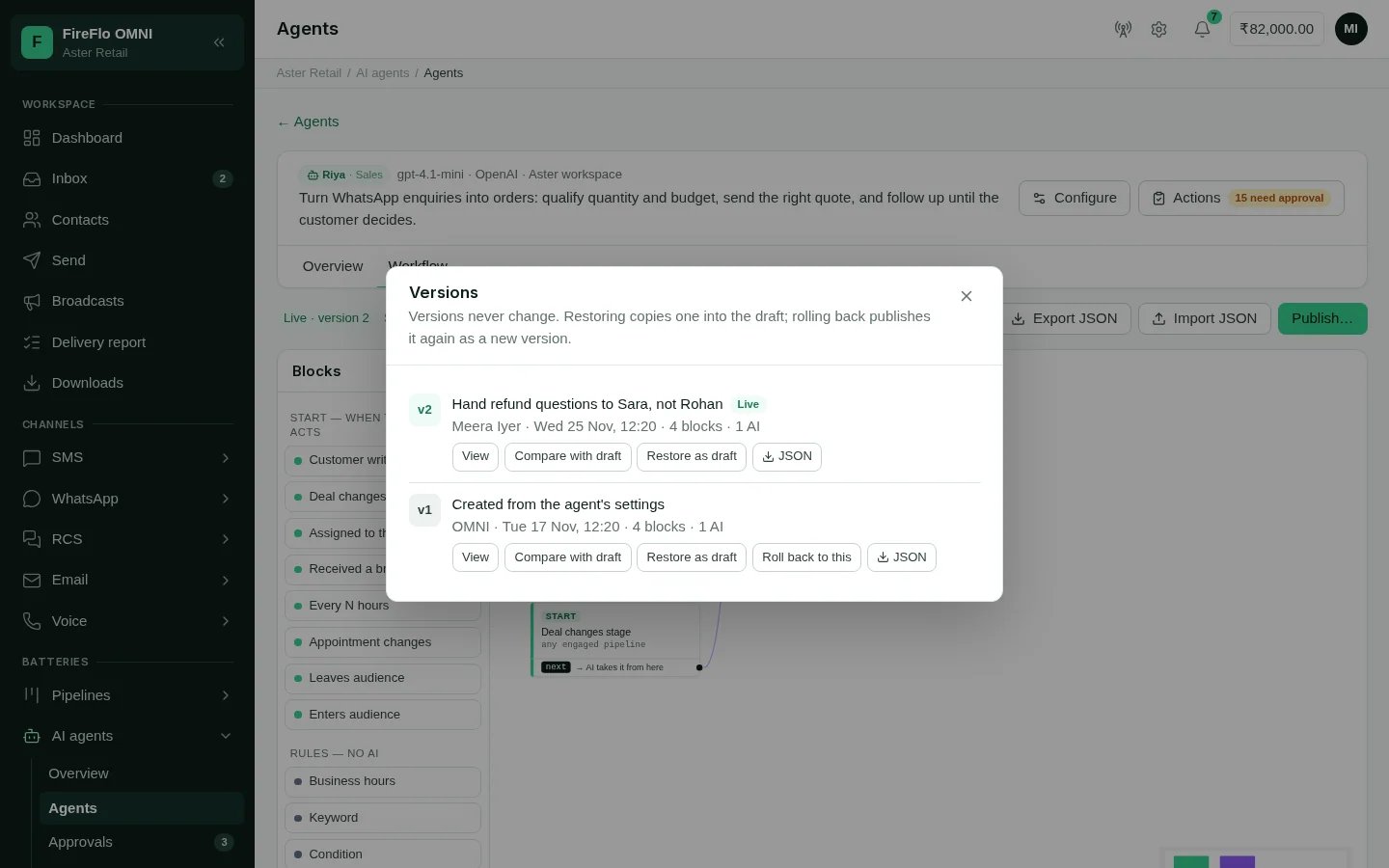
The Versions dialog of a workflow, each published version kept with a way to roll back.The Versions dialog of a workflow, each published version kept with a way to roll back.

Versions: each published version is kept, and you can roll back to one.

Scheduled tasks

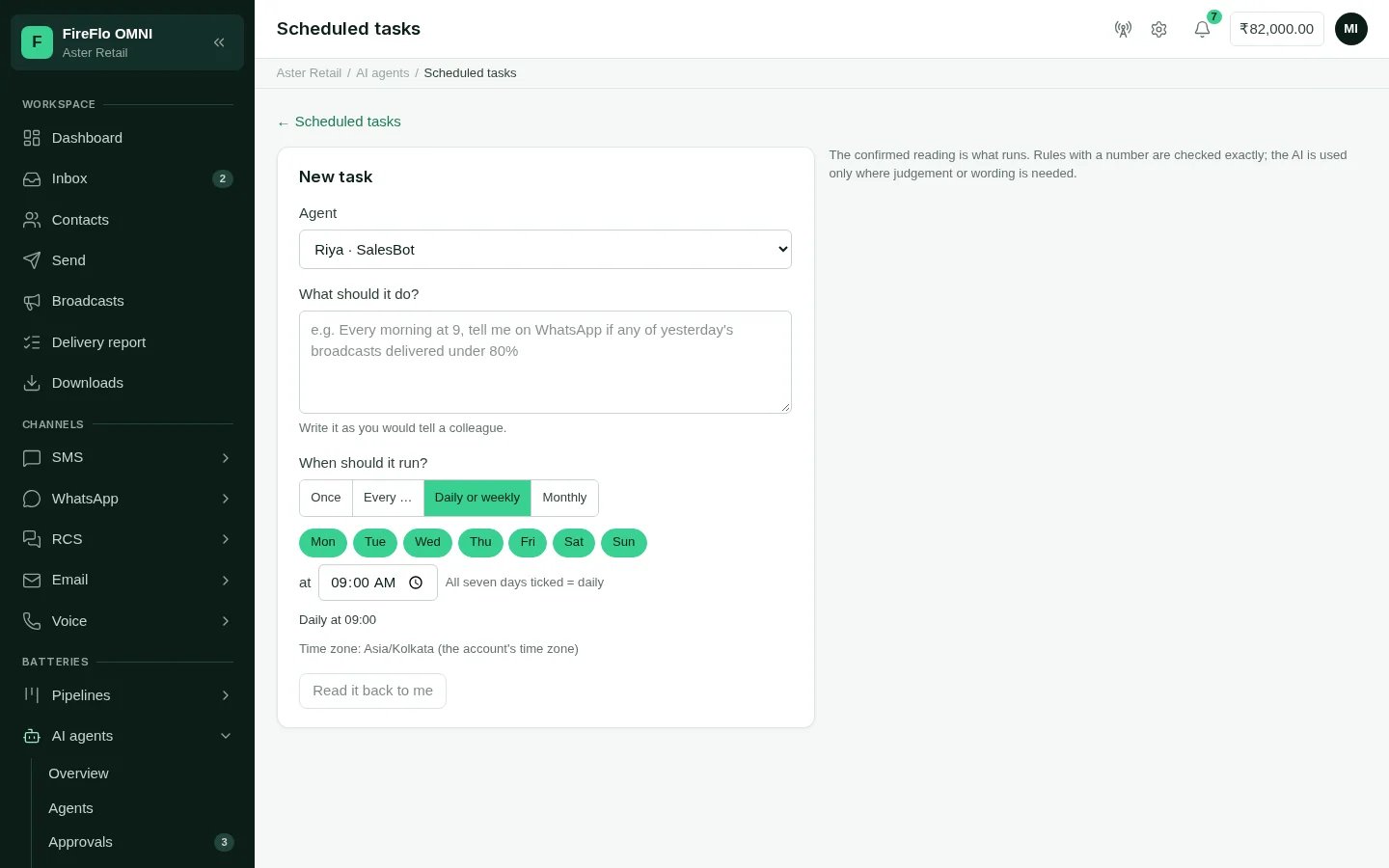
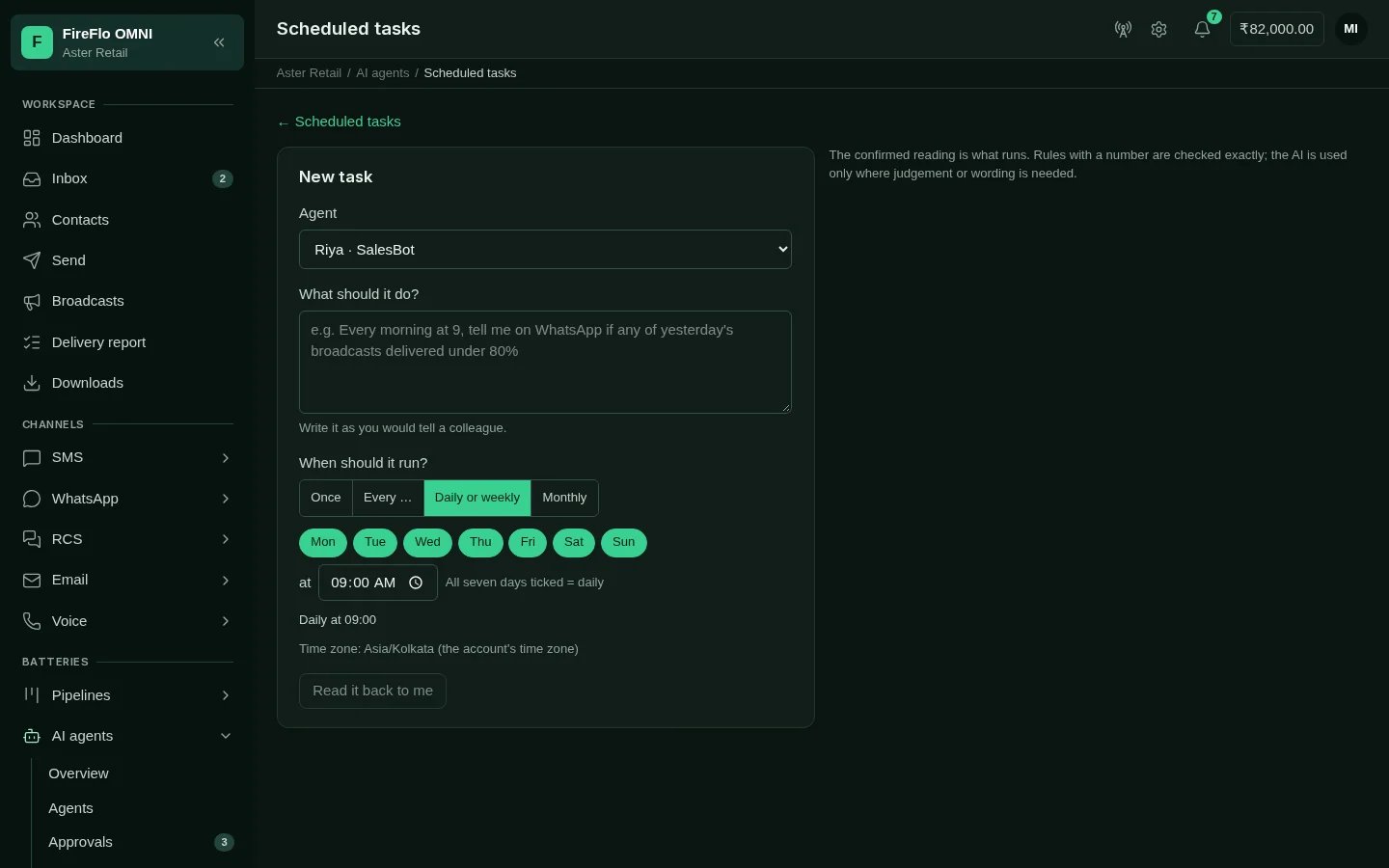
AI agents → Scheduled tasks gives an agent a job to do on a schedule, in plain words — “Every morning at 9, tell me on WhatsApp if any of yesterday’s broadcasts delivered under 80%.”
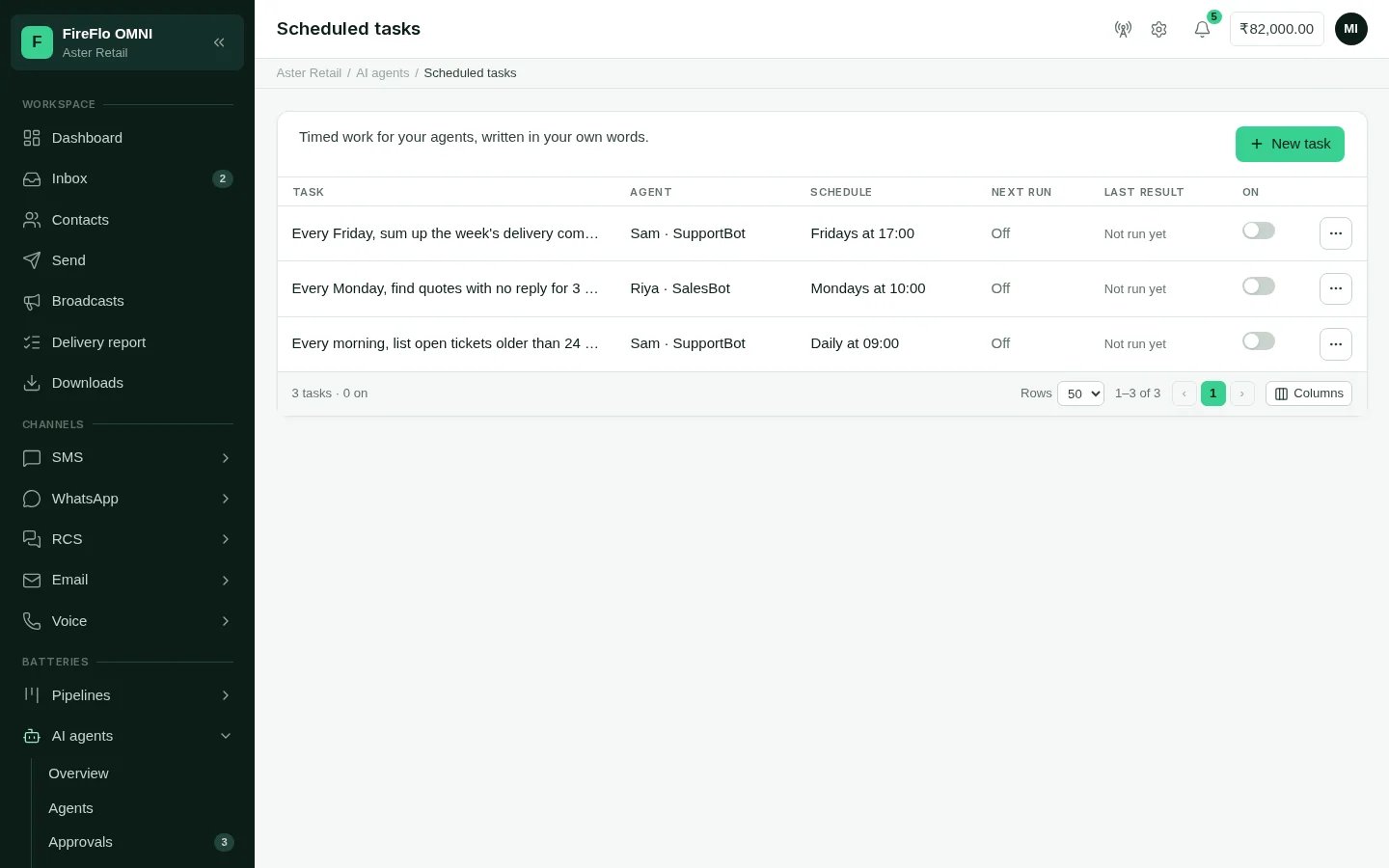
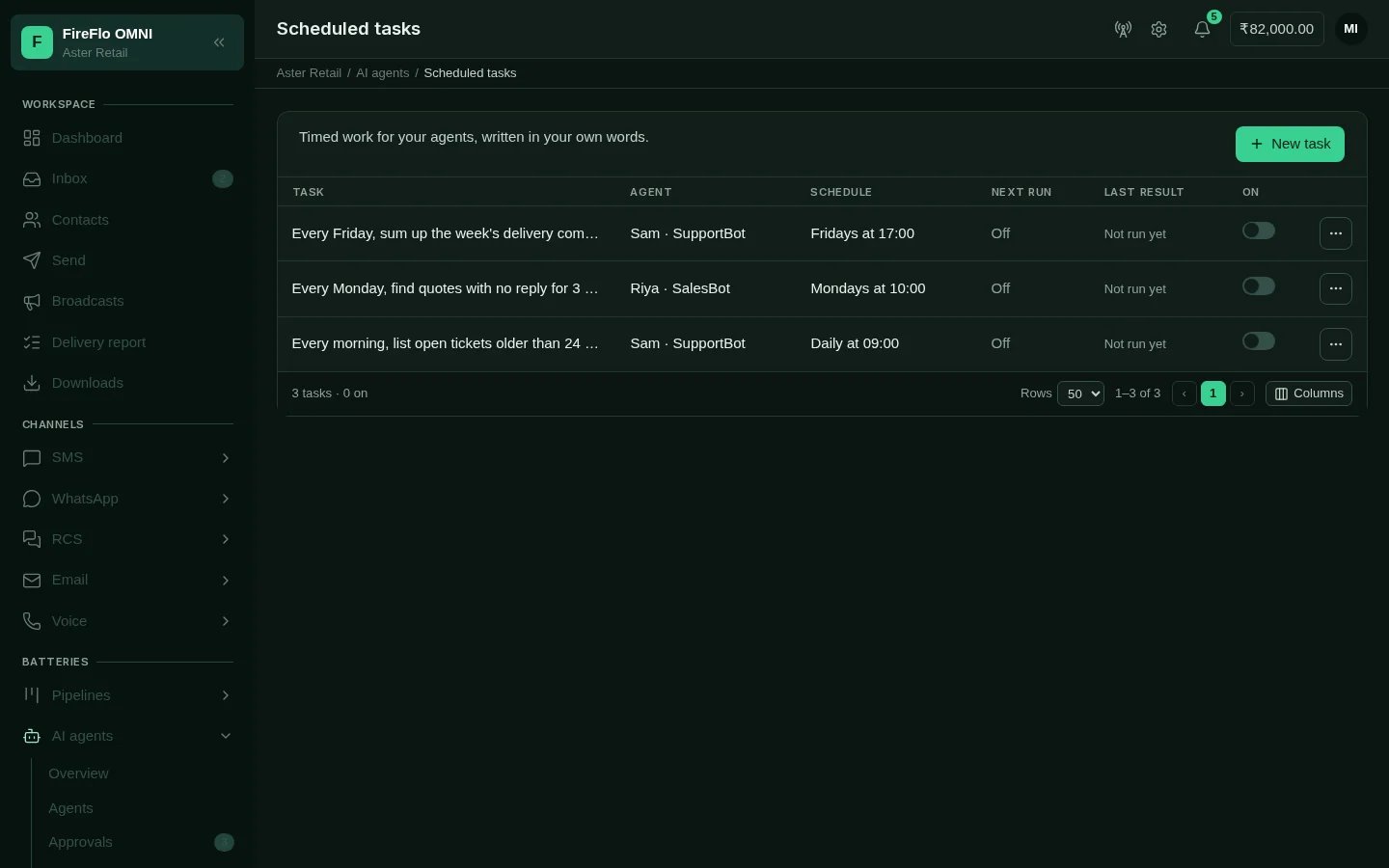
The scheduled tasks list with each task's schedule, agent and last run.The scheduled tasks list with each task's schedule, agent and last run.

Scheduled tasks: each task with its schedule, agent and last run.

1

Choose the agent

Any agent can be given a task.
2

Say what it should do

Write it as you would tell a colleague. Read it back to me shows how the agent understood it. That confirmed reading is what runs.
3

Say when it runs

Once, every so many minutes or hours, daily or weekly on the days you tick, or monthly — in your account’s time zone. The shortest gap is 15 minutes.
The New task form: the agent, the task in plain words and how often it runs.The New task form: the agent, the task in plain words and how often it runs.

A new task: the agent, the task in plain words, and when it runs.
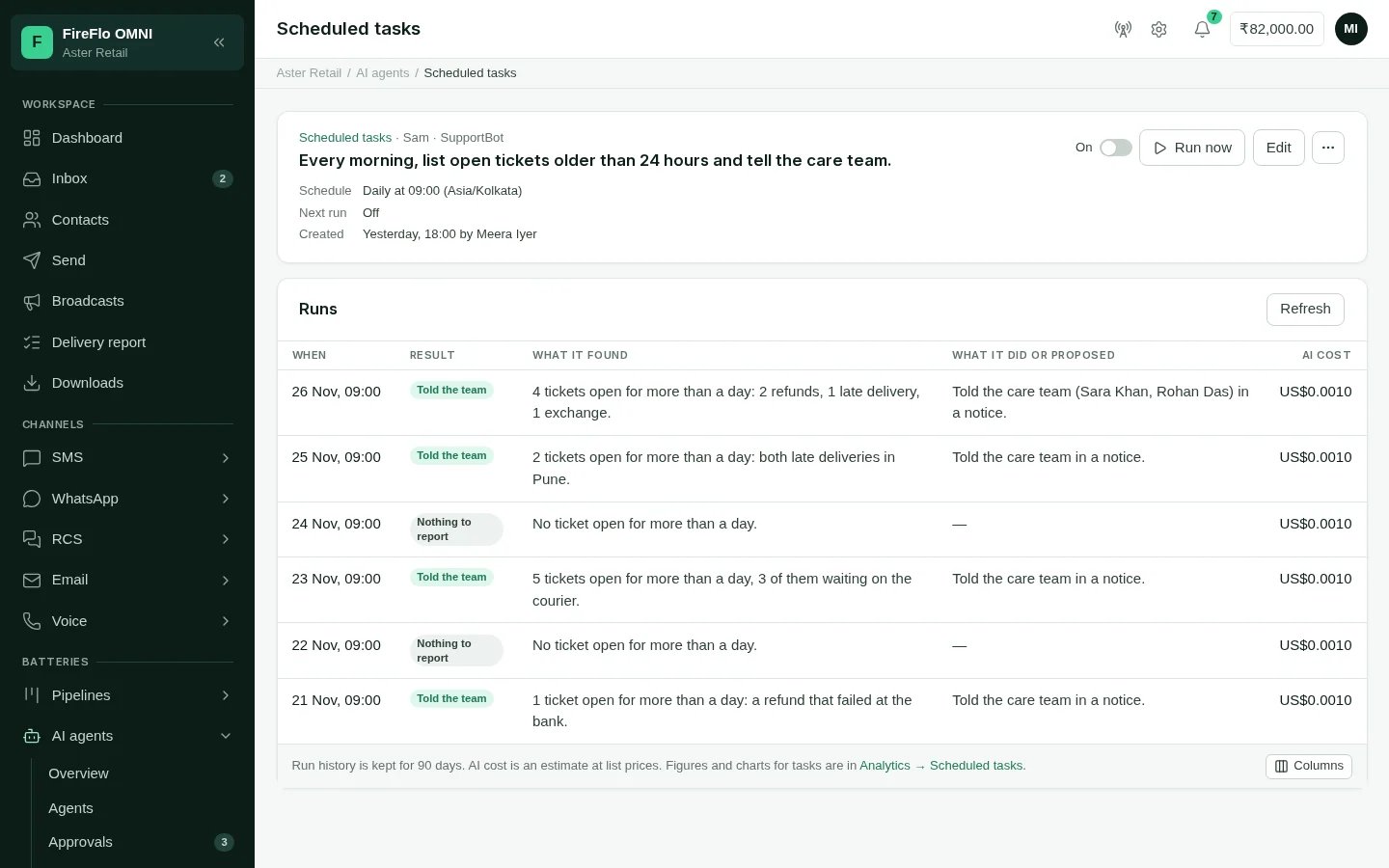
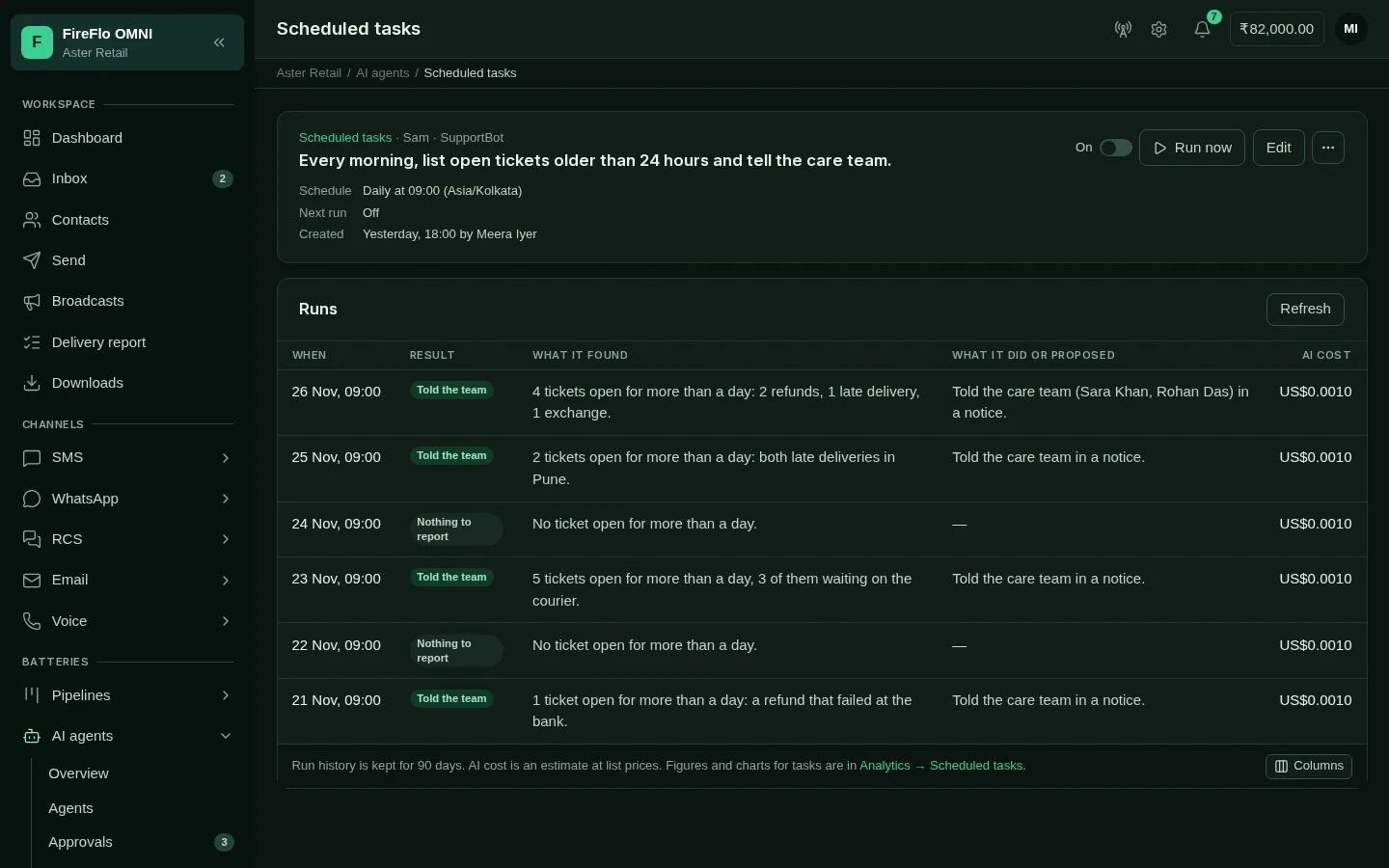
A rule with a number in it — “under 90% delivered” — is checked exactly, without an AI call. The AI is used to read your words, to write summaries, and to draft a proposed broadcast. Each task keeps a history of its runs: when, the result, what it found, and what it did or proposed. On a task’s page, Run now runs it at once, and the task can be paused or deleted.
One scheduled task's page with its reading, its schedule, Run now and the history of its runs.One scheduled task's page with its reading, its schedule, Run now and the history of its runs.

One task: its reading, its schedule, Run now and the history of its runs.

Figures and charts for tasks are in Analytics, under the Scheduled tasks reports.

The Operations Bot

The Operations Bot keeps an eye on your account. Make it from Agents → New agent; an account has one. It holds no contacts and takes no Inbox chats. It acts only when a scheduled task runs: nothing is watched without a task. Its settings are on its Settings tab.

What it can look at

  • Broadcast results.
  • Sending that is stuck or slow.
  • Sender IDs and templates that were rejected.
  • Channel connections that are down.
  • Your balance and spend.
  • Who did not receive, read or reply.

Telling people, and proposals

Telling your team needs no approval. The bot can leave a notice in the bell, send an email, or send WhatsApp or SMS to the team members you choose — charged as messages, with a daily cap — and adds a line in the chat bubble. Anything that sends to customers or spends money is a proposal: resending to those who failed, following up those who did not read, scheduling or pausing a broadcast, requesting a template. A proposal waits in Approvals and as a card in the chat bubble. Each of these actions can be switched to run by itself, within limits.

The chat bubble

Once the Operations Bot is set up, a chat bubble sits at the bottom of every page for people who may manage agents. In it you can give the bot a task, change its tone or its limits, ask it a question, and approve or decline a proposal.

Stories

AI agents → Stories lets you tell an agent what you want in plain words — “remind my customers about their bill due dates, 3 days before and on the day”. Today, stories send date-based reminders from a list.
1

Say what you want

Write it the way you would to a colleague. The agent asks for anything it needs.
2

Give it the list

Upload a CSV or Excel file and point to the phone number column and the date column.
3

Choose when and what

The agent proposes when to send and which approved message to use.
4

Approve and run

Someone who can approve plans approves it. Rejecting ends the story; nothing is imported or sent.
Reminder stories go out on WhatsApp first, since templates reach people outside the 24-hour window, and as SMS broadcasts where WhatsApp isn’t available. Starting a story needs permission to change contacts and to send messages, because a story imports contacts and sends messages in your name.

Questions about a broadcast

On a broadcast’s report, Ask about this broadcast answers questions about its results in plain words, on SMS, WhatsApp and RCS broadcasts alike.

Activity

AI agents → Activity is everything every agent did — plans, approvals, actions, AI calls with their token cost, and anything a guardrail stopped. It is append-only. Filter it by Plans & approvals, Actions, AI calls, Stopped or Setup. Each agent’s page has its own plans, log, pipelines, tokens used today and limits.

Usage

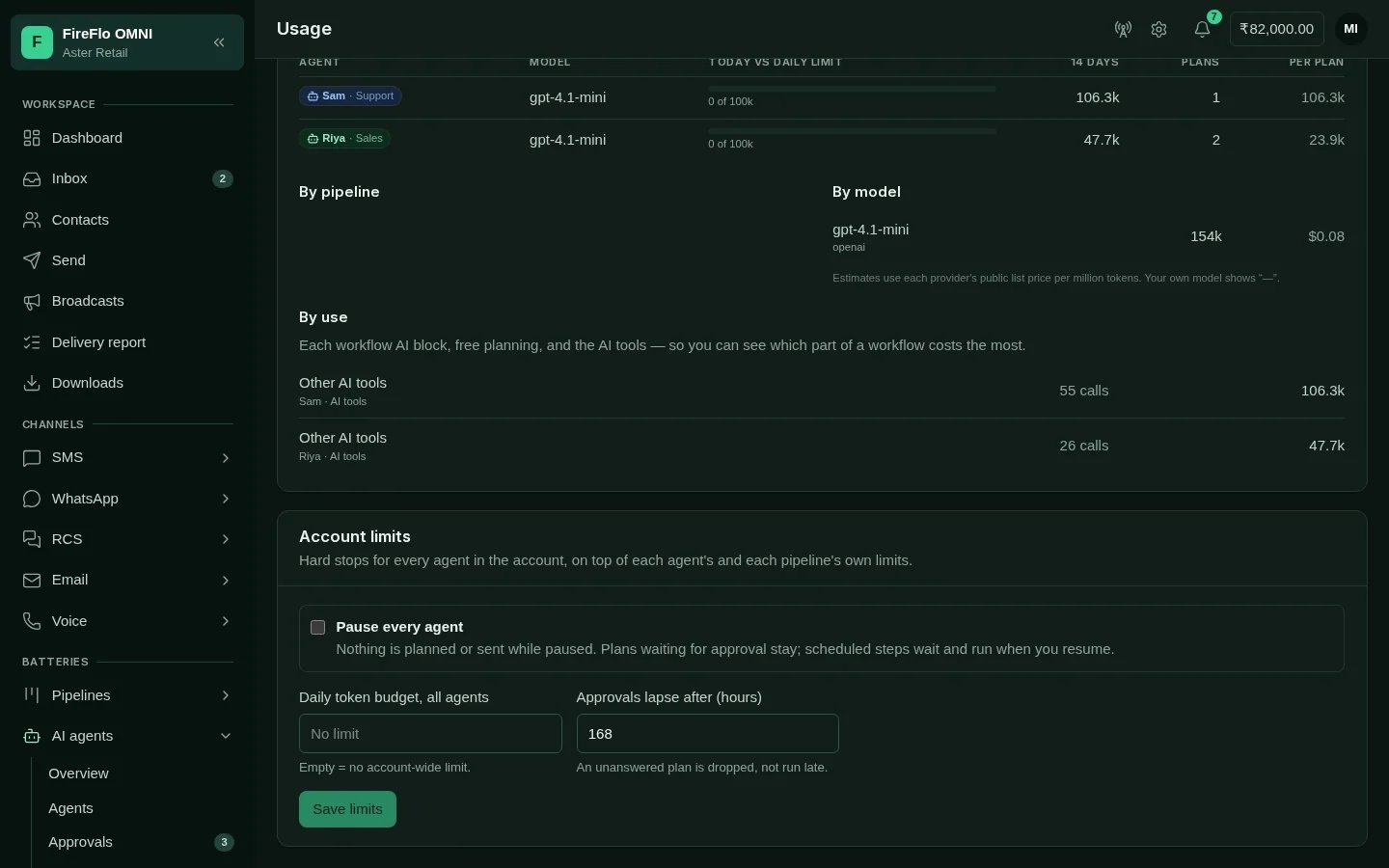
AI agents → Usage shows the tokens your agents used on your own AI keys over 7, 14 or 30 days, by day and by agent. Your AI provider bills those tokens directly; OMNI never charges for AI.
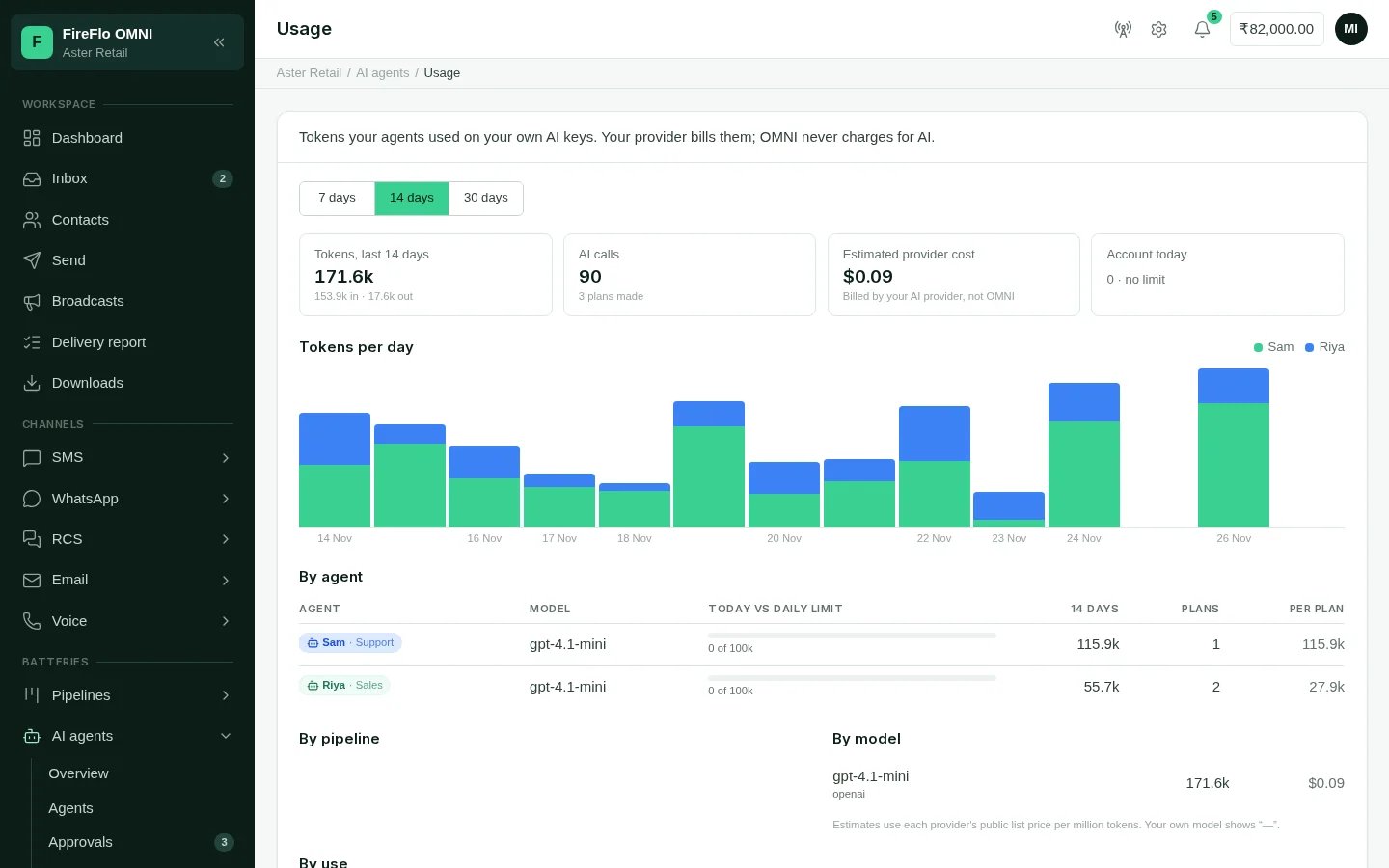
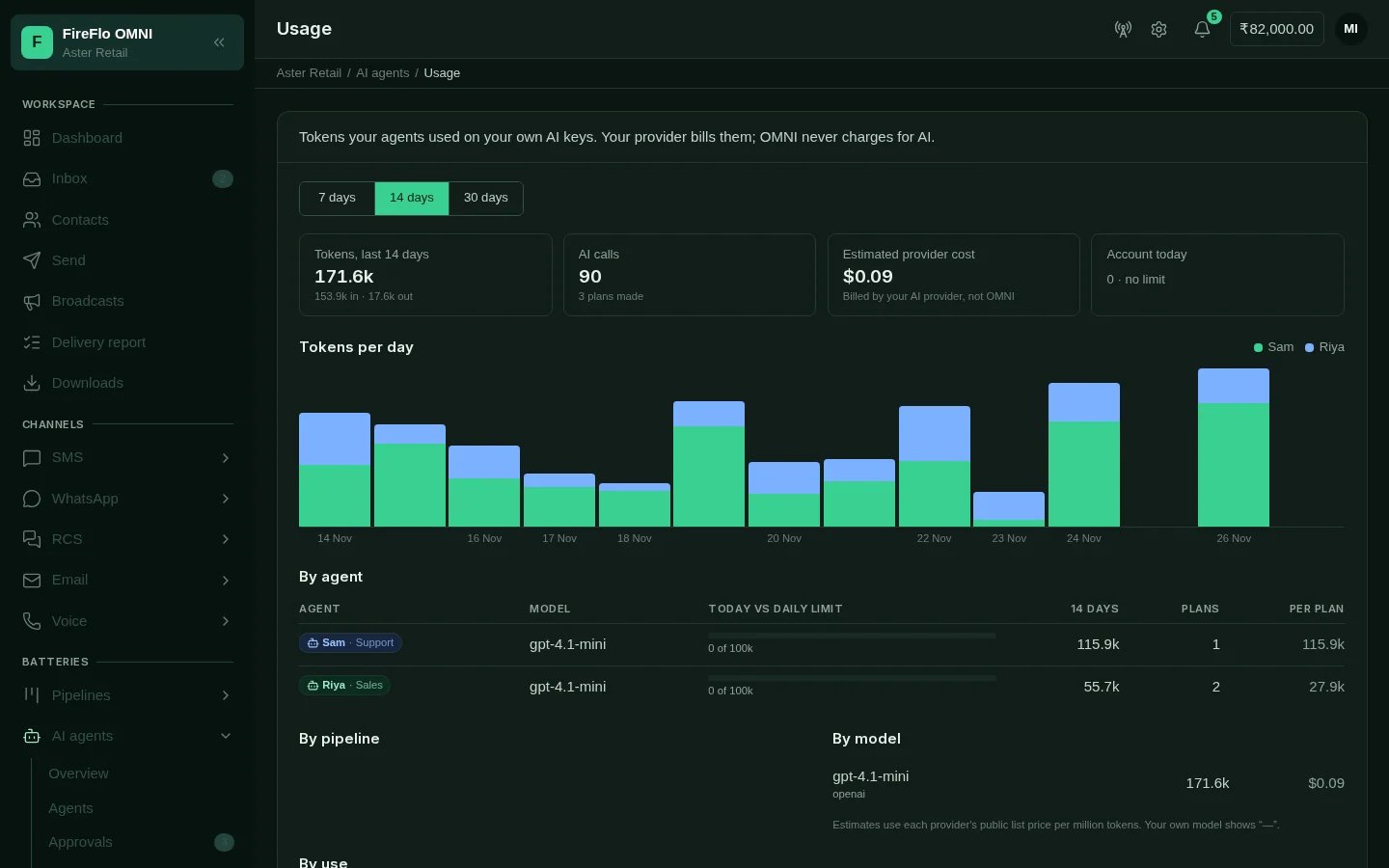
AI usage over the period with tokens per day and per agent, and the account limits.AI usage over the period with tokens per day and per agent, and the account limits.

Tokens per day and per agent, on your own AI keys.

Account limits apply to every agent in the account, on top of each agent’s and each pipeline’s own limits:
  • Pause every agent — no agent plans or acts while this is on.
  • Daily token budget, all agents — empty means no account-wide limit.
  • Approvals lapse after (hours) — an unanswered plan is dropped, not run late.
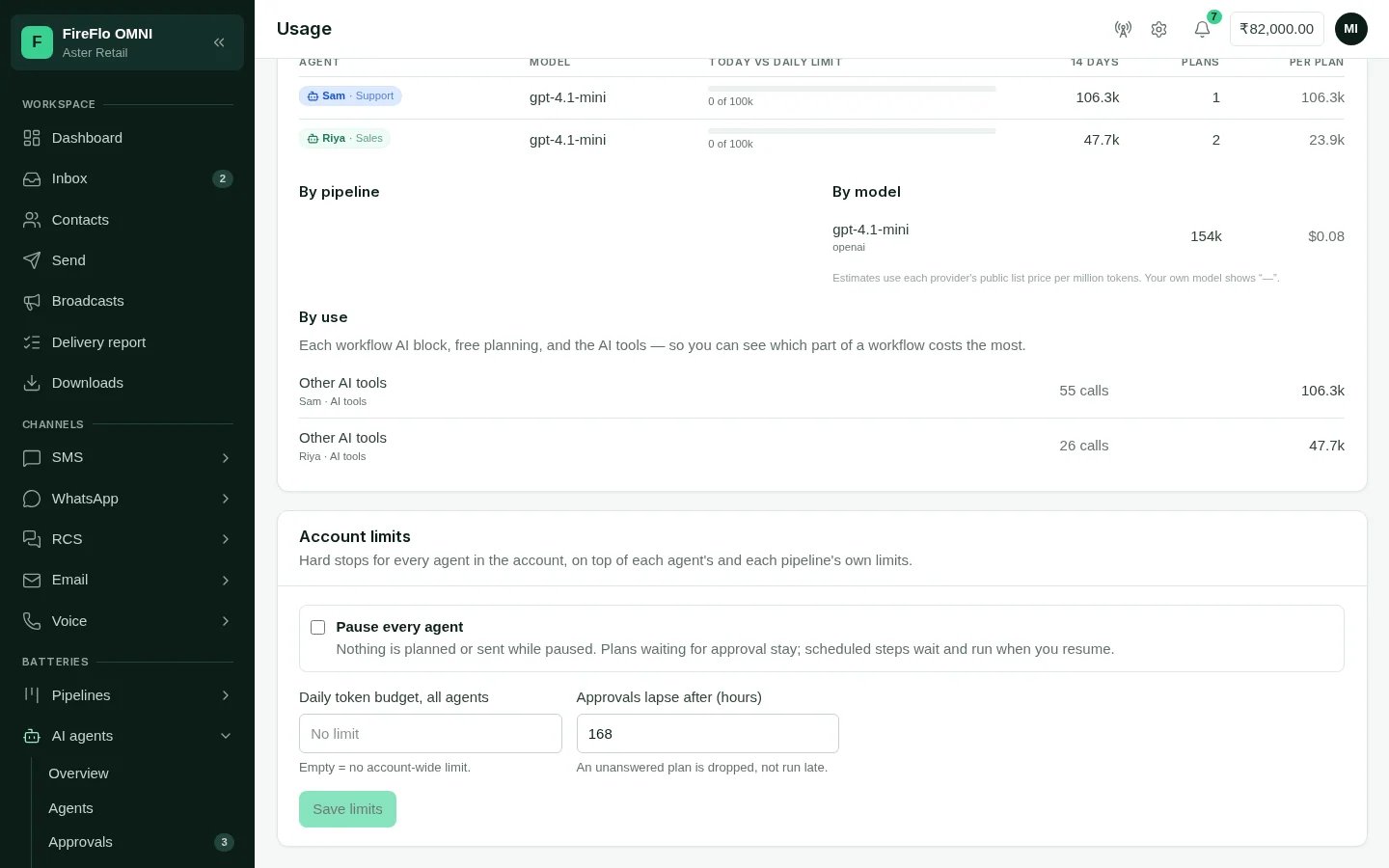
The account's AI limits: Pause every agent and a daily token budget for all of them.The account's AI limits: Pause every agent and a daily token budget for all of them.

Account limits apply to every agent at once.

AI providers

AI agents → AI providers holds your own AI keys. Agents work with any of these:

How to get a key

Wherever OMNI asks for a provider key — on AI providers, and in the Model step of a new agent — the right-hand side of the form gives numbered steps for the provider you choose on the left, with a link to the provider’s own guide. A key is encrypted when you save it and is never shown again. Test a key to list the models it offers (Save and test does both when you add one); you can limit which models agents may use with it. A key that agents still use cannot be deleted — move its agents to another key first.

Who may use AI agents

An Owner or Admin can change these on the Roles screen. See Team and roles.