
The templates list
RCS → Templates lists your templates with their kind, their blanks and where each stands on each of your bots. Filter by Waiting for approval, Approved somewhere or Rejected, or search by name; search, filters, New broadcast and New template sit in one bar above the table. Search and filters are kept in the page’s address, so ← Templates brings you back to the same view. Each row’s actions are icons, with their name when you point at them: View, Copy, Edit and Delete. An action that isn’t allowed for a template is greyed, and says why when you point at it. On a phone a row shows the name, a short line and the status; the actions are on the template’s page.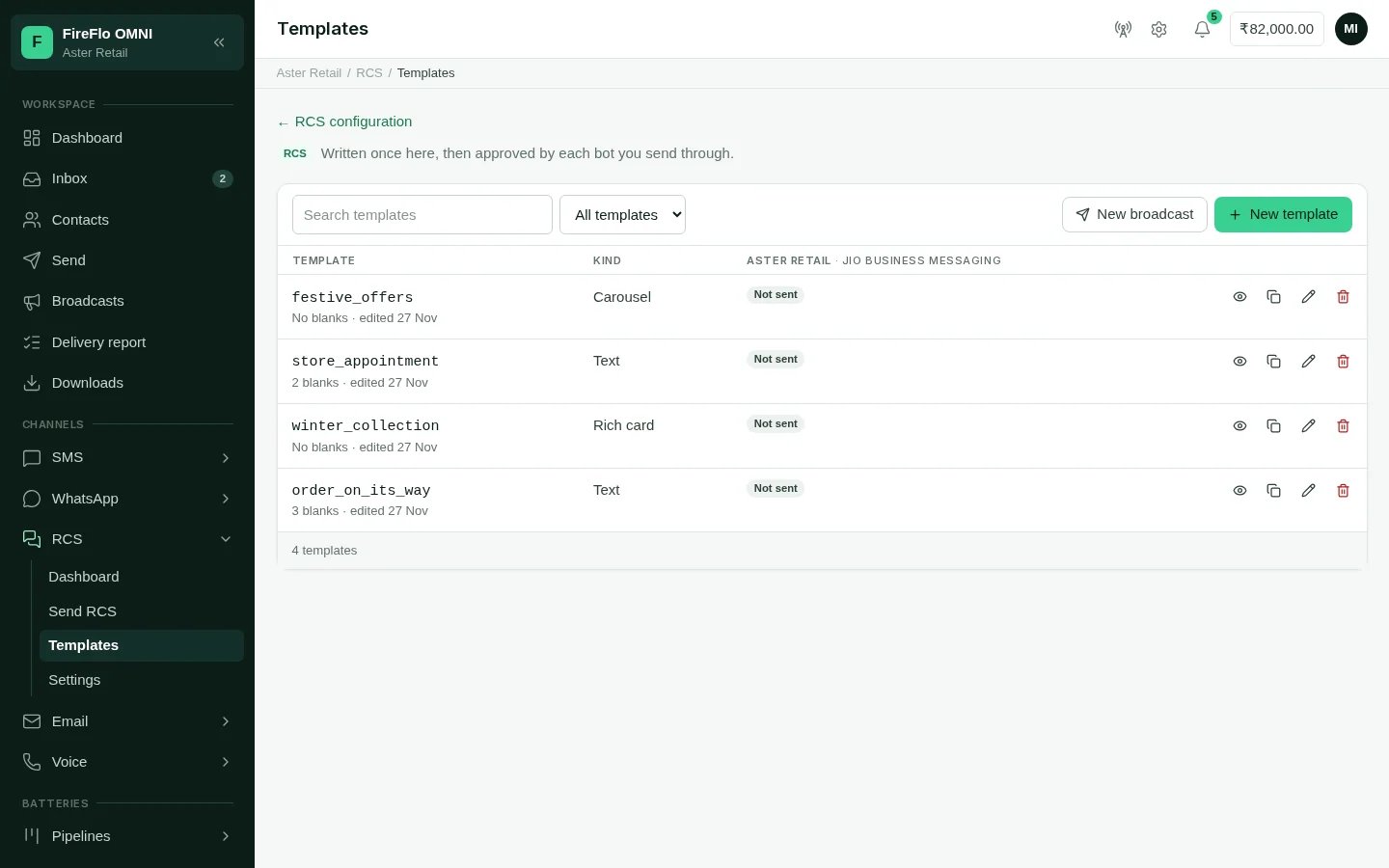
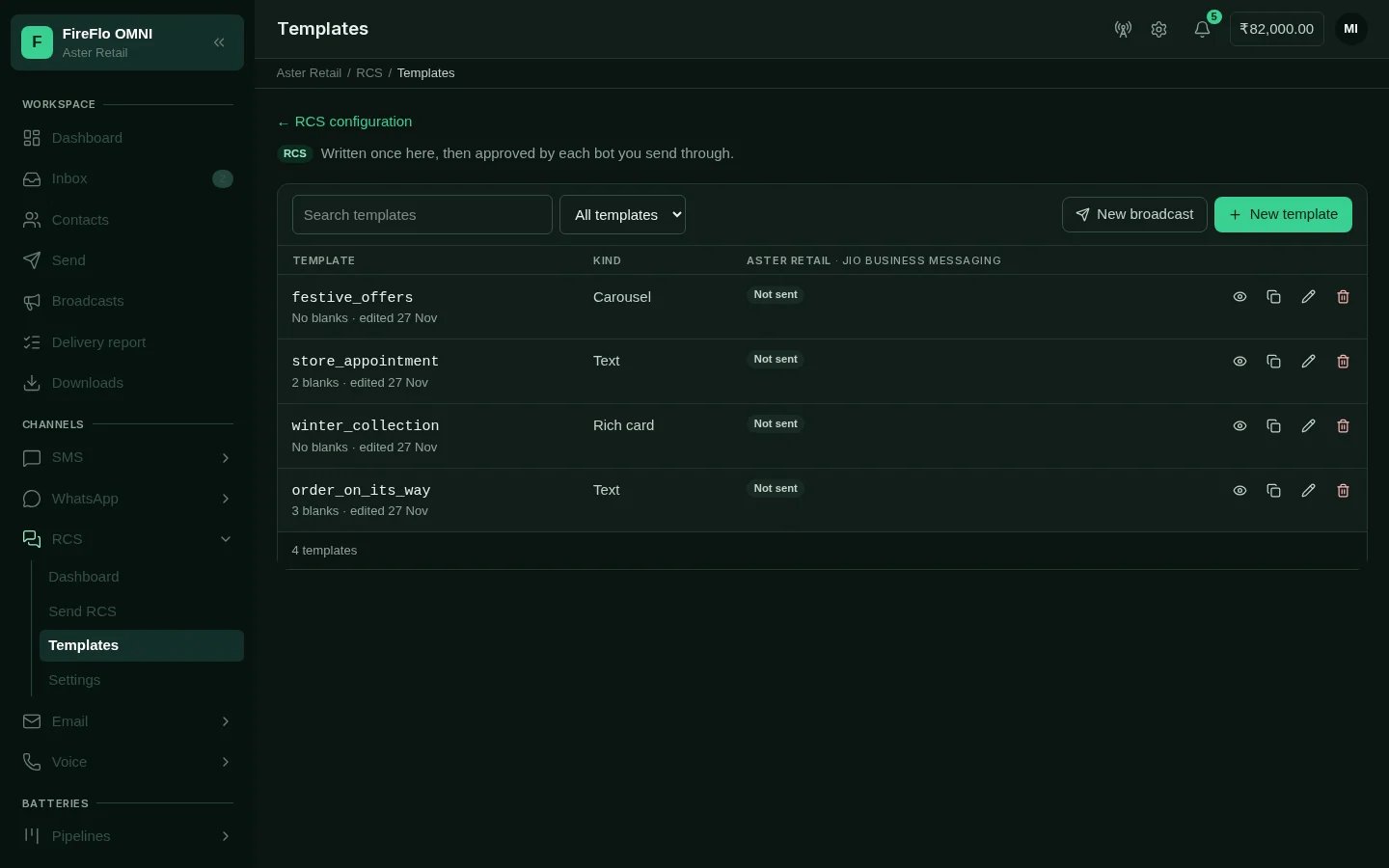
RCS → Templates: each template's kind and where it stands on each bot, with its actions as icons.
With no bots yet, templates can be written but not submitted. On your own provider
account, add bots in RCS settings first; on FireFlo’s
bots, ask FireFlo or your reseller.
A template’s page
Click a template to open its own page. It shows, at once:- the status and four key figures, and one plain line on what the state means;
- the message as a phone shows it;
- Approval by bot: where the template stands on each bot, with Check approval;
- Delivery: sent, delivered, failed and button taps from your broadcasts of the last 30 days, and those broadcasts, each linked. Single sends and sends through the API are not counted;
- History.
Write a template
1
Start a template
In RCS → Templates, choose New template.
2
Name, type and category
The name uses letters, numbers and underscores. The type is fixed once
saved. The category is Promotional, Transactional or OTP.
3
Write the content
Fill in the parts the type asks for (below). Put a column of your recipient list in
with
{{column}} — for example {{name}}.4
Check the preview
A live preview beside the form shows the message as a phone shows it; give sample
values for the preview to fill its variables. A list of problems names anything
still missing or wrong.
5
Save template
Then submit it to your bots.
Types
A card’s title is up to 200 characters and its description up to 2,000. A message has
at most 11 buttons.
Buttons
Each button has text of up to 25 characters and does one thing:
Every tap is counted in the broadcast’s Button taps and on the
RCS dashboard.
Get it approved
Under Approval by bot, the template lists each of your bots with where it stands there.1
Tick the bots
Tick each bot you will send through. A bot that already has the template is ticked
and locked; one that rejected it can be ticked again, with its reason beside it.
2
Send for approval
Approval usually takes a few hours. If a bot’s provider refuses the submission
outright, OMNI says which bot and why.
3
Check approval
While any bot is still deciding, Check approval asks the providers how each
submission stands. Approvals and rejections also arrive on their own.
Copy, change or delete
Copy opens the builder filled in from the template, under a new name. Nothing is submitted to any bot until you submit it. It is the way to new wording, or a new card picture, for a template a bot already has. A template can be changed only while no bot has it — or every bot turned it down. Once a bot has it, the page says so and the content is locked; copy it, or write a new template, for new wording. Delete removes the template from OMNI. It stays at the provider.Send it
Approved templates are offered on the Send page with RCS chosen, and in RCS broadcasts, where each{{variable}} is filled from a column or
with your own text. A card’s picture is approved with the template, so it can’t change
for one send; the form offers Copy the template instead. See
Send RCS.