
Your plan must include CRM (the plan’s name for Pipelines).
The board and the list
Open Pipelines → Board from the menu. Each pipeline is a tab. + Pipeline creates a new one, which starts with the stages New, Contacted, Proposal and Won.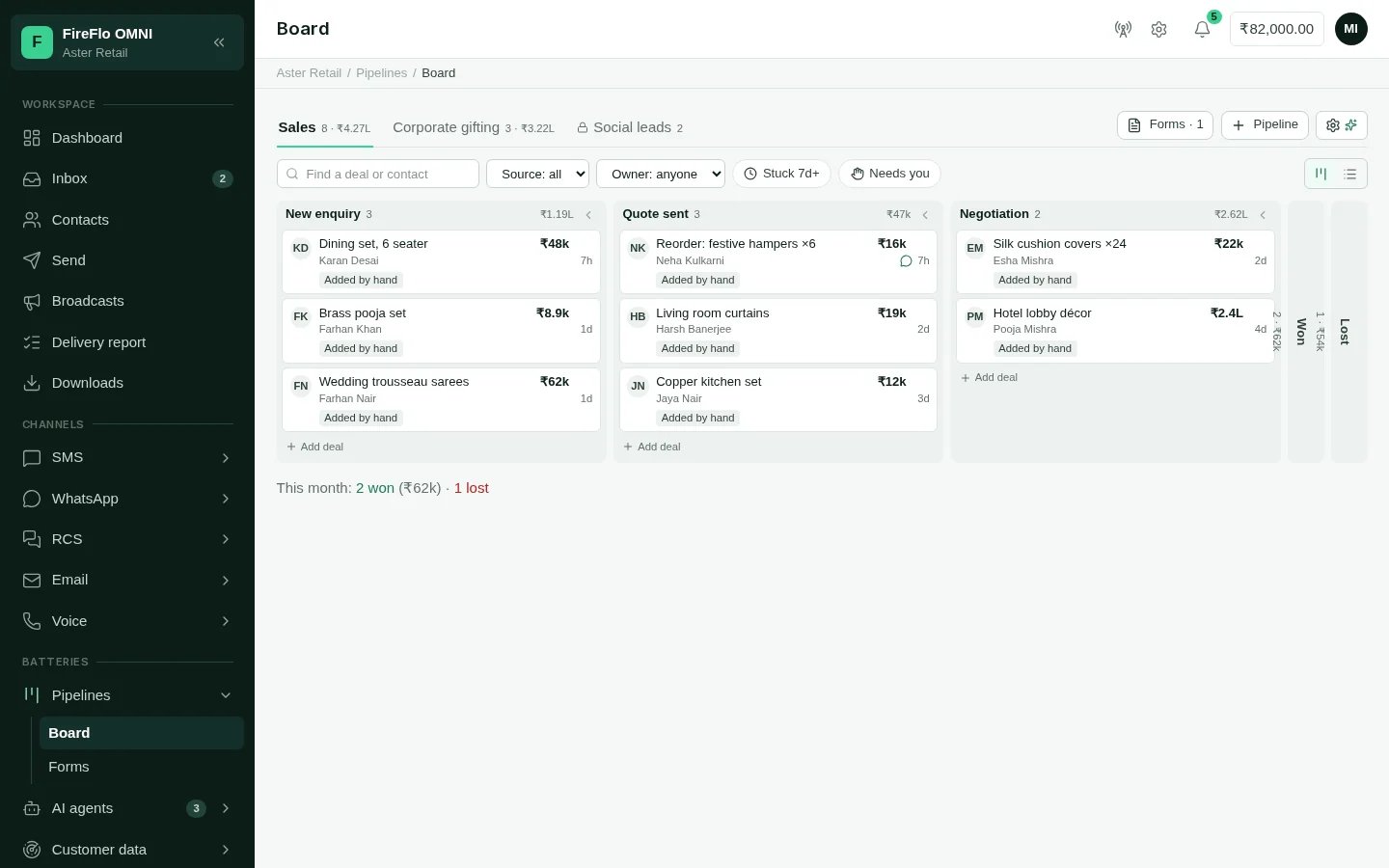
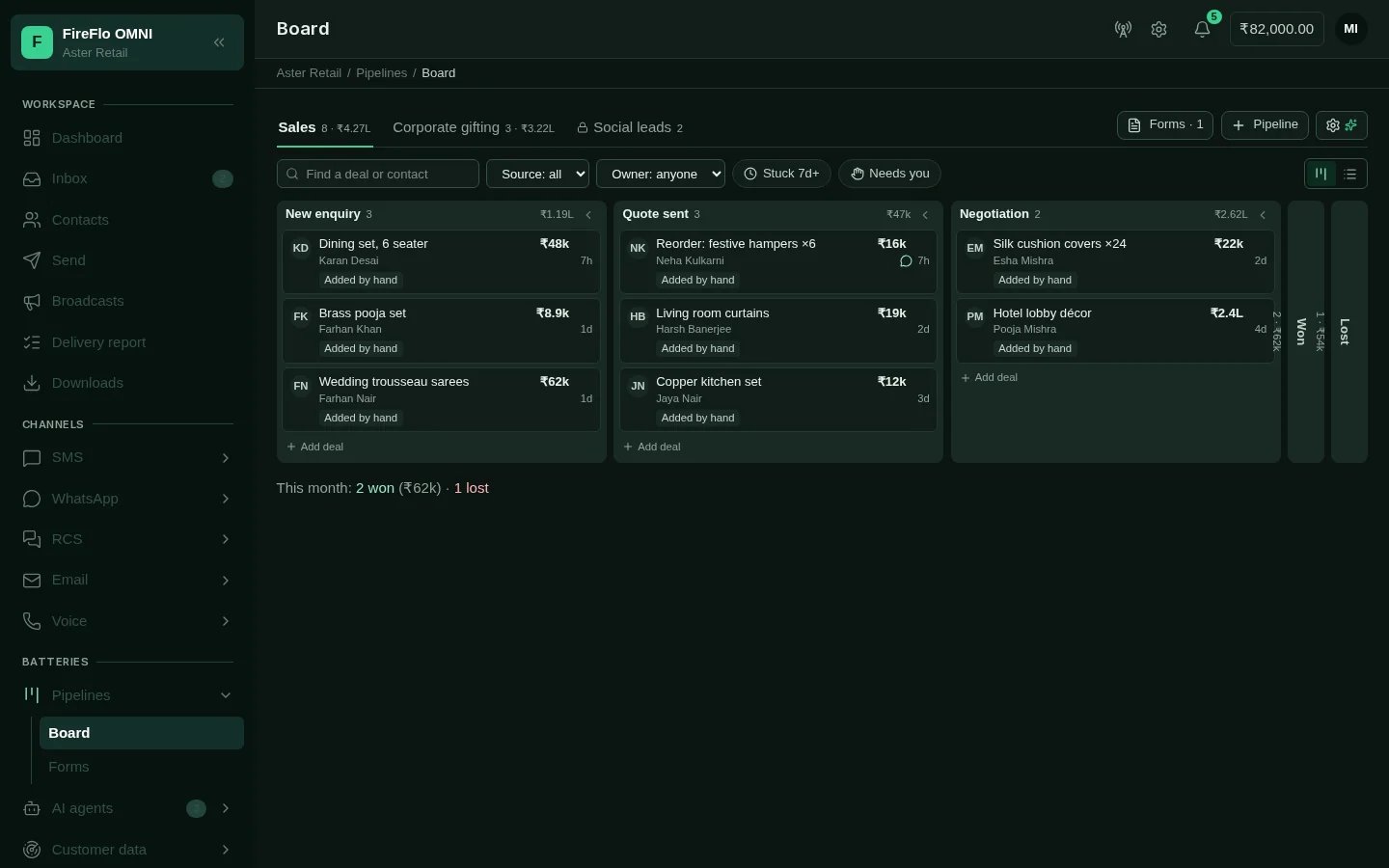
A pipeline on the board
- Board — a column for each stage. Drag a deal to another column to move it. Each card shows the deal, its value, its contact’s channel and how long it has sat in the stage.
- List — every deal in rows.
Add a deal
1
Pick the stage
Choose Add deal at the foot of a stage column.
2
Describe it
Give it a title — “Sofa set, grey” — and, if you know it, a value.
3
Link a contact
On the deal’s page, choose Link a contact and find them by name or number.
A deal’s page
Open a deal to see everything about it.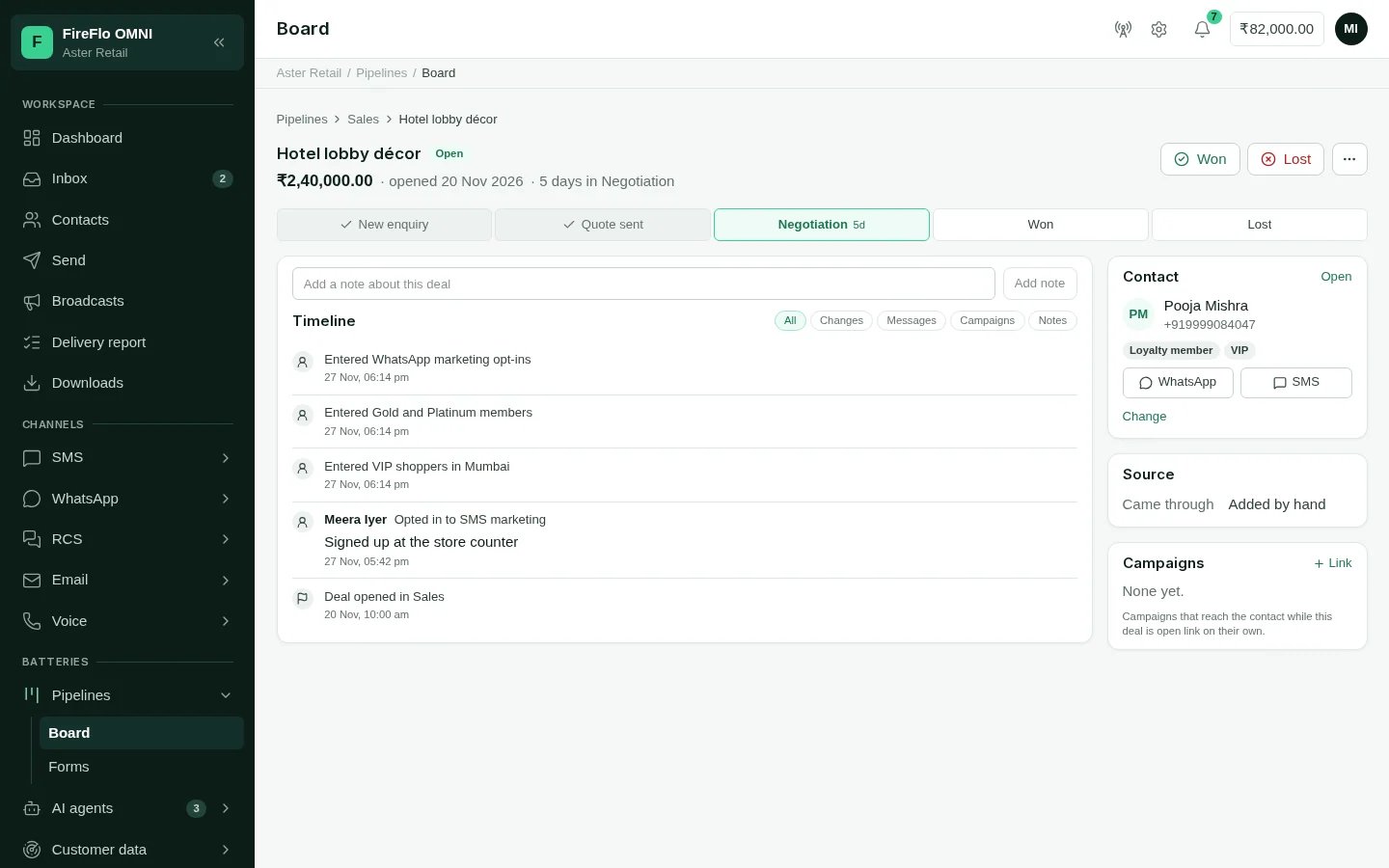
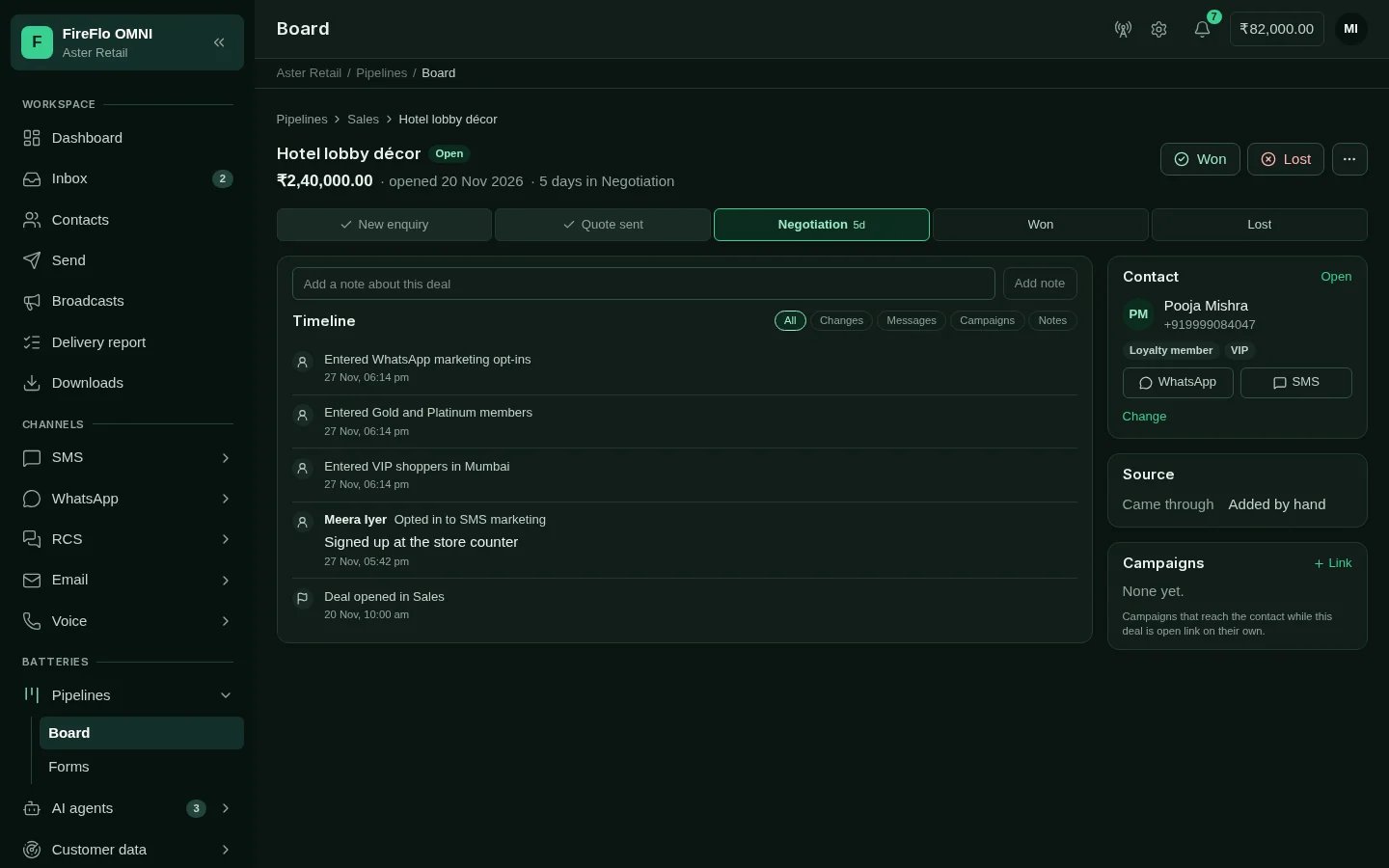
A deal's page: value and stage, the timeline, the contact and the campaigns that reached them.
- The top — the deal’s title, status (Open, Won or Lost), value and stage. Mark it Won or Lost, or Reopen a closed deal. Delete deal removes it with its notes.
- Timeline — notes, messages, campaigns and changes, newest first. Show All, or only Changes, Messages, Campaigns or Notes. Add a note about the deal here. Messages are named by the channel they came on.
- Contact — who the deal is with, and whether they have opted out. Change links someone else.
- Campaigns — the broadcasts linked to the deal. OMNI links the last campaign that reached the contact in the week before the deal opened; you can link another.
- Other deals — the contact’s other deals.
Forms
A form on your website asks its questions and consent, and each lead becomes a deal. Open Pipelines → Forms.1
Questions
Name the form (only you see it), write its opening lines, and add its questions. The
preview beside them shows the form as a visitor sees it, on a phone or a computer.
2
What happens next
Tie the form to a board: the pipeline each lead goes to, the stage it arrives in, and
its owner. Choose the first message, sent at once on SMS, WhatsApp or Email.
3
Use it
Put the form on your website.
4
Leads
Every lead the form brought in. A lead shows the contact it made.
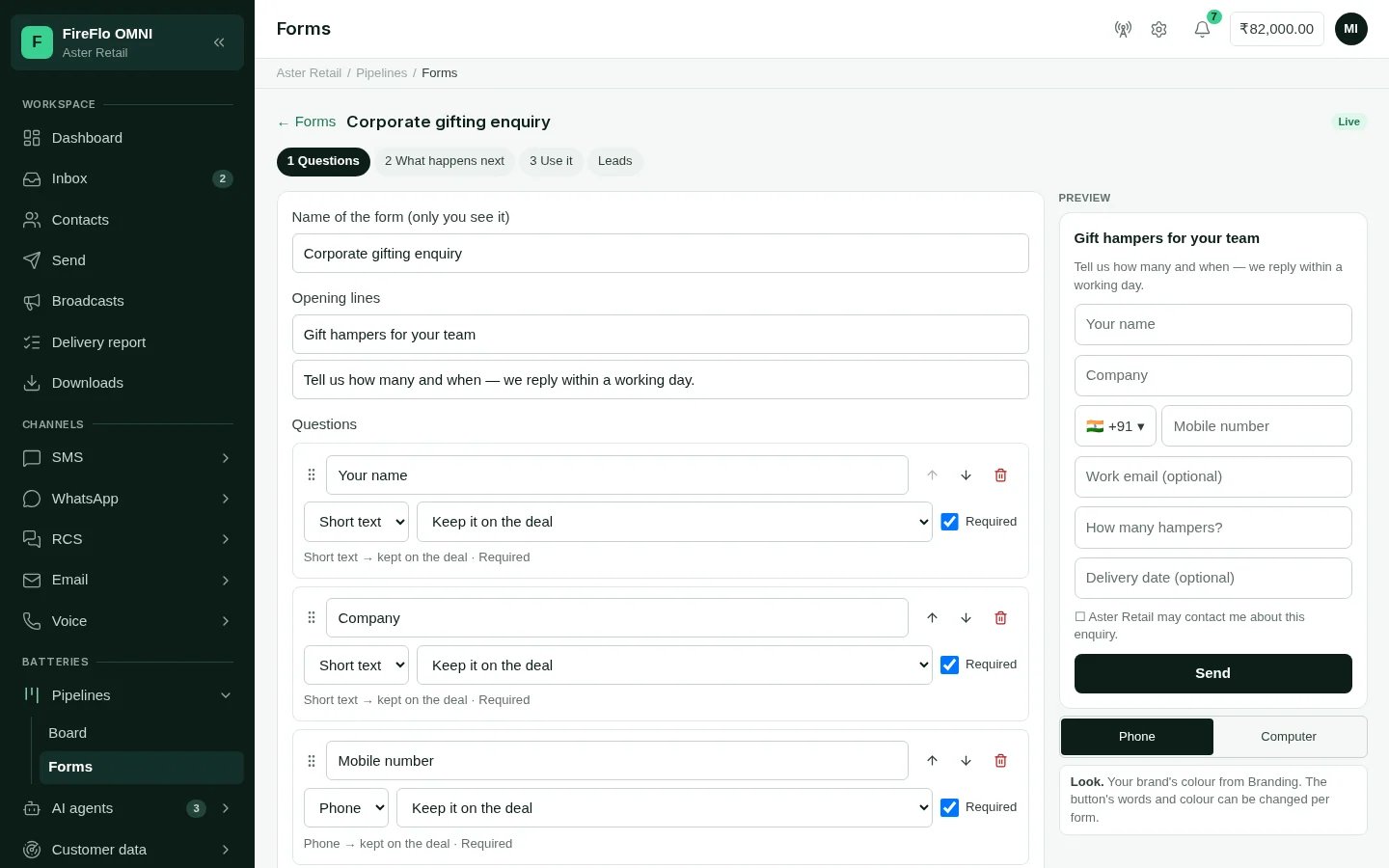
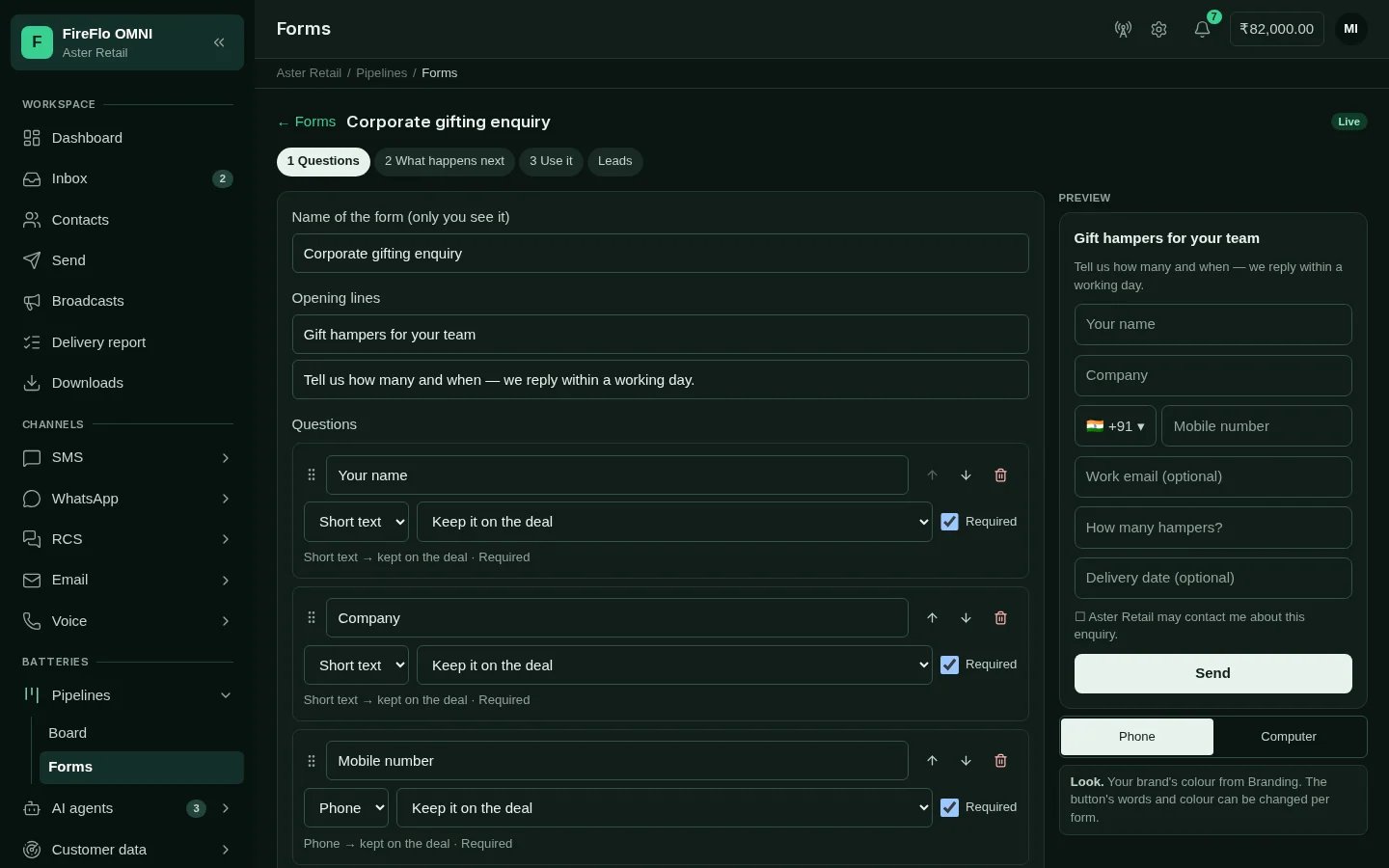
A form's questions beside its preview.
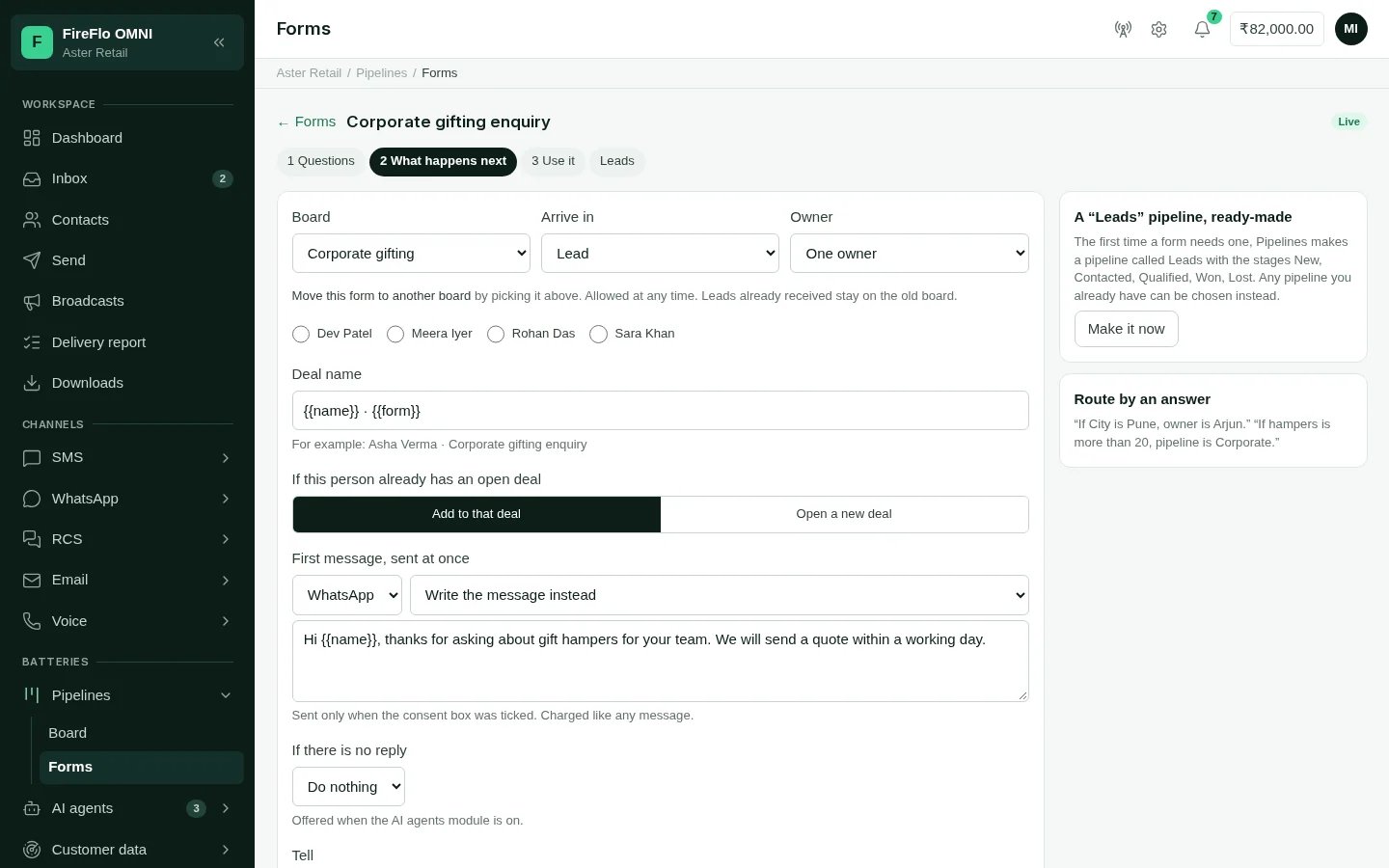
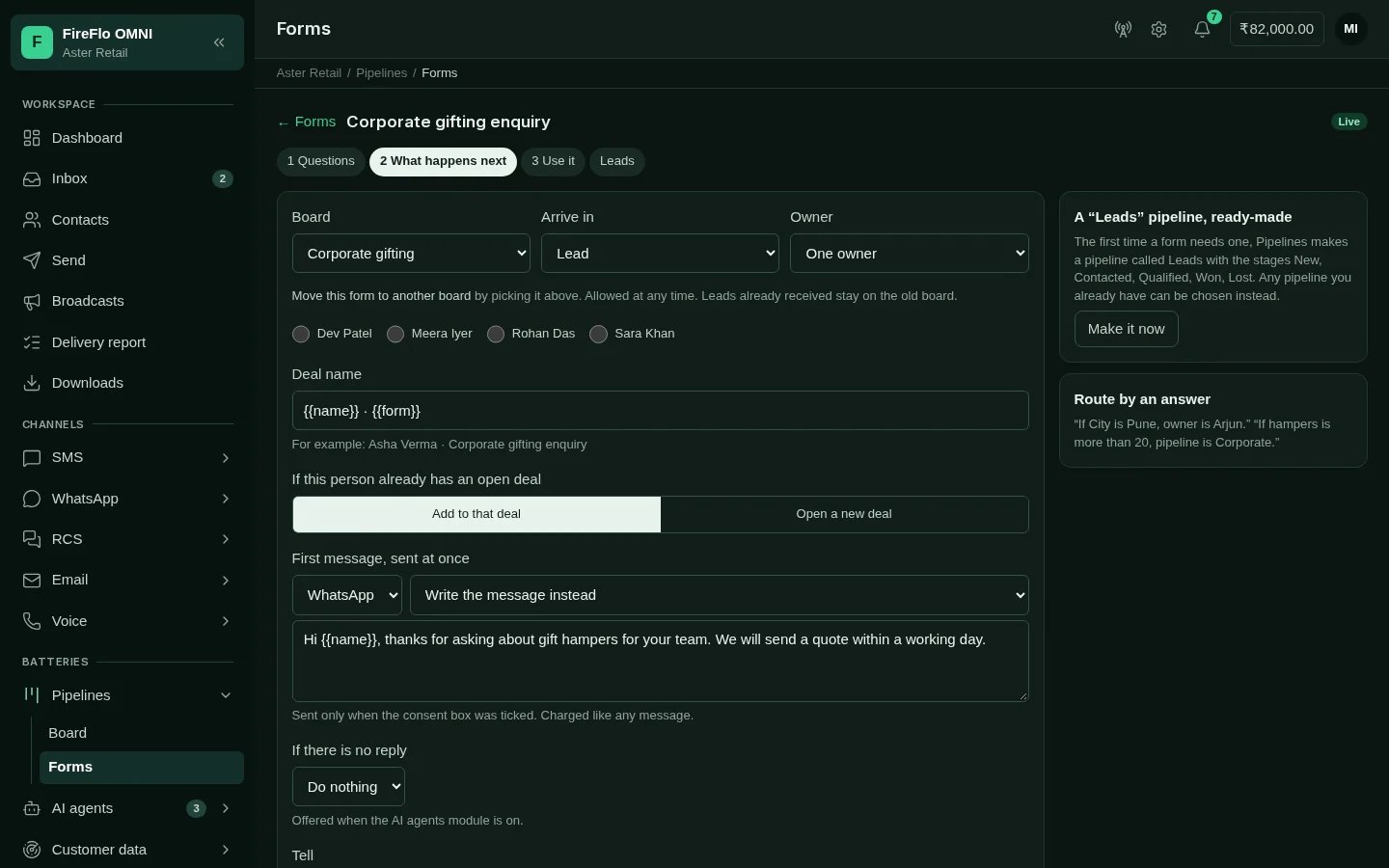
What happens next: the board, stage and owner for each lead, and the first message.
A form sends at most 500 first messages a day, and an account at most 2,000 across all
its forms. Days run in UTC.
Stages
Open a pipeline’s settings from the cog beside its tab. Stages lets you add, rename, reorder and delete stages. A stage can be a closing stage: Closes as won or Closes as lost. A deal moved there is won or lost, and a deal marked won or lost moves there. A pipeline has at most one of each. Every other stage is an Open stage. General holds the pipeline’s name, its place among the tabs, and Delete this pipeline.Managers
A board can be given managers in its settings. A board that Social manages is locked in Pipeline settings, and the settings say so.Activity
Activity, in a pipeline’s settings, lists what changed in the pipeline — deals created, moved, won, lost or reopened, values and titles changed, contacts changed, deals deleted, and stages added, renamed, reordered or deleted — by people and by AI agents. Show All, only AI agents, or only People. A change an AI agent made carries Revert, with a one-line confirmation. When it can’t be reverted, a lock says why. After a revert, the agent plans the deal again.With AI agents
When your plan also includes AI Agents, a pipeline’s settings gain:- Agents and strategy — how agents work deals in this pipeline: its goal, a playbook for each stage, approval rules and a token budget. These override each agent’s own settings.
- Build with AI — describe how the pipeline works and AI suggests its stages and a strategy. Nothing changes until you apply.
Who may use Pipelines
An Owner or Admin can change these on the Roles screen. See
Team and roles.