
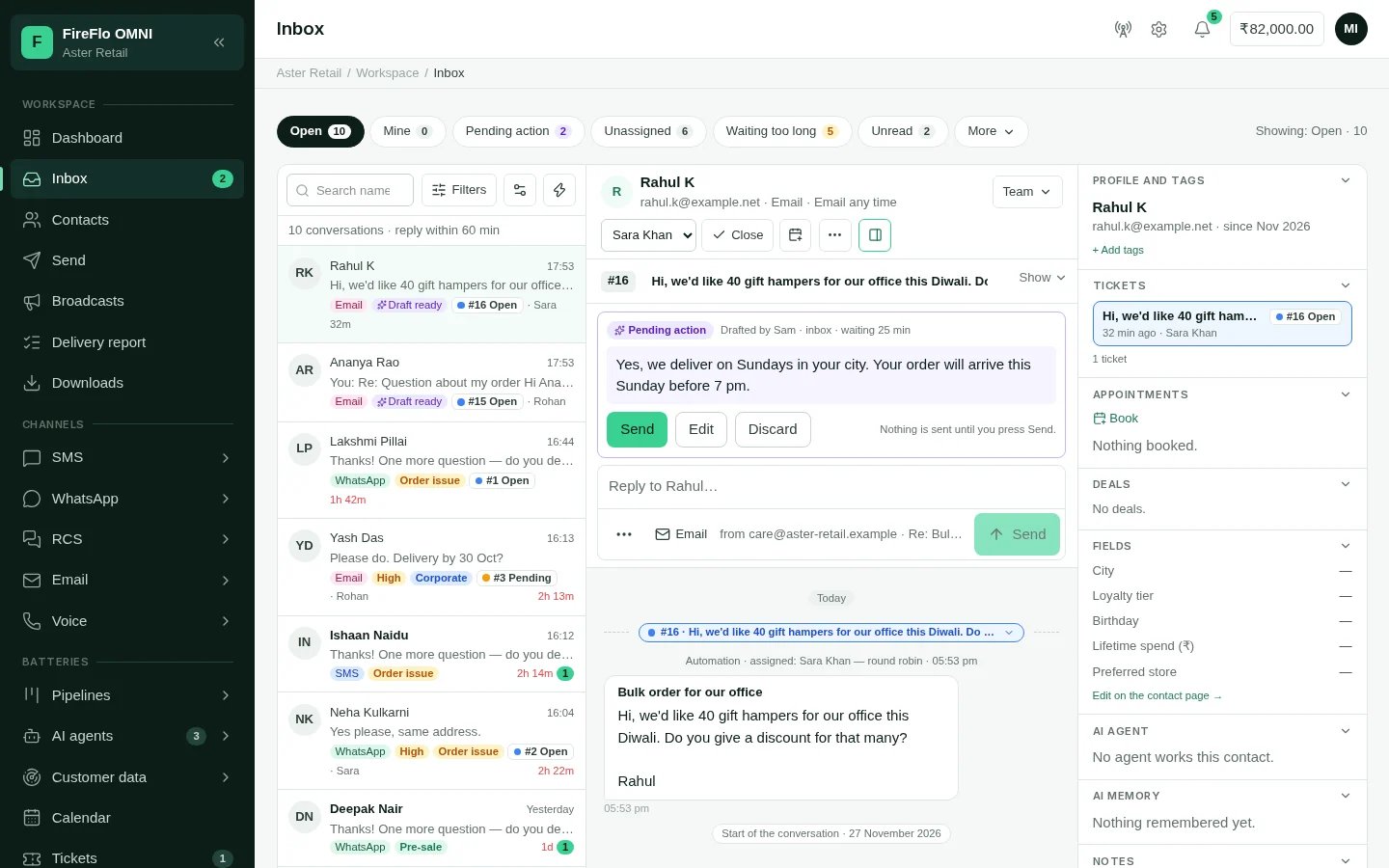
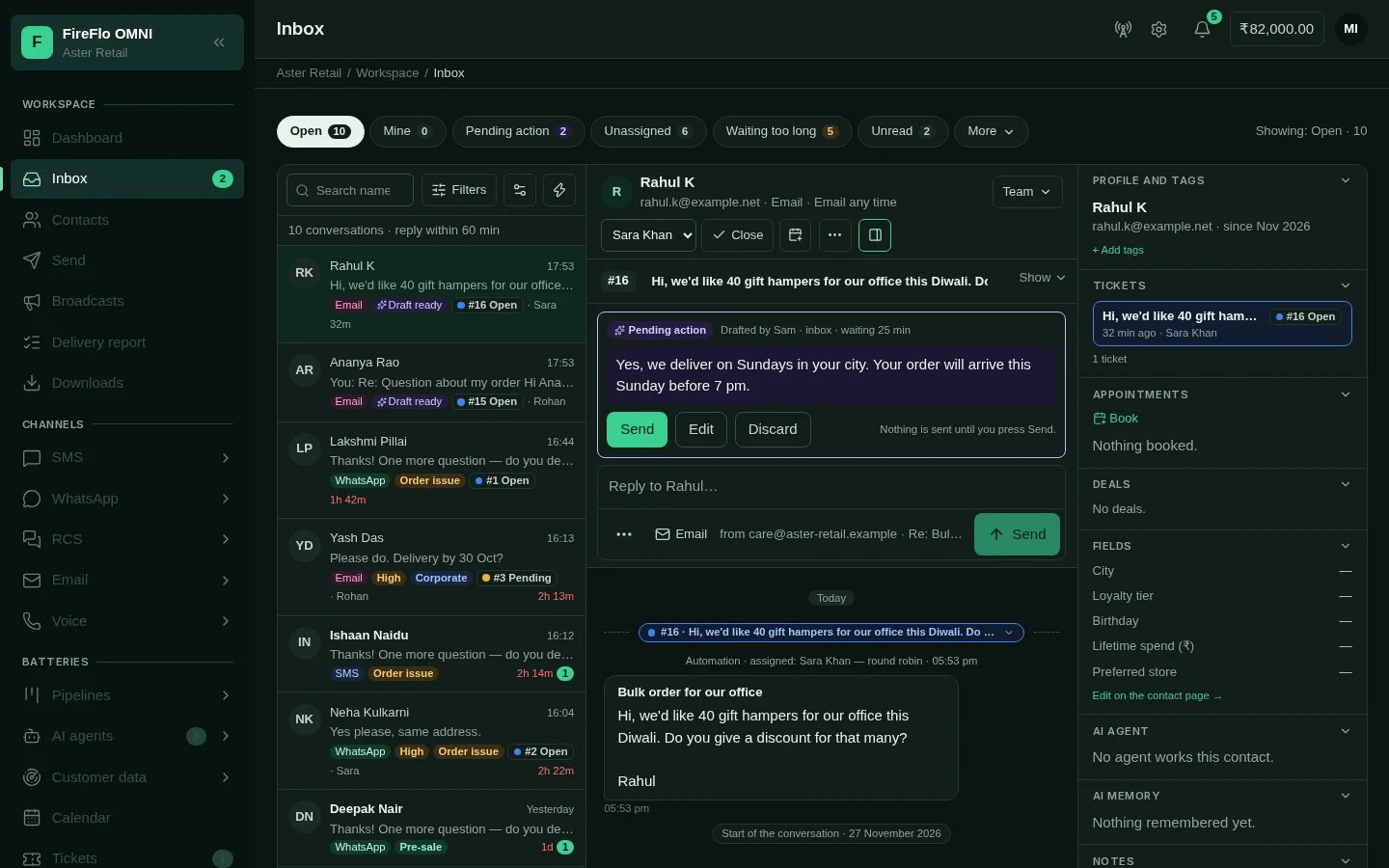
The Inbox: quick buttons on top, conversations on the left, the open conversation in the middle, the contact on the right.
Quick buttons
A row of buttons above the Inbox splits the conversations, each with its count: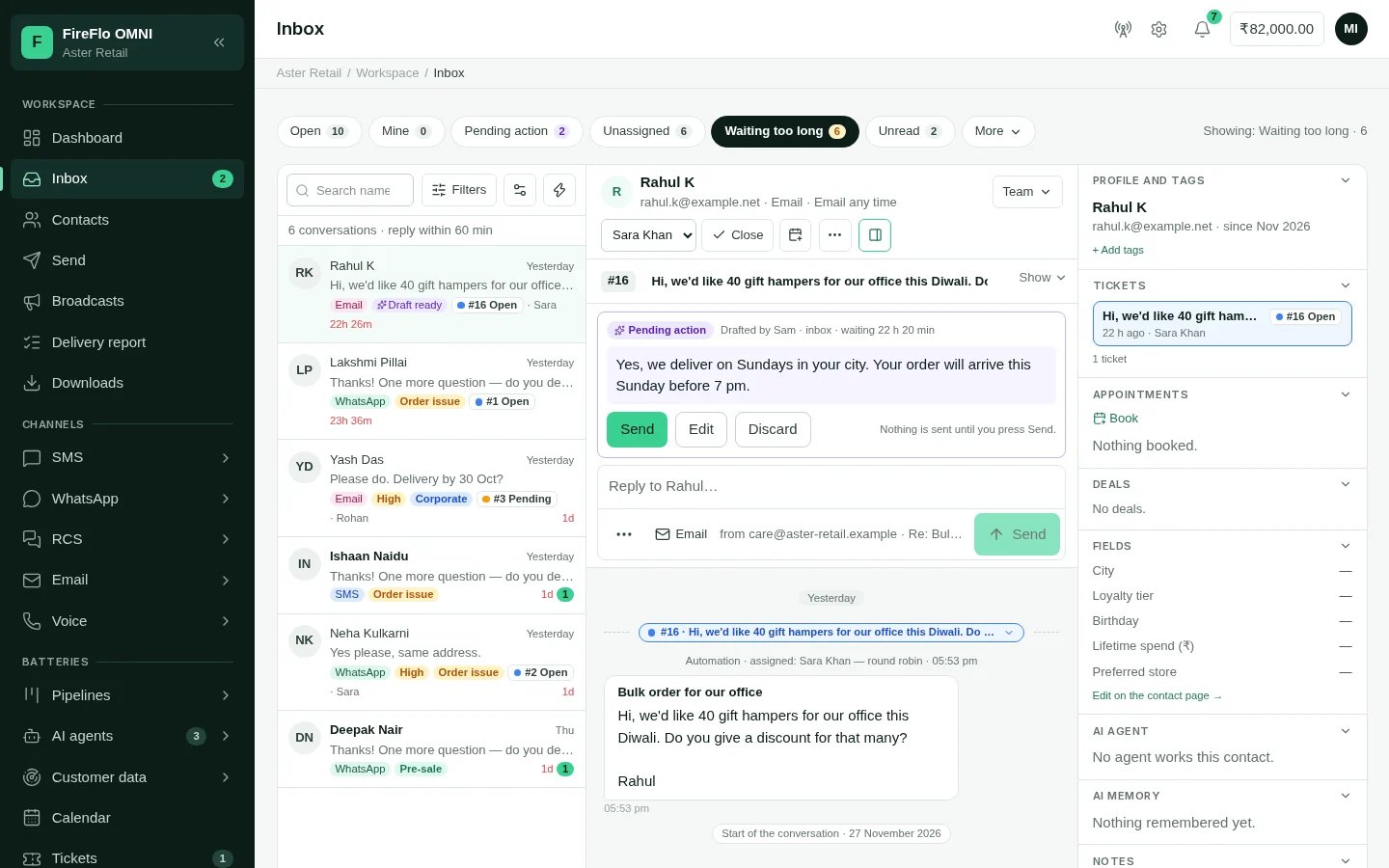
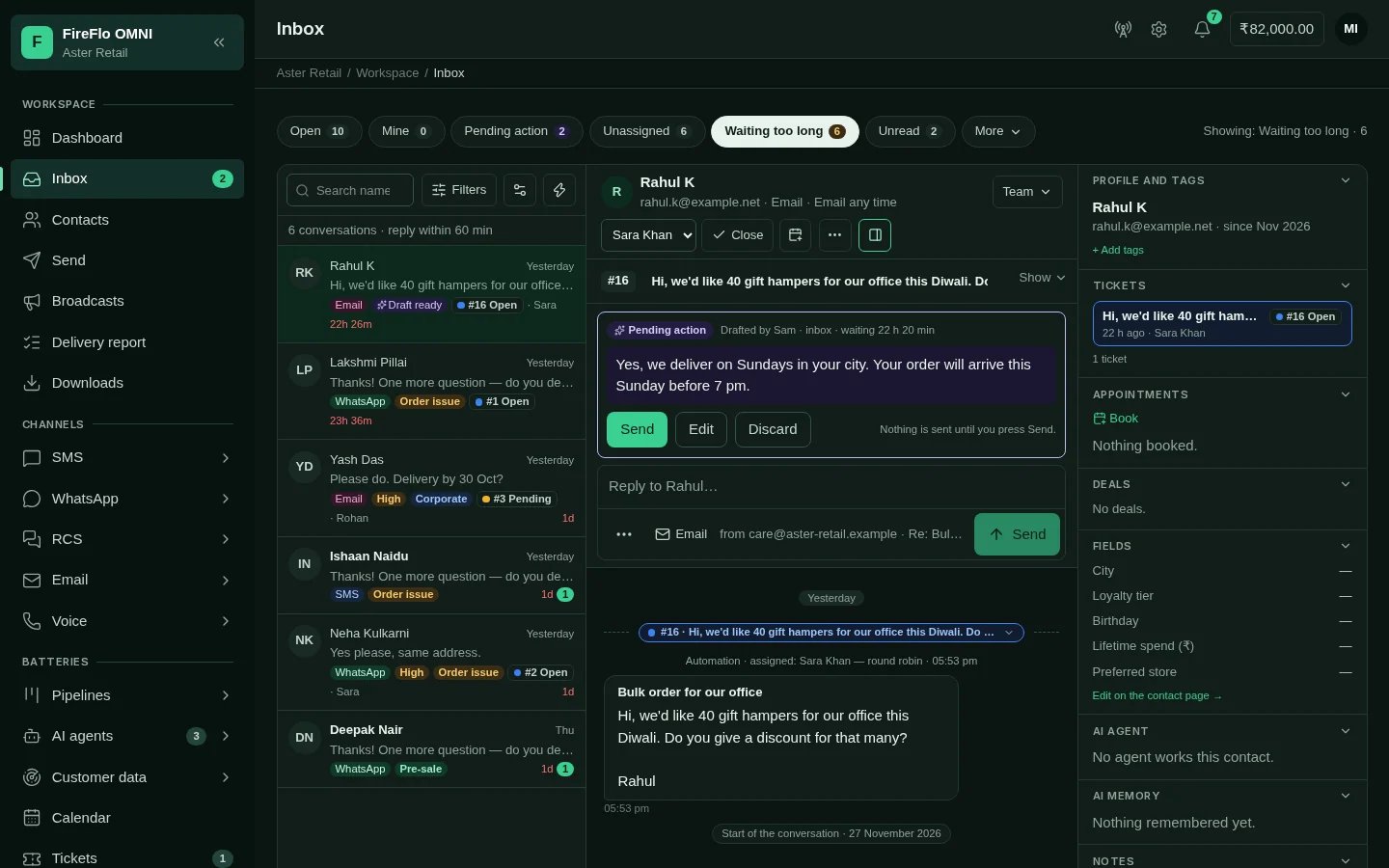
Waiting too long: the people still waiting for a reply.
The conversation list
Each row is one person, with their latest message, how long they have been waiting, and small chips: the channel, labels, the ticket, who it is assigned to and, with AI Agents, what the AI is doing (Draft ready, AI replying, Paused, Needs a person).- Search finds a name, a number or words in a message.
- Filters narrow the list by channel, assignee (anyone, me, unassigned, or a teammate), label and priority, and set the sort: newest first, waiting longest, or priority. Unread only and Waiting too long only sit in the same menu, with their counts.
- The layout and shortcuts sit behind the buttons beside Filters.
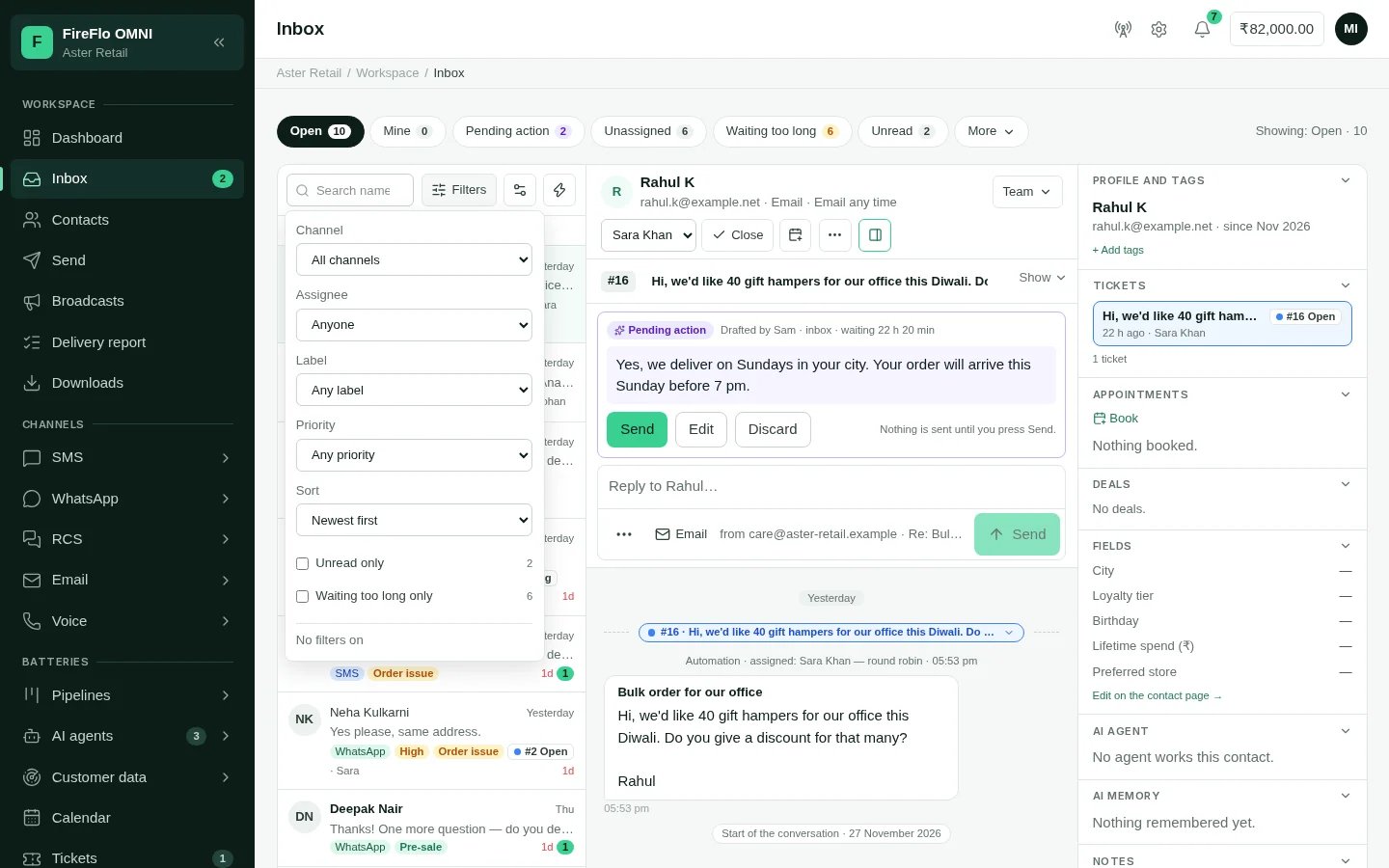
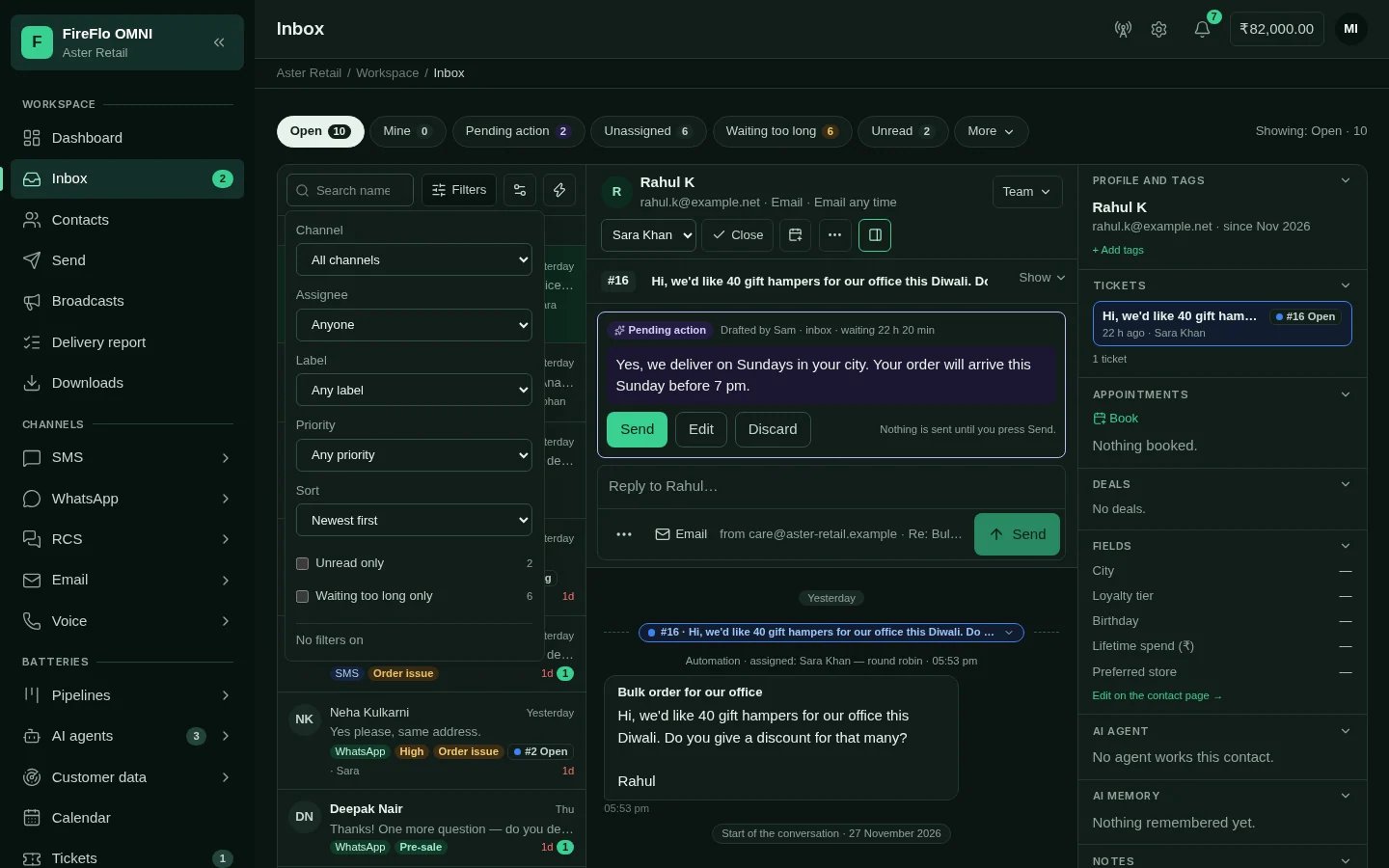
Filters: channel, assignee, label, priority and sort.
A conversation
The conversation shows everything that has passed with the person, on every channel. The reply box is at the top and the messages run below it, newest first; a New message chip appears when something arrives while you are reading further down. Older messages load as you scroll. Events such as assignments, label changes and what automation or an AI agent did appear in line, with who did it.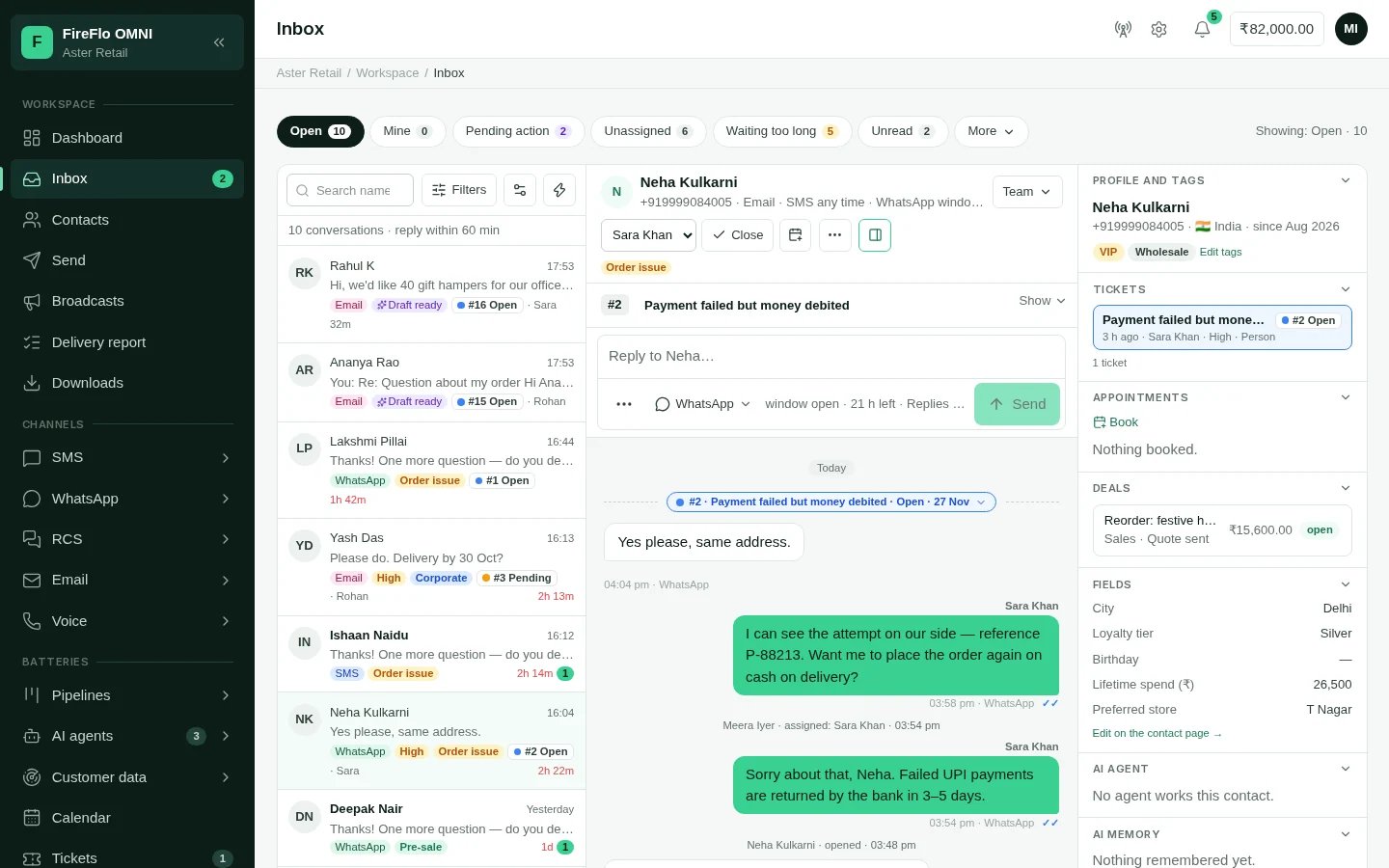
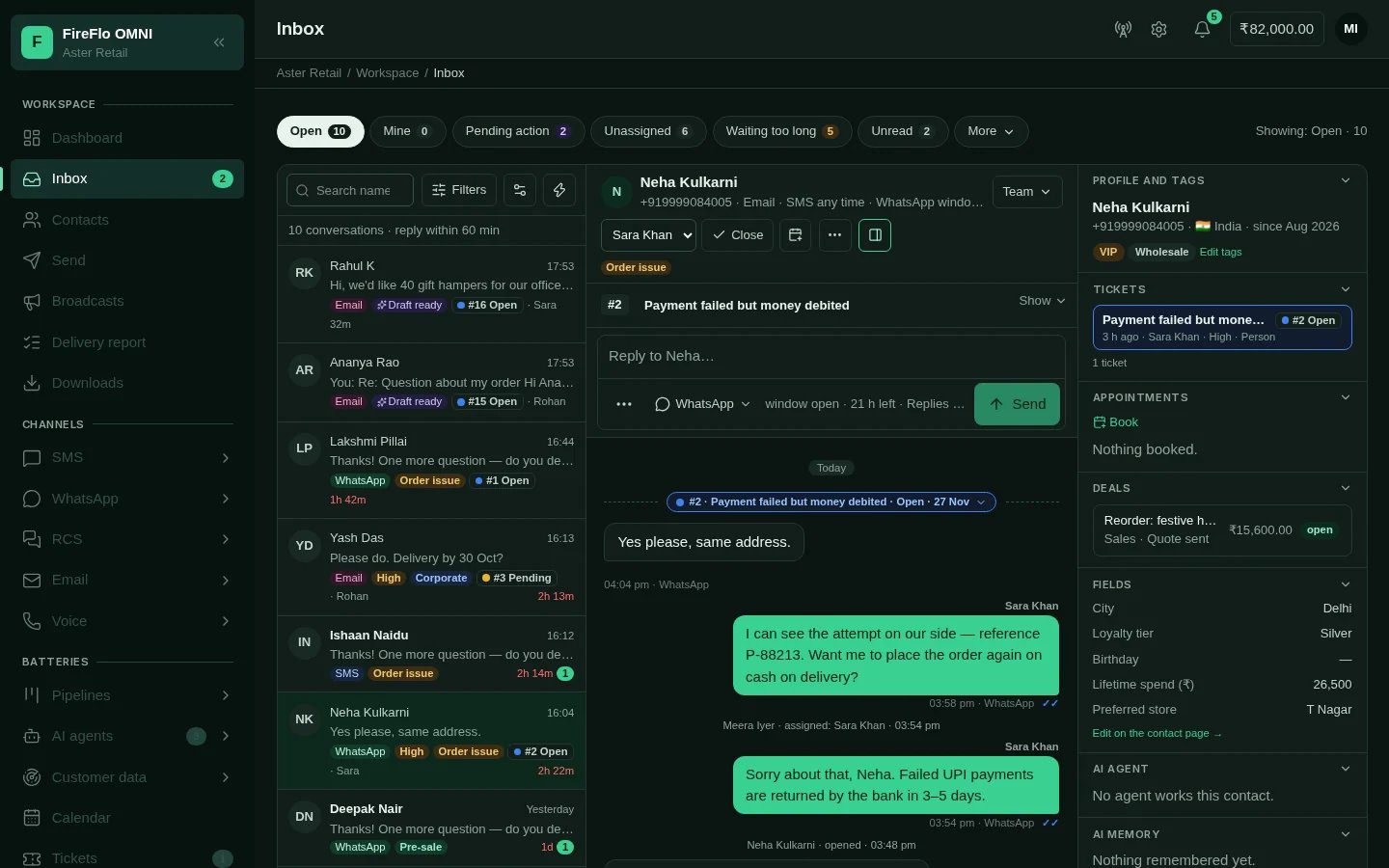
An open conversation: header, reply box, messages day by day, and the contact beside it.
- Assign the conversation to yourself, a teammate, or nobody;
- Close it, or reopen it;
- show or hide the contact panel;
- open the ⋯ menu.
- Labels: add or remove them, or make a new one (Owner, Admin and Support);
- Priority: normal, high or urgent;
- Pin to the top of the list;
- Snooze: for an hour, until this evening, until tomorrow 9:00, until Monday 9:00, or until they reply;
- Go to a date: jump to a day in the conversation;
- Export conversation (see below).
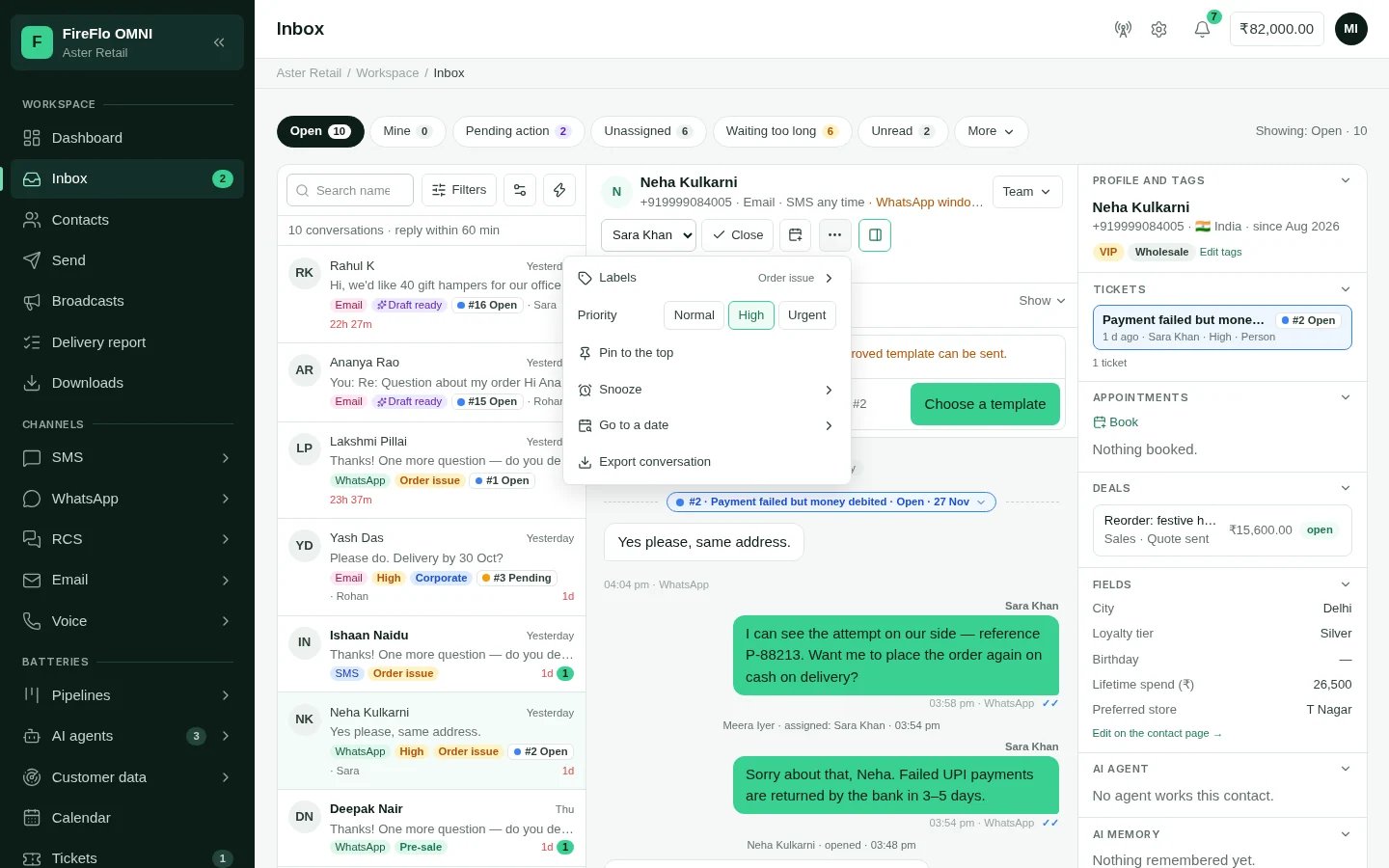
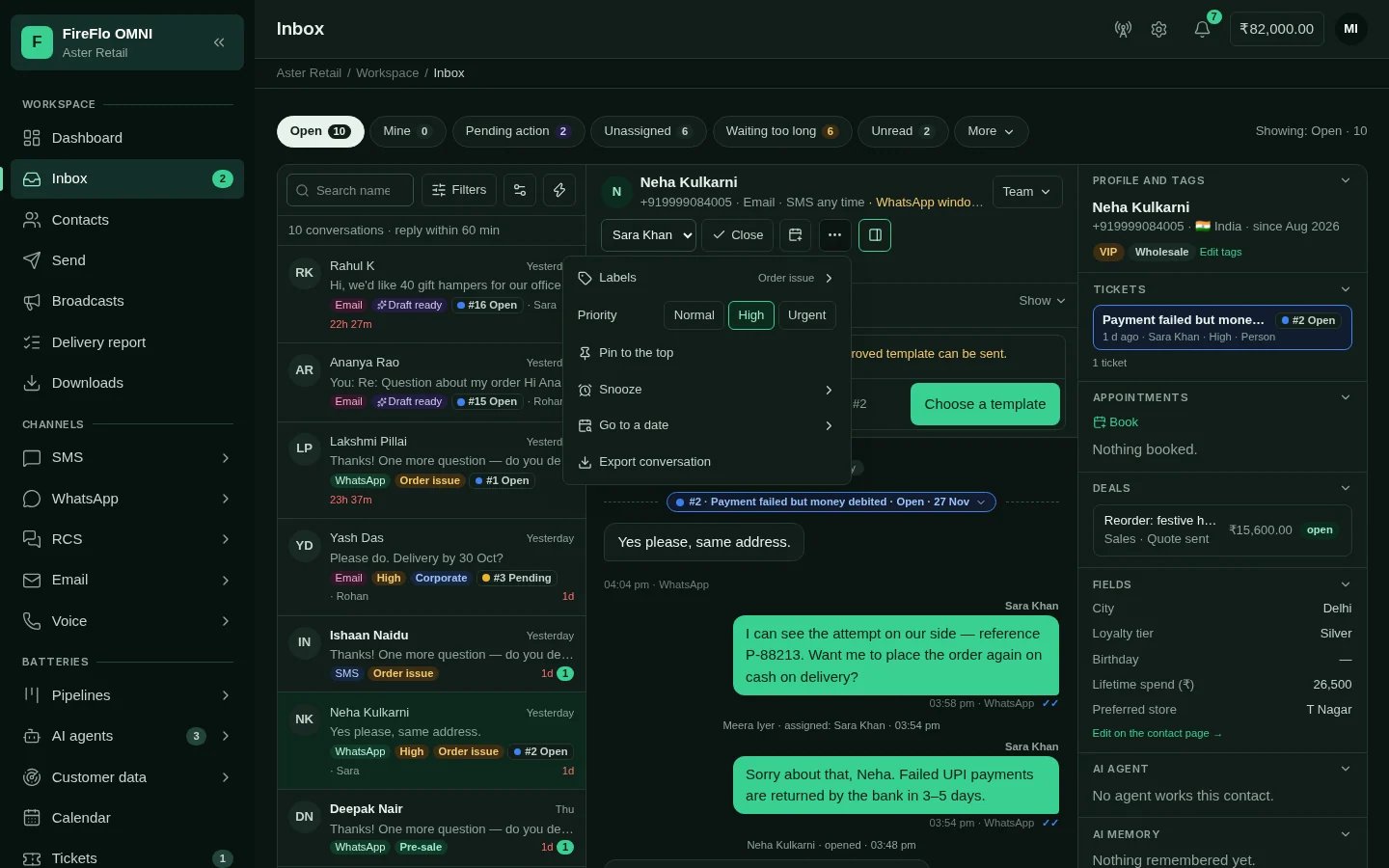
The ⋯ menu of a conversation: labels, priority, pin, snooze, go to a date and export.
Close, reopen and tickets ask first
Close and Reopen ask before they act, and say what is waiting: an unanswered last message, and what happens to the conversation’s ticket. New ticket asks first too, says which ticket will be solved, and takes the subject, category and priority. A solved ticket can be reopened from its bar. See Tickets.Replying
There is one reply box for every channel: the text on top, and one bar under it.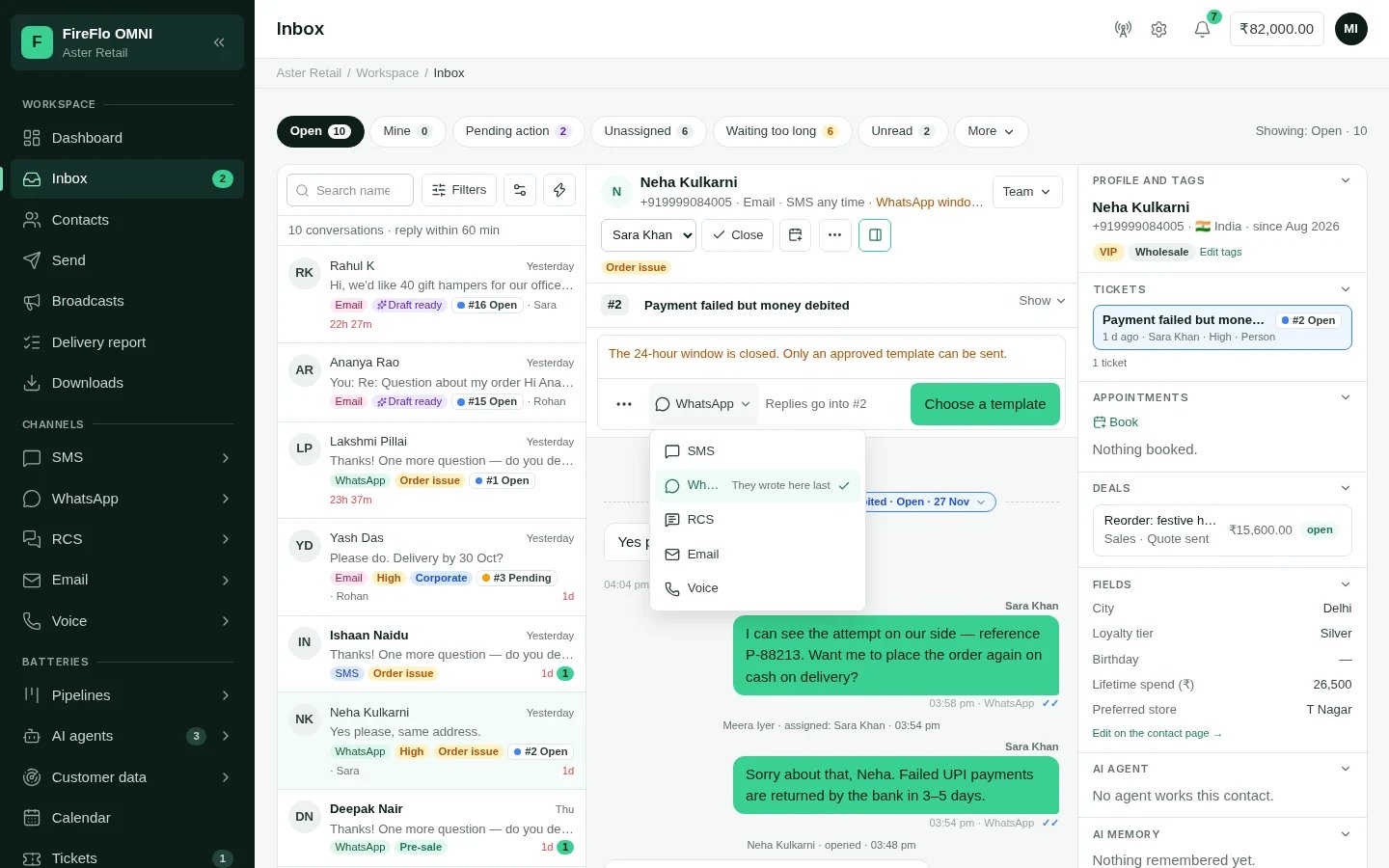
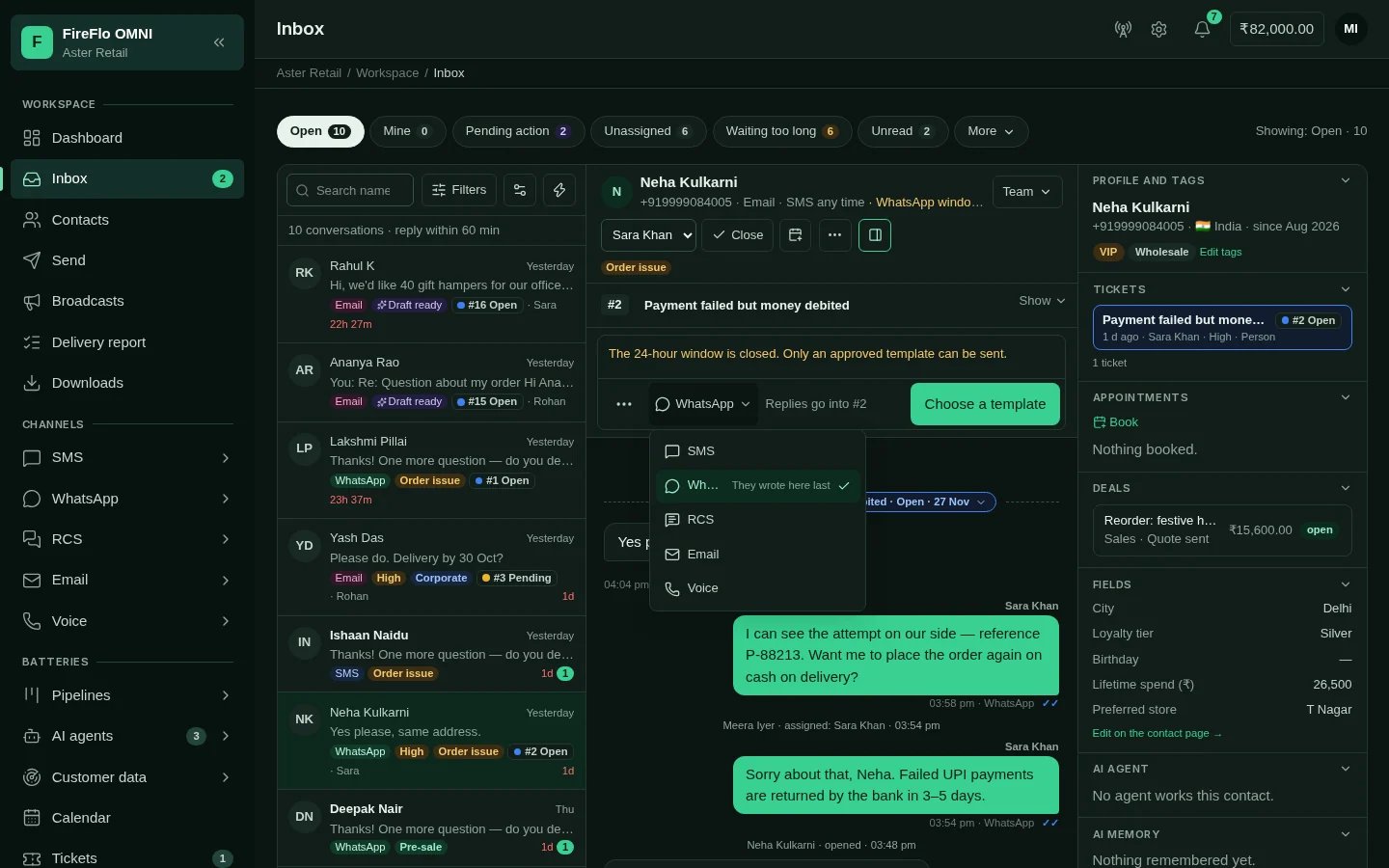
Choosing the channel the reply goes on, from the person's channels.
- Press Enter to send and Shift+Enter for a new line. On Email, Ctrl+Enter sends. On a phone, Enter makes a new line and the Send button sends.
- The box grows as you write, and offers only the formatting the channel shows: WhatsApp has bold, italic, strikethrough, monospace, lists and quote; Email has bold, italic, underline, link, lists, quote and Expand. SMS and RCS stay plain.
- A reply you have not sent is kept for that conversation, so you can move to another and come back.
- With Short links, links in a reply are shortened the way your account’s settings say.
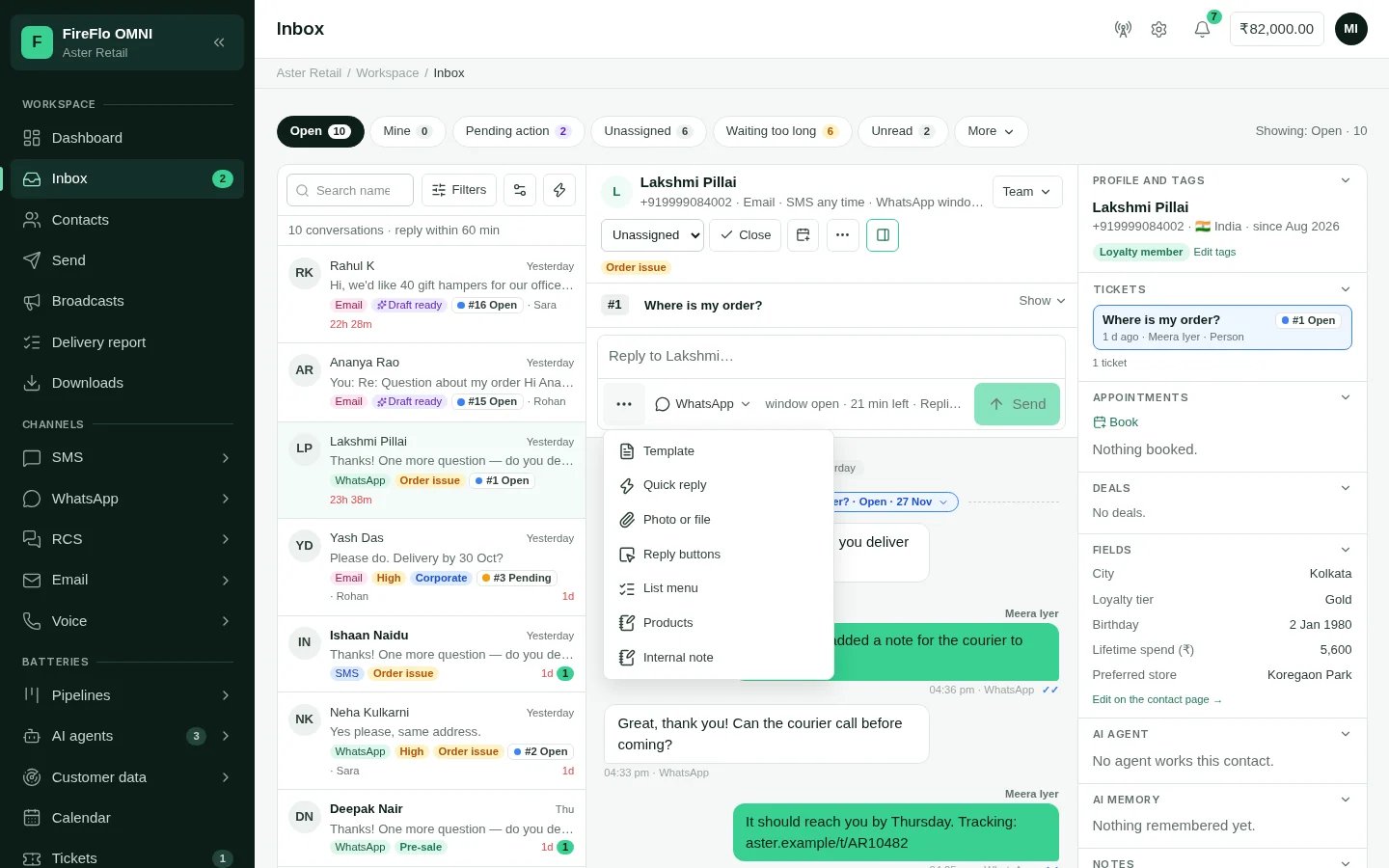
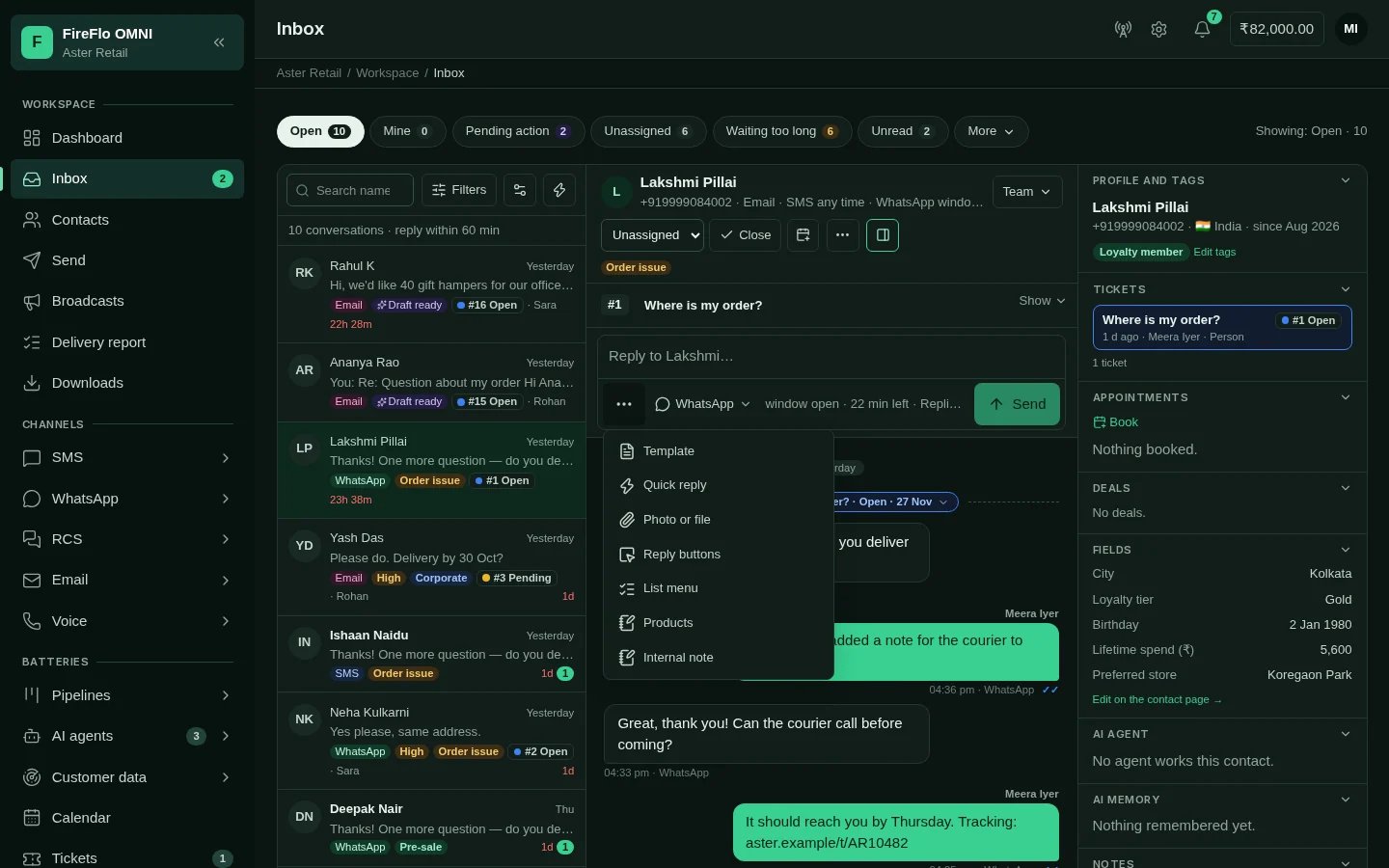
The reply box's ⋯ menu: Template, Quick reply, Photo or file, Reply buttons and more.
When the window has closed
Some channels only take a typed reply for a while after the person last wrote, such as WhatsApp’s 24-hour window. Once it closes, the reply box says so and offers Choose a template instead. See WhatsApp.Sending a template
Template is the first entry under ⋯. It opens one panel for every channel, with the template, its blanks, and the message as the person will see it. The panel has two modes, Easy and Advanced; the choice is remembered for you, and starts on Easy.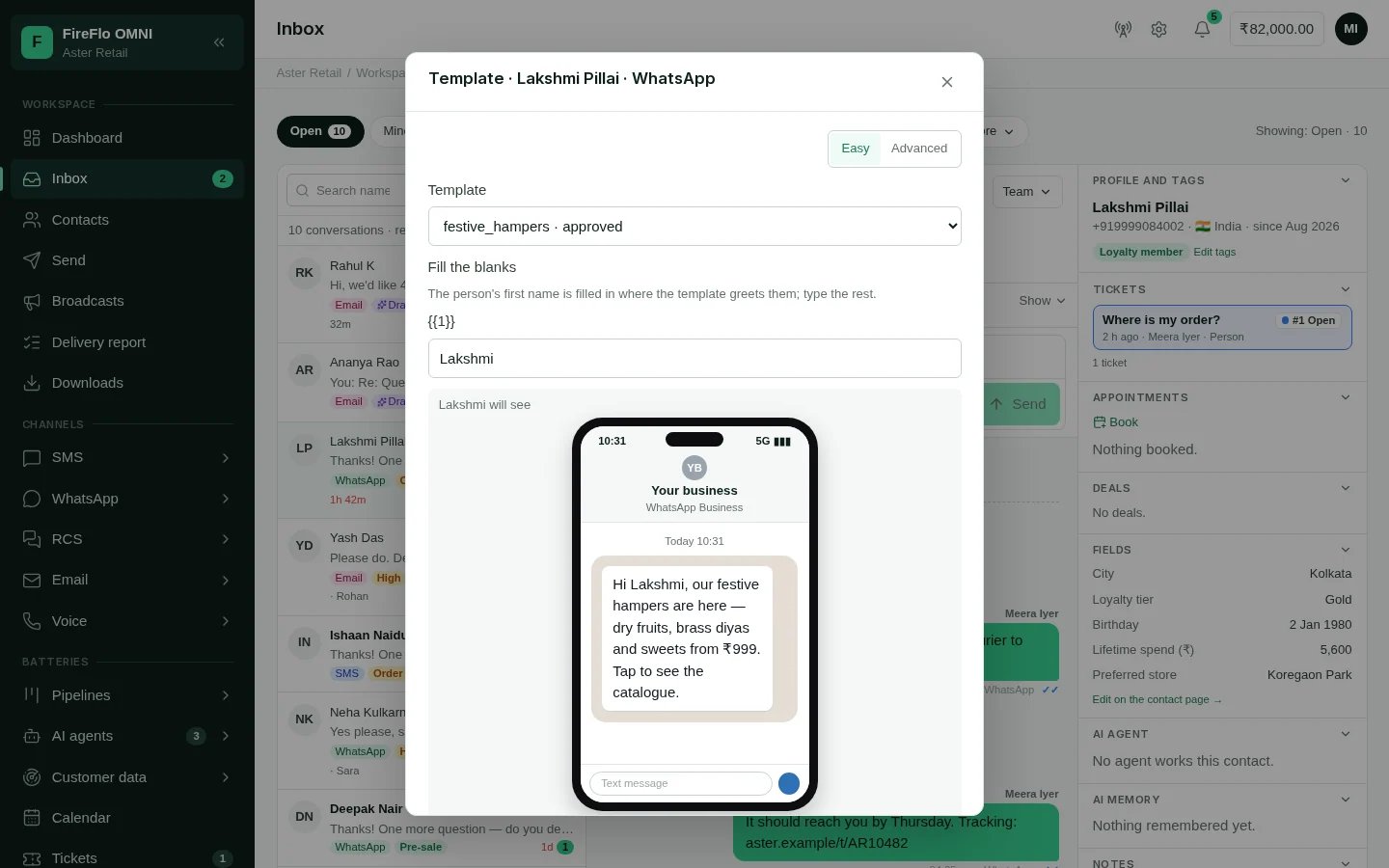
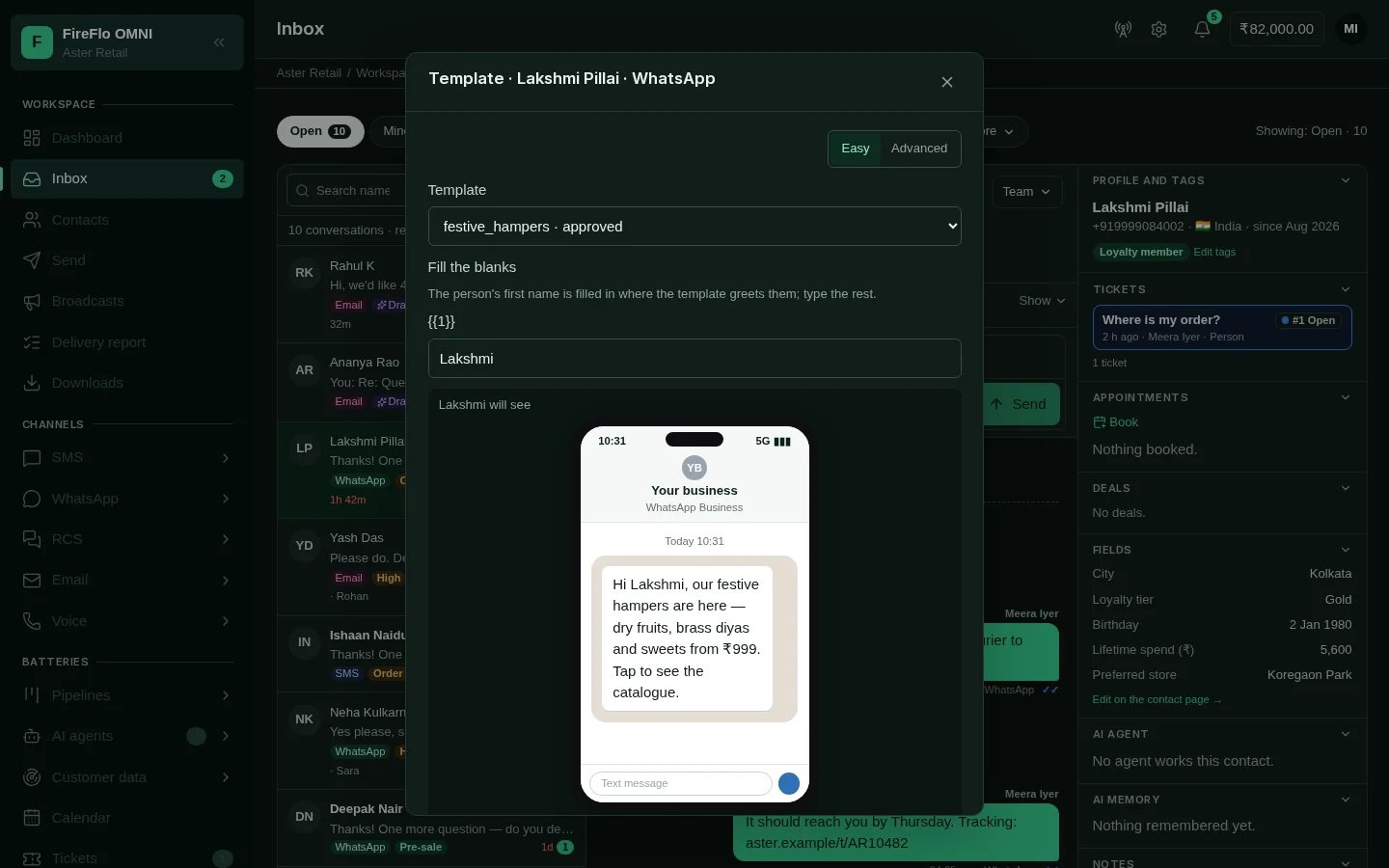
The template panel in Easy: the template, its blanks and the message as the person will see it.
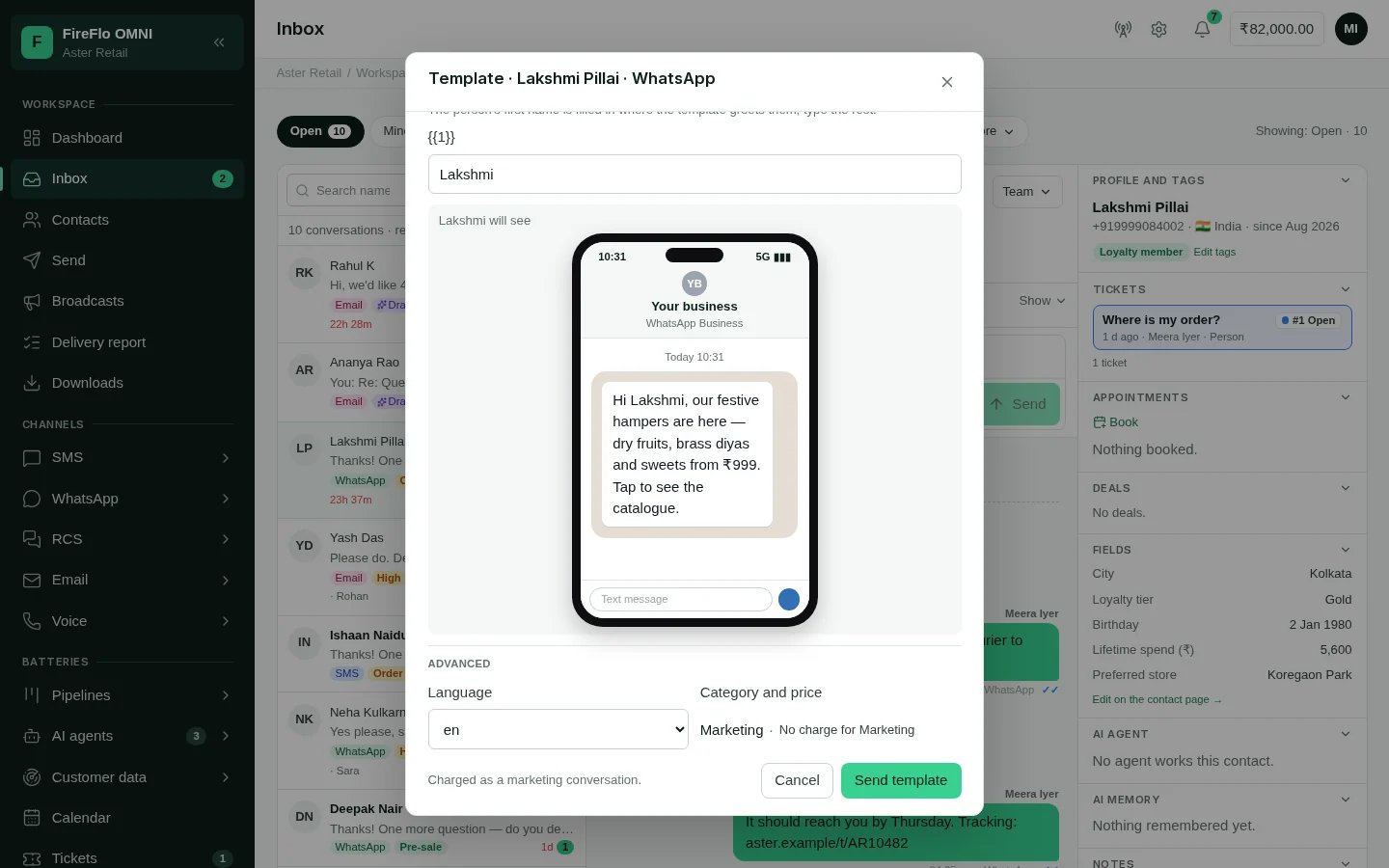
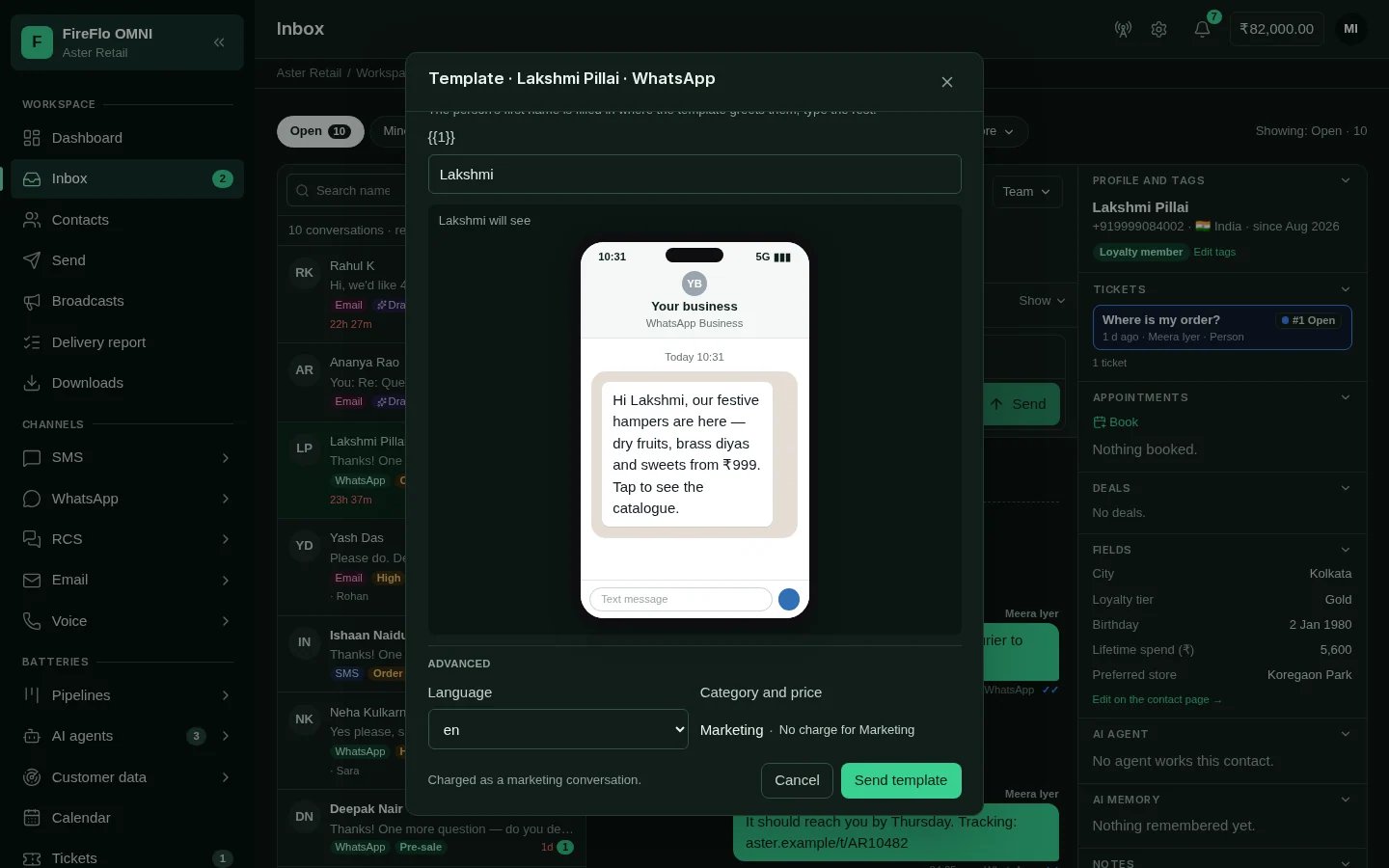
Advanced on WhatsApp: the template's language, its category and what it costs.
SMS replies
A line above the SMS reply says who the SMS is from, its type and the template it matches, with Change, and a counter shows the characters and parts, and how many TLVs go with it. When your account has more than one approved sender or more than one SMS type, the first SMS reply to a person asks which to use (Send this SMS as). The sender the person wrote to is offered first. Your answer is remembered for that person, on any device, and the box opens again only when something must be chosen. An SMS is checked for consent by its type: a type whose consent check is Marketing is refused for a person who stopped SMS offers.Exporting a conversation
Export conversation, in the ⋯ menu, saves the conversation as a CSV file or as a print-ready page for your browser’s Save as PDF: the whole conversation or a period, with or without team notes and events. Each export is recorded in the conversation. Who may: anyone with the Export conversations permission. It is on for the Owner and Admin roles and off for the others. See Team and roles.WhatsApp and RCS in a conversation
- Your messages show sent, delivered and read ticks. A failed one says why; tap it to see the full reason.
- A template can be sent from inside the conversation, on WhatsApp at any time and on RCS always (RCS takes no typed replies).
- A tap on a WhatsApp reply button or an RCS suggested reply is the person’s answer: an unread message that agents, tickets and workflows see.
- A reaction sits on the message it reacts to, not as a new message.
- Places, files and, on WhatsApp, contact cards, orders and form answers show as cards in the conversation.
- A WhatsApp shared number is send-only: replies don’t open a conversation, and the Inbox doesn’t offer WhatsApp as the reply channel there. Replies to an RCS bot that several customers share reach no customer.
The contact panel
Beside the conversation, the contact panel shows who you are talking to: their profile and tags, country, fields, notes, their other channels and recent activity. Batteries add their own sections, such as tickets, appointments and deals. You can add tags and notes here without leaving the Inbox.On a phone
On a phone the Inbox shows the list, then the conversation on the full screen, then the person’s details as a sheet. The quick buttons are one row that scrolls sideways, hidden inside a conversation. The reply box stays above the keyboard, menus open as sheets from the bottom, and a long press on a message offers Reply, the reactions and Copy text.Making it yours
The layout menu sets how the Inbox looks for you: message previews, avatars, whether the contact panel shows, the default sort, and which panel sections appear in which order. It is saved to your account, so it is the same on every device.AI in the Inbox
Where your account has AI Agents, the AI button in a conversation’s header shows who answers it — Team, AI drafting, AI replying, Paused or Needs a person — and switches between three modes. It can also change the agent.Automation
Inbox → Automation answers people for you when nobody is there, and shares out new conversations. It works without an AI agent.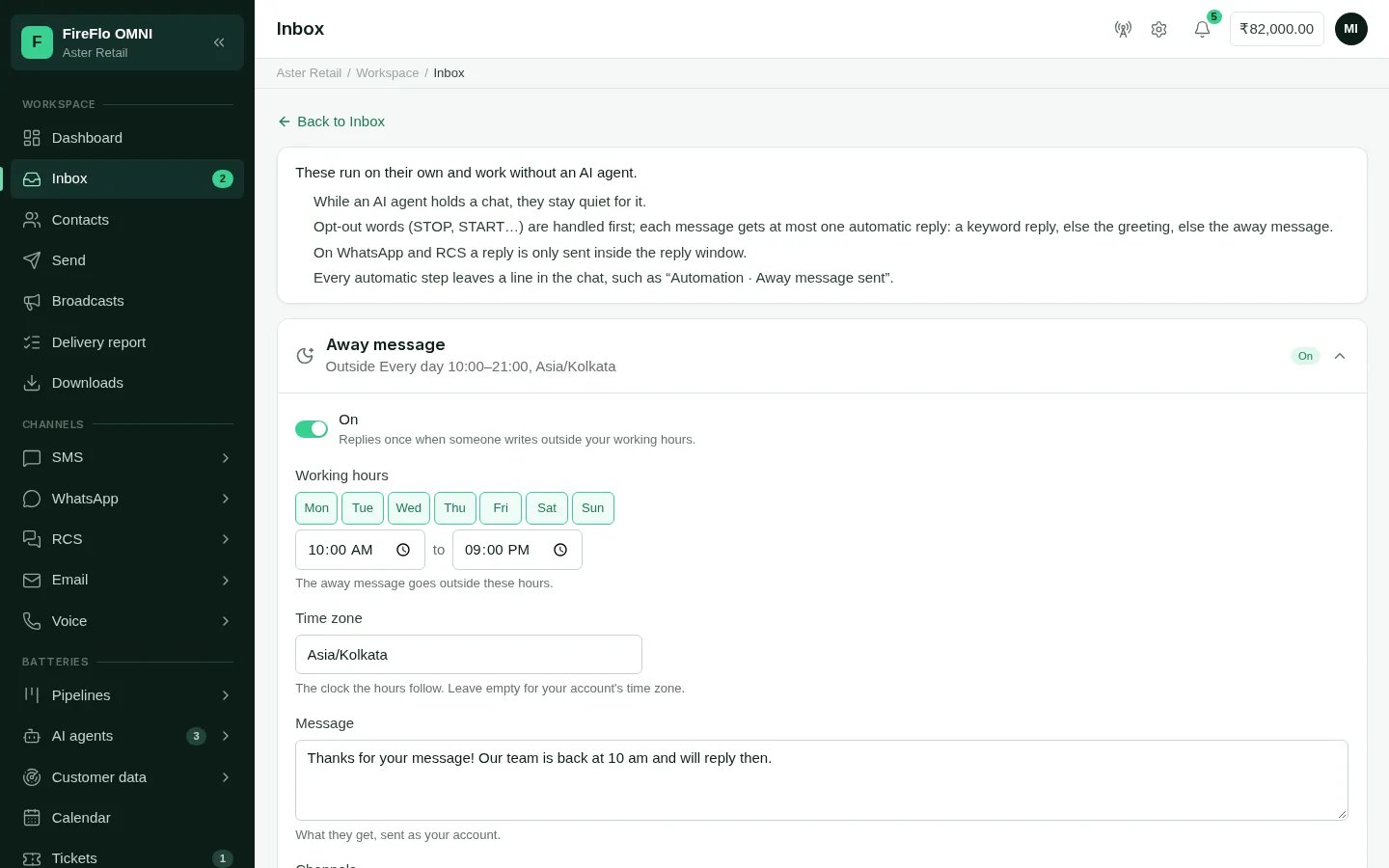
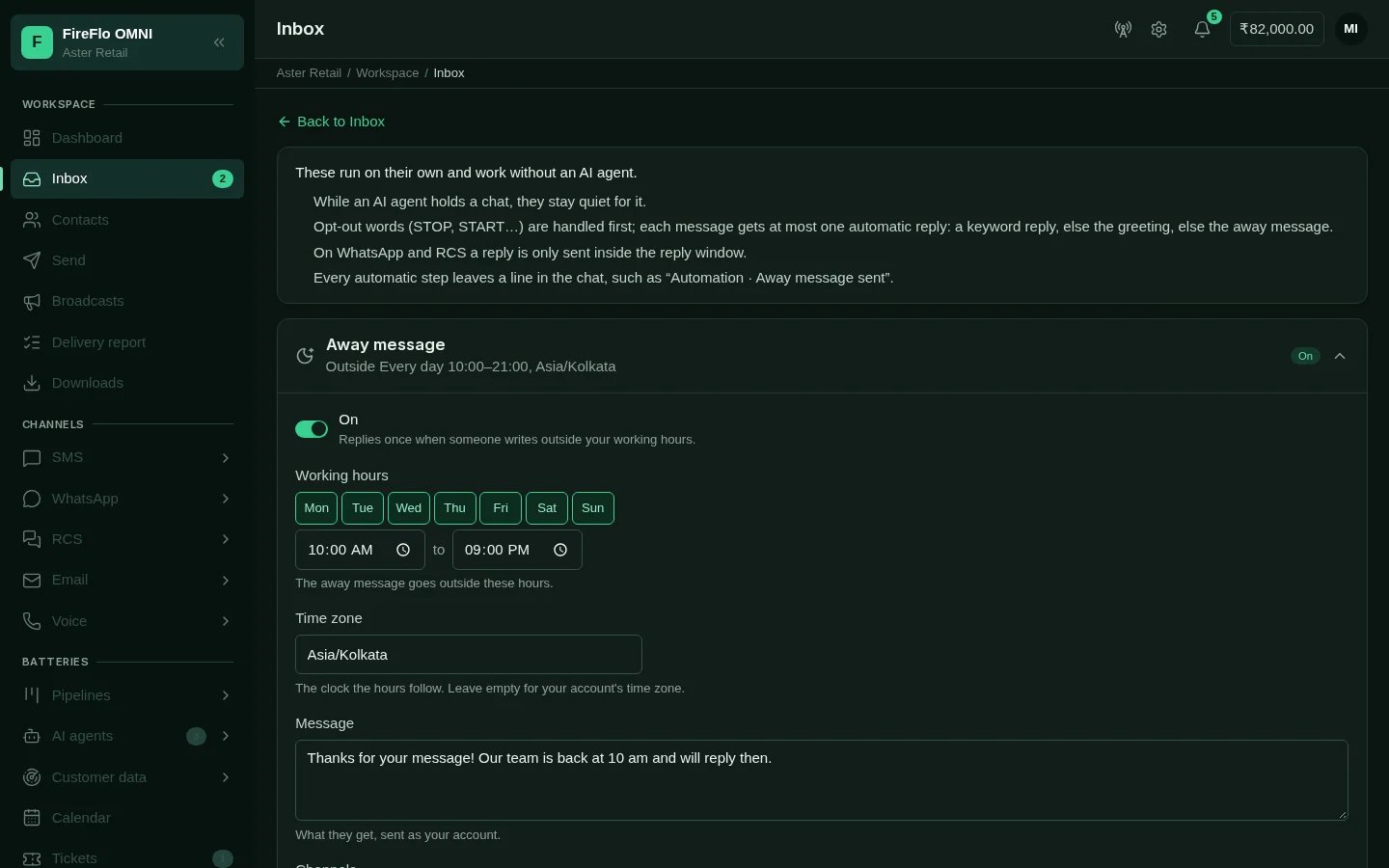
Inbox → Automation: away message, greeting, assigning and keyword replies.
- While an AI agent holds a conversation, automation stays quiet and the agent answers.
- Opt-out words (STOP, START…) are handled first.
- Each message gets at most one automatic reply: a keyword reply, else the greeting, else the away message.
- On WhatsApp and RCS a reply is sent only inside the reply window.
- Every automatic step leaves a line in the conversation, such as “Automation · Away message sent”, so the team can see what happened.
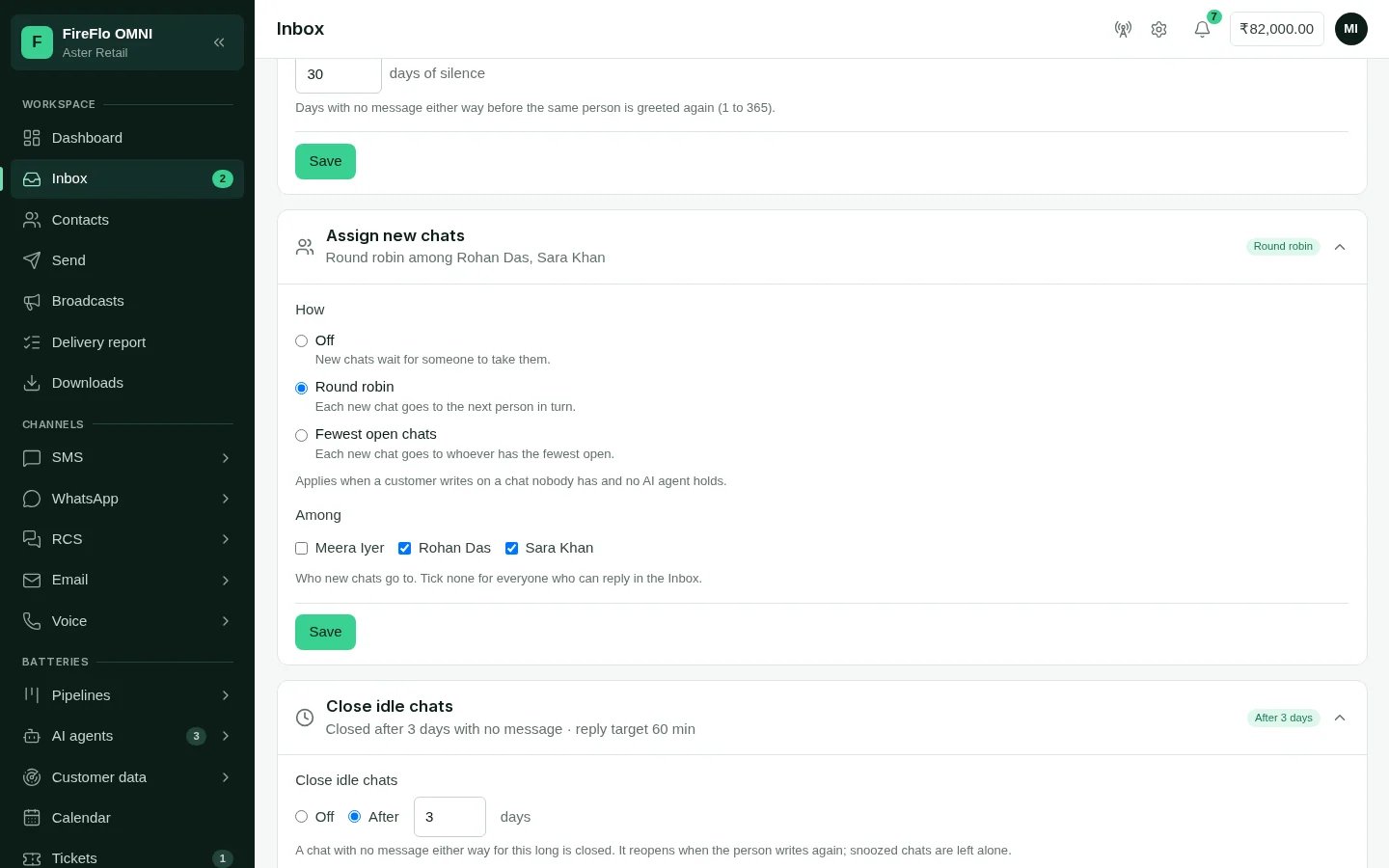
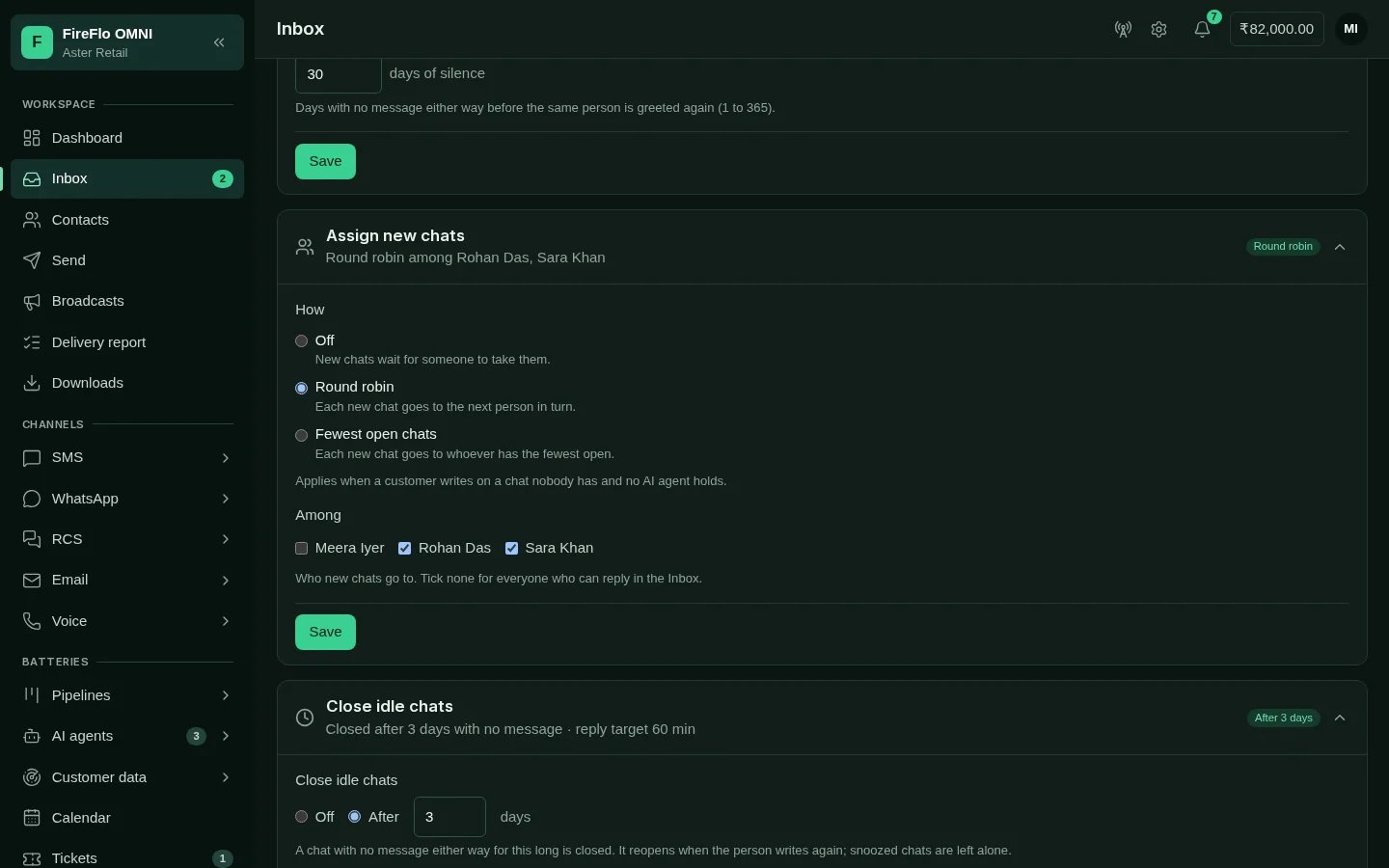
Assign new chats in turn among chosen teammates, and close idle chats after three days.
Keyword replies
Each rule says:- When a message contains any of the words, or is exactly one of them. Words
are whole words or phrases, in any case, separated by commas. Is exactly ignores
spaces and a final
.,!or?. STOP, START and the other opt-out words can’t be used. - Reply: the text sent as your account. Leave it empty to only do what is chosen under Then.
- Channels: all channels, or only the ones you tick.
- Then: close the conversation, assign it, or add a label.
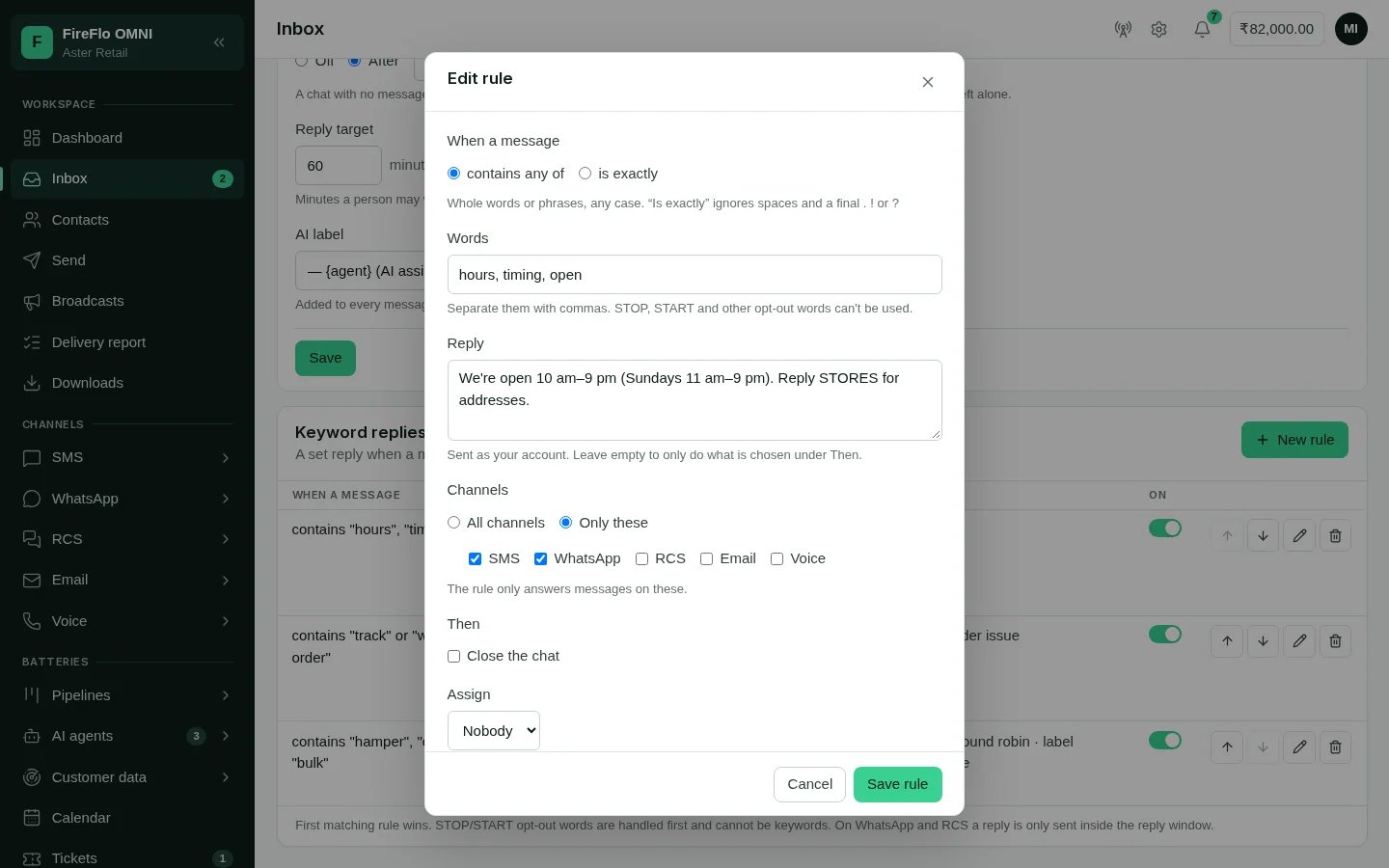
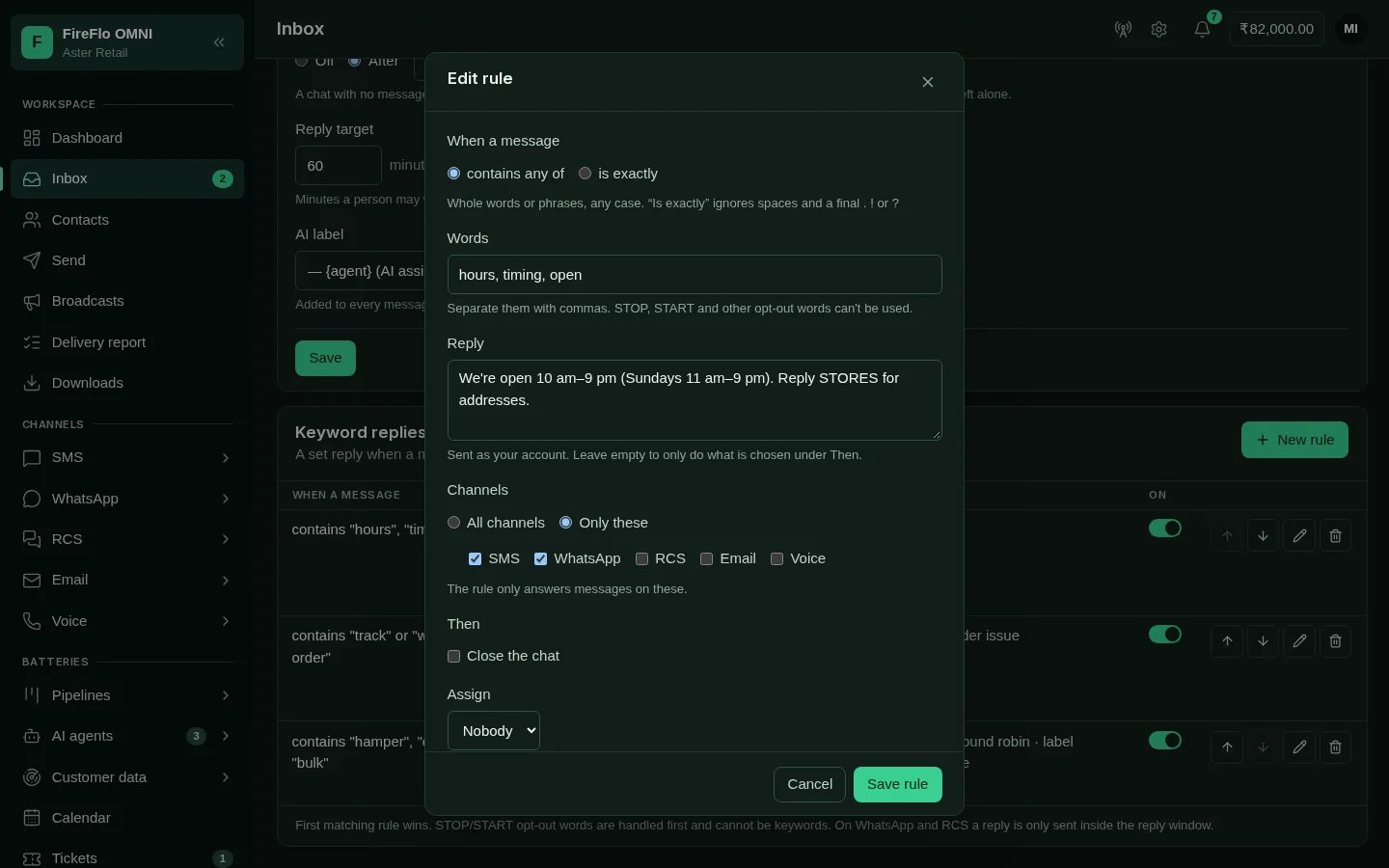
A keyword rule: its words, reply, channels and what happens next.