Before an SMS goes out, your provider may check two things: that it comes from an approved sender ID, and that its wording matches an approved template. You request both in OMNI; your provider reviews them. Both screens say at the top how strictly your account is checked:

Sender IDs

A sender ID is the name people see your SMS come from.
1

Start a request

Open SMS → Sender IDs and choose Request sender ID.
2

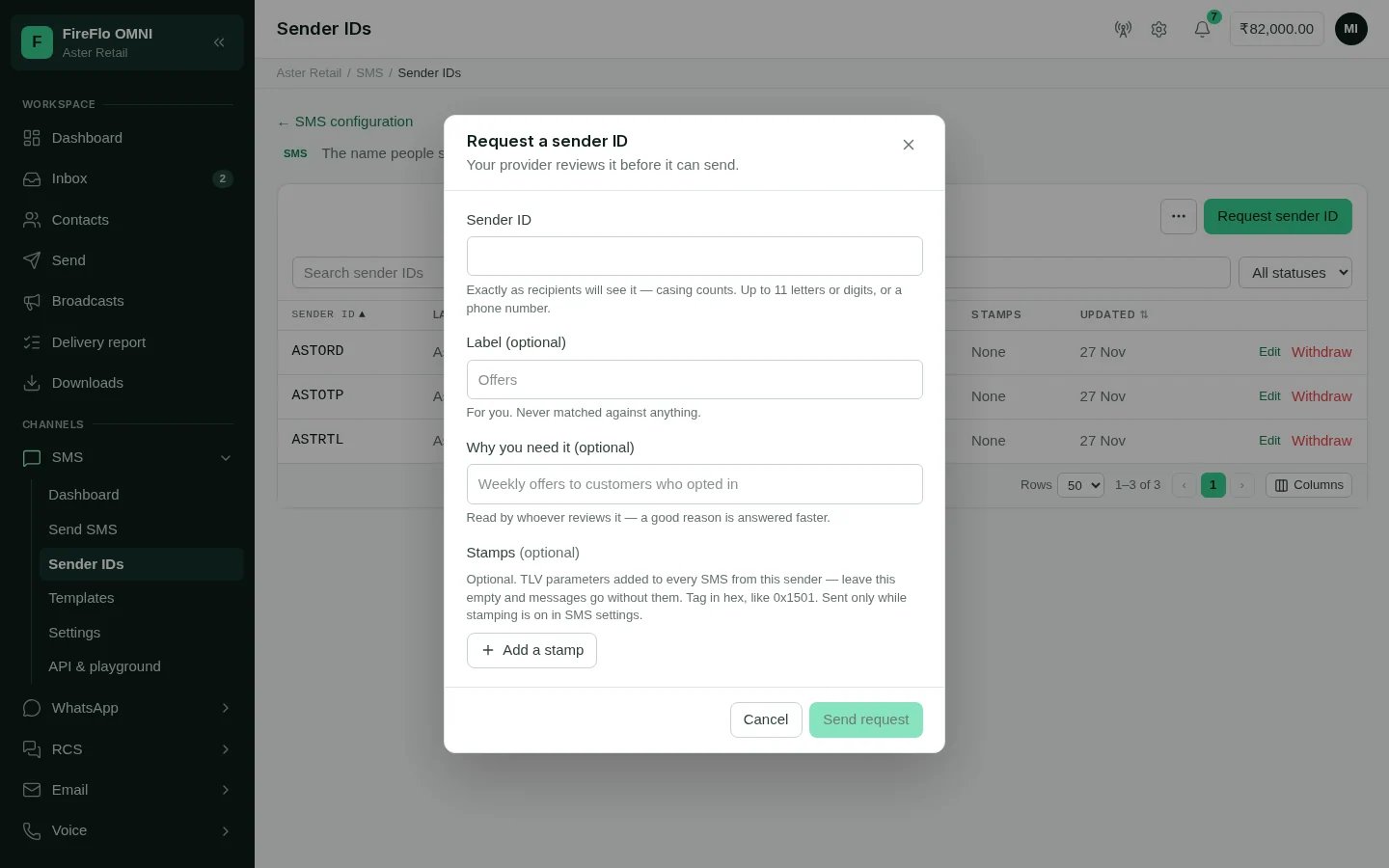
Enter the sender ID

Exactly as recipients will see it — casing counts. Use up to 11 letters or digits, or a phone number.
3

Add a label and a reason (optional)

The label is for you and is never matched against anything. Why you need it is read by whoever reviews it; a good reason is answered faster.
4

Send request

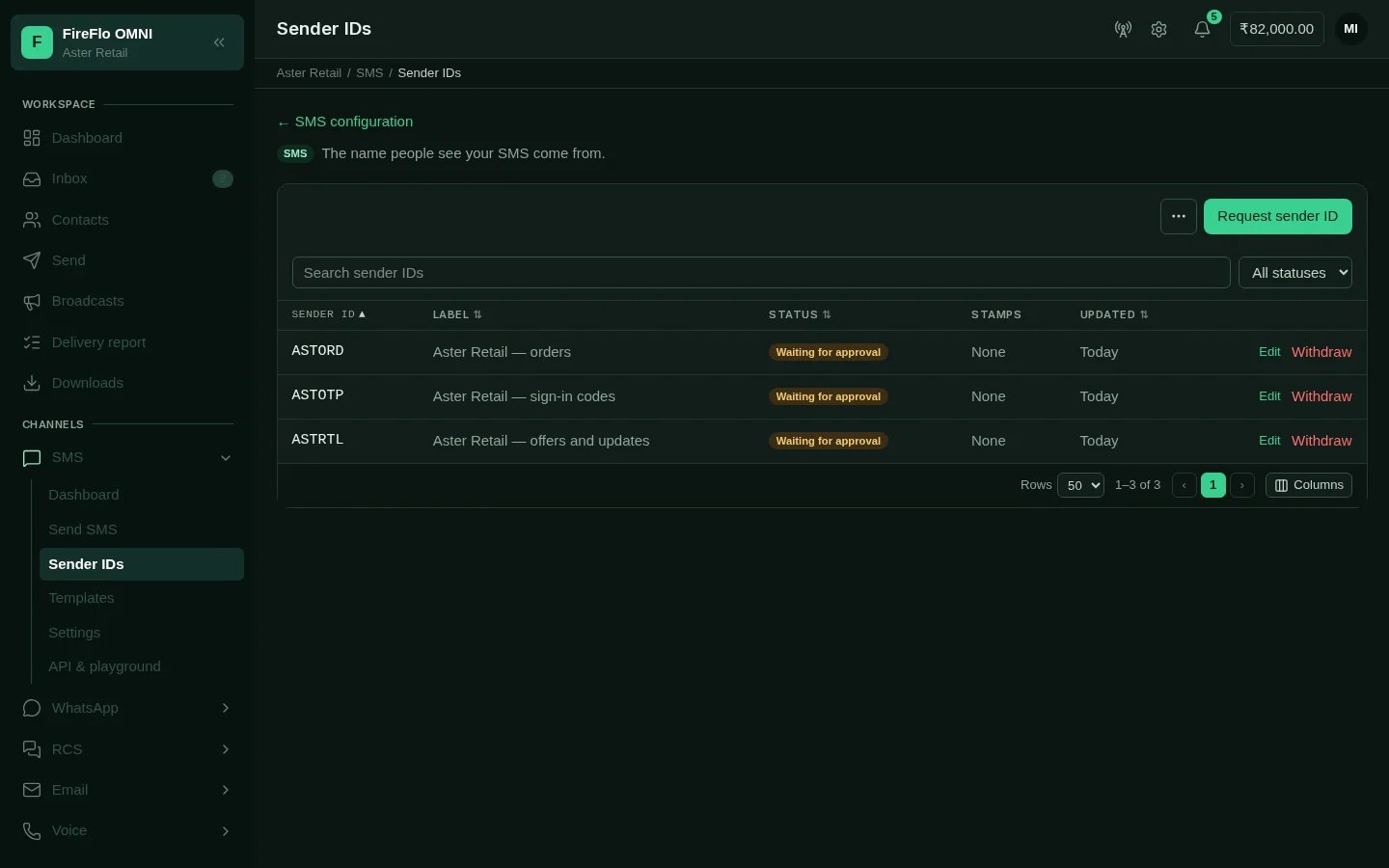
It shows as Waiting for approval and can send once it is approved.
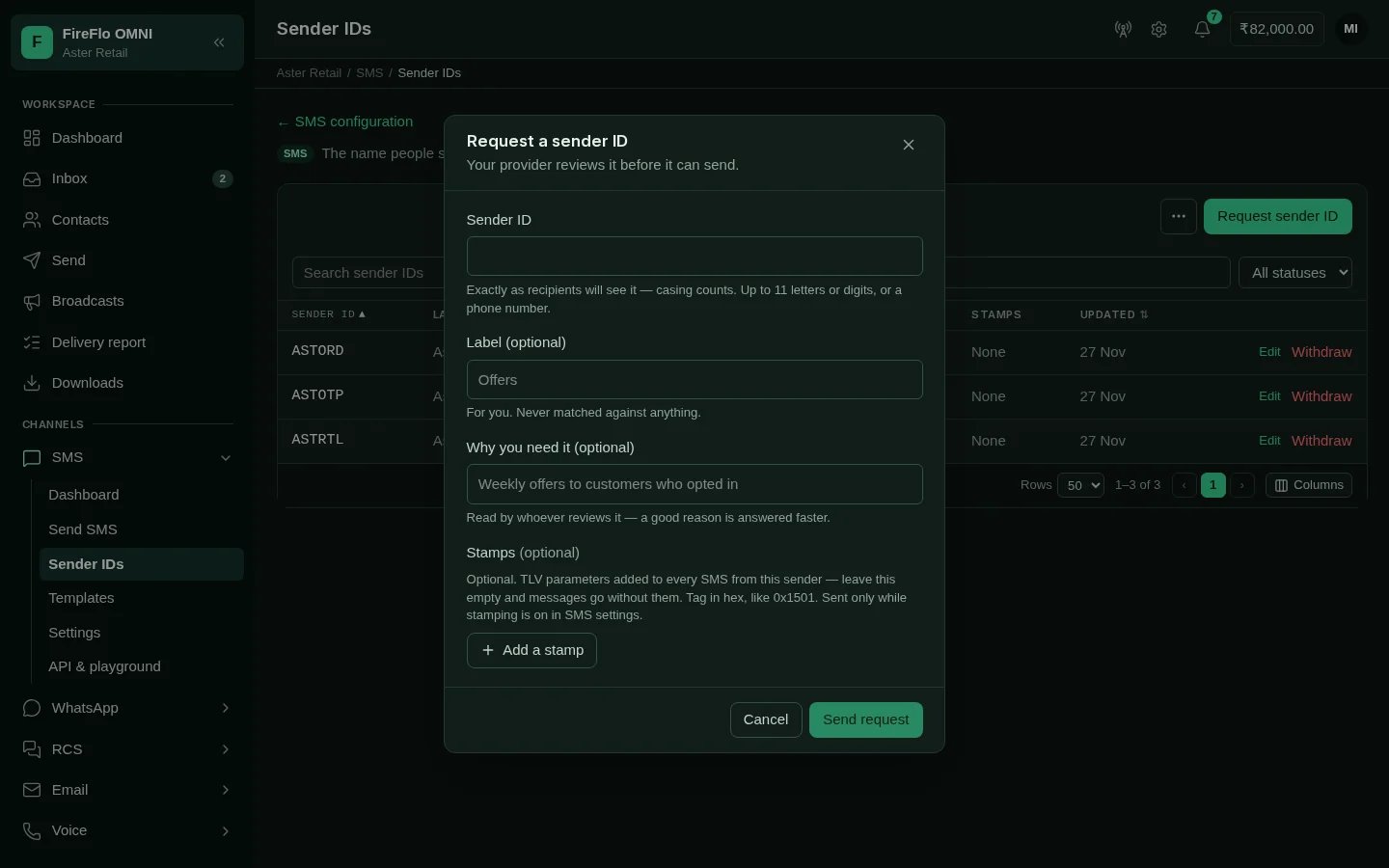
The Request a sender ID dialog, with the label and the reason the provider reviews.The Request a sender ID dialog, with the label and the reason the provider reviews.

Request a sender ID: the name, a label for you and the reason your provider reads.
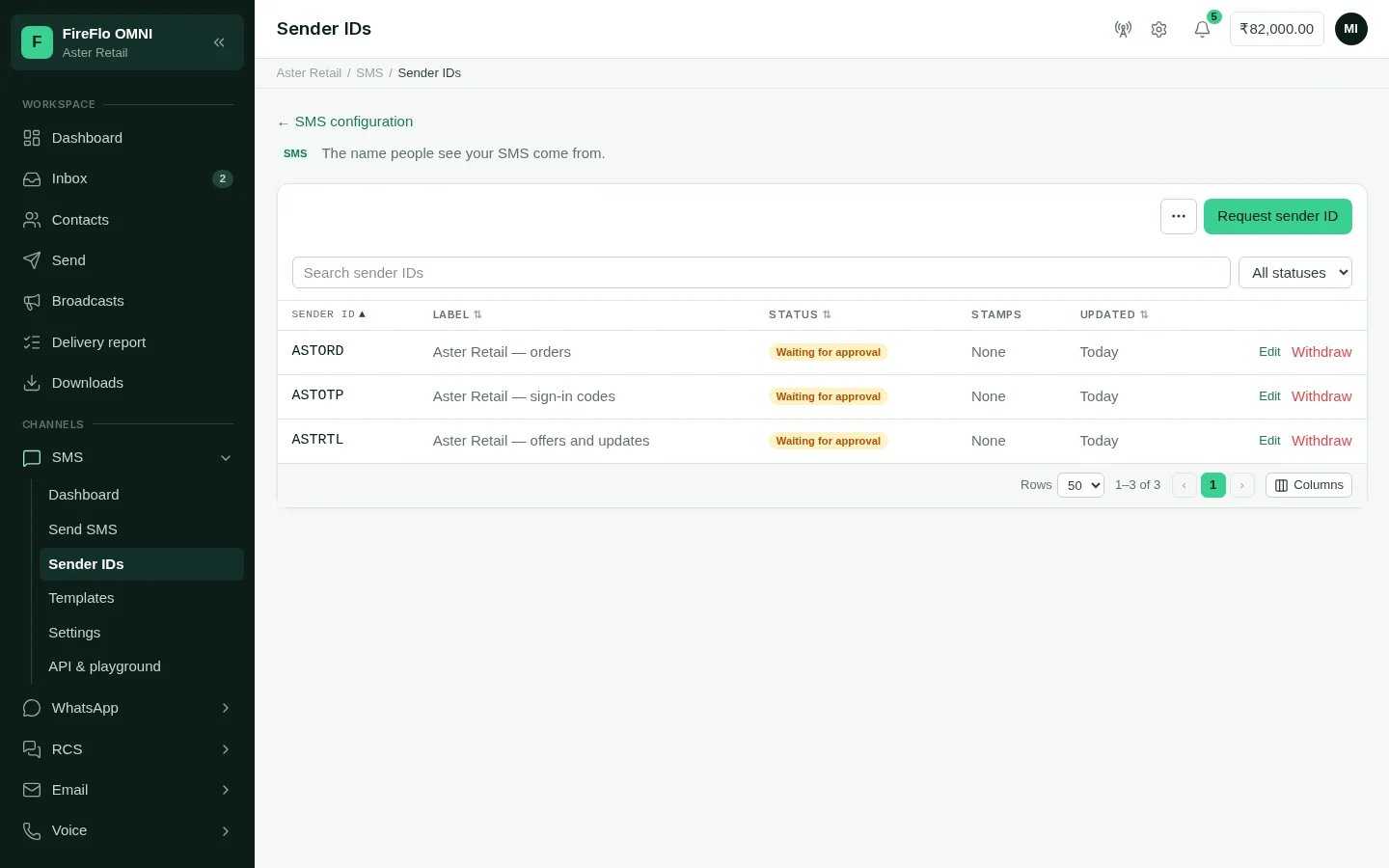
The sender IDs list with each sender's status, stamps and when it was updated.The sender IDs list with each sender's status, stamps and when it was updated.

SMS → Sender IDs: each sender ID with its status, its stamps and when it last changed.

What a sender ID can be

  • Letters, digits and ordinary punctuation, with no spaces at the start or end — it is matched exactly.
  • At most 64 characters. Longer than 21 won’t reach most carriers, and names longer than 11 characters are cut or refused by some carriers. The form warns you as you type.

Its status

Changing an In use sender ID, or its reason, sends it back for approval — and messages from it are refused until your provider approves it again. OMNI asks you to confirm first.

Templates

A template is approved wording with blanks for the parts that change: a code, a name, an amount.

The templates list

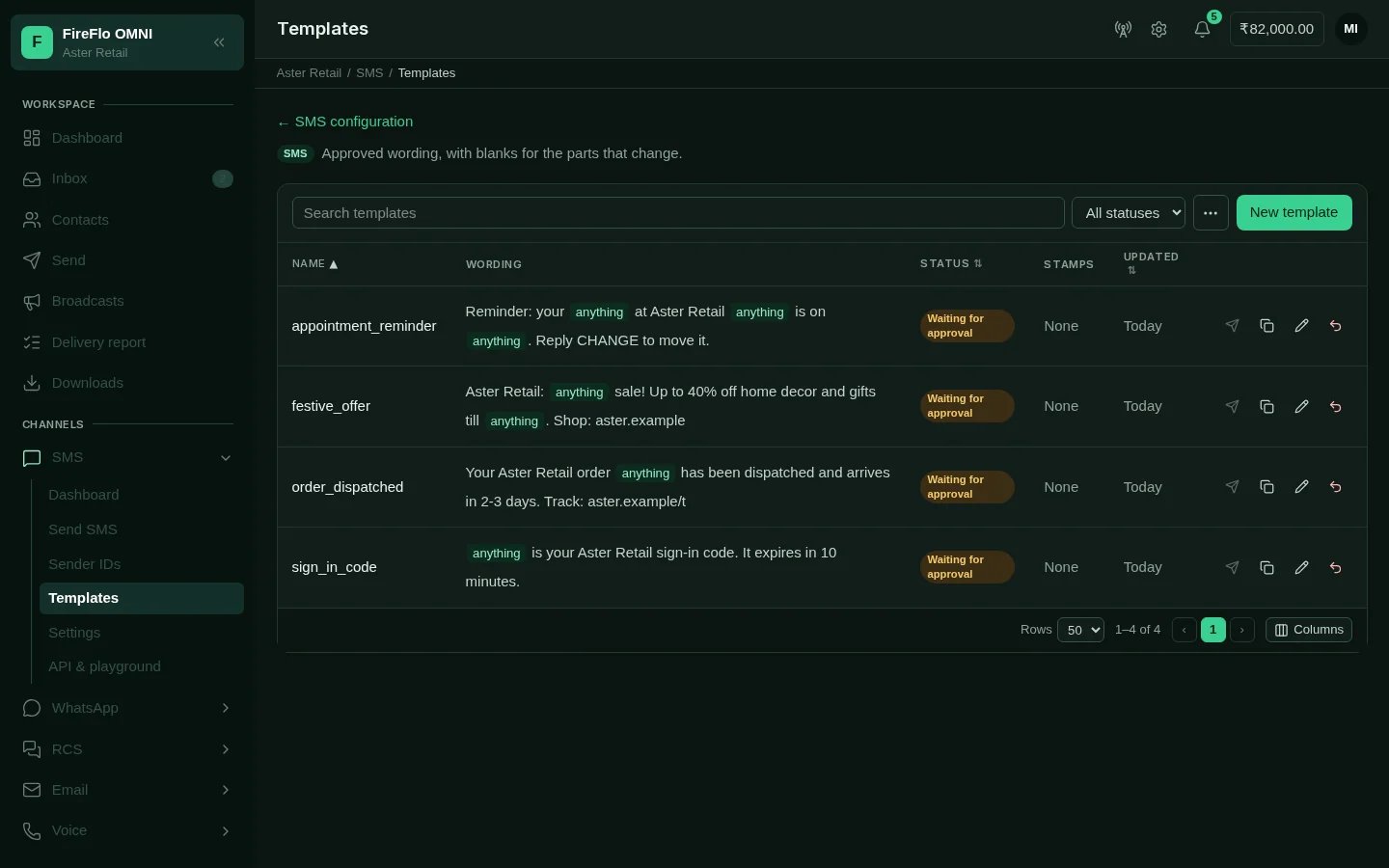
SMS → Templates lists your templates with their wording (blanks drawn as chips), status, stamps and when each last changed. Search, the status filter and New template sit in one bar above the table. Search and filters are kept in the page’s address, so ← Templates brings you back to the same view. Each row’s actions are icons, with their name when you point at them: An action that isn’t allowed for a template is greyed, and says why when you point at it. On a phone the actions sit under the template’s name.
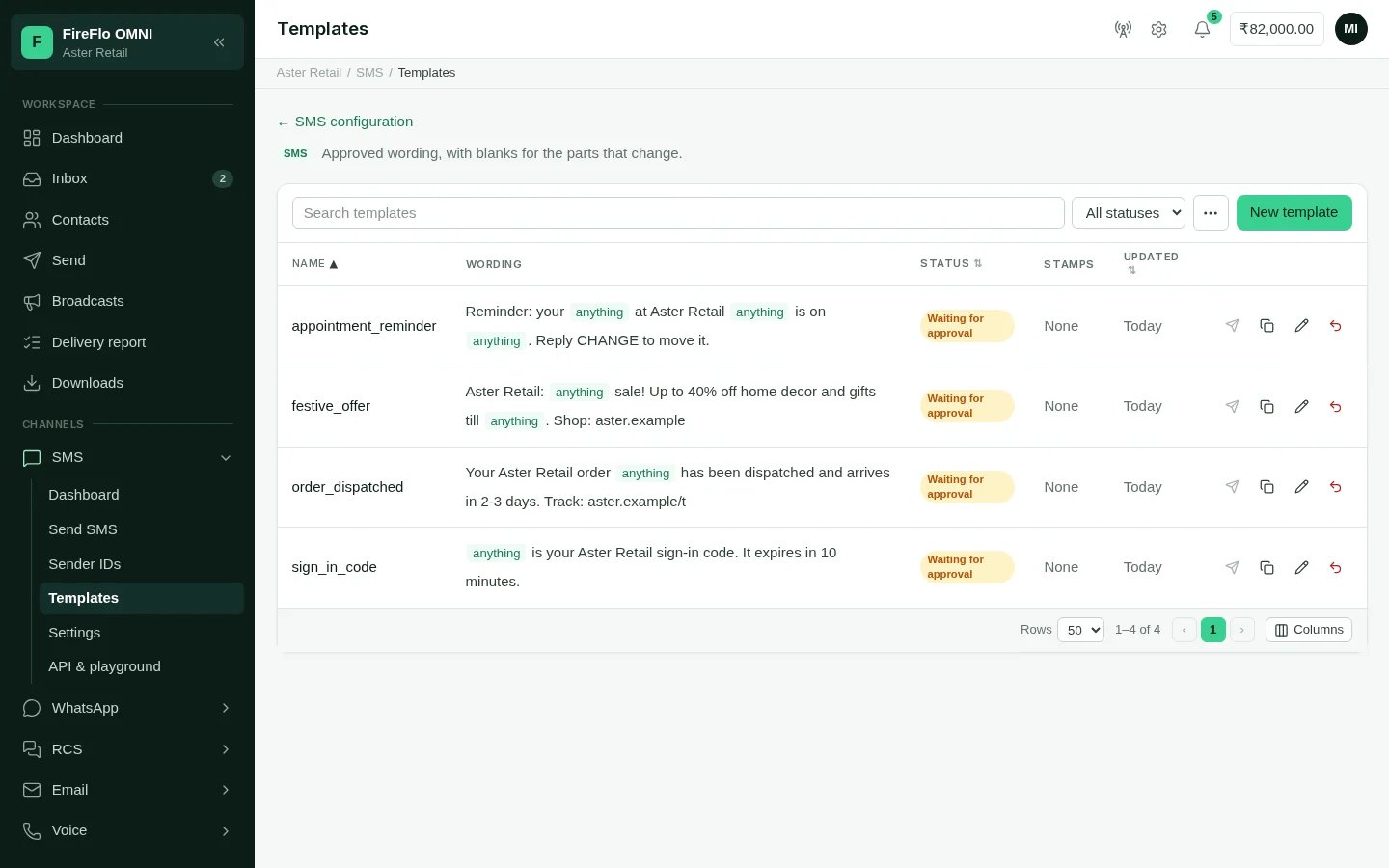
The SMS templates list with each template's name, wording and status.The SMS templates list with each template's name, wording and status.

SMS → Templates: wording with its blanks, status and stamps, and the actions as icons.

A new template

1

Start a template

Open SMS → Templates and choose New template.
2

Name it

What you and your provider call it.
3

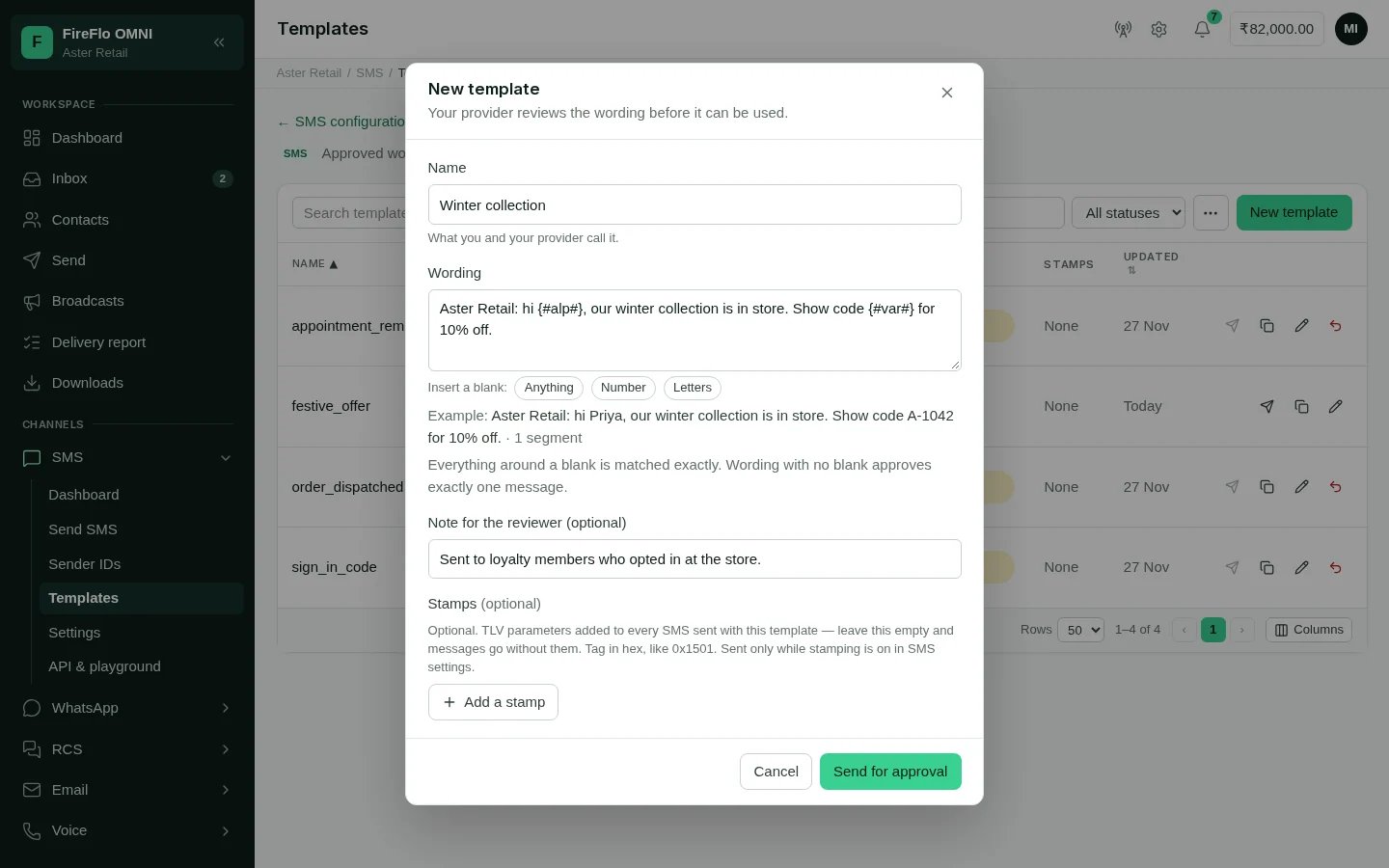
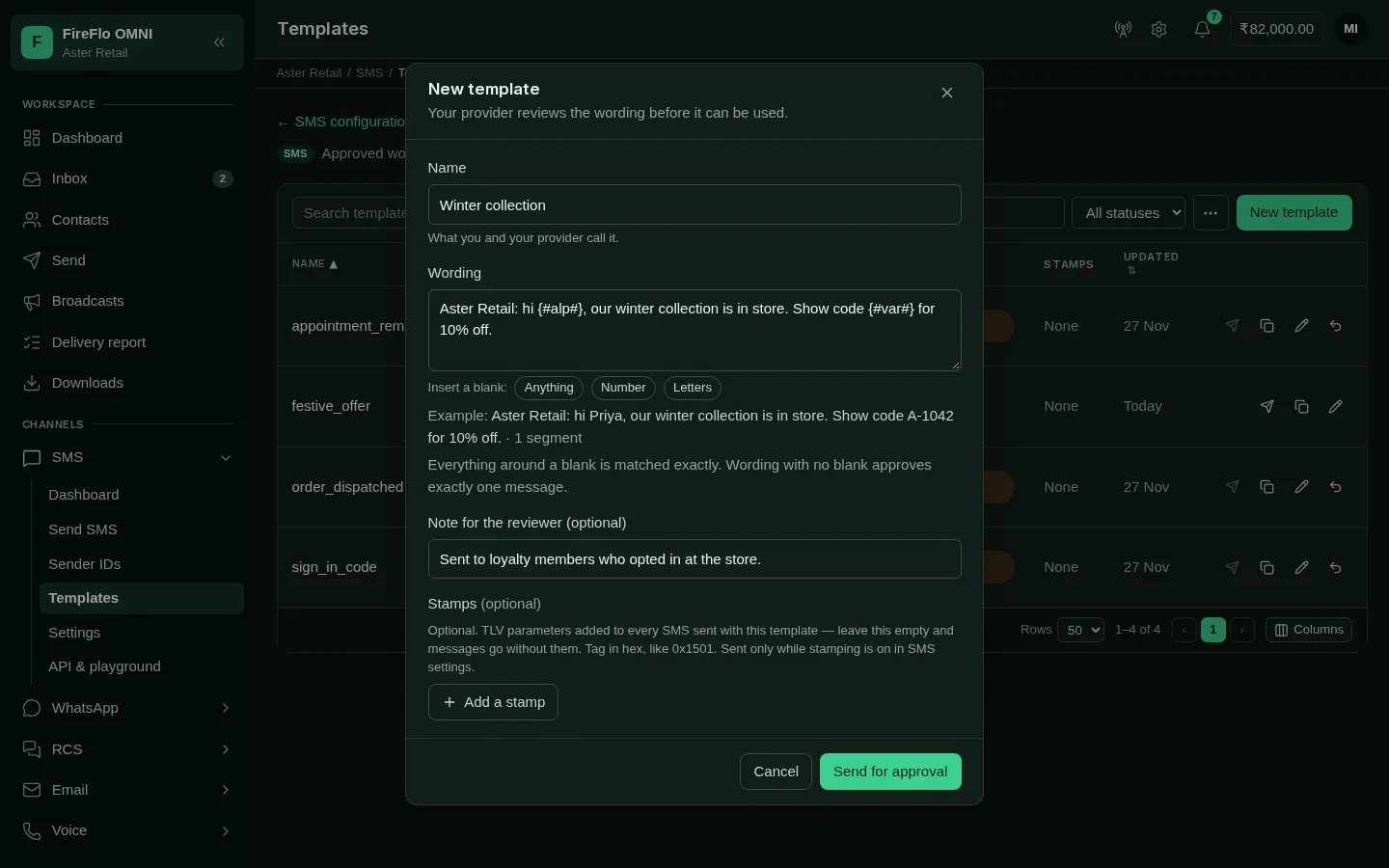
Write the wording

Use Insert a blank to add the parts that change. Under the box, OMNI shows an example message the template would accept, with its number of segments, and a preview of how it reads from a sender ID you choose.
4

Submit for approval

Add a note for the reviewer if it helps — a registration reference, for example.
The New template dialog with its wording and blanks, a note for the reviewer, and the preview from a chosen sender.The New template dialog with its wording and blanks, a note for the reviewer, and the preview from a chosen sender.

New template: the wording with its blanks, a note for the reviewer, and the preview from a chosen sender.

Blanks

How a message is matched

Everything around a blank is matched exactly — every word, space and punctuation mark. Only the blanks change. Wording with no blank approves exactly one message. When you send with Use a template, OMNI shows a box for each blank and won’t send until every blank holds something its kind accepts. OMNI refuses wording that could never match safely:
  • more than 2,000 characters;
  • a blank in the wrong case or spelling, such as {#VAR#} or {#code#};
  • {{1}} — that is WhatsApp’s blank, not SMS’s;
  • a template that is nothing but a blank, which would accept every message;
  • two blanks with nothing between them, which can’t be told apart.
Changing the name or wording of an In use template sends it back for approval, and messages using it are refused until it is approved again. To keep sending meanwhile, submit the new wording as a separate template.

Many at once

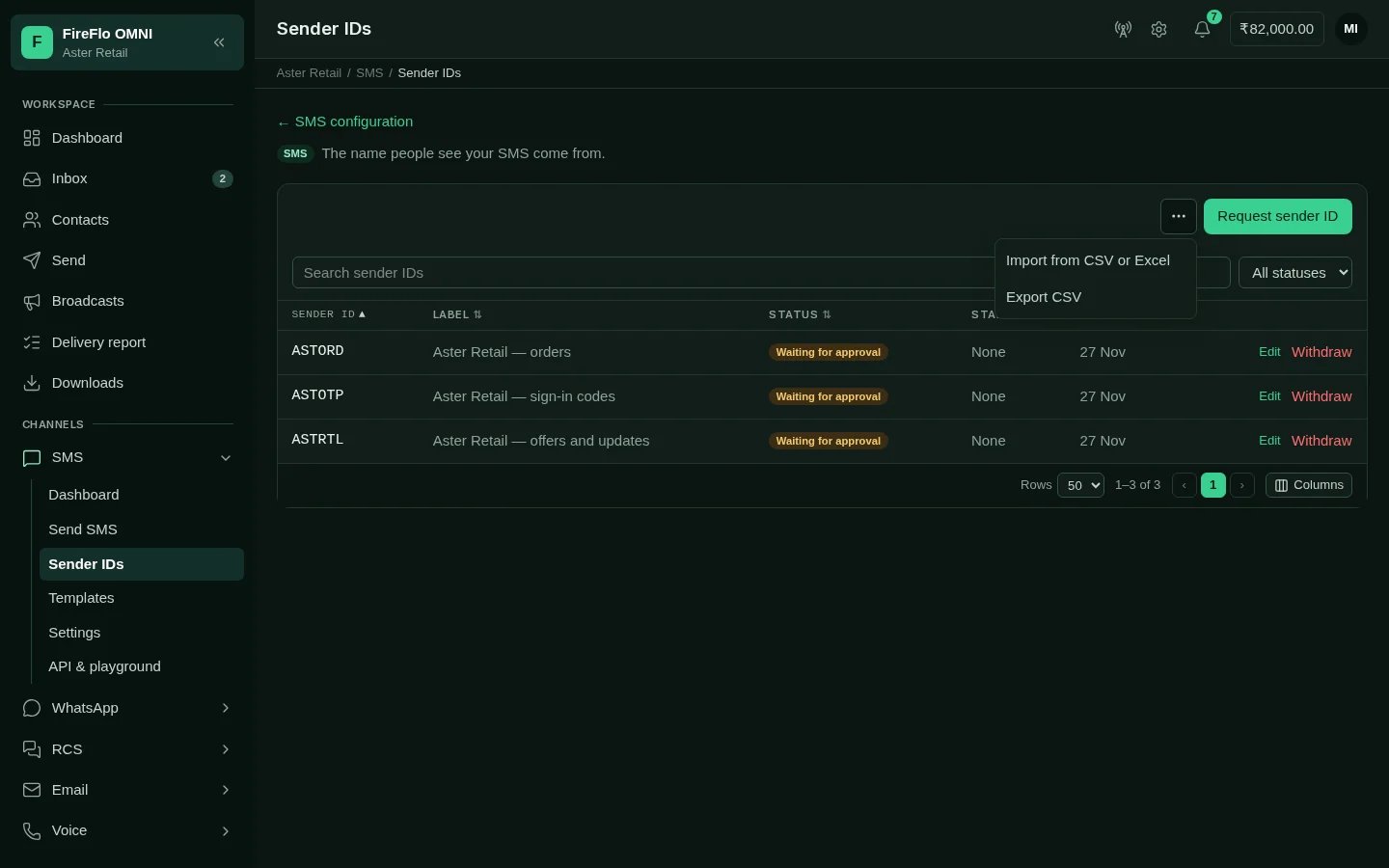
The ⋯ menu on both screens has Import from CSV or Excel and Export CSV. An export has exactly the columns an import reads, so a downloaded list is a working file. After an import, OMNI says how many rows were submitted and how many refused, and lets you download the refused rows with their reasons.
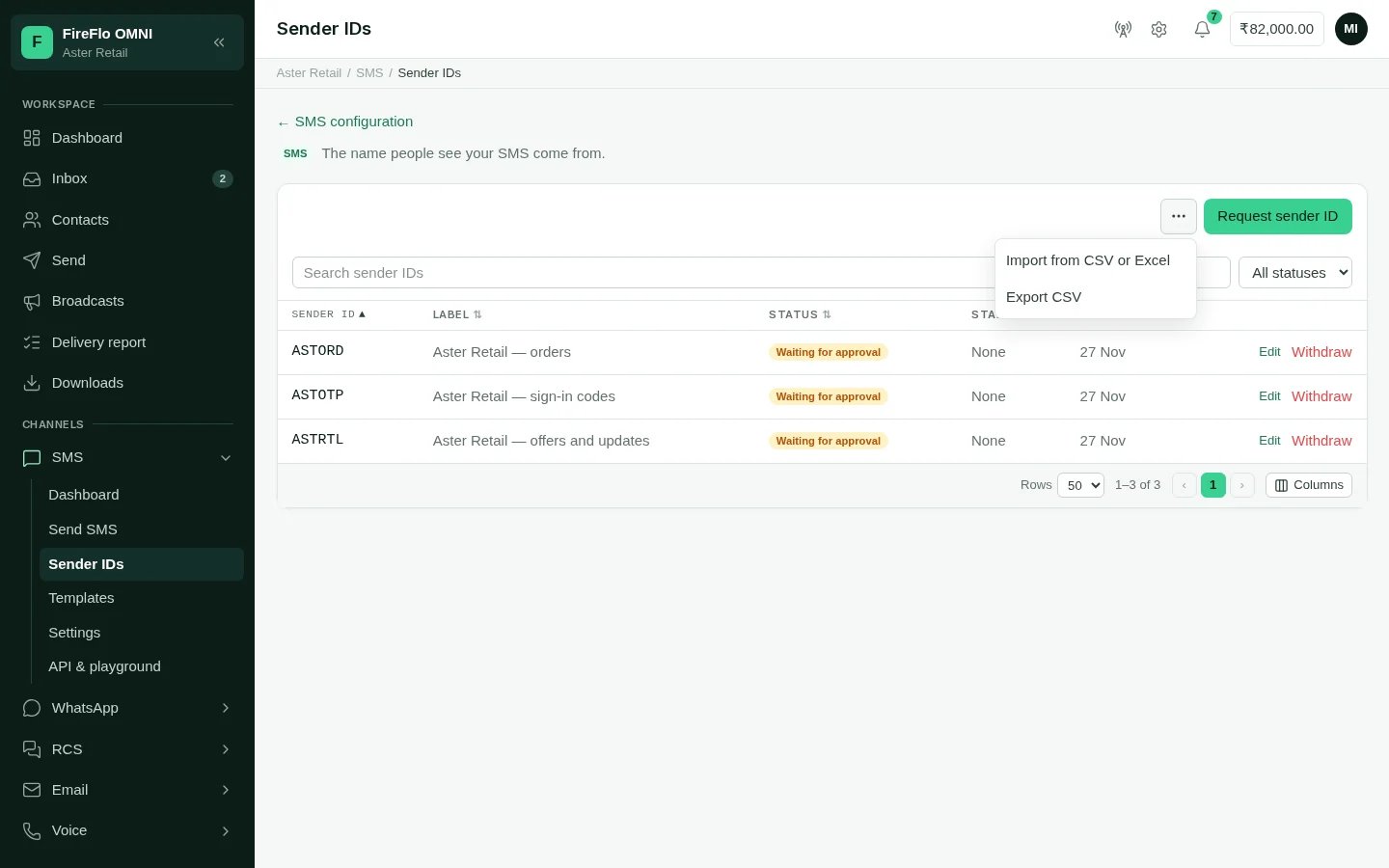
The sender IDs list with its menu open on Import from CSV or Excel and Export CSV.The sender IDs list with its menu open on Import from CSV or Excel and Export CSV.

The ⋯ menu: import sender IDs from a CSV or Excel file, or export them.

Stamps

A stamp is an extra value an SMS carries alongside its text: a tagged parameter, such as a registration reference a provider, a regulator or a carrier asks for. Stamps are entirely optional.

Switch stamping on

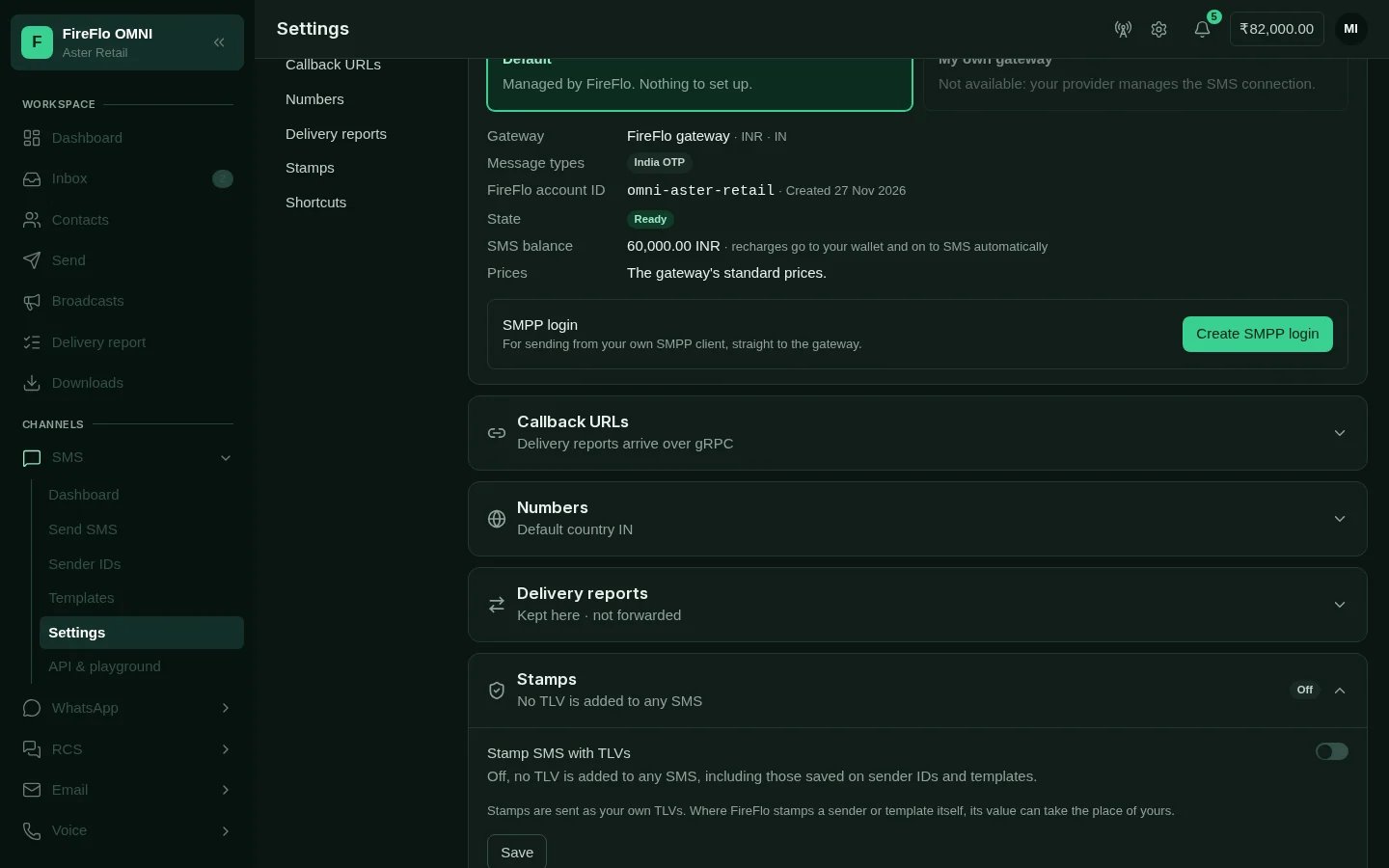
Stamping is one switch: SMS → Settings → Stamps → Stamp SMS with TLVs.
  • Off (the default): no stamp is added to any SMS, including stamps saved on sender IDs and templates. They stay saved and are simply not sent.
  • On: every SMS carries the stamps that apply to it.
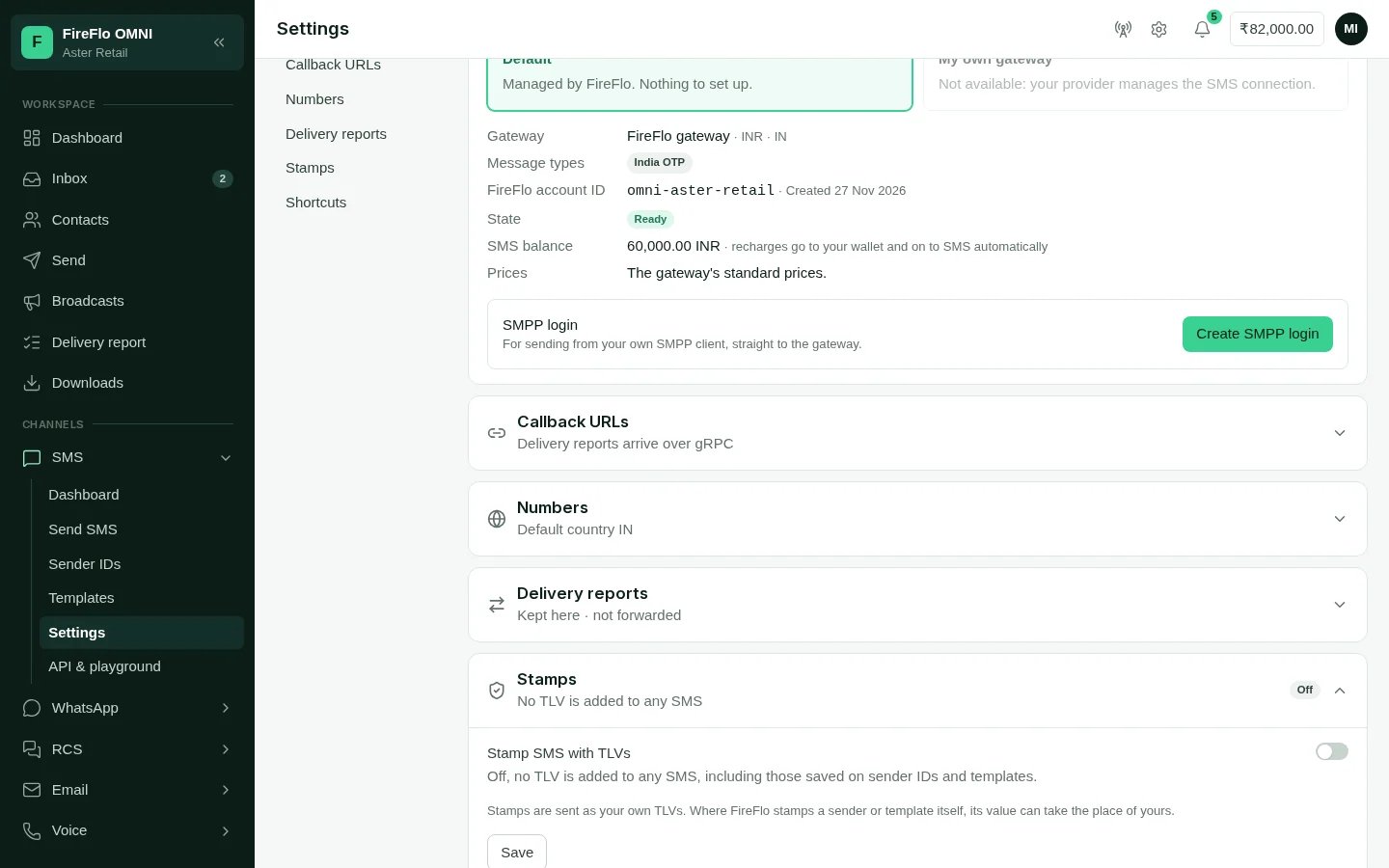
A sender ID's stamps being edited, and the stamping switch in SMS settings.A sender ID's stamps being edited, and the stamping switch in SMS settings.

Stamps: the switch in SMS settings, and a sender ID's own stamps.

Where stamps are set

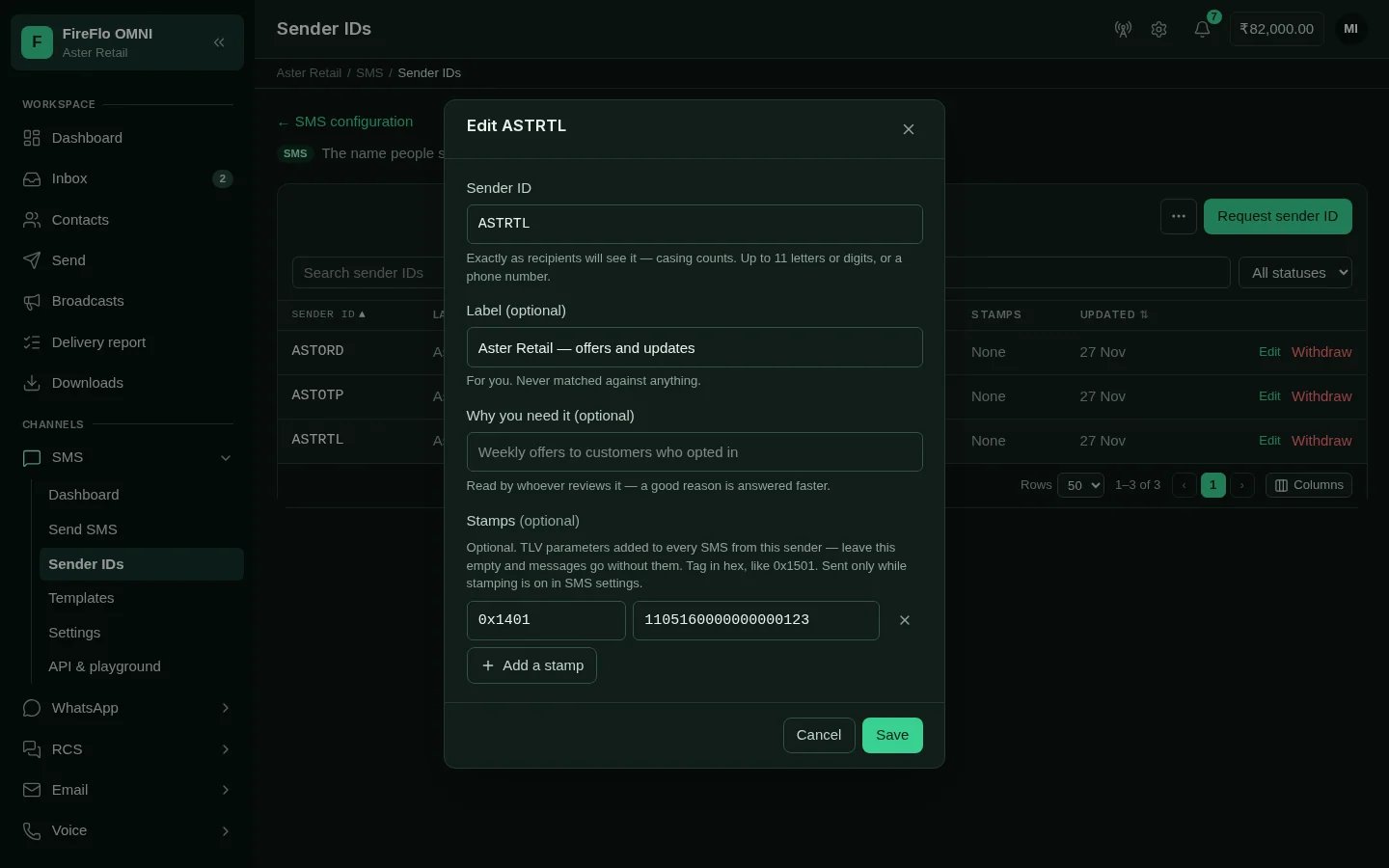
To add one, open the sender ID or template, choose Add a stamp, and enter a tag and a value. Remove stamp takes one off. The Sender IDs and Templates lists show each one’s stamps in a Stamps column. If a registry gives you identifiers to send with each message — an ID for your business, an ID for each registered template — add them as stamps under the tags your provider names: the business’s on each sender ID (or on every SMS), the template’s on each template.
  • Sender ID and template stamps apply once they’re approved. A request still waiting for approval shows its stamps with Applied once approved. Changing stamps doesn’t send an approved sender ID or template back for approval.
  • Every SMS, however it’s sent, carries them while stamping is on: the Send page, scheduled sends, broadcasts, Inbox replies, AI agents, fallback from other channels and verification codes.
  • The most specific value wins. When two sources set the same tag, the template’s value beats the sender ID’s, which beats your account’s.
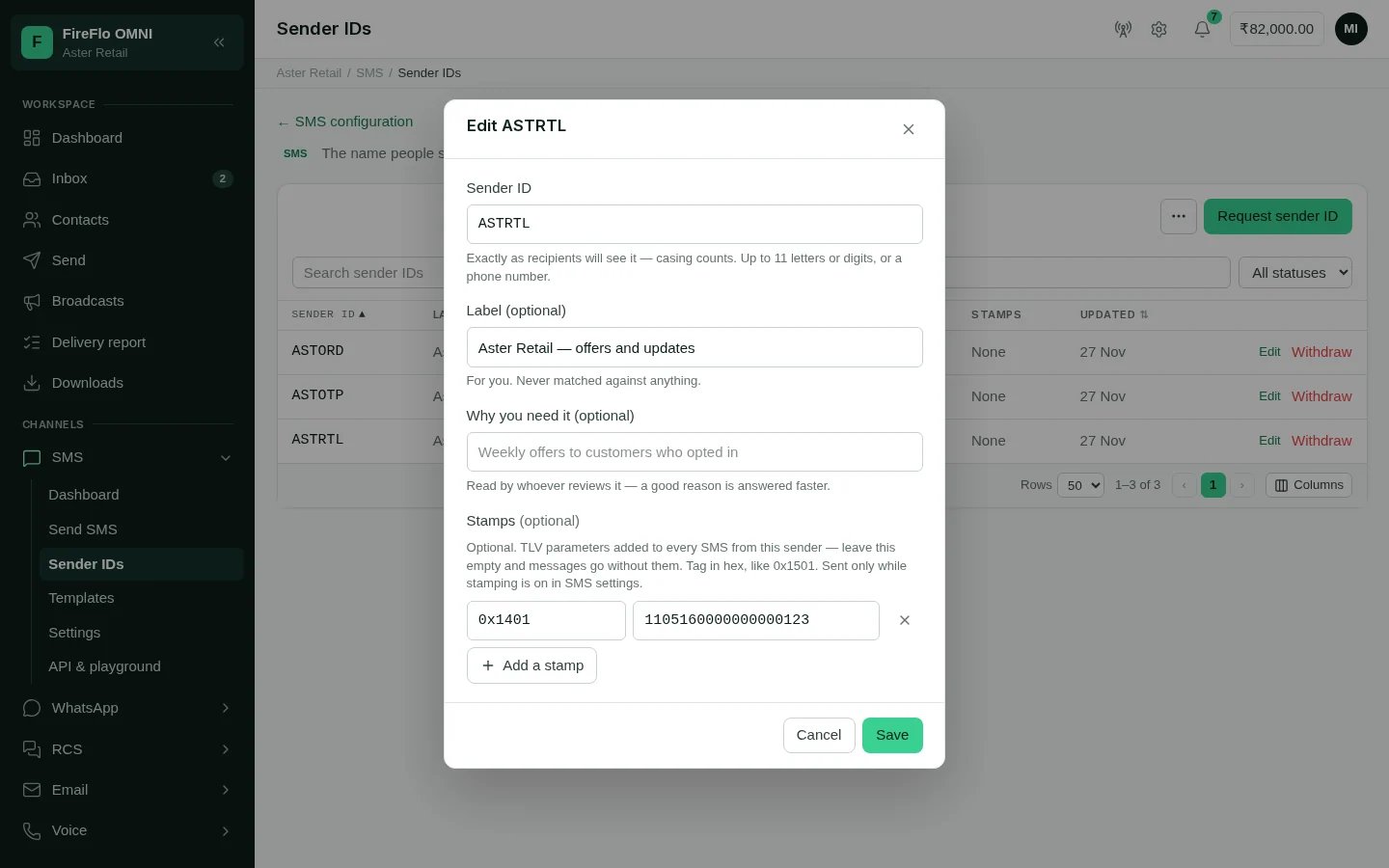
A sender ID's edit dialog with a stamp being added; a sender's stamps apply once it is approved.A sender ID's edit dialog with a stamp being added; a sender's stamps apply once it is approved.

A stamp added to a sender ID. It applies once the sender ID is approved.

Change the stamps of one send

With stamping on, the Send page and New broadcast show Stamps on this send: the stamps the message will carry, from your settings, the sender ID and the template. For that one send you can change a value, remove a stamp or add one. Reset to the saved stamps undoes your changes. Nothing saved in settings, on the sender ID or on the template is changed.
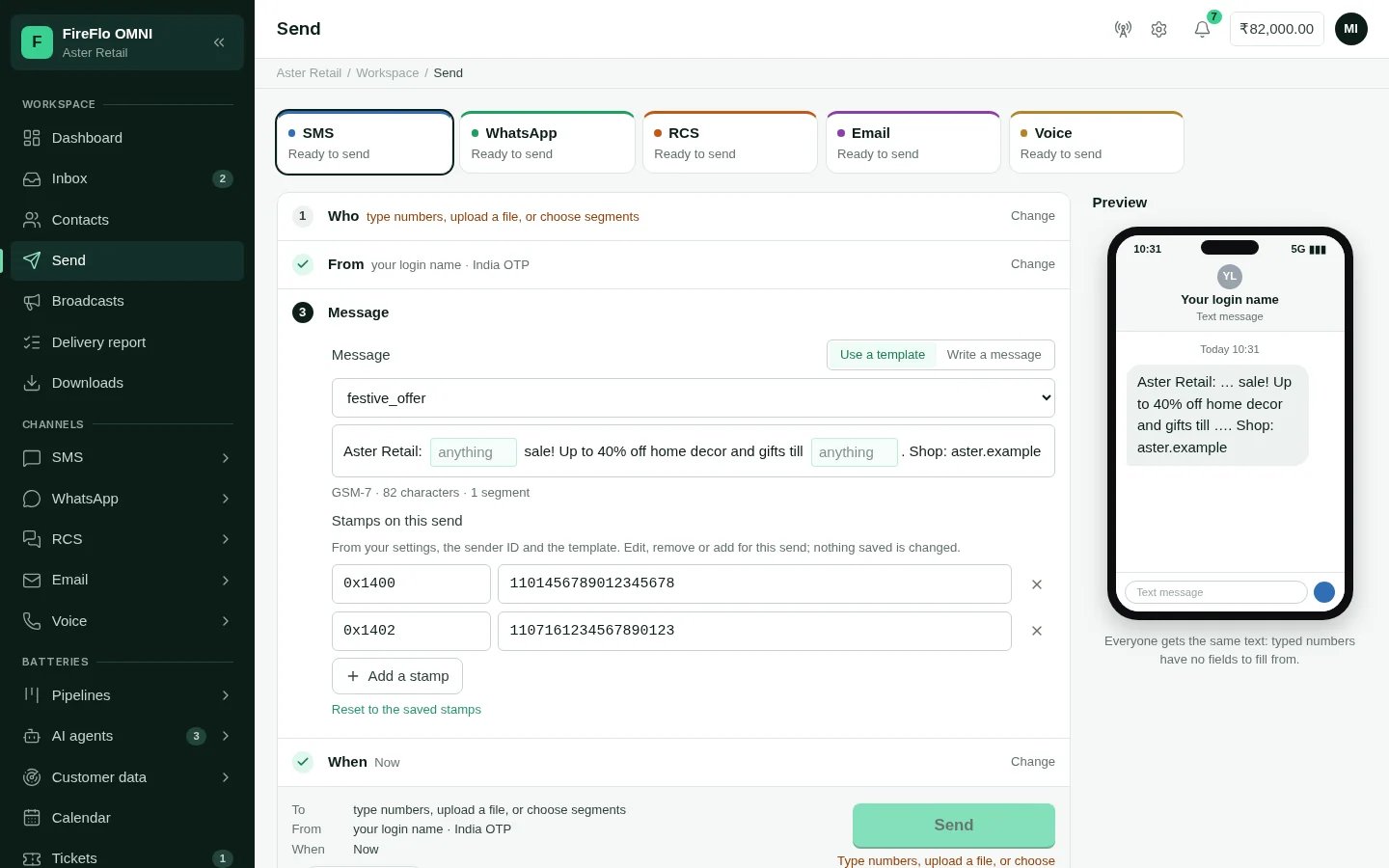
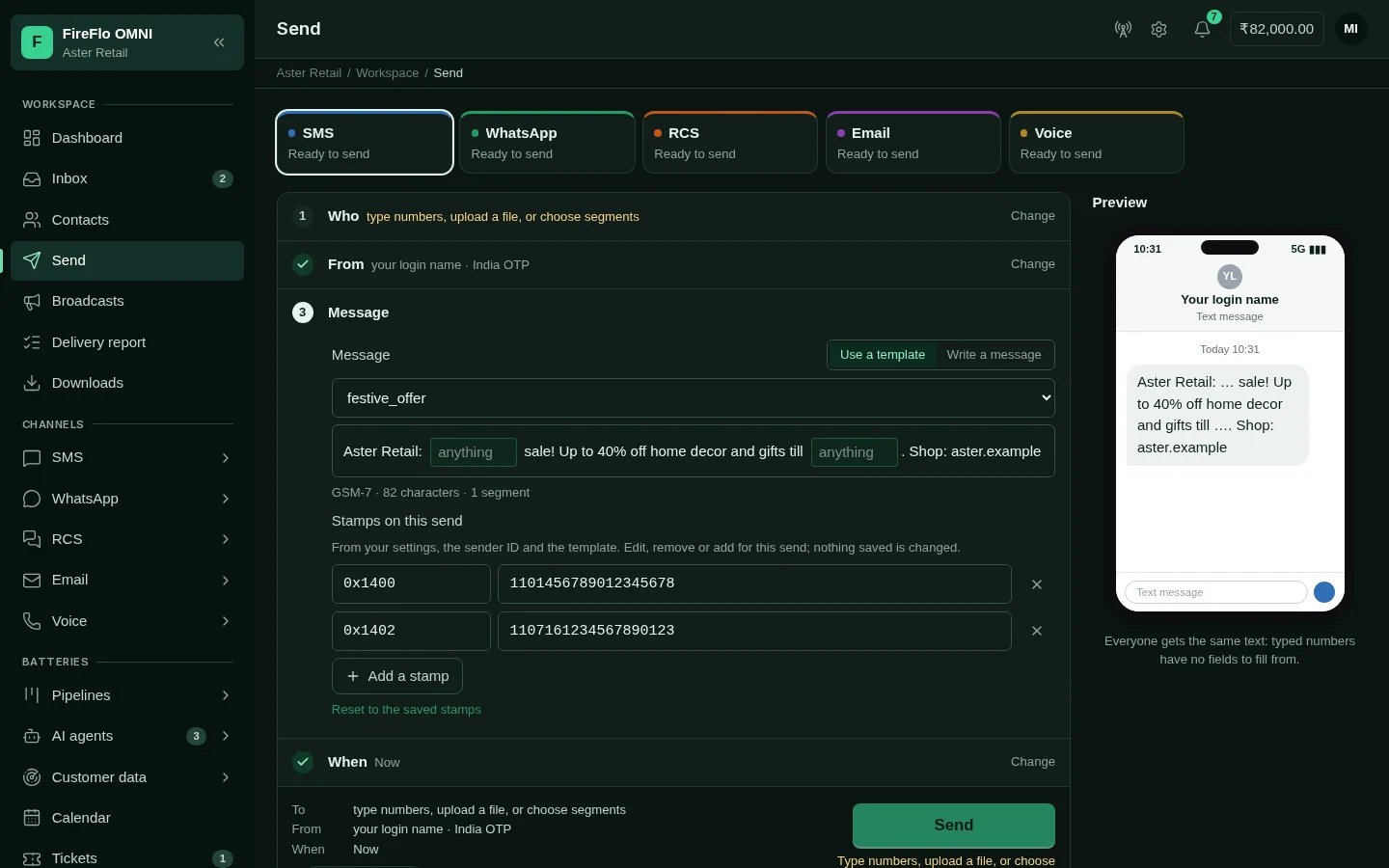
Send SMS with an approved template and Stamps on this send open: the account's saved stamp and one more added for this send only.Send SMS with an approved template and Stamps on this send open: the account's saved stamp and one more added for this send only.

Stamps on this send: the account's saved stamp, and one more added for this send only.

In the Inbox, a template sent in Advanced shows the same stamps as Sent with this SMS, to change for that one message. With stamping off, the send pages show no stamps and the message carries none. Through the OMNI API, the stamps you name on a request are your own and are sent whether stamping is on or off. Tags and values:
  • Write a tag in hex, like 0x1501 (at most 0xFFFF). A bare number such as 5120 is refused, with the hex to use instead (0x1400).
  • On a sender ID or a template, the tag is plain hex. The every-SMS stamp, and a stamp edited on a send, can also name a type, such as name_0x1600:Int4, and then its value must be a whole number that fits that type.
  • A value is up to 255 characters.
Stamps travel to your provider as your own parameters. Your provider may set its own value for a sender ID or template, which takes the place of yours, and a carrier passes on only the tags it accepts.
Write tags as hex, like 0x1401. A bare number is read as decimal, and the carrier would quietly ignore it — the form refuses it.

From your own software

The OMNI API lists, requests and withdraws sender IDs and templates, with the same rules.

Who may

Requesting, editing and withdrawing sender IDs and templates needs the permission to manage sender IDs and template registrations — the Owner and Admin roles by default; the same permission sets their stamps. Switching stamping on and setting the every-SMS stamp is in SMS settings, which needs the permission to configure channel modules (Owner and Admin by default). Anyone who may send SMS may change the stamps of a send they make.