
The Email channel never carries sign-in codes; a one-time code goes by the next
channel instead. The platform’s own system email — sign-in links, invitations and
notifications — is separate from the Email channel and works without it.
How you connect
Open Email → Settings. Email goes out one of two ways:- The platform’s sending service. FireFlo runs the Amazon SES or SMTP service, and can set Email up for your account. You send from your own identities, or from ones the platform shares with you.
- Your own Amazon SES or SMTP server, when FireFlo allows it for your account. A bounce on your own Amazon SES connection blocks that address for your account only.
Identities
An identity is what your email is sent from. Email → Identities lists them, with the From name, where replies go, and the status. Add a domain makes a sending domain, so any address at that domain can send; Add an address makes one address. A domain needs DNS records before it can send. Open it to see, under DNS records, each record to add at your DNS host — signing (DKIM), the bounce address (SPF) and DMARC, which is recommended — with a copy button beside each and whether it is found yet. The records are read from the provider for each domain. While some are missing the domain reads Waiting for DNS, with how many records are found; the status is checked every 10 minutes while waiting, then every day. Once they are found it reads Verified.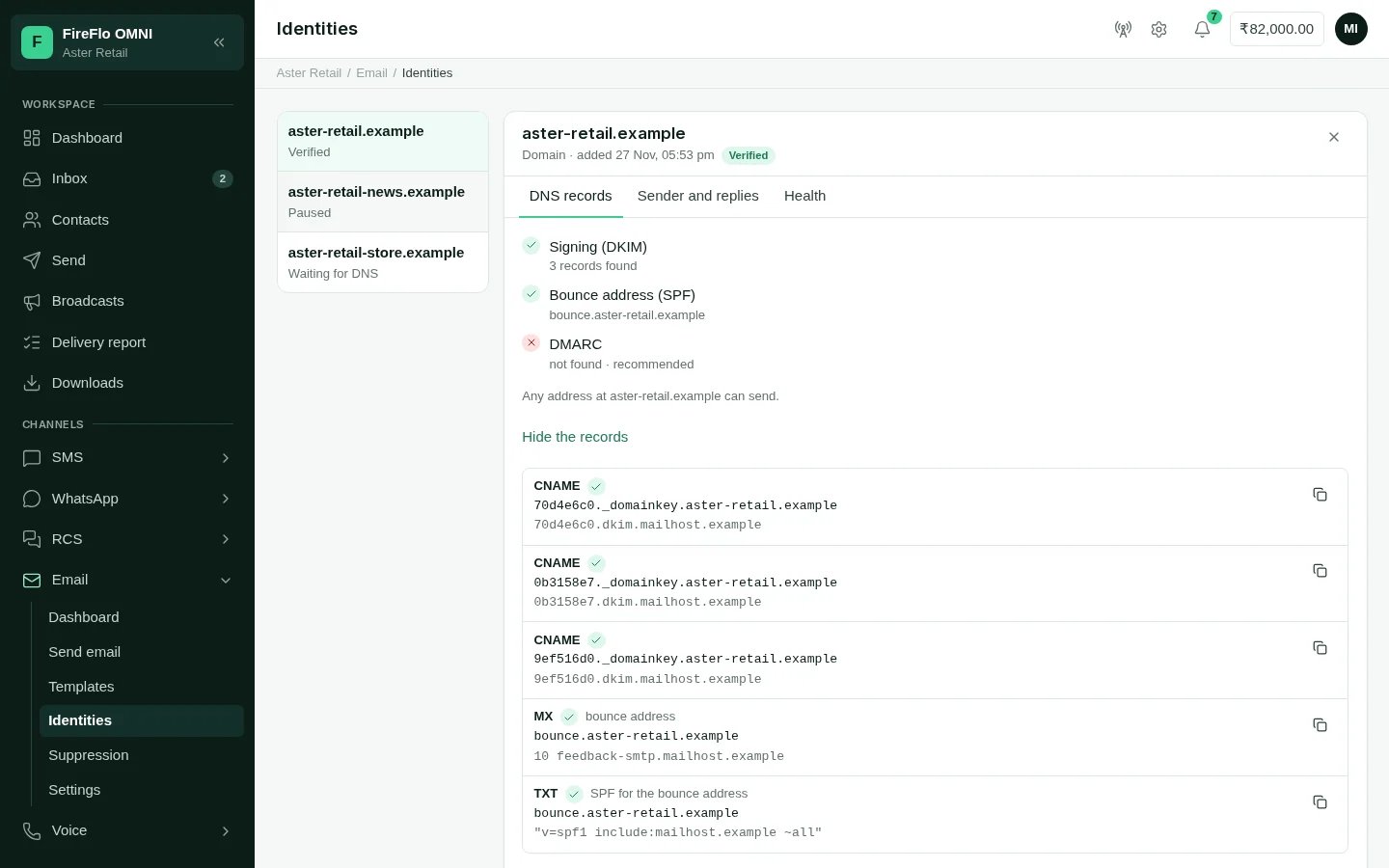
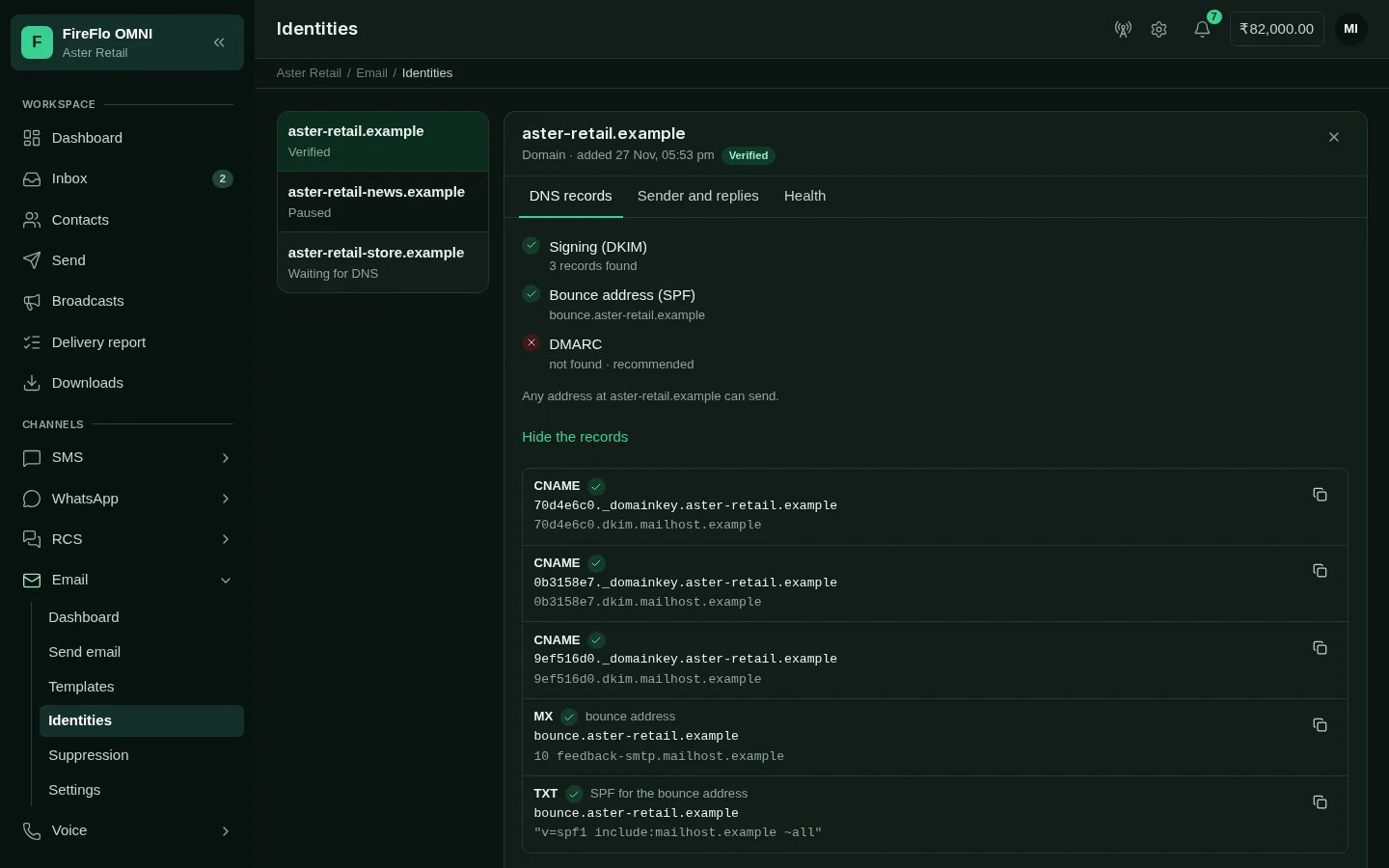
A domain identity open beside the list: each DNS record to add, and whether it is found yet.
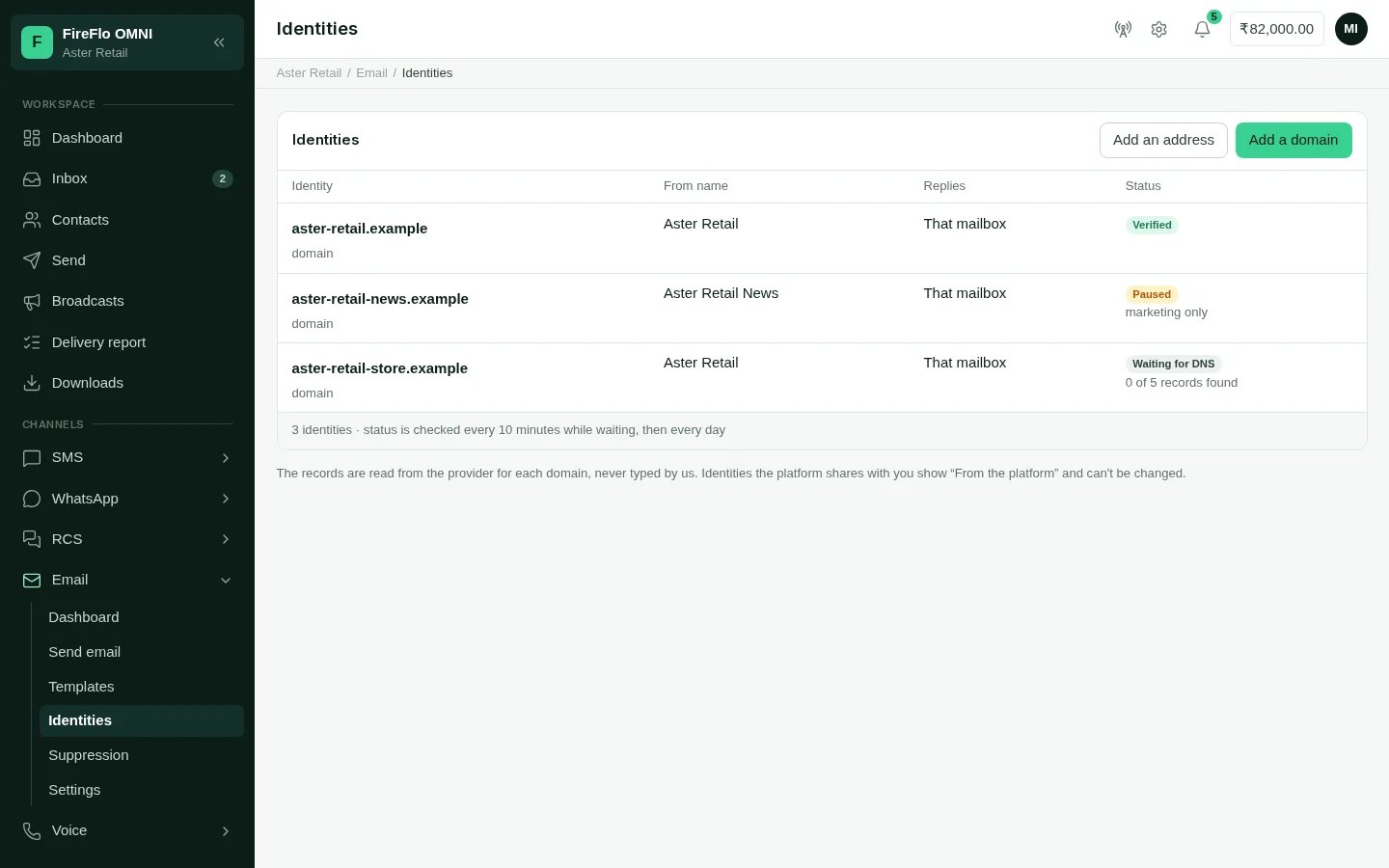
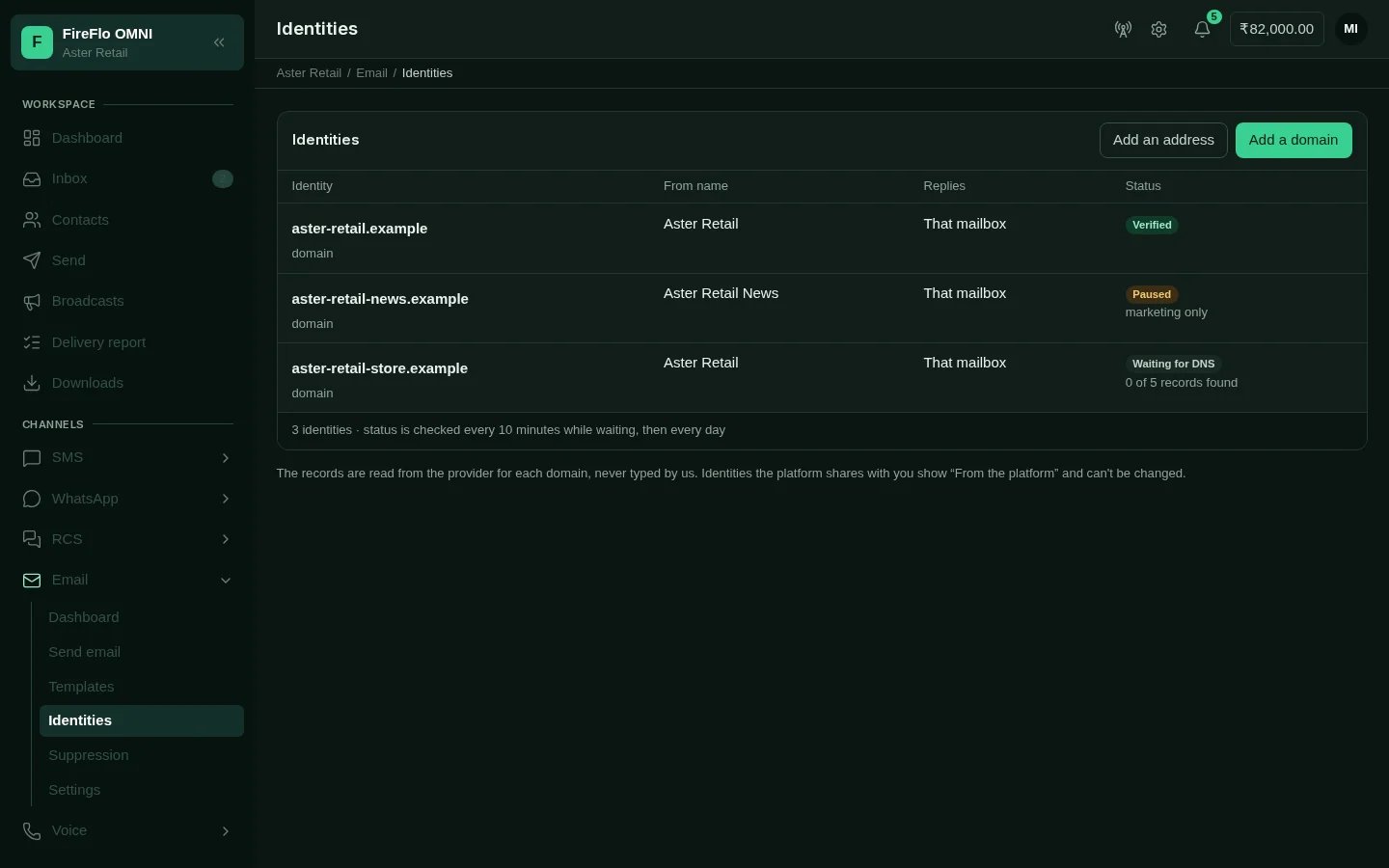
Email → Identities: each domain or address with its From name, where replies go and its status.
Suppression
Email → Suppression lists the addresses, and whole domains, that email is not sent to. Every way of sending email checks it.- Bounces, spam reports and unsubscribes are added by themselves, with the reason and who added it: the person, or Automatic.
- Add puts an address or a domain on the list by hand; Import and Export move the list as a file.
- Unsubscribed stops marketing email only. A hard bounce, a spam report, and an entry added by hand or imported stop all email to that address.
- Removing an entry asks for a reason, whatever put it there.
- The platform has a list of its own, which also applies; its entries are not shown on yours.
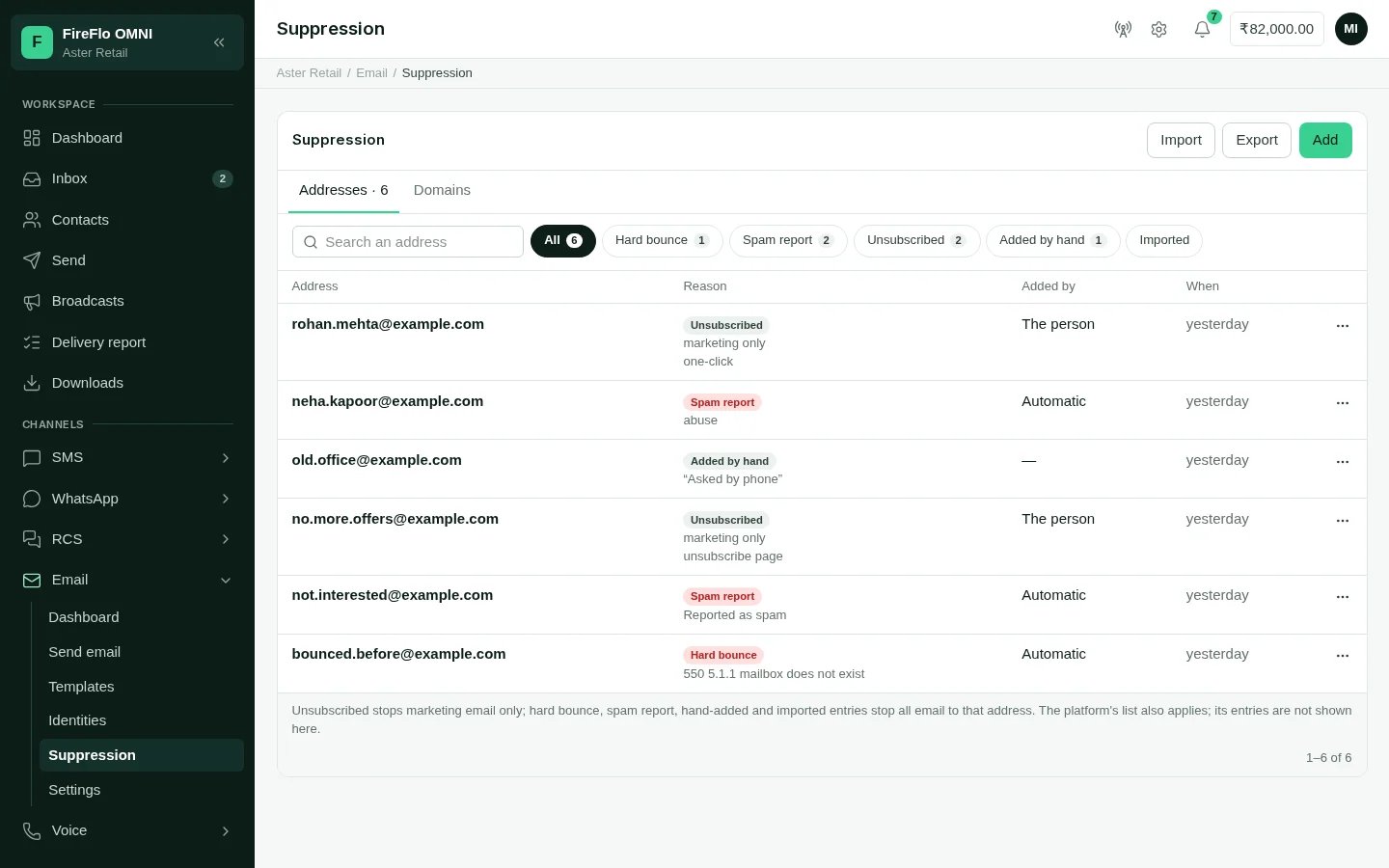
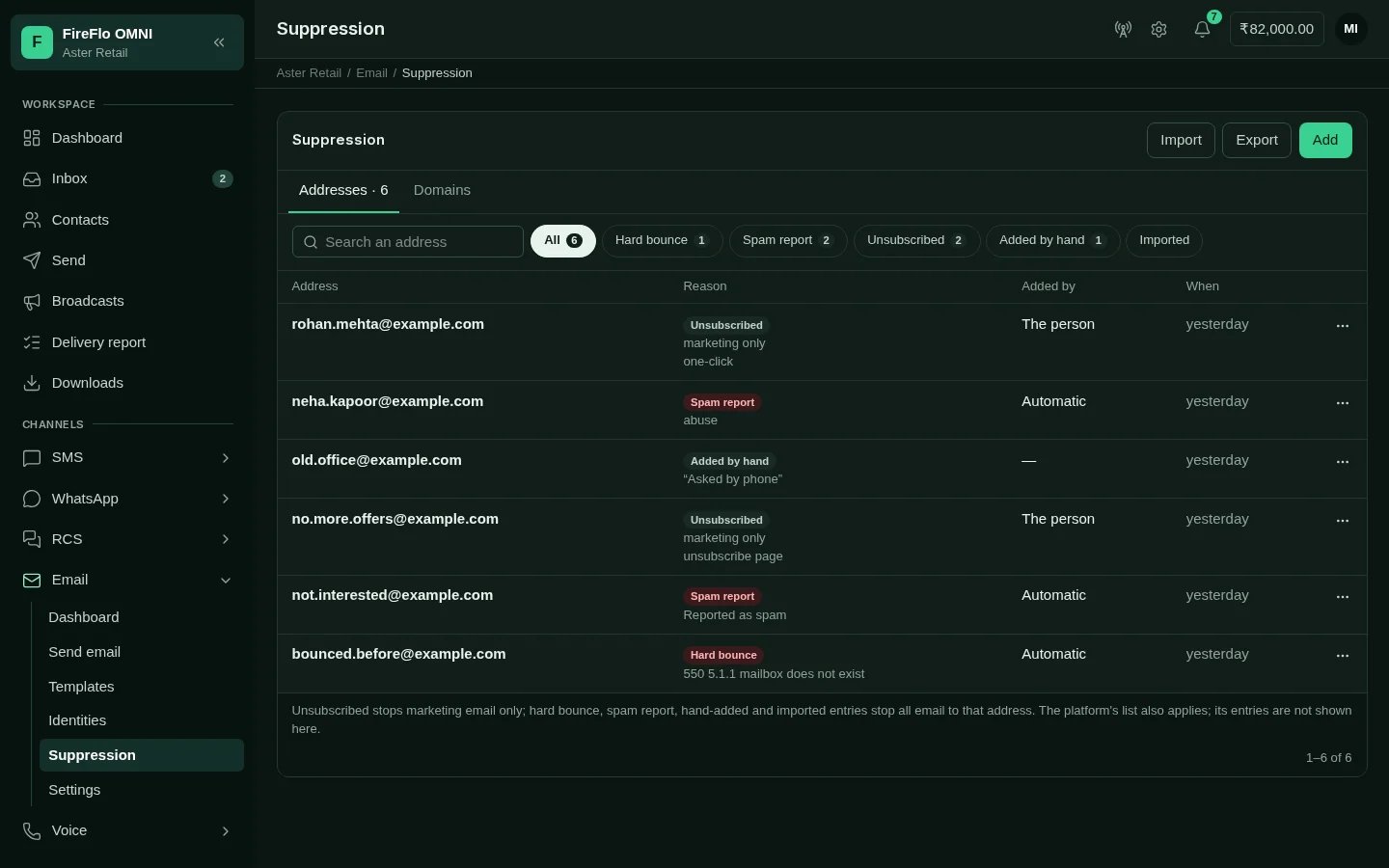
Email → Suppression: each address with why it is there, who added it and when.
Templates
Email → Templates holds your email templates. Each has a name, a subject, a preview line — the grey text after the subject in most inboxes — and a kind: Marketing or Transactional. Build a template from Blocks, or switch to HTML and paste your own:- Blocks: Heading, Text, Picture, Button, Divider and Columns. Move a block up or
down, or take it off. Drop a field, such as
{{first_name}}, into any text to fill it in for each person. - A marketing template ends with a footer holding your postal address and an unsubscribe link. It is added for you and can’t be removed.
- The preview shows the email on a Computer or a Phone, filled in for a contact you search for.
- Check flags a missing unsubscribe link, pictures that are too large, and fields that are broken.
- Send a test to me sends the template, as it stands, to you.
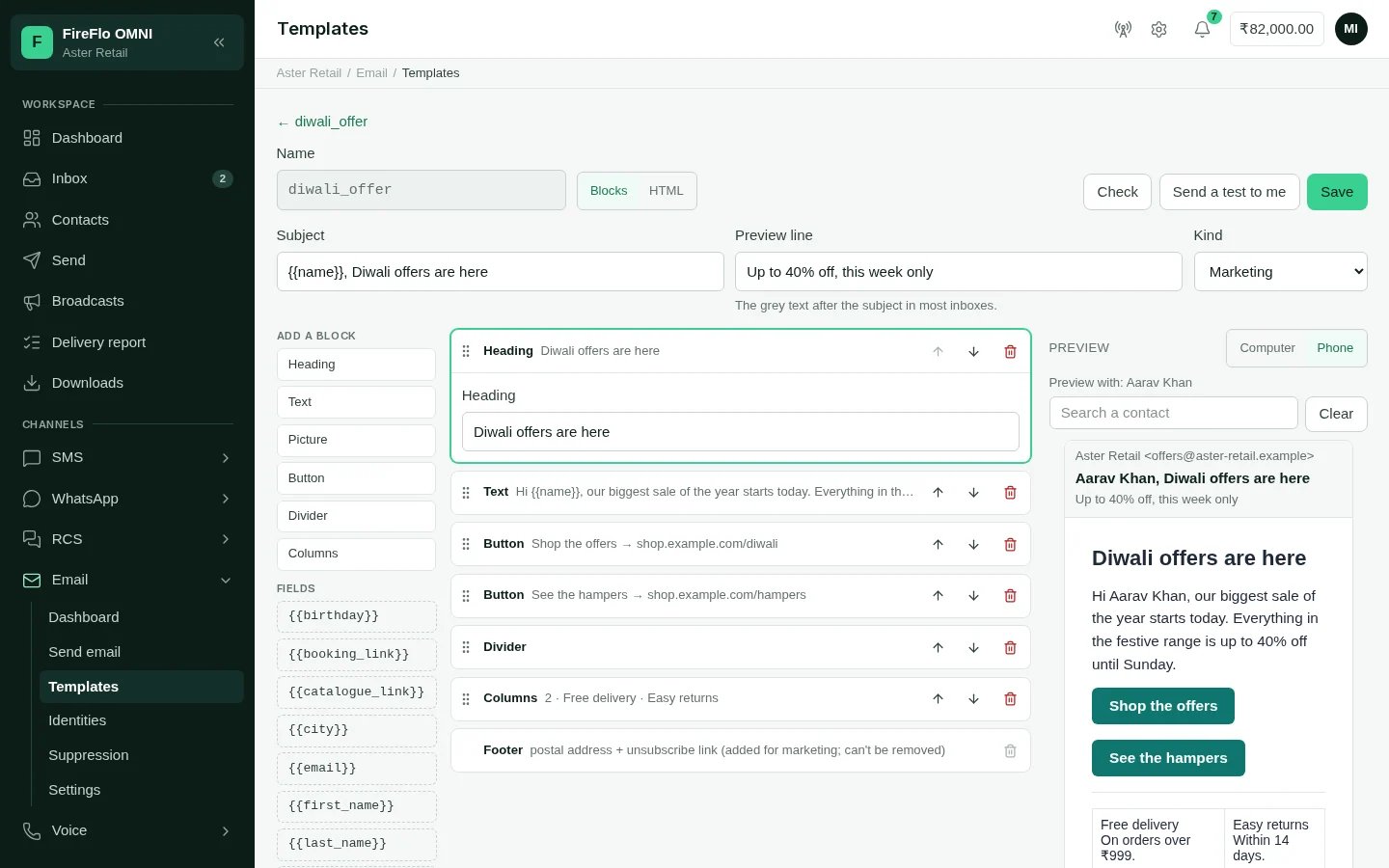
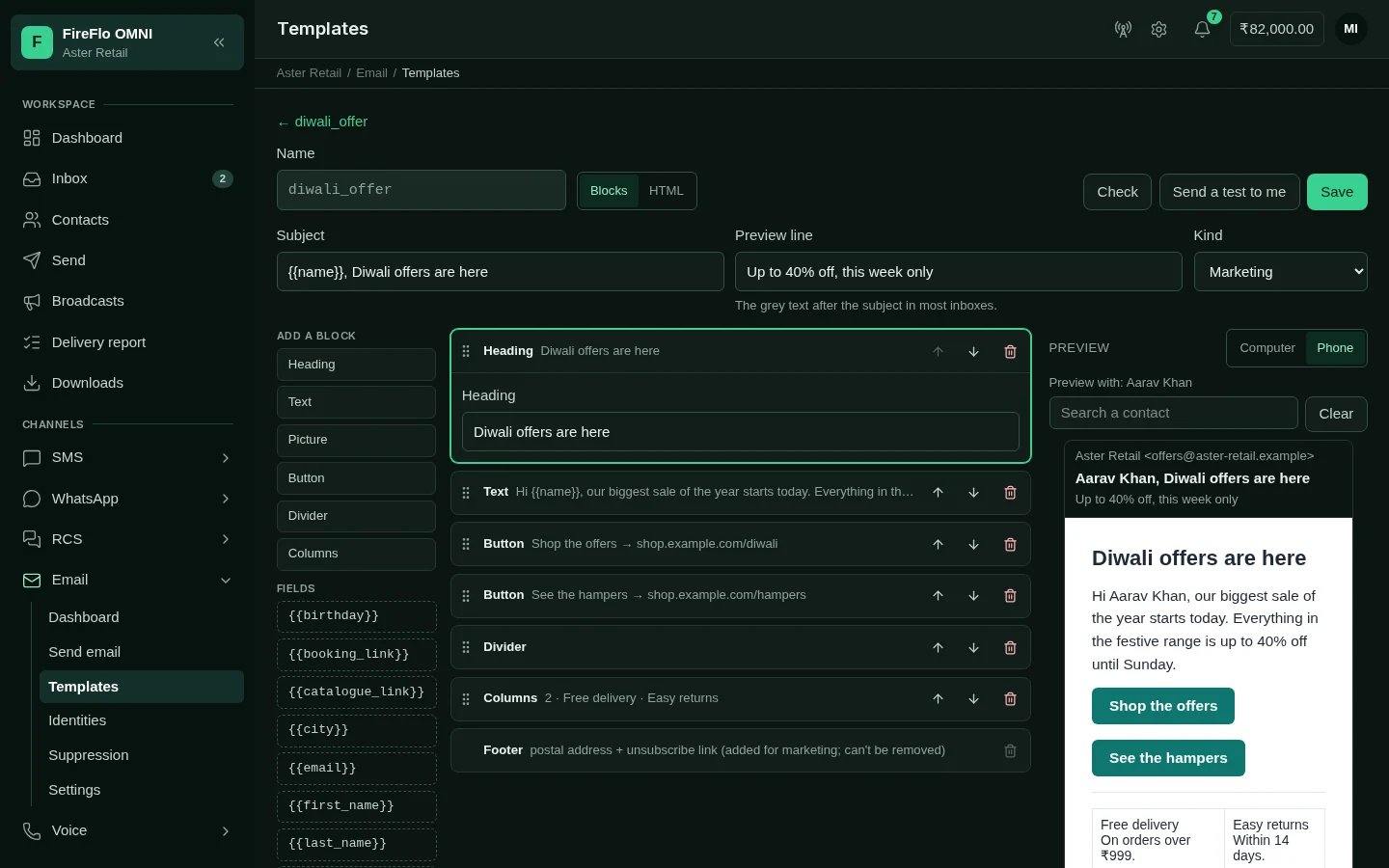
An email template in the builder: its blocks in order, the fields to drop in, and the preview with a contact's name filled in.
Send email
Email is sent from the Send page, which works the same way for every channel: Who, From, Message and When, with the review before a large send. Email → Send email opens it with Email chosen. Email also goes in broadcasts.- Marketing or transactional. A marketing email carries the unsubscribe link and goes only to people whose consent allows it.
- One-click unsubscribe: a marketing email can be unsubscribed from in one click, and the address goes on the suppression list for marketing.
- Opens and clicks are counted for each email. Opens are an estimate; clicks are exact.
- Attachments can go with an email.
- Send a test to me sends the email, as it is filled in, to you first.
Replies in the Inbox
Replies land in the Inbox, in the person’s Email thread, and you answer from the same identity the email went from.- The reply box offers the formatting email shows: bold, italic, underline, link, lists and quote, and Expand for a larger box. Ctrl+Enter sends.
- ⋯ → Template sends an email template from the conversation. Easy shows the preview; Advanced adds From, Reply-to, the kind and the subject.
- Attachments people send are kept, up to 10 MB each, and open from the Inbox.
Health
Each identity has a Health tab with its bounce rate and spam rate. When either climbs, OMNI warns first; above the limits, marketing from that identity is paused by itself and the identity reads Paused · marketing only. Transactional email from it carries on. The Email dashboard’s attention line says which identity was paused and why, with See why.The Email dashboard
Email → Dashboard is laid out like every channel’s dashboard: pick Today, 7 days, 30 days or Custom, and each figure is compared with the period before.- Sent, Delivered (the share of emails that got an answer), Opened (an estimate), Clicked, Emails received — from how many people, and how many are waiting in the Inbox — and Cost, shown only to people who may see Billing.
- Emails per day: delivered, opened and bounced.
- The path from sent to reply: sent, delivered, opened, clicked and Got a reply, which counts the emails you sent that were answered.
- What went wrong, counting each email once, with a link to the suppression list. A full mailbox is not suppressed; the address is tried again on the next send.
- By mail service, when people open, and recent broadcasts with their own counts, such as “2 opened · 1 bounced”.
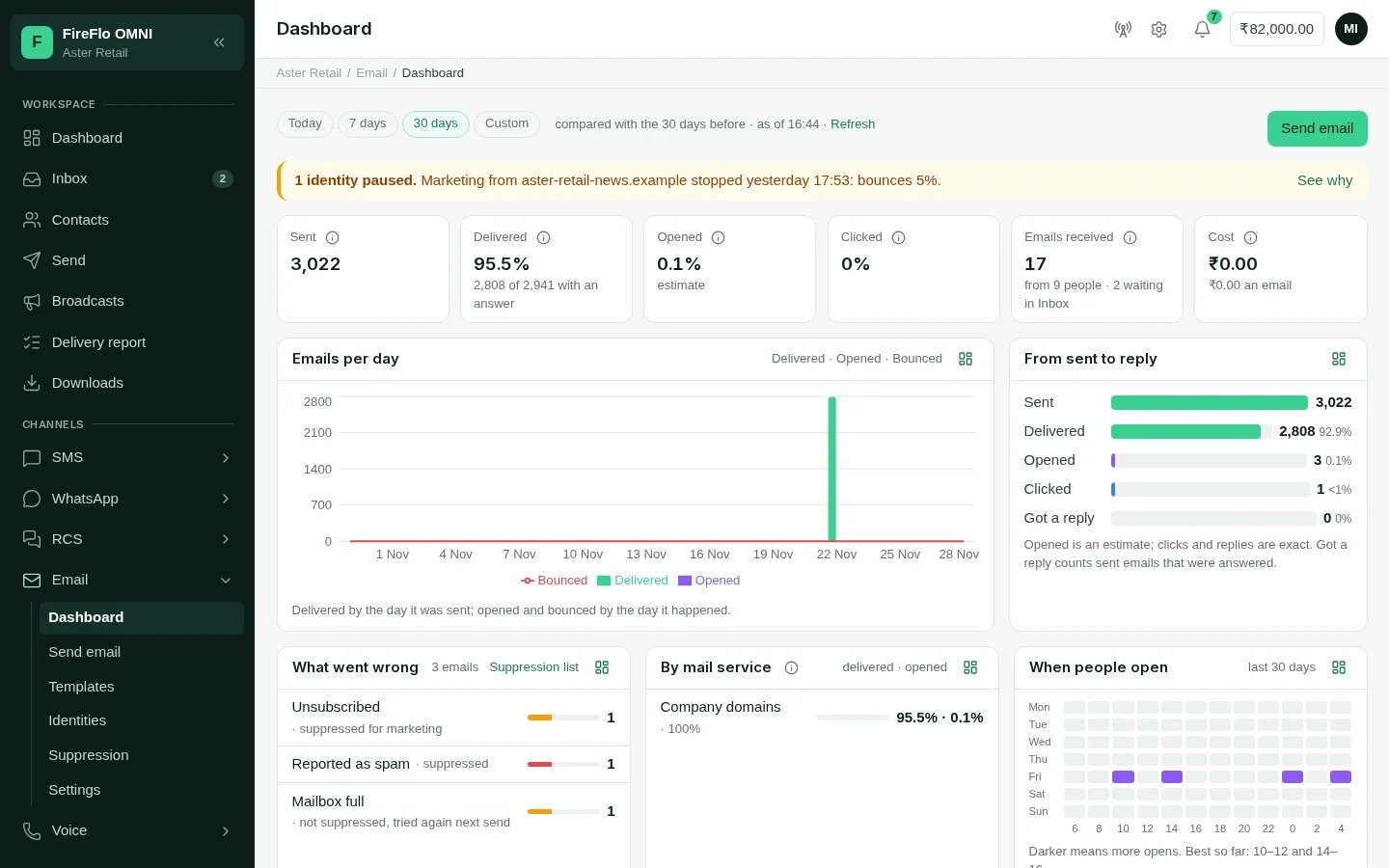
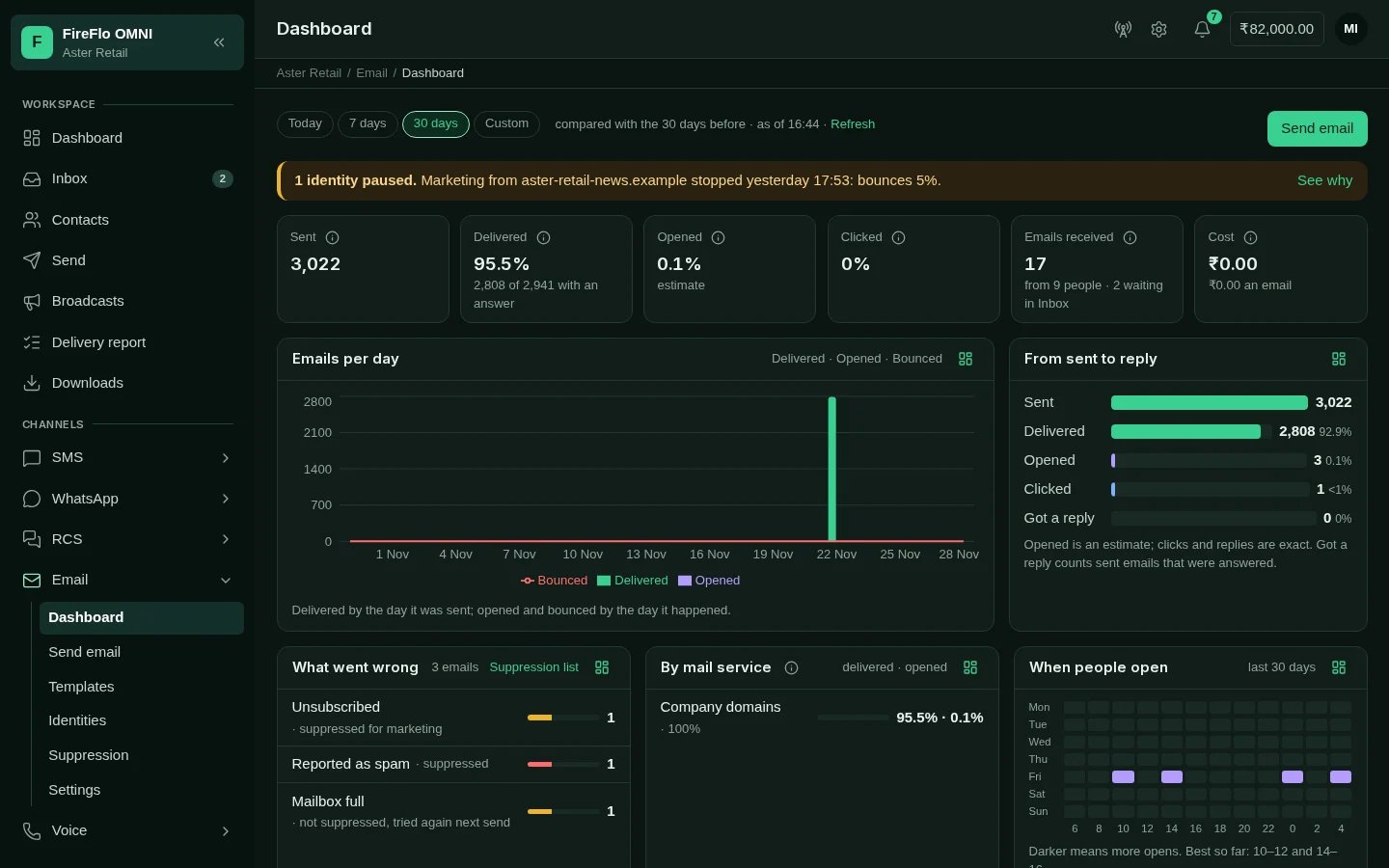
The Email dashboard: six figures, emails per day and the path from sent to reply, on the same layout as every channel.