
The templates list
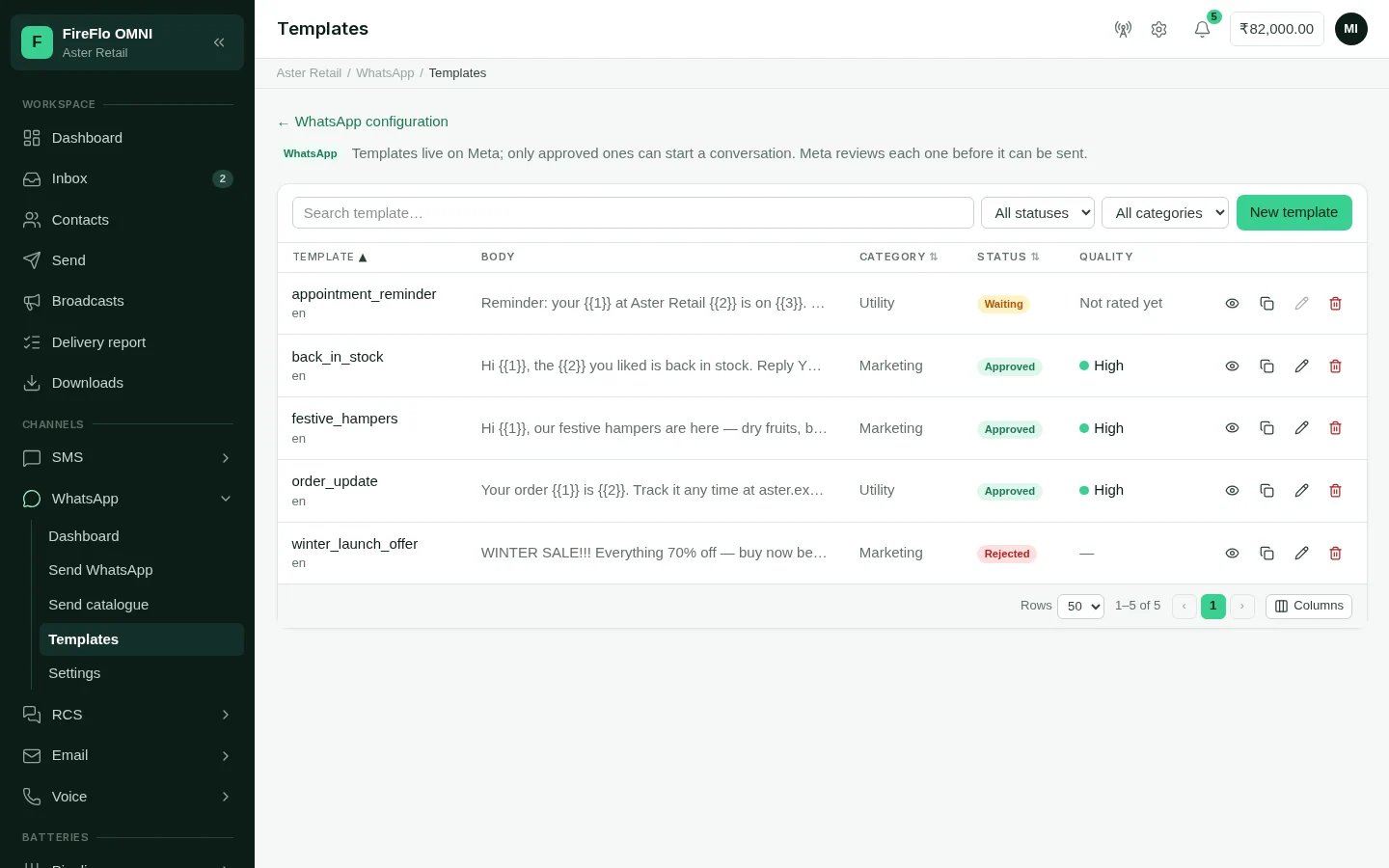
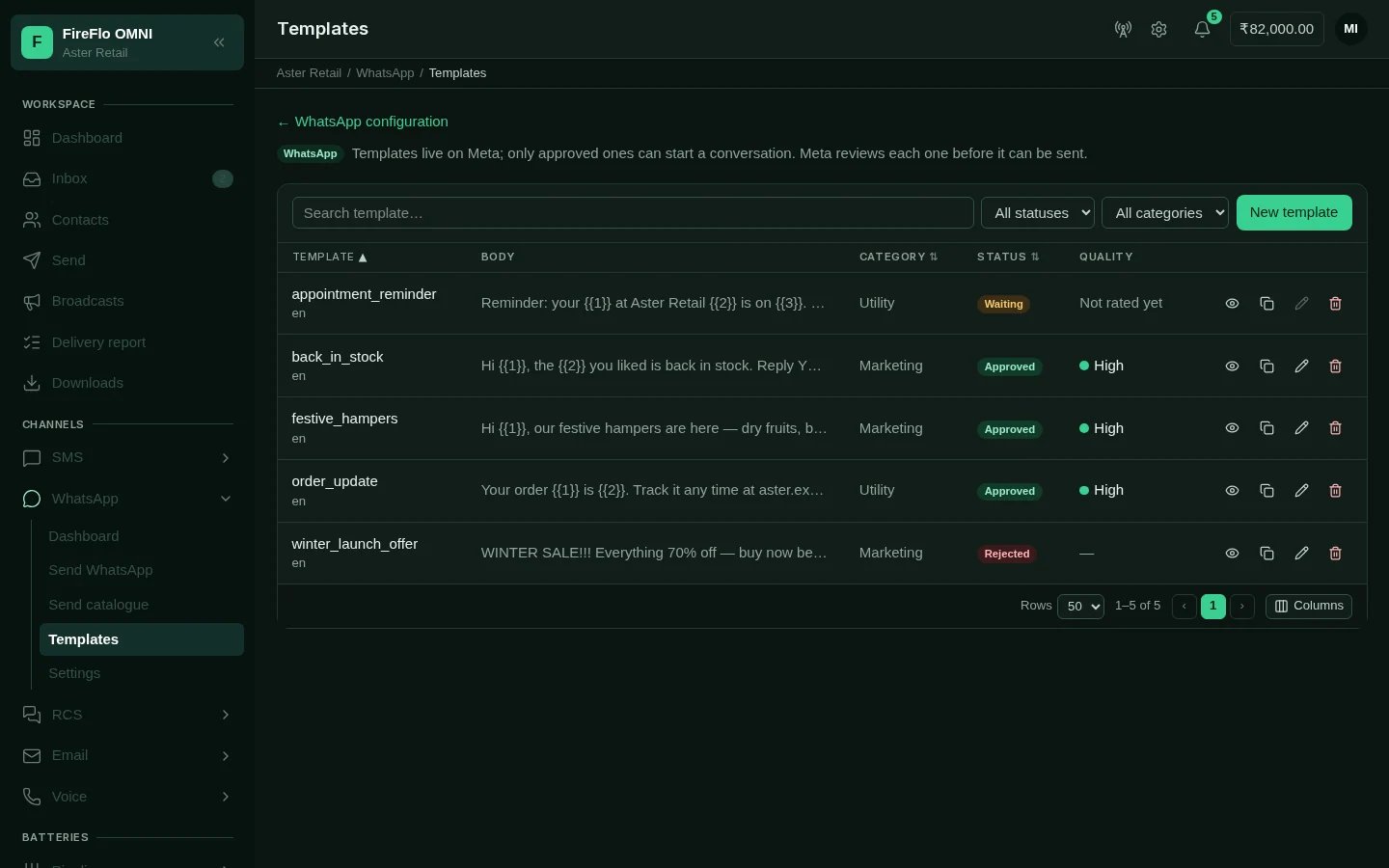
WhatsApp → Templates lists every template your account has at Meta, read from Meta. Search by name, or filter by status and category; search, filters and New template sit in one bar above the table. Search and filters are kept in the page’s address, so ← Templates brings you back to the same view. The Quality column shows how Meta rates each template: High, Medium or Low. Each row’s actions are icons, with their name when you point at them: View, Copy, Edit, Use in Send and Delete. An action that isn’t allowed for a template is greyed, and says why when you point at it. On a phone a row shows the name, a short line and the status; the actions are on the template’s page.A template’s page
Click a template to open its own page. It shows, at once:- the status and four key figures — Status, Quality, whether it Can be sent, and how many of its broadcast messages were delivered in the last 30 days;
- one plain line on what the state means, such as “Meta approved it. It can be sent.”, with Meta’s reason when it was rejected;
- the message as a phone shows it, and the template’s details: name, language, category, blanks, and who it belongs to;
- Reputation: where the template stands with Meta, from Active to Paused and Disabled, how close it is to being disabled, its rating over time, and what usually helps. Meta gives a colour only, not the numbers behind it;
- your broadcasts of the last 30 days that used it — sent, delivered and failed, each broadcast linked. Single sends are not counted;
- History: when it was submitted, and Meta’s notices about its status, quality and category.
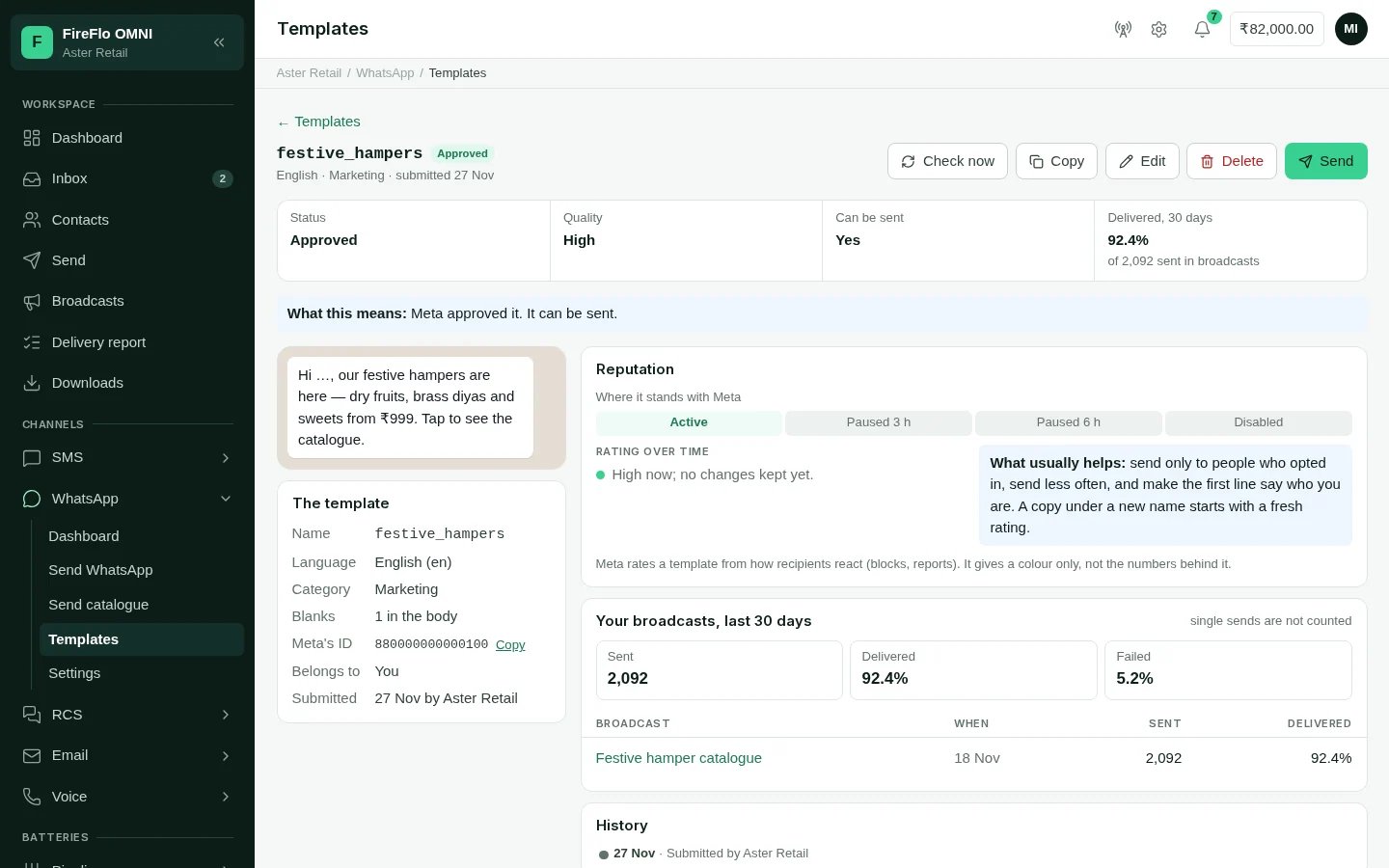
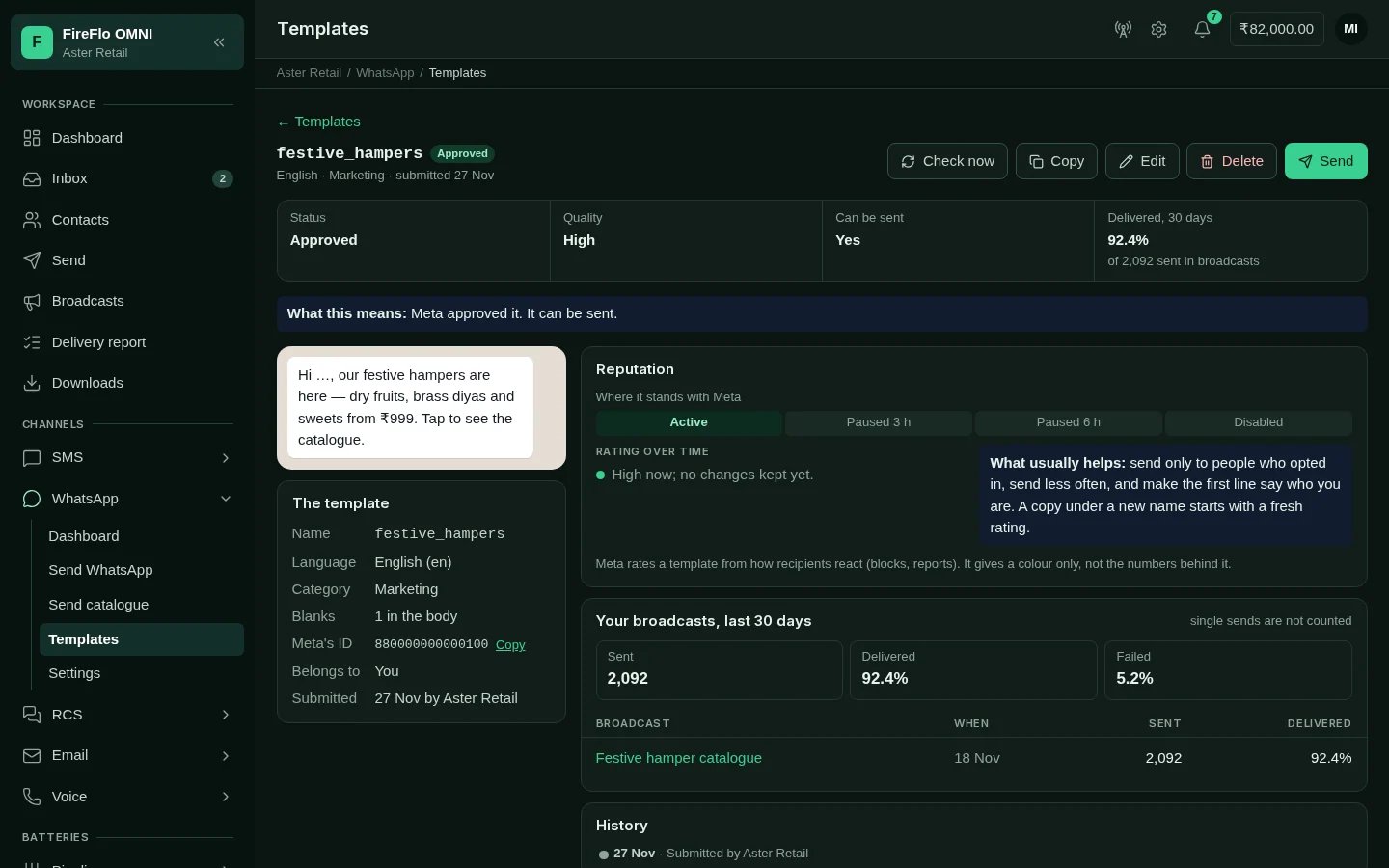
A template's own page: status, quality and delivery, what the state means, the message, its reputation with Meta and the broadcasts that used it.
Make a template
In WhatsApp → Templates, choose New template. The form is in sections, with a live preview of the message on a phone beside it.1
Name, category and language
The name uses lower-case letters, numbers and underscores only, such as
order_shipped. The category is Utility, Marketing or Authentication. Pick the
language from Meta’s list of template languages.2
Header (optional)
Text, or an image, a video or a PDF. Files go at Meta’s sizes: images up
to 5 MB, video (MP4) up to 16 MB, PDF up to 100 MB. Meta needs a sample file to
review.
3
Body
The message itself. Mark the parts that change with numbered variables,
{{1}},
{{2}} and so on, and give a sample value for each: Meta refuses variables without
samples.4
Footer and buttons (optional)
A footer, and buttons: quick reply, visit website, call number or copy
code. A link button can be made with Opens a file chosen when sending: you
then attach the file each time you send.
5
Send for approval
Before you send names anything Meta would refuse. The template then waits while
Meta reviews it.
The template builder: header, body and buttons on the left, the phone preview on the right.
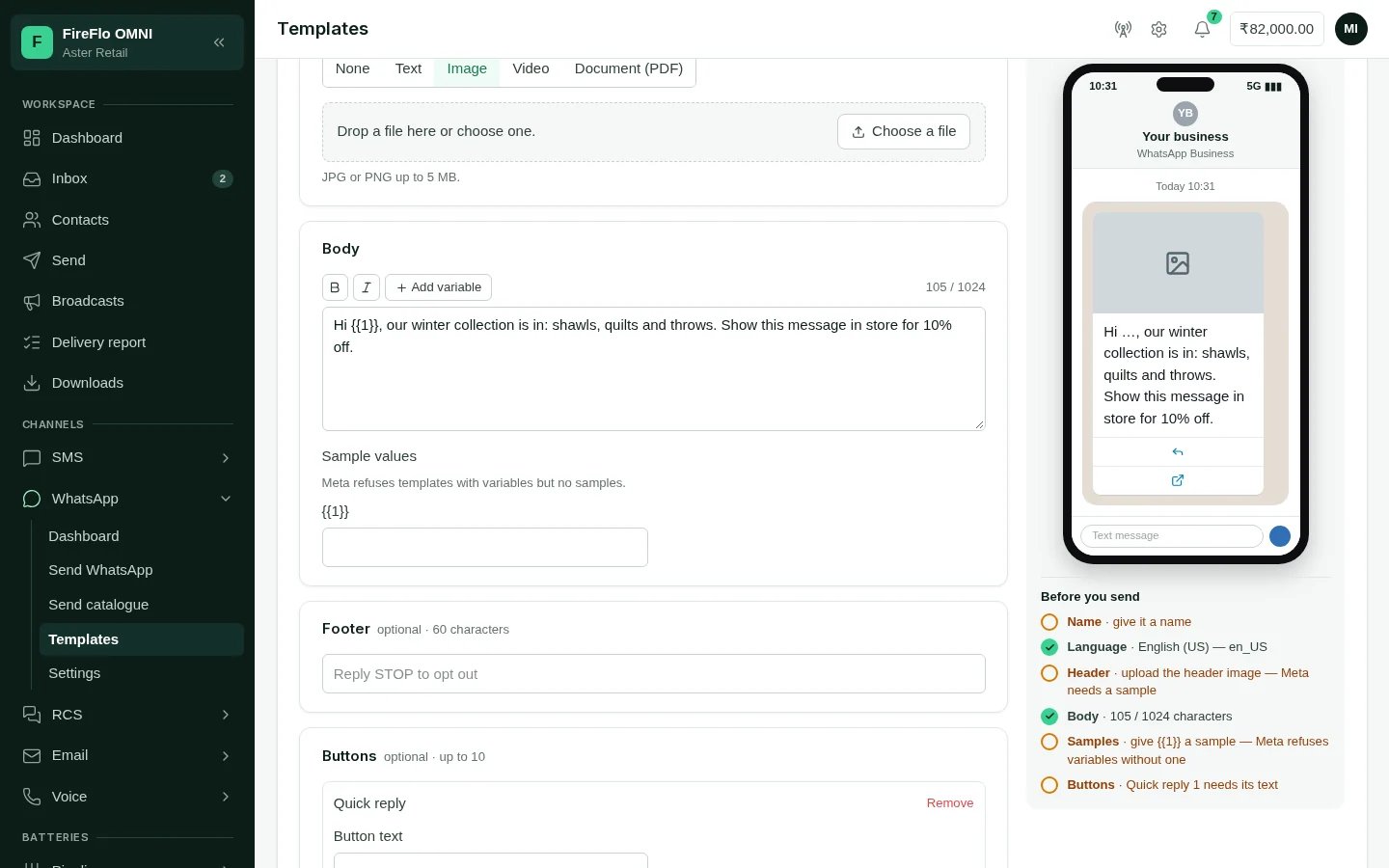
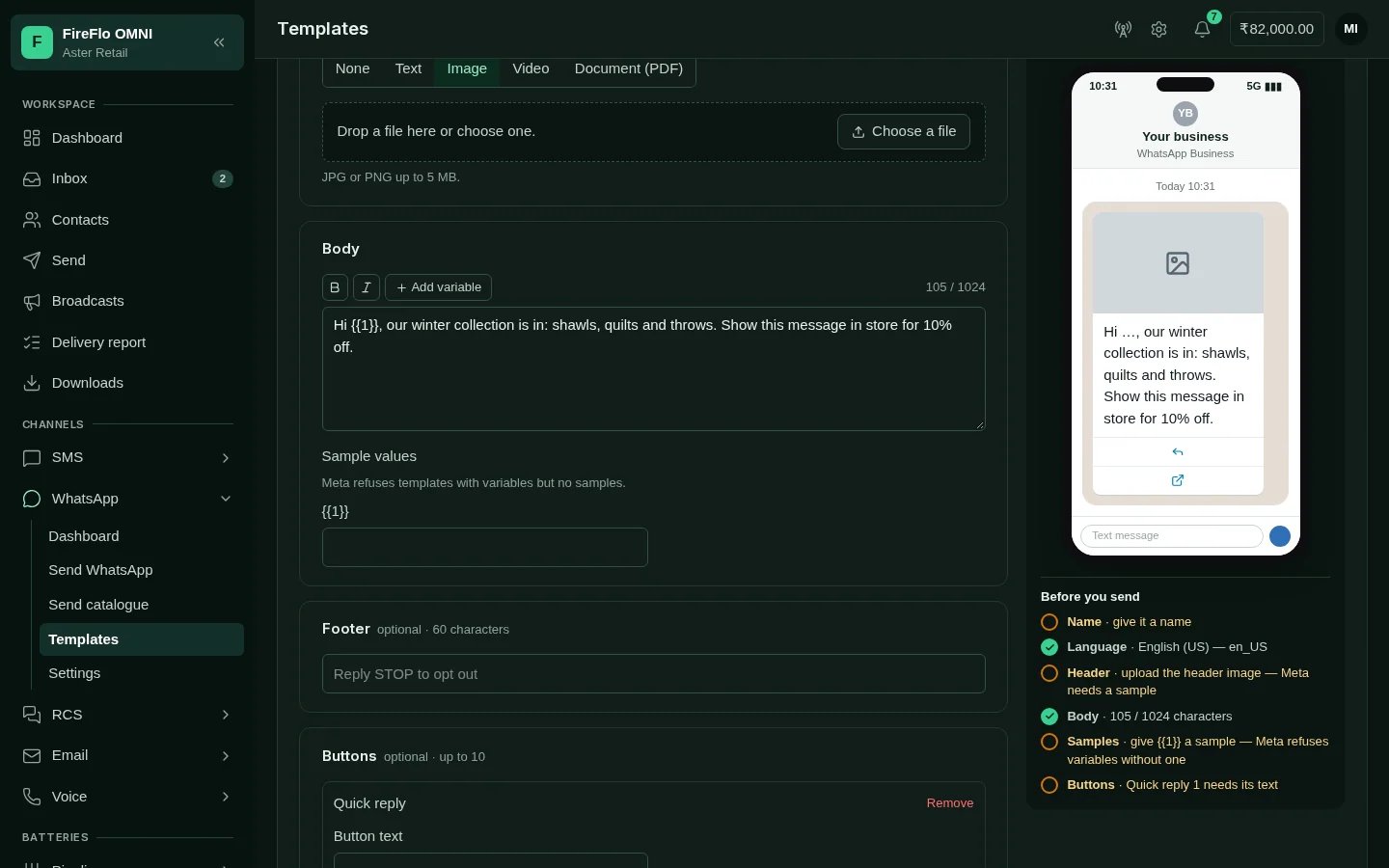
An image header, quick reply and website buttons, and the list of what is still missing before it can go to Meta.
Its status
The list says where each template stands in words; Meta’s own value is shown when you point at the badge.
Meta decides how long review takes.
Copy, edit or delete
Copy opens the builder filled in from the template, under a new name. Nothing is sent to Meta until you submit it. A header picture, video or PDF must be chosen again, because Meta does not give the sample back. Edit is offered on approved and rejected templates. You can change the body and footer; the edit goes back to Meta, and the template is Waiting until it is approved again. Delete asks first, then removes the template at Meta.On a number FireFlo hosts for you, you see and use only the templates your account
submitted, and only those can be changed or deleted from your account. On a shared
number you also see the Common templates made for everyone: they can be sent, not
edited or deleted. A template name another account already uses can’t be requested
again.
Send with a template
- Use in Send, or Send on a template’s page, opens Send with the template chosen. Fill in each variable, then send to numbers, contacts, a file, a segment or an audience. See Send WhatsApp.
- In a broadcast, fill each variable from a column of your recipient list, or type your own text. The preview shows the message as the first person will see it.
- A template with a picture, video or PDF header goes to any number of people, can be scheduled and can be used in a broadcast: attach the file, or paste a link — one for everyone, or a column so each person gets their own.
- For a template that opens your catalogue, a broadcast lets you choose the product shown on its card — or leave it empty to open the catalogue itself.