
Start from a layout
Open Branding, choose Open designer in section 3, and choose one of three layouts. Each one comes filled in with your brand name and the channels you have switched on, so you can publish it as it is.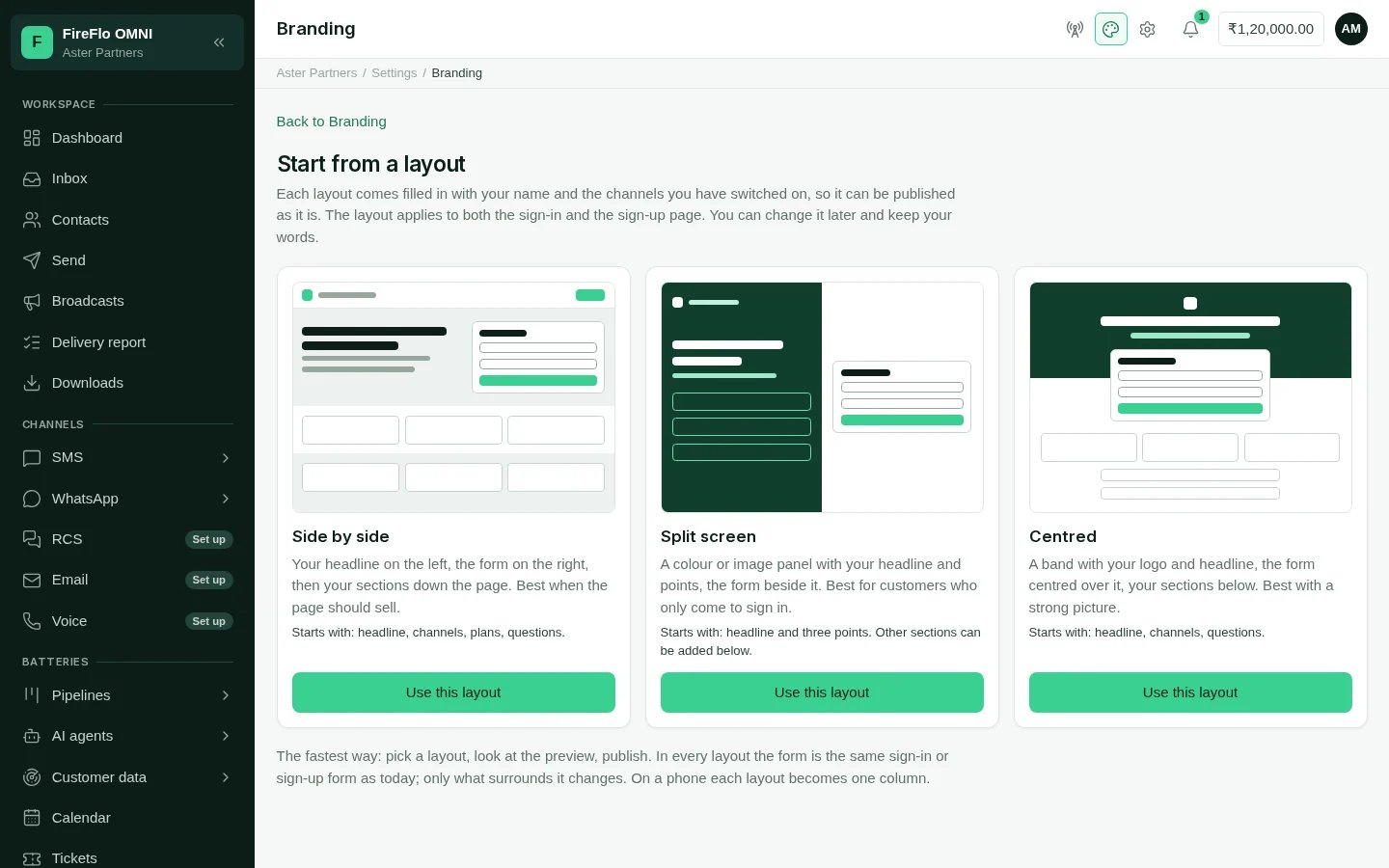
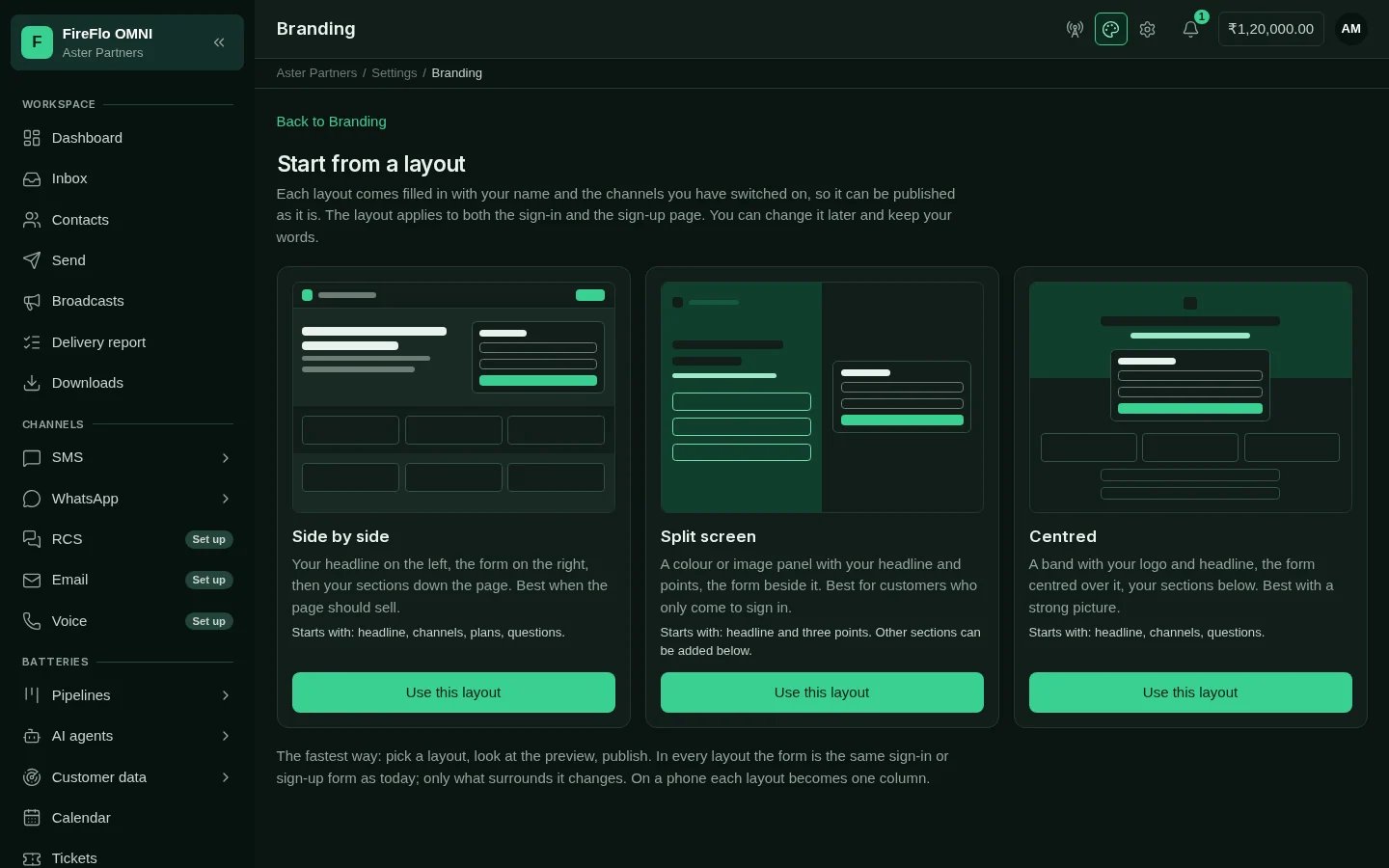
Start from a layout: three ways round the same sign-in and sign-up form.
Each card says which sections the layout starts with. Choose Use this layout on one.
The layout applies to both pages. You can change it later and keep your text. In every
layout the form is the same sign-in or sign-up form; only what surrounds it changes. On a
phone each layout becomes one column.
Sections
Each page (Sign-in page, Sign-up page) has its own list of sections. Switch a section on or off, move it up or down, and fill in its text. A section you switch off keeps its text.The plans you choose under Plans and prices are also the only plans the sign-up form
on your address offers, in the same order. Choose none to offer every plan that is open
for sign-up.
Values that fill themselves
Type one of these words in any text and the page shows the current value. When the value changes in the panel, the page follows without being published again.Look and feel
Choose the panel colour (dark, your brand colour, or light), the headline font, the corner style, an optional second accent colour, and a hero image with its darkening. Images are PNG, JPEG or WebP, up to 2 MB each, 16 for a design.Search and sharing
Set the page title (60 characters), the description (160 characters) and the image shown when the link is shared. Let search engines list these pages is on by default; switch it off to keep the pages out of search results.Draft, preview, publish
Changes are saved to a draft with Save draft. Visitors see nothing new until you choose Publish.- Preview opens the draft on your address in a new tab. Only someone with that link sees it, and the link changes each time you publish.
- Restore previous puts the design that was live before the last publish back in your draft.
- Back to the standard pages takes your design off your address. Your draft is kept.
Tracking
You can paste a tracking code, such as an analytics tag. Because it runs on pages where your customers type a password, it is handled more carefully than the rest of the design:- Only an Owner can see or change it, and the password is asked again.
- It does not run until FireFlo has allowed it. Any change to the code has to be allowed again.
- Every change is recorded with who made it and when, and emailed to the account’s owners.
- It never runs in a preview, on any signed-in screen, or on another address.