
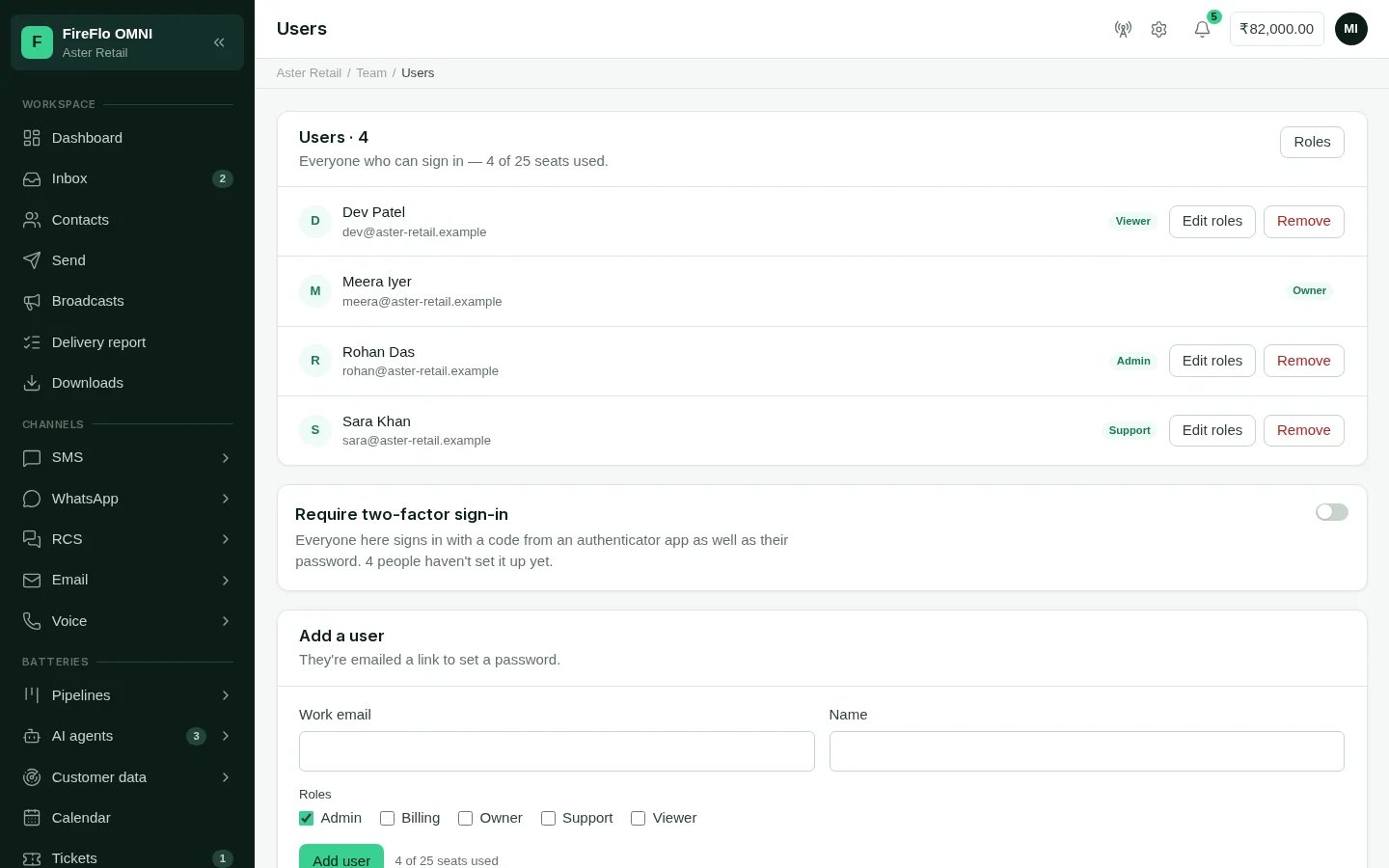
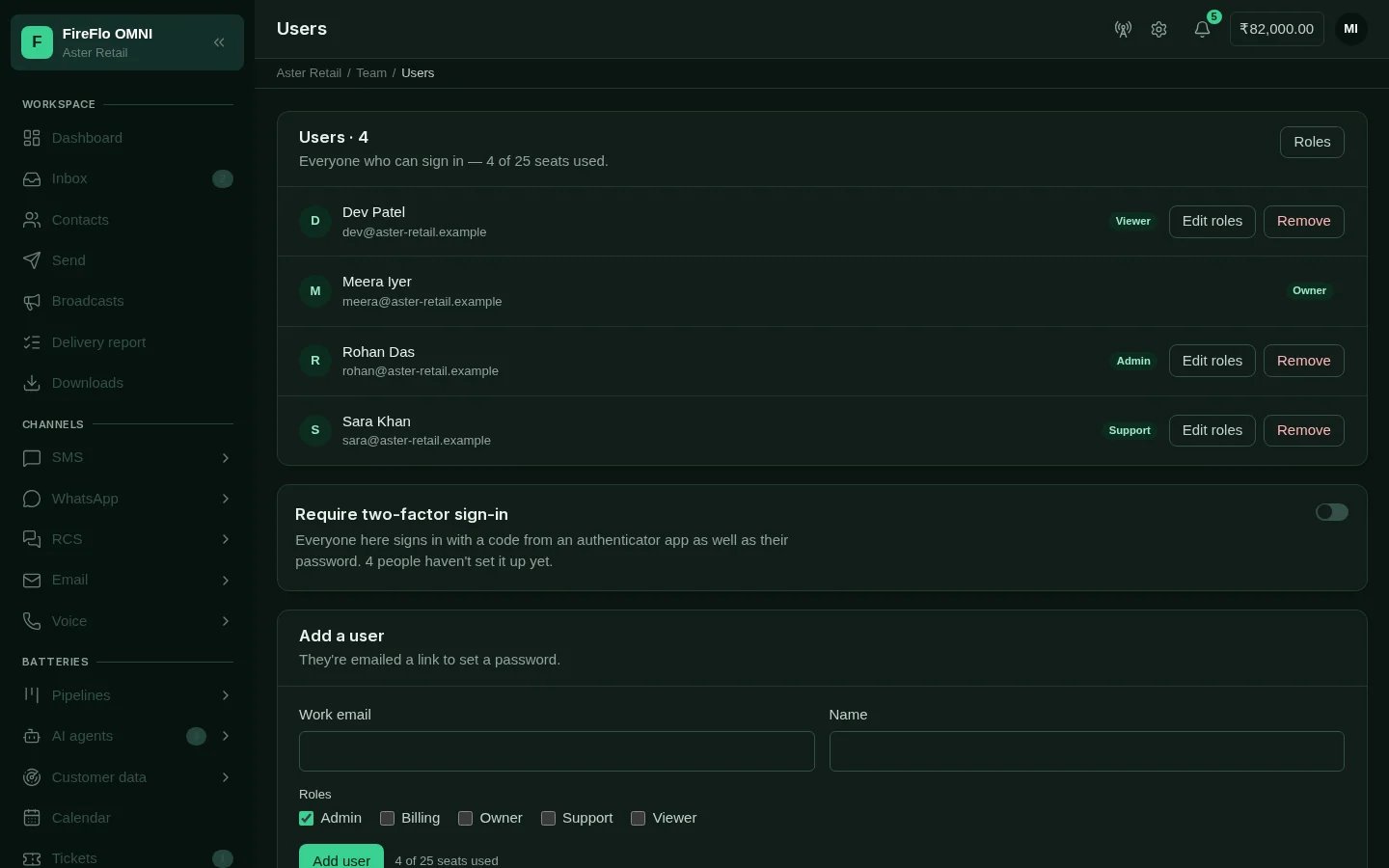
Users: everyone who can sign in, with their roles and seats.
Users
Each user shows their name, email and roles. Invitation pending means they haven’t set a password yet; you can send the invitation again. When your plan limits seats, the heading shows how many are used.Add a user
1
Enter who
Under Add a user, enter their work email and name.
2
Pick roles
Tick one or more roles. You can only pick roles whose permissions you already hold,
and only an Owner can give the Owner role.
3
Add
Choose Add user. They are emailed a link to set a password. Once every seat is
used, adding is refused until you remove someone or move to a plan with more.
Change roles or remove someone
Choose Edit roles on a user, tick the roles they should hold, and save. Roles you can’t give or take away are locked. To take someone off the account, choose Remove. Nobody can change their own roles or remove themselves; another Owner or Admin does it.Require two-factor sign-in
Switch on Require two-factor sign-in and everyone on the account signs in with a code from an authenticator app as well as their password. The card says how many people haven’t set it up yet.Roles
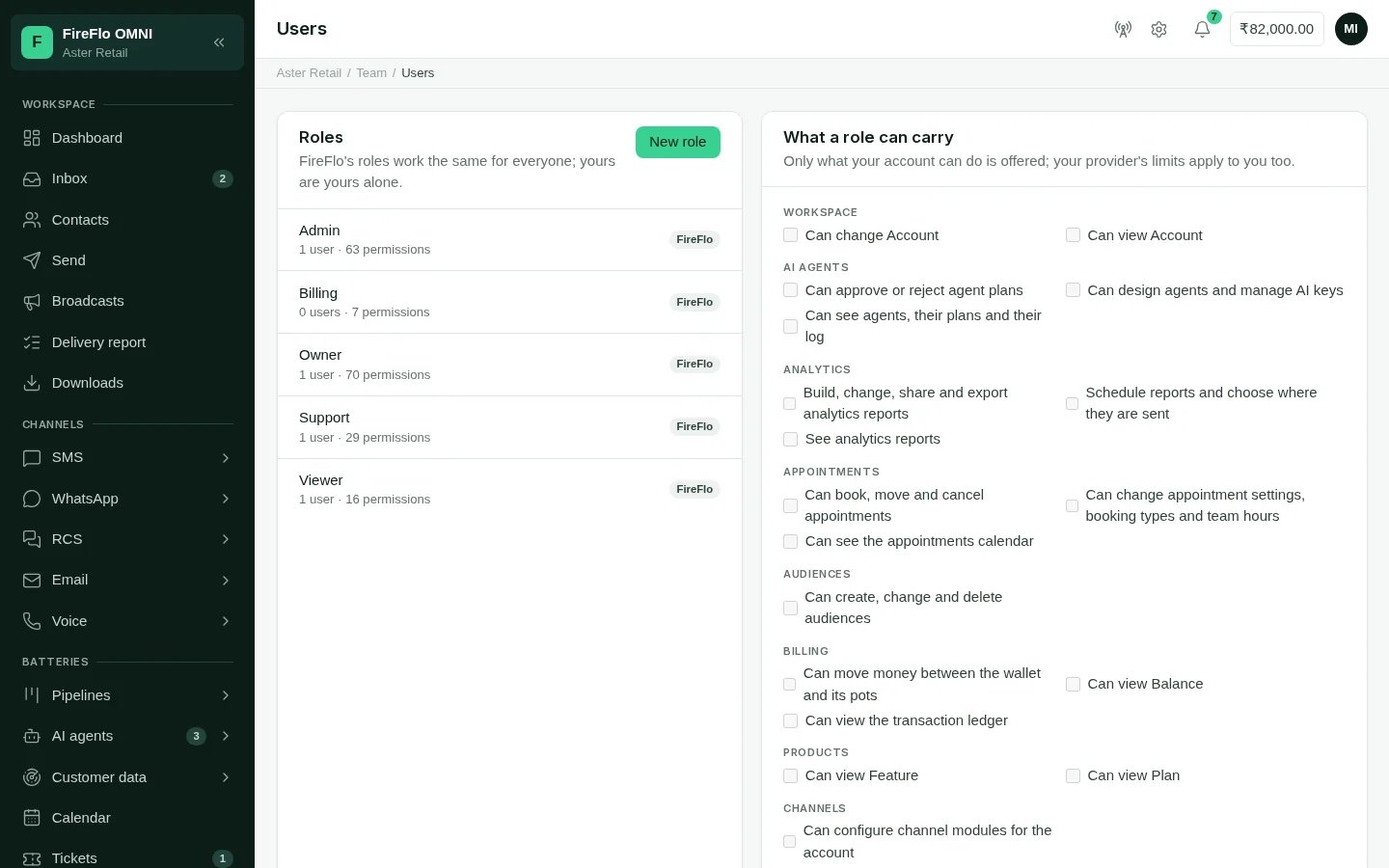
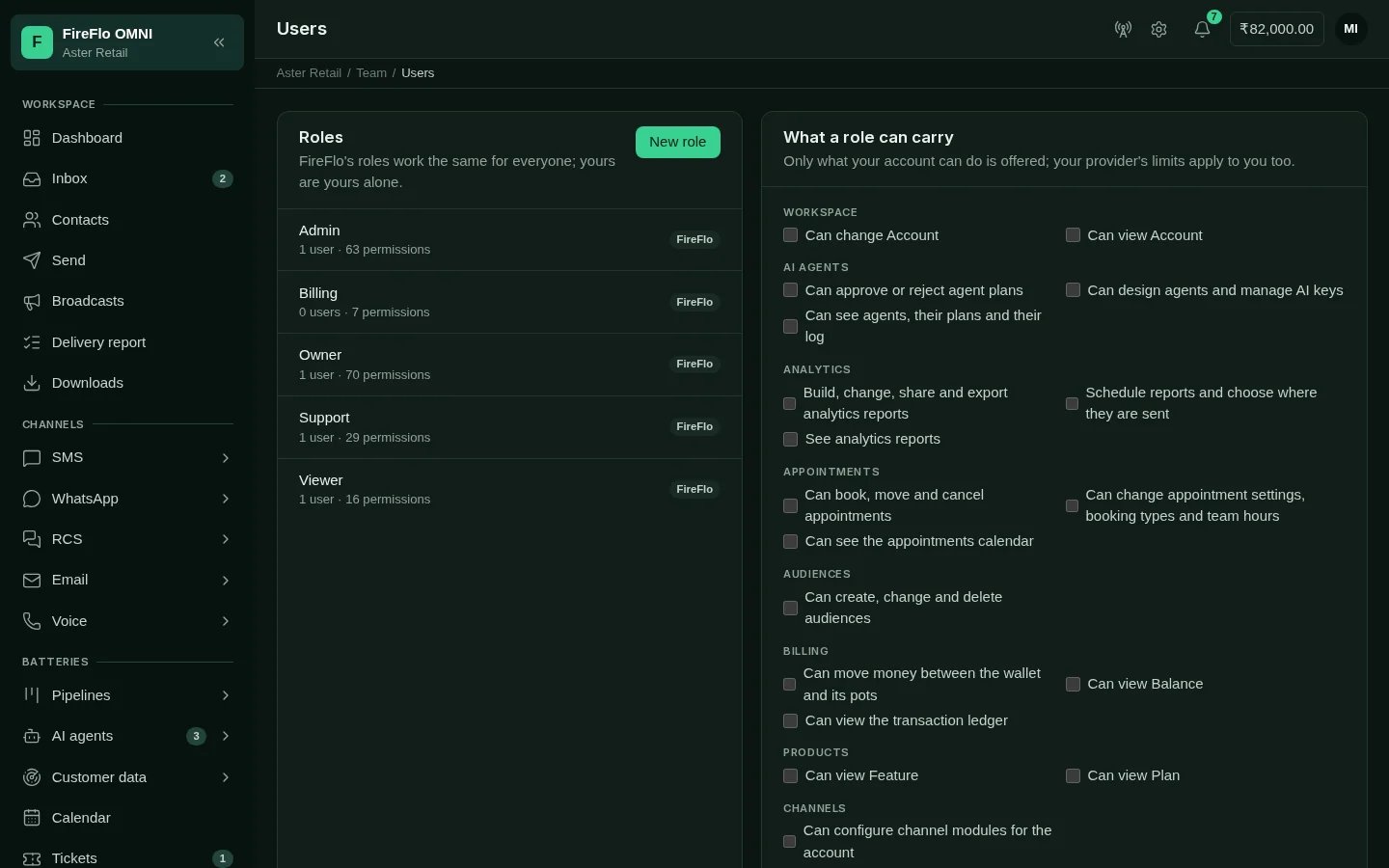
Roles: FireFlo's shared roles, and the permissions a role can carry, by area.
- FireFlo’s roles, the same for every account: Owner, Admin, Billing, Support, Viewer and Reseller. What each one may do is set out in Plans and roles.
- Your own roles, marked Yours, which only your account can see.
Make a role of your own
1
Start a new role
Choose New role, and name it after the job, such as “Sales rep”.
2
Pick what it may do
Tick its permissions, grouped by area. Anything your account doesn’t have is shown
but can’t be ticked.
3
Save, then give it
Save the role, then give it to people from Users like any other.
Reseller levels and account managers
A reseller’s people can be given work on the reseller’s own customers. These parts of Users appear on a reseller account whose plan includes Reseller levels.The four customer roles
Four roles for the people who look after your customers: Customer manager, Customer billing, Customer support and Customer viewer. Give them on Users like any other role. Whoever holds one reaches only your own customers, and only what your account itself may do.Account managers
- Account manager: each of your customers can have one, chosen from your own users. Set it with Set on the customer’s page under Customers. The customers list has an Account manager column and a filter by manager.
- Allow all customers: a switch on each of your users. On, the person works with every one of your customers. Off, they work only with the customers they manage.
- A customer with no account manager is seen only by people with the switch on.