
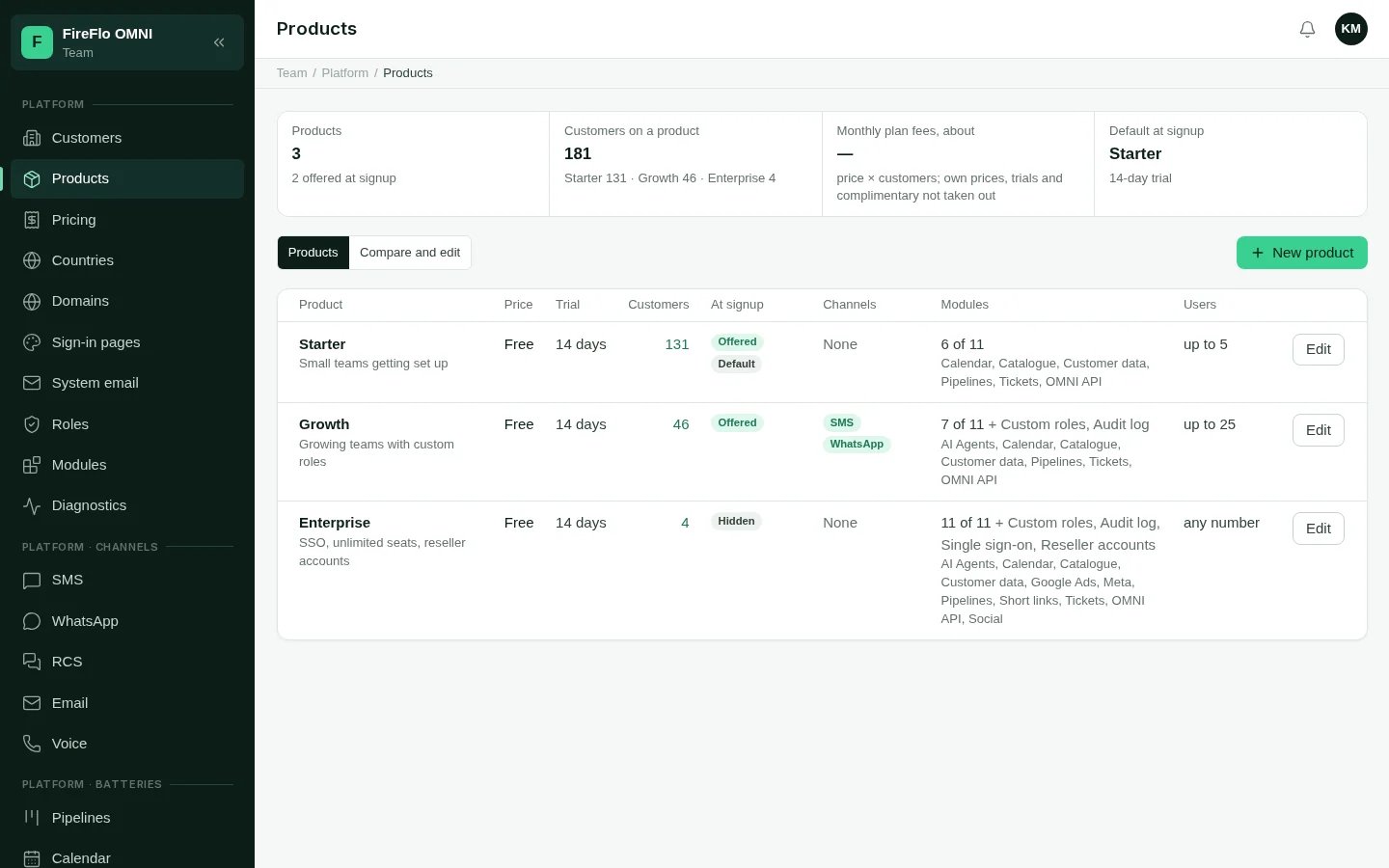
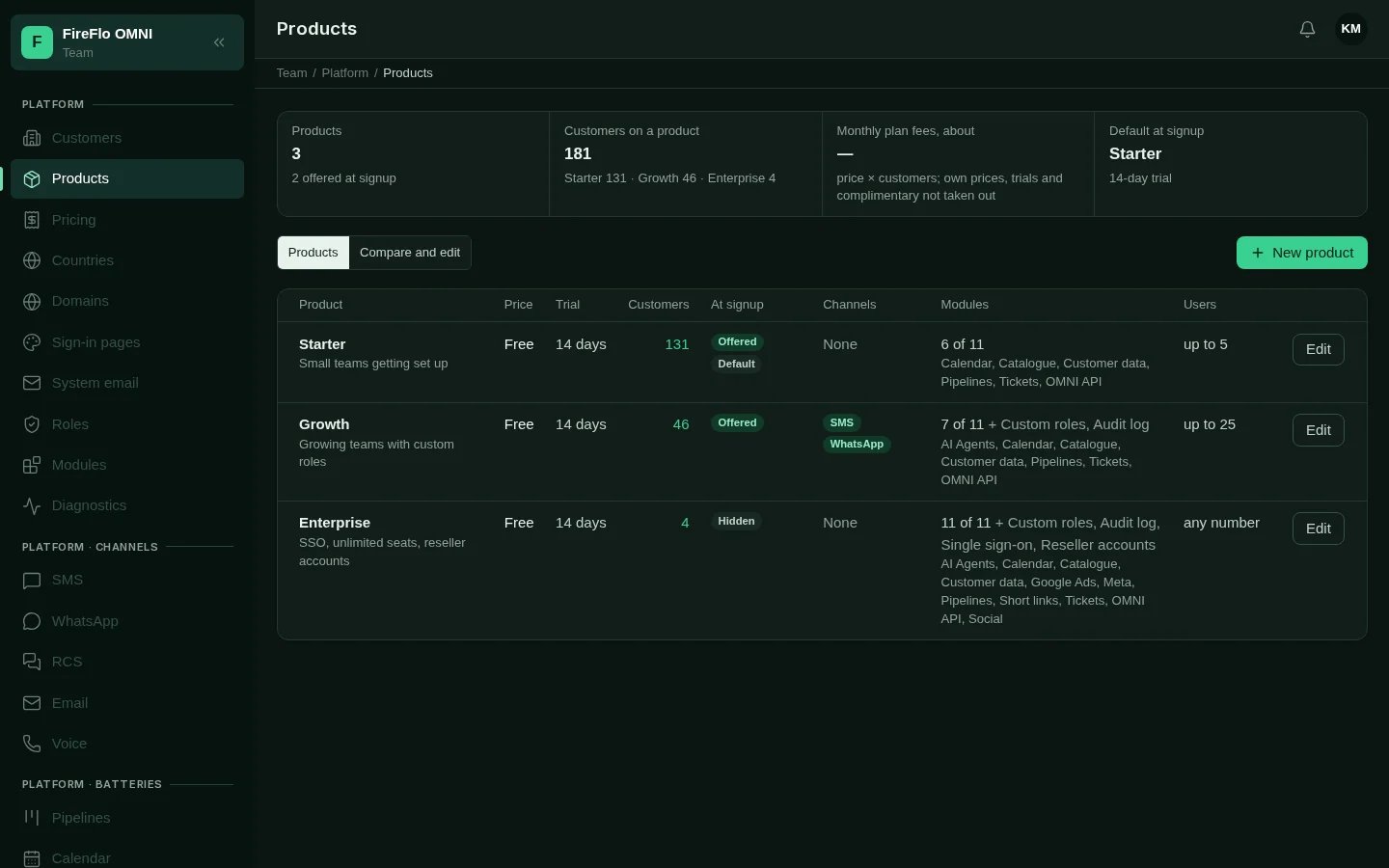
Platform → Products: each product's price, trial, customers, signup badge and what it includes.
- Offered: new customers can choose it on the signup page. Default marks the one chosen for them unless they pick another.
- Hidden: active, but not offered at signup. Staff and resellers can still put customers on it.
- Inactive: can’t be chosen or switched to.
Compare and edit
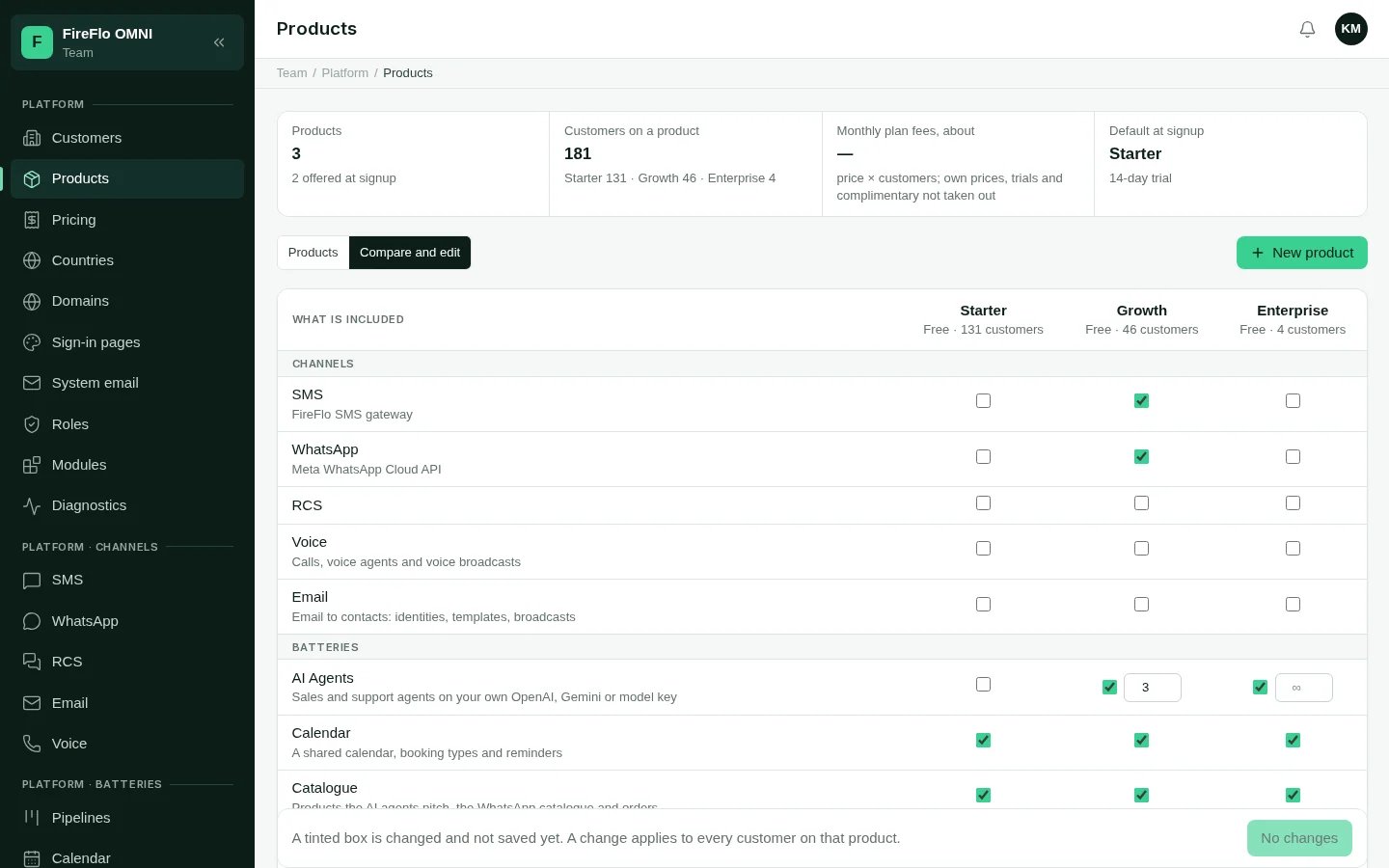
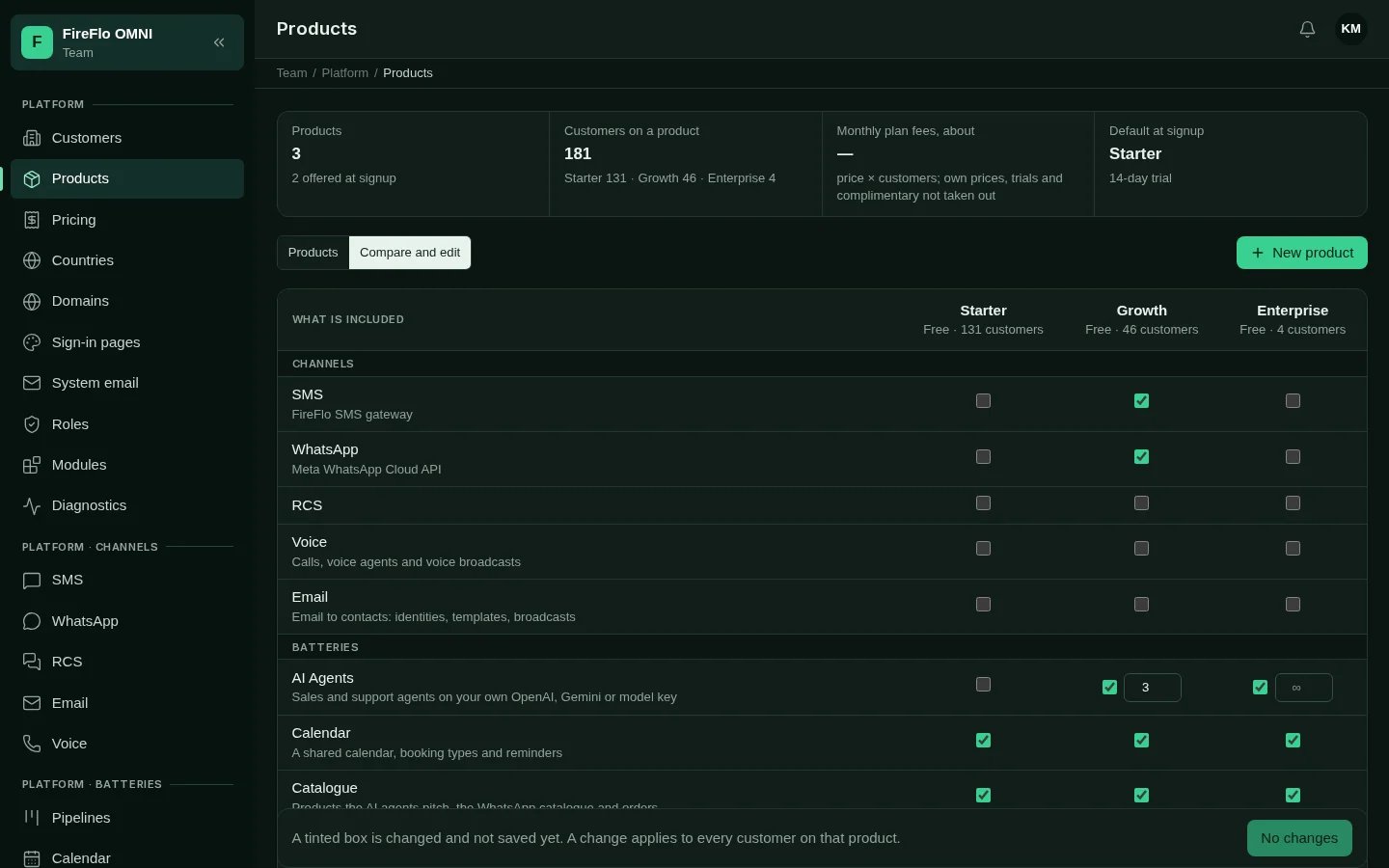
Compare and edit: every product side by side, with what each includes and its limits.
Create or change a product
1
Open the product
Select Edit on a product, or New product. The product opens in an editor of
its own.
2
Set the basics
- Name, as customers see it.
- Trial days, from 0 (no trial) to 365.
- Monthly price, with its currency: INR, USD, EUR, GBP, AED, SGD or AUD.
- Description, shown on the signup page.
3
Decide who can pick it
- Offer on the signup page: new customers can choose it and start a trial.
- Pre-select at signup: the product chosen by default. Only one product can be pre-selected, so turning it on here turns it off on any other.
- Active: an inactive product can’t be chosen or switched to.
4
Choose what's included
Tap each channel and module the product includes. Where a feature has a ceiling, set
it under Limits. Leave it empty for no limit.
5
Save
Select Save.
What a product can include
Under What’s included:
Under Channels: SMS, WhatsApp, RCS, Email and Voice. A customer
sees a channel only when their product includes it. Batteries and platform modules are
included the same way, each as its own tile.
With FireFlo gateway 0.17.0, a product that includes SMS also has Gateway tags for new
customers: gateway account tags put on the gateway account of each new customer on this
product, once, when that account is made. Changing them later affects new accounts only.
See Gateway account tags.
A feature badged coming soon isn’t available yet and can’t be switched on. A channel
badged switched off has been turned off for every account. Select the badge to open
it under Channels.
To give a module to a single customer, or take it away, use the Modules tab on
their page. To switch one off for everyone, use
Modules.
What a change does to customers
- Features and limits change straight away for every customer on the product, except where you’ve set an override for one account. A change that takes a module away from customers asks first, and says which other modules go with it.
- The monthly price applies to customers who join or move to the product after the change. Customers already on it keep the price on their subscription. To change one customer’s price, edit it on their page.
- Trial days apply to new signups. To give one customer longer, extend their trial from their page.
- Making a product inactive stops anyone choosing it or switching to it. Customers already on it stay on it.