
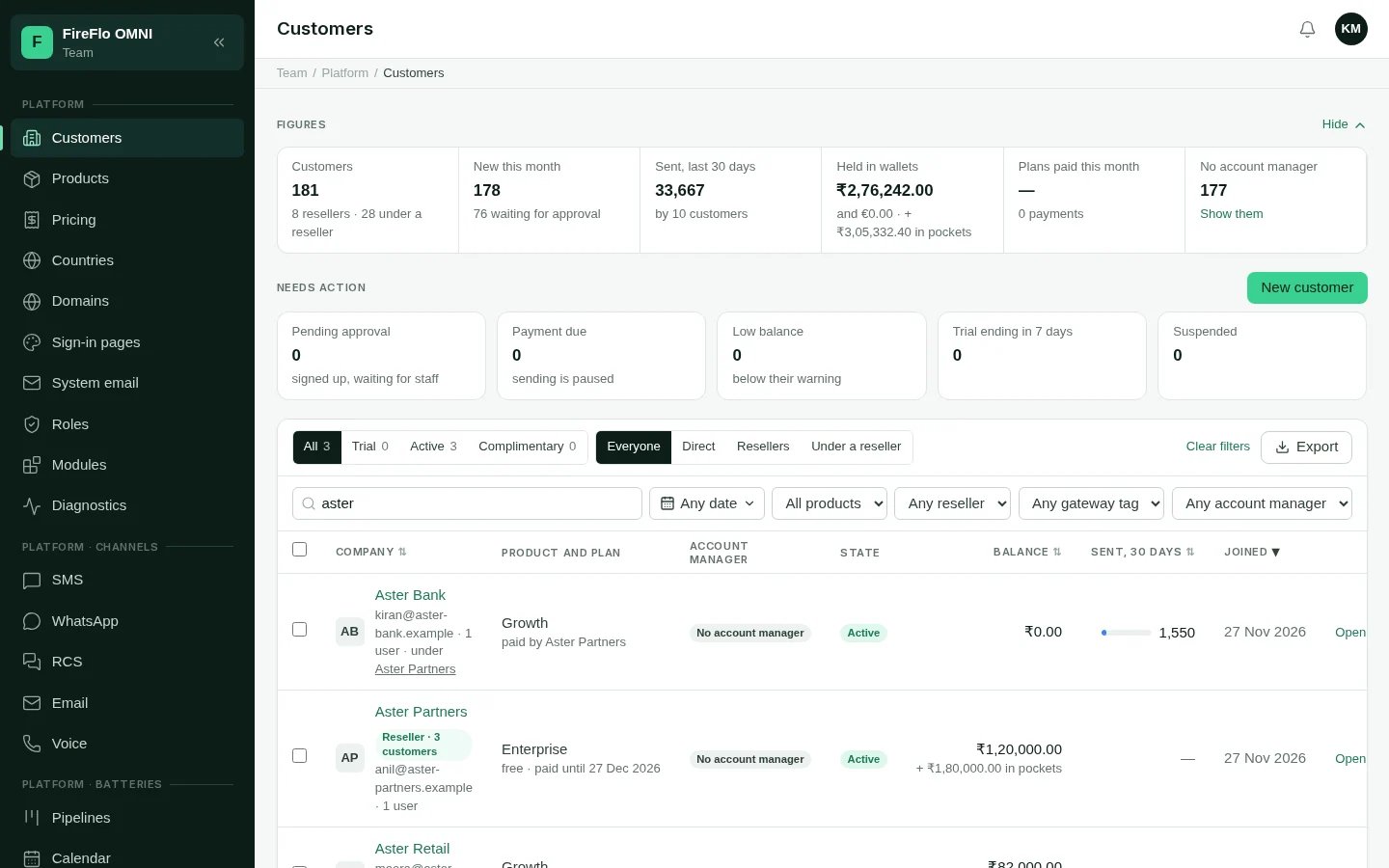
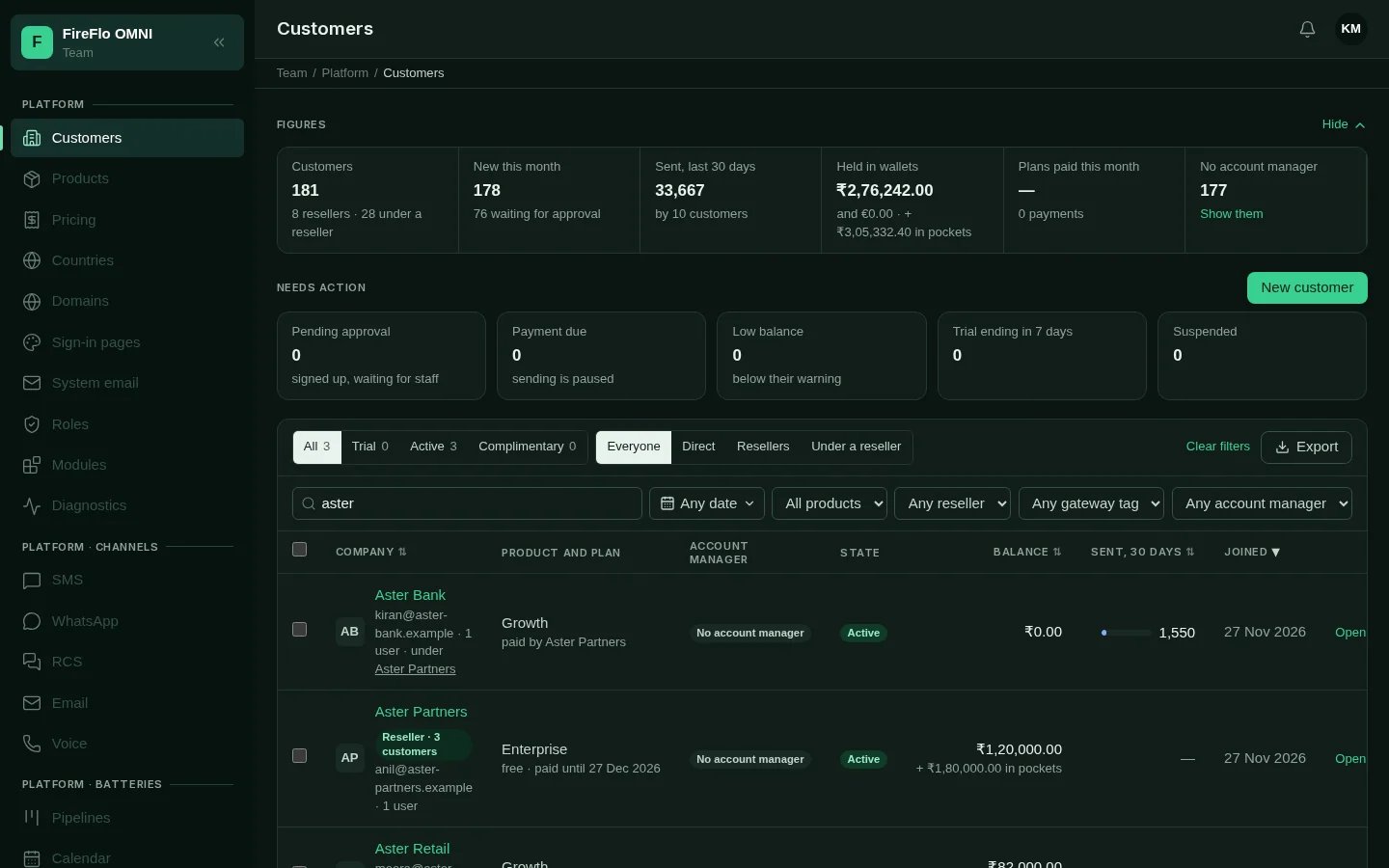
Platform → Customers: every account, its product, status and balance.
Set a customer up
Customers usually arrive through self-signup. To add one yourself, select New customer on Platform → Customers and fill in:- Company, and the owner’s email and name;
- the Product, and its Trial in days (0 for none). The product’s own trial is filled in for you;
- the Wallet currency. For SMS through FireFlo, use your gateway’s currency: credit in any other currency is refused there;
- Complimentary (never lapses), and They resell to their own customers, if they apply.
The list
Figures at the top count the customers (and how many are resellers or under one), new ones this month, messages sent in the last 30 days, money held in wallets and pockets, plans paid this month, and the accounts with No account manager (Show them lists them). Hide folds the figures to one slim line; Show figures opens them again. The choice is remembered on this browser. Needs action has a card each for Pending approval, Payment due, Low balance, Trial ending in 7 days and Suspended, with how many accounts are in it. Select a card to list them. Above the table, chips filter by status (All, Trial, Active, Complimentary) and by kind (Everyone, Direct, Resellers, Under a reseller). What each status means:
Each row shows the Company with its owner’s email and how many people it has, and
who it is under (FireFlo, or the reseller it belongs to). It also shows its Product and
plan, its Account manager, its State, wallet Balance (with what is in
pockets), messages Sent in the last 30 days, and when it Joined.
Search by company name or email. You can also narrow the list by the date the account
joined, by product, to one reseller’s customers, by account manager (or No
account manager), or, with FireFlo gateway 0.17.0, by gateway tag (the tags
accounts have now; see
Gateway account tags). Sort by name, balance, messages sent
or joining date. Export downloads the list as it is filtered; Clear filters
starts again.
Once the filter cards scroll out of view, the filters you chose stay under the top bar as
a row of chips.
Set an account manager for several accounts: tick them, choose Set account
manager, pick a Team user, then Apply. See Team.
A staff login limited to the accounts it manages sees Showing only your accounts.
A customer’s page
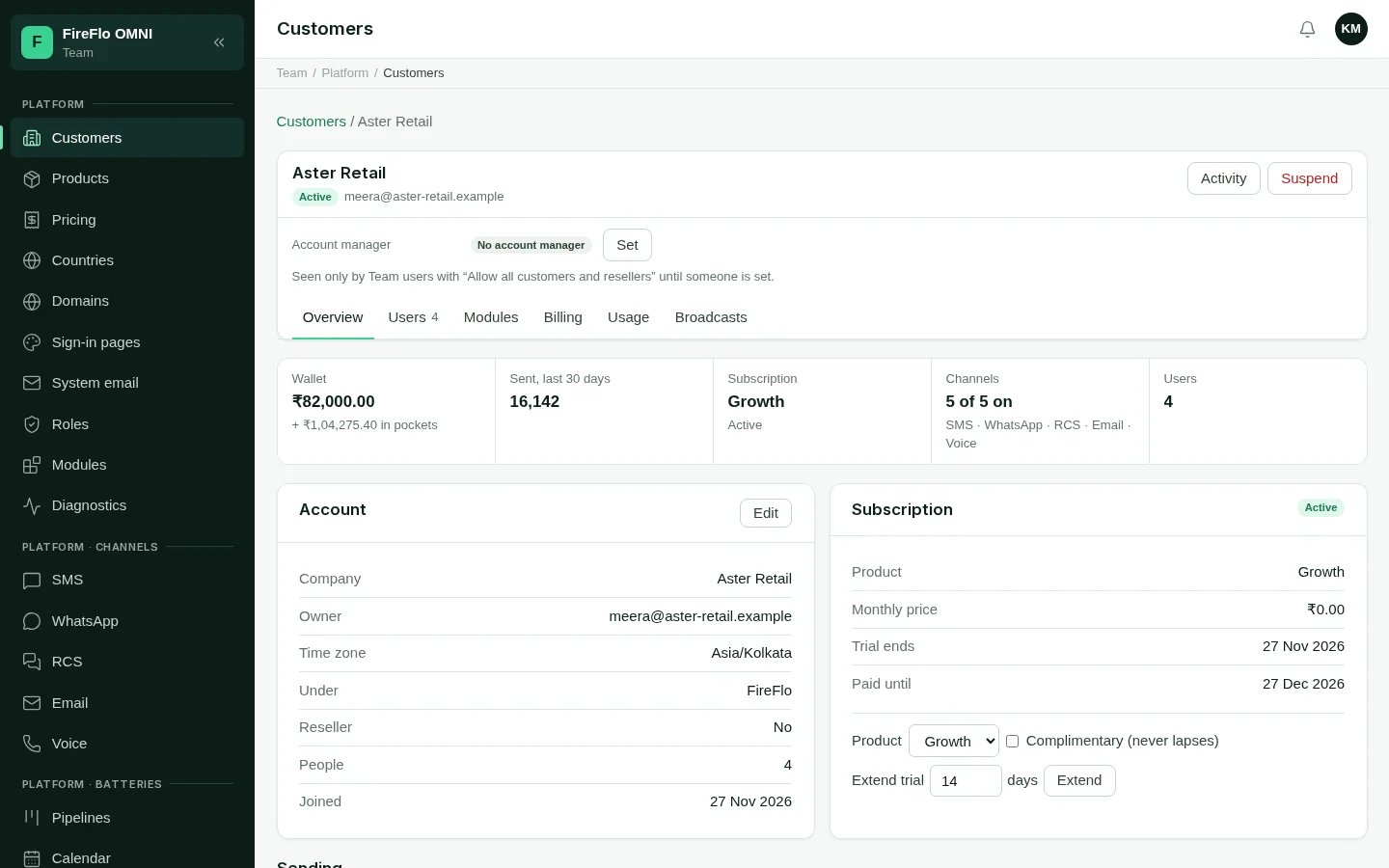
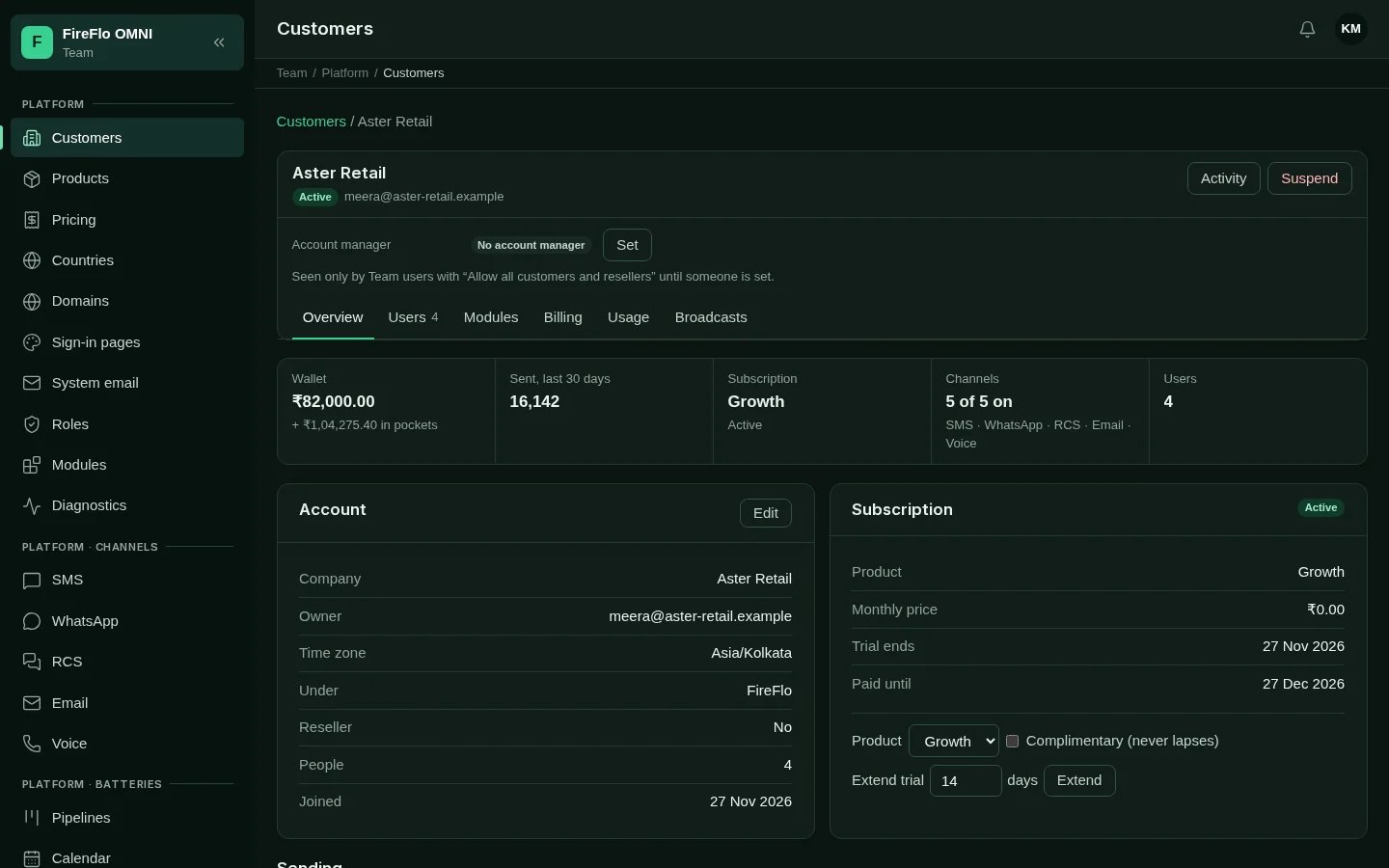
A customer's page: figures, the account manager, and the tabs that hold the rest.
Overview
Figures across the top: the Wallet (and what is in pockets), messages Sent in the last 30 days, the Subscription, how many Channels are on, and Users. Under them, Needs attention lists anything that needs staff, and at the foot the latest broadcasts and the latest activity. Account shows the company, owner, time zone, who it is under, whether it is a reseller, its number of people and when it joined. Select Edit to change:- Company, its name.
- Time zone, as a name such as
Asia/Kolkata. - Monthly price, a price for this customer alone. It survives a change of product.
- They resell to their own customers, which makes the account a reseller. You can’t turn this off while it still has customers of its own.
- Change the product. What’s included changes straight away. The new product’s price applies from the next payment, unless the customer has a price of their own, which is kept. Changing product never starts another trial, and you can only choose an active product.
- Make the account complimentary. Tick Complimentary (never lapses). Untick it to put the account back on paid terms. Its status then follows its trial and paid dates again.
- Extend the trial. Enter 1 to 365 days and select Extend. The days are added to the trial’s current end, or to today if the trial has already ended.
Sending
Sending, on the Overview, shows what the account sent in the last 30 days, Where it sends (its countries, each opening the Usage tab for that country), and where it may send. Allowed countries: where this account may send, on every channel. Choose All countries, or Only these countries and type each country or its code. For a reseller’s customer, you can choose only from the countries its reseller may send to. Narrowing a reseller’s list narrows its customers’ lists to fit. A message to a number in any other country is refused before it is sent, on every channel, and isn’t charged. A broadcast lists the rows it left out, by country. The account sees the list, read-only, under Settings. For SMS, a change waits to apply on the gateway like a price change: the account’s gateway prices then cover its allowed countries only.SMS an account sends straight to the gateway over its own SMPP login, not through OMNI,
is not checked against this list by OMNI. The gateway refuses it only when it is set to
refuse messages no rate prices and has no default rate covering those countries. See
Pricing.
Users
Everyone who can sign in, with their roles, when they last signed in, and whether they are active or still have an invitation pending. The customer manages its own users. This tab is for reading.Customers (resellers only)
A reseller’s page has a Customers tab listing the accounts under it, in the same table as the main list. See Resellers.Reseller (top-level resellers only)
The price list the reseller pays, the pockets that pay for its customers’ messages, and every account in its tree with its units left and used and what its messages cost the reseller. See Resellers → The Reseller tab.Modules
The channels, batteries and pluggable modules (such as the OMNI API) this account has, and why. Each row is badged:
Channels are one row each, with a switch. Off, the customer can’t send on that
channel and it is no longer listed to them (it does not show as something to buy). On,
for a channel their product doesn’t include, gives it to this account alone. The row
says who set the switch: you, or the customer’s reseller. Follow the product again
removes the switch; Reason or limit… records why; Set up jumps to the channel’s
gateway below. A reseller can’t change a switch you set.
For batteries and modules, an override bends the product for this one account. It
doesn’t change the product.
1
Open the override
Select Override (or Change) on the row.
2
Say why
Under Why, write the reason, such as “Negotiated at signup”. An override stays in
place when the customer changes product, so someone will need to know why it is there.
3
Set a limit if it has one
Leave Limit blank for no ceiling. The product’s own limit is not borrowed. If the
feature has a ceiling, such as a number of AI agents, enter it here.
4
Switch it on or off
Select Switch on or Switch off.
RCS bot for this customer
Under RCS, Set up a bot sets up an RCS bot for this customer alone, in three steps: the provider login, a test, then the bot. It can be saved as Being set up, which shows the bot to the customer but sends nothing through it. See RCS: a bot for one customer.How they send
Below the modules, How they send has a row for each channel the customer has (SMS, WhatsApp, RCS): what it sends on right now, and May connect their own. For a reseller’s customer the reseller decides this, and the row says so. Staff and the reseller also see how the customer’s WhatsApp and RCS connect, the number or bots in use, and its units.SMS message types
Under Gateways, the SMS row lists the message types the customer’s gateway offers. Tick the ones this customer may send and select Save types.- A new customer has no type switched on. Until you tick one they can’t send SMS, and the row says No type on — can’t send SMS.
- Customers you had before OMNI 1.5.9 keep every type their gateway offered at the upgrade. Untick the ones they shouldn’t have.
- A gateway that offers no types, and a customer sending through a gateway of their own, are not affected.
Billing
This tab holds the customer’s money, laid out like the customer’s own Billing screen: their wallet on top, then the Pockets, Plan & add-ons, Allocations and Prices tabs, with what staff may do on top. It lists only what the customer has — the channels in their plan and connected, and the batteries they have — plus any module still holding money in a pocket, which can only be emptied back to the wallet. Record a payment (under Plan & add-ons) is for money received outside the panel, by transfer or cheque. Enter the Amount, the Months it pays for (1 to 36), the date it was Received on, and a Reference such as a UTR or cheque number. Then select Record payment. The money goes into the wallet, and the wallet pays the plan for those months, from today or from the date already paid until if that is later. The account becomes Active, and its owner gets an email. A payment smaller than the months’ fee is still recorded and stays in the wallet; the page says what it did not cover, and the plan renews by itself as soon as the wallet can pay. The history of Payments, with who recorded each, is listed below it. Adjust the balance sits in the wallet summary. Enter an Amount and say Why. A positive amount adds credit. A minus sign takes credit away, and only this kind of correction may take a wallet below zero. Pockets: Move money and Create pocket move money between the wallet and a module’s pocket (for SMS on FireFlo’s connection the money goes on to the gateway, and comes back from it). No money can go into the pocket of a module the customer doesn’t have. Sync and Reconcile (SMS on FireFlo’s connection). The SMS pocket shows what the gateway holds now, and under it a statement: moved in, moved back, at the gateway, spent, left. OMNI’s own records hold only what OMNI moved in and out, so they drift from the gateway as the customer sends, and whenever money is added or taken at the gateway itself; a reconcile brings them together.The exact figure needs FireFlo gateway 0.15.12 or newer. An older gateway’s figure is
shown as “about” (it may count what is set aside for sending twice), and Reconcile is
refused against it, so that an inexact figure is never written into the customer’s
records.
- Sync reads the gateway again and shows the time. It moves no money.
-
⋯ → Reconcile with gateway… compares the two line by line. Opening it writes
nothing. It shows:
- Matched: a movement both sides have, under the same reference.
- Only at the gateway: a credit or debit made at the gateway. Reconciling adds each one to OMNI’s book as its own line.
- Not at the gateway: money OMNI moved into the pocket that the gateway never received. Reconciling sends it again under the same reference, so it can’t be credited twice.
- Spent on SMS since the last reconcile: written as one usage line.
- Too recent to compare: the gateway hands its ledger out about two minutes behind. A movement inside that window waits for the next reconcile.
- Unexplained: whatever the groups above don’t account for. It is shown and never written; check the gateway’s own ledger for the account, then reconcile again.
- Reconcile writes what was shown. If anything changed since you looked, it refuses and asks you to look again. The wallet is never changed, and the lines it writes are not sent to the gateway.
- The first reconcile of a pocket does not go through history: it takes the gateway’s figure as the start and writes the one difference. Later ones compare line by line from that moment.
- Start again from the gateway’s figure is offered when a reconcile leaves an amount nothing accounts for. It writes one line for the difference and compares from that moment on. Use it where the records were set wrong: a first reconcile made on OMNI 1.5.13 could read the gateway’s figure high by what was set aside for sending.
Usage
Messages sent over the last 30 days, per channel, with a chart of messages sent per day. Filter by channel, dates and country. Hide folds the figures at the top.Broadcasts
The customer’s broadcasts, newest first, with their channel, status, recipients, delivered and failed counts. Hide folds the figures at the top, and the channel filters stay under the top bar as chips once they scroll out of view.Suspending an account
Select Suspend at the top of the customer’s page and confirm. Nobody at the customer can sign in, and anything still running stops. Their data, settings and history are kept. Select Reactivate to put everything back. A suspended account, and every account below a suspended reseller, sends nothing on any channel. A single send is refused with the codesuspended (“This account is
suspended…”); its broadcasts wait instead of failing.
An account that signed up and is still awaiting approval is refused on SMS, WhatsApp
and RCS alike (awaiting_approval).