
- Channels carry messages and calls: SMS, WhatsApp, RCS, Email and Voice.
- Batteries add what the panel can do beyond messaging, such as AI Agents, Calendar, Catalogue, Customer data, Pipelines and Tickets.
- Plugins and platform modules sit around everything else: the OMNI API, Analytics and Archive, and the platform modules Team, Social and Queues. They are optional: without them, every channel and battery works as before.
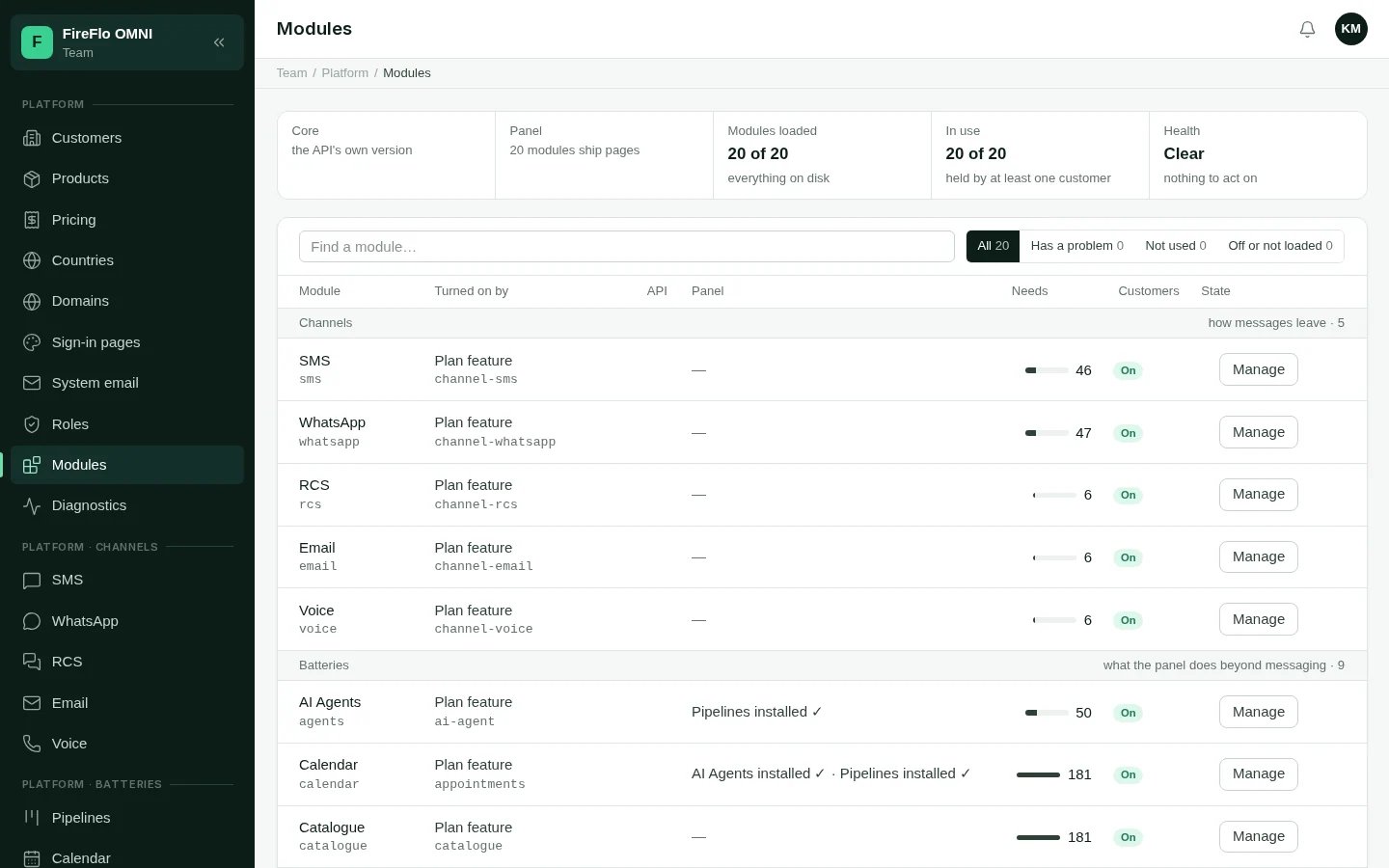
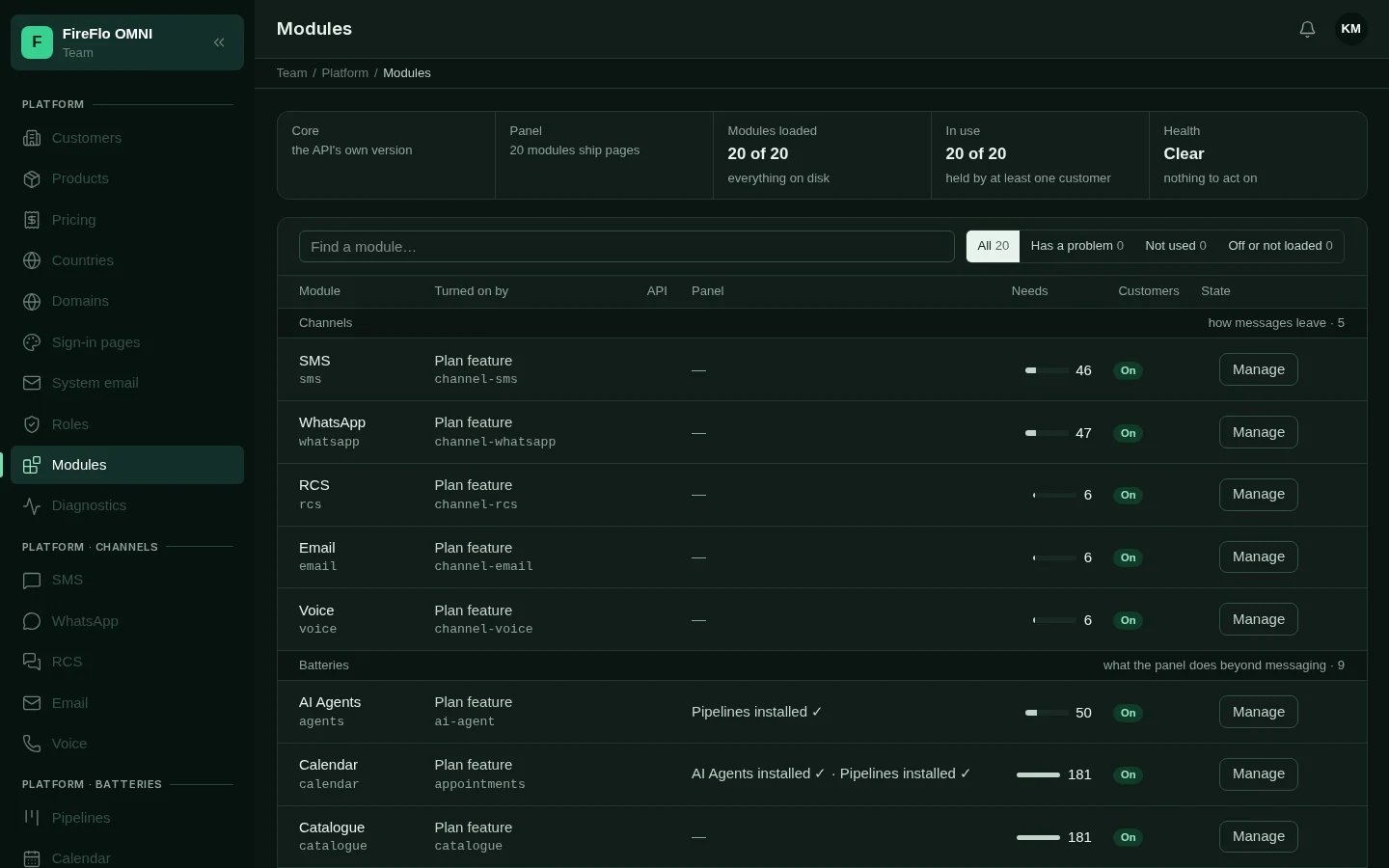
Platform → Modules: what this deployment carries, at what version, and who uses it.
How a module reaches a customer
Three things must all be true:- The deployment carries it. A module this deployment doesn’t load has no pages and no menu entries for anyone, whatever their plan says.
- It isn’t switched off for everyone on this page (or, for a channel, under Channels).
- The customer’s product includes it, or you’ve given it to them with an override. A channel also needs a connection, shared or their own.
Turning a module on for customers
This page doesn’t decide who has a module. That is set in two places:- For a product: Products. Every customer on it gets the module.
- For one customer: the Modules tab on their page.
Reading the page
The figures at the top show the core and panel versions, how many modules are loaded out of those installed, and Health: Clear, or the number of issues to look at. Each issue is spelled out above the list:
Find a module by name, or narrow the list to Has a problem, Not used or Off or
not loaded. Each module’s row shows what turns it on (a plan feature), what it
needs, how many accounts use it, and its state. For a channel, the count is
accounts that have it configured. For anything else, it’s accounts whose plan includes
it.
Modules that need each other
A module says what it needs and what it works less well without. The Versions and needs tab of a module’s panel shows them.- Switching a module off asks first when other modules need it, lists them, and switches them off with it.
- Editing a product so that its customers lose a module asks in the same way.
- A module whose need is missing when the server starts is held, and the others keep running.
Switching a module off for everyone
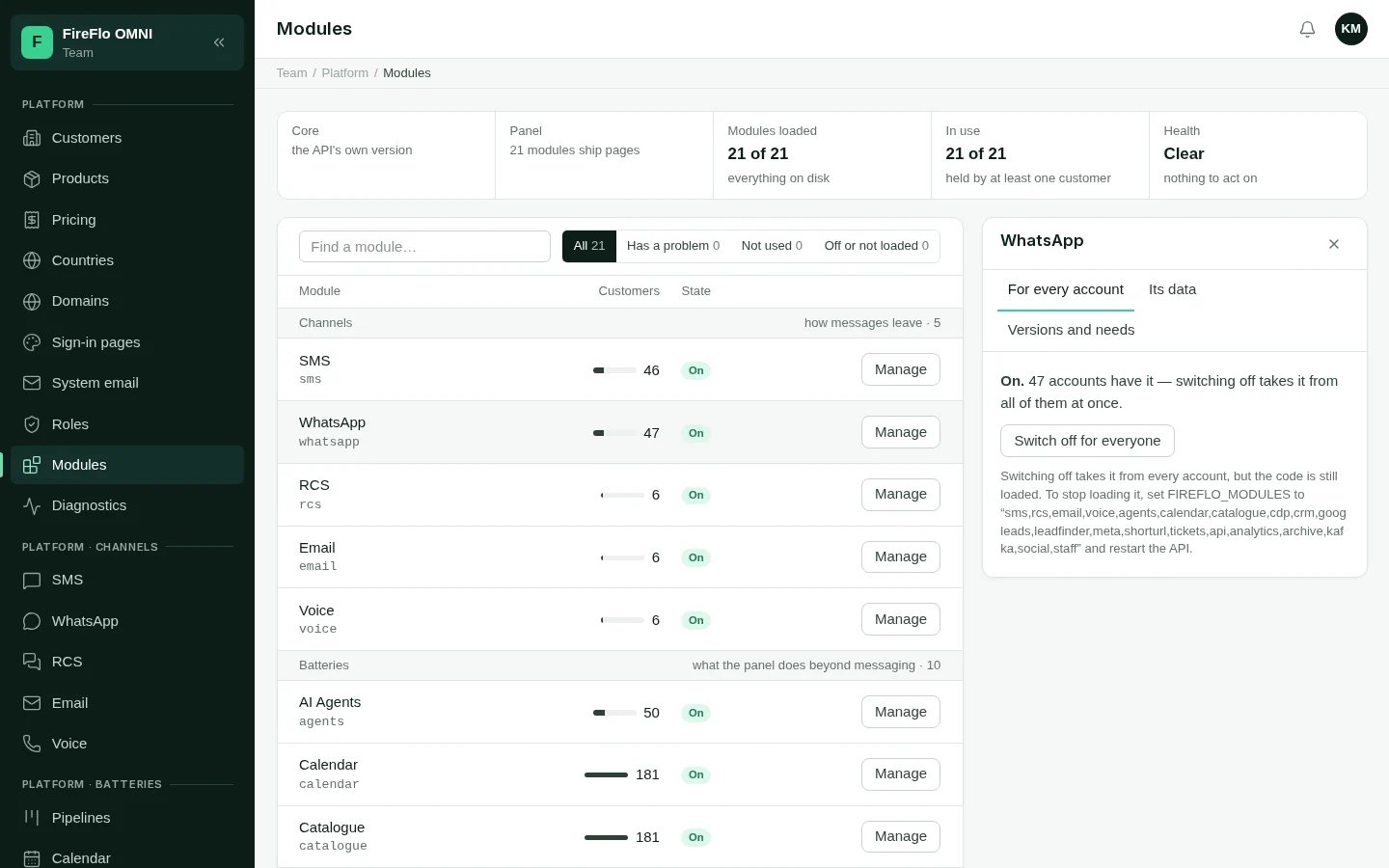
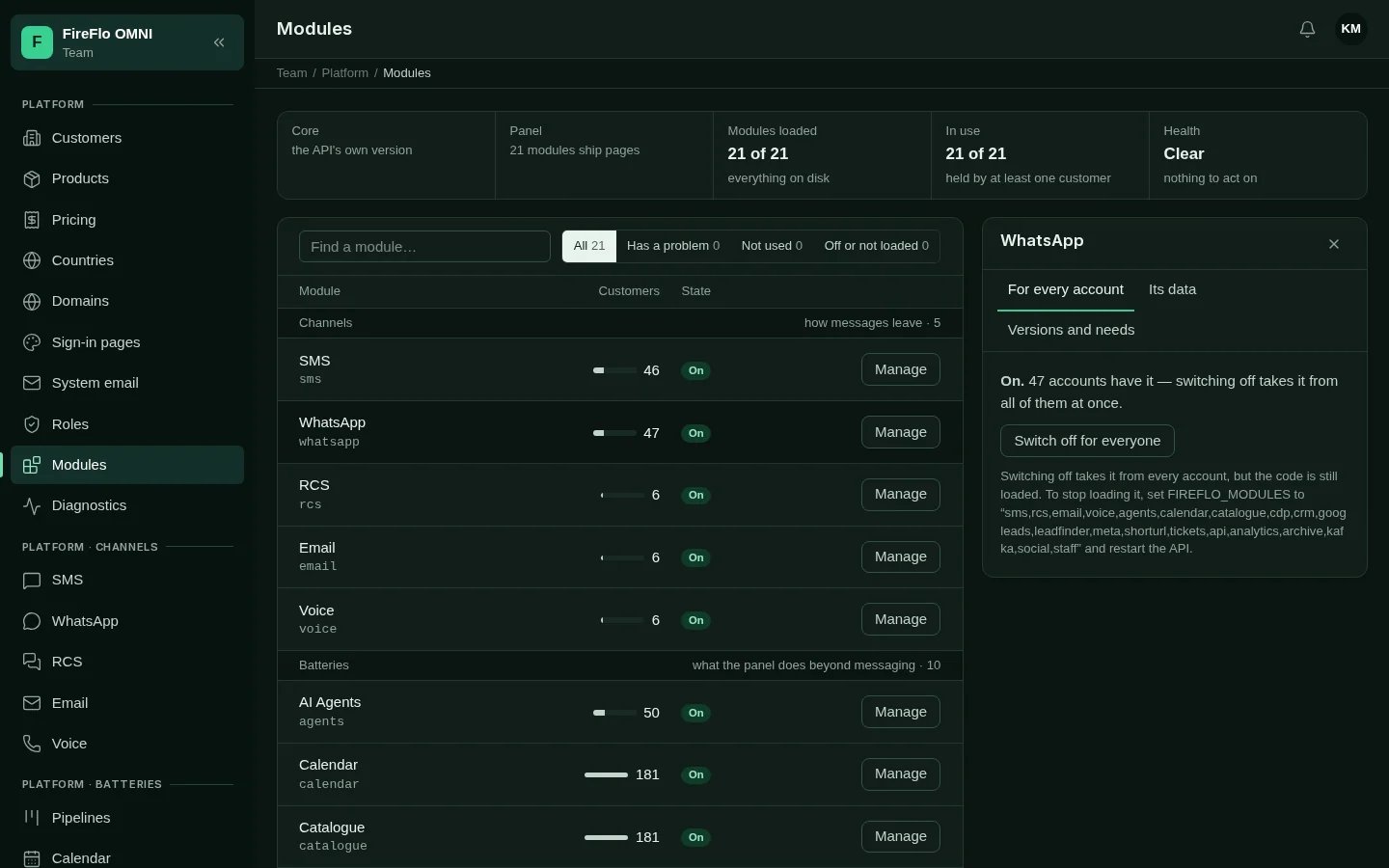
One module's panel: who has it, and Switch off for everyone.
1
Open the module
Select Manage on its row. Its panel opens beside the list, with the tabs For
every account, Its data and Versions and needs.
2
Switch it off
Under For every account, select Switch off for everyone. The page tells you
how many accounts have it, and which other modules go off with it.
Switching off stops a module reaching anyone, but the deployment still loads it. To
stop carrying a module altogether, contact support@fireflo.au.
Backing up and deleting a module’s data
The Its data section of Manage shows how many rows the module holds, and in how many tables. Back up downloads all of it to you as one file. The page checks that what you received matches what was sent, and says so. Nothing is kept on the server. The file you download is the only copy. Deleting a module’s data is permanent. The page refuses until every reason not to has been dealt with, and lists them all:- the module is still switched on;
- some accounts still have it;
- another module still depends on its data, and has to be emptied first;
- no backup has been taken, the last one was never confirmed as received in full, or the last one has already been used for a delete.