
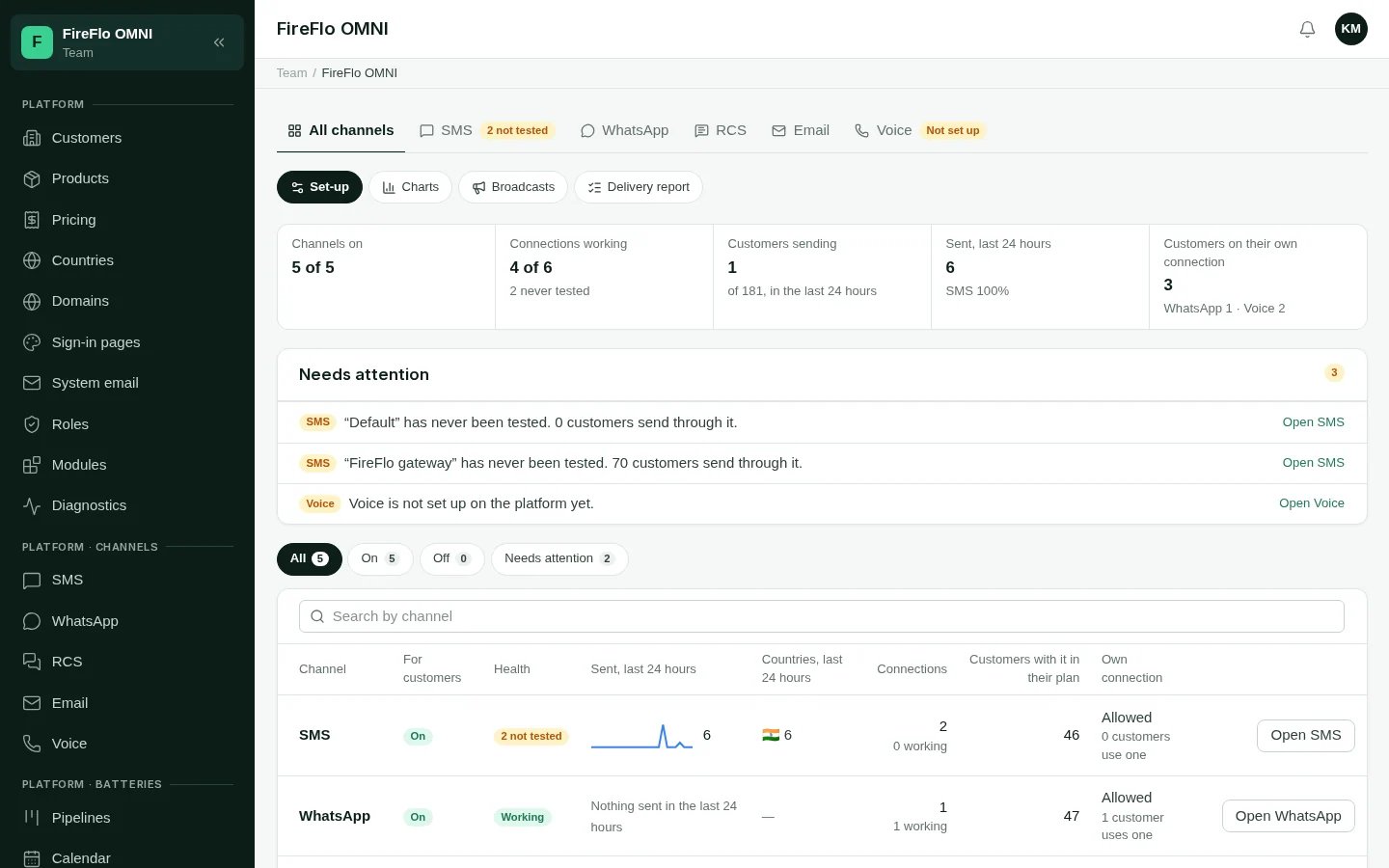
Platform → Channels: every channel's connections and what needs attention, with the Set-up, Charts, Broadcasts and Delivery report views.
For RCS, the badge counts your provider connections instead.
A channel’s views
Each channel, and All channels, has four views:
Broadcasts and Delivery report show every customer’s messages in full, so they
need the Traffic area of a staff login’s Team level (Owner,
Admin and Support). Downloads take up to 5,000 broadcasts or 50,000 messages, one large
download at a time per login. Each download and each opened message is written to
Activity.
Every table on these pages has a search box, quick buttons with counts, and pages of 25,
50 or 100 rows. Where a form asks for One customer, type to find it: the search
covers every customer.
Who uses the shared connection
A customer sends through the shared connection when their product includes the channel and they haven’t connected their own. If they connect their own and it’s complete, that is used instead. If they switch back, their own details stay saved. Customers see which one they’re on in their channel settings. See Channels. If a channel’s shared connection is off or incomplete, customers without their own connection have nothing to send through on that channel.Set up SMS, WhatsApp or Voice
1
Open the channel
Open the channel’s tab, on its Set-up view.
2
Fill in the connection
- SMS
- WhatsApp
- Voice
Your SMS gateway’s Server URL, Username and Password. All three are
needed.
3
Put it in use
Tick Send through FireFlo’s gateway. It won’t save while a required field is
empty, and the message names the missing fields.
4
Save and test
Select Save and test. SMS logs in to the gateway and shows its balance. WhatsApp
looks up the shared number, so it needs that number’s Phone number ID to test.
The result is kept, so the list shows whether the connection works.
Hosted WhatsApp numbers
Besides the shared number, you can give a customer a number of their own, hosted in your WhatsApp Business Account. The customer has nothing to set up with Meta, and replies reach their Inbox. Staff assign a hosted number on the customer account’s own WhatsApp → Settings page. There, staff see a Hosted phone number ID field, marked “FireFlo staff only”. Enter the number’s ID from Meta’s WhatsApp Manager and select Save. Clear the field and save to take the number away. Hosted numbers share your WhatsApp Business Account, so they share its templates. Each hosted customer sees only the templates they submitted.Shared WhatsApp numbers
A WhatsApp connection can have several shared numbers, in its Shared numbers tab: numbers of your WhatsApp Business Account that several customers send from. Add a number, label it, choose the default, offer it to all, chosen or no resellers, and set it up (registration, display name, picture, SIP). Each number has its own Customers (search, status filter, when each was put on it, and Move to another number) and Unsubscribes (search, filters, Export and Remove).- One shared number per customer, chosen by staff on the customer, or by a reseller for its own customers. A reseller that connected its own WhatsApp Business Account with Connect with Facebook can share its own numbers between its customers.
- Shared numbers are send-only. Replies don’t reach any customer’s Inbox; messages are followed in the message log, and a reaction shows on the message’s row.
- Anti-spam buttons. A number can add quick-reply buttons, such as “Stop promotions” or “Report”, to every template requested on it. A press, or a STOP text, puts the person on the number’s unsubscribe list: later messages to them from that number are refused and not charged. “Report” also tells staff and the customer’s reseller. A person gets one STOP or START confirmation per shared number.
- Templates. A customer on a shared number sees the templates it requested and the Common templates made for everyone.
Webhooks check and webhooks received
Webhooks check, on a WhatsApp connection, shows whether your WhatsApp Business Account’s webhooks are Subscribed to the app (with Subscribe when not: without it Meta sends no replies or delivery reports), where Meta sends them, with Send them here, a Send a test webhook button, and when the last webhook arrived. Webhooks received (WhatsApp) and Callbacks received (RCS) are one page with the same layout: every request the provider sent to that connection, newest first, with filters by kind, result, period and day, a search, paging, and what the provider sent and what OMNI did with it when you open a row. Records are kept for 7 days. On WhatsApp, a refused request’s content isn’t kept.Gateway account tags
With FireFlo gateway 0.17.0 or newer, the SMS gateway can carry account tags: names such as “otp” or “premium” put on gateway accounts, which the gateway’s routing rules, prices and filters can use. Tags are made and given their meaning in the gateway’s own control panel. OMNI lets staff choose which of them it may use and put them on customers’ gateway accounts. The gateway keeps the tags; OMNI stores no copy. Tags are for staff only. Customers and resellers never see them. On an older gateway the tag screens don’t appear and nothing else changes.- Tags tab on an SMS gateway connection: Load from the gateway reads its tags; tick Use for each one OMNI may use, and Give to new customers for those every new gateway account on this connection should get. Save tags.
- A customer’s tags: the Gateway tags line on the customer’s SMS gateway account card. Add and remove tags; each change is written straight to the gateway. A reseller’s customer shows its reseller’s tags, read only: its units account carries them at the gateway.
- Automatic tags for new gateway accounts can be set in three places: on the connection, on a reseller (Tags for new gateway account), and on a plan (Gateway tags for new customers, under Products and plans). They are put on once, when the gateway account is made. Changing them later only affects accounts made after; an existing account’s tags are edited on its card.
- Filter by gateway tag in Platform → Customers and in Usage. The filter reads the tags accounts have now.
RCS: providers, bots and routes
RCS has a page of its own. Its list shows who each connection is for (a customer, or shared) and its health.- Connections: your logins at RCS providers, SmartPing India or Jio Business Messaging. Select Add connection, choose the Provider, give it a Name, and enter the login. A connection opens in a panel with three tabs: Connection, its bots, and Callbacks check, which shows the callback address to give the provider, when the last callback arrived, and a test that sends a harmless sample to that address. Each connection can be tested, switched off or deleted, and can have a Messages per second limit, shared by everything that sends through it (Jio 10 by default; SmartPing no limit).
- Jio Business Messaging: one connection is one Assistant. Enter its Assistant ID and Secret key, the sign-in address and messaging address Jio gave you, the Assistant’s name and category, and its countries. Register the connection’s callback address in Jio’s console as the Assistant’s webhook. Templates need no approval at Jio.
- Bots: providers don’t list their bots, so add each with its id, name, type and the countries it sends to, chosen from a list (several per bot; a country can be on several bots). Then choose which accounts can use it: a searched, paged list of the accounts given the bot, or Every customer may use it, a standing switch that includes accounts made later and resellers’ customers (accounts given the bot one by one keep it when the switch goes off). Resellers can pass on bots you gave them to their own customers; taking a bot back from a reseller takes it back from its customers. Deleting a bot removes the routes through it.
- Default routes: for each country, the bot that sends there. A default route is used by every account that has no route of its own for that country, through bots it is allowed to use.
A bot for one customer
A bot can be set up for one customer alone: Add connection → For one customer, or Set up a bot under RCS on the customer’s page. Three steps: the provider login, a test, then the bot. Save it as Being set up to show the bot to the customer while nothing is sent through it yet.- A bot set up for one customer can’t be given to another, so its replies always reach that customer’s Inbox. It is charged like any of your bots.
- A country with no route goes to the customer’s bot that covers it.
- The customer sees, on Channels → RCS, the bots and their health only: connected to the provider, delivery reports arriving, the last message sent, whether replies reach the Inbox, and whether the provider slowed sending. No login, callback log or set-up.
- For RCS, May connect their own is off for a customer unless it was switched on. A customer already on its own provider login keeps it.
- Connections: Amazon SES or any SMTP server, as your own service that customers can send through. A customer may bring its own where you allow it.
- Identities: sending domains or single addresses, with the DNS records to add and their state. A platform identity can be offered to everyone, or to chosen customers under Who may use it (each found by typing).
- Suppression: addresses and whole domains that are never sent to, for the platform and for each account. Bounces, spam reports and unsubscribes are added by themselves.
- Events and Health: what happened to the emails sent, and bounce and spam rates per identity. Above the limits, a warning comes first, then marketing email is paused by itself.
Who may connect their own
Any customer can connect their own provider account for a channel their product includes, with one exception. A reseller can keep a customer on what it sells them, per channel: its SMS gateway, its WhatsApp number, or the RCS bots it passes on. The customer then can’t connect their own on that channel. Hosted WhatsApp numbers are outside this switch. See Resellers.Switching a channel off for everyone
The switch at the top of each channel reads On for all customers or Off for all customers. Switching off asks first and tells you who it reaches: how many accounts have the channel in their plan, how many of those use their own connection, and how many open broadcasts will be cancelled. When a channel is off:- it disappears from every account’s menu, Inbox, contacts, broadcasts and agents, whoever’s connection they use;
- its sends are refused;
- its unfinished broadcasts are cancelled.