
Write a post
Open Social → Calendar and choose New post.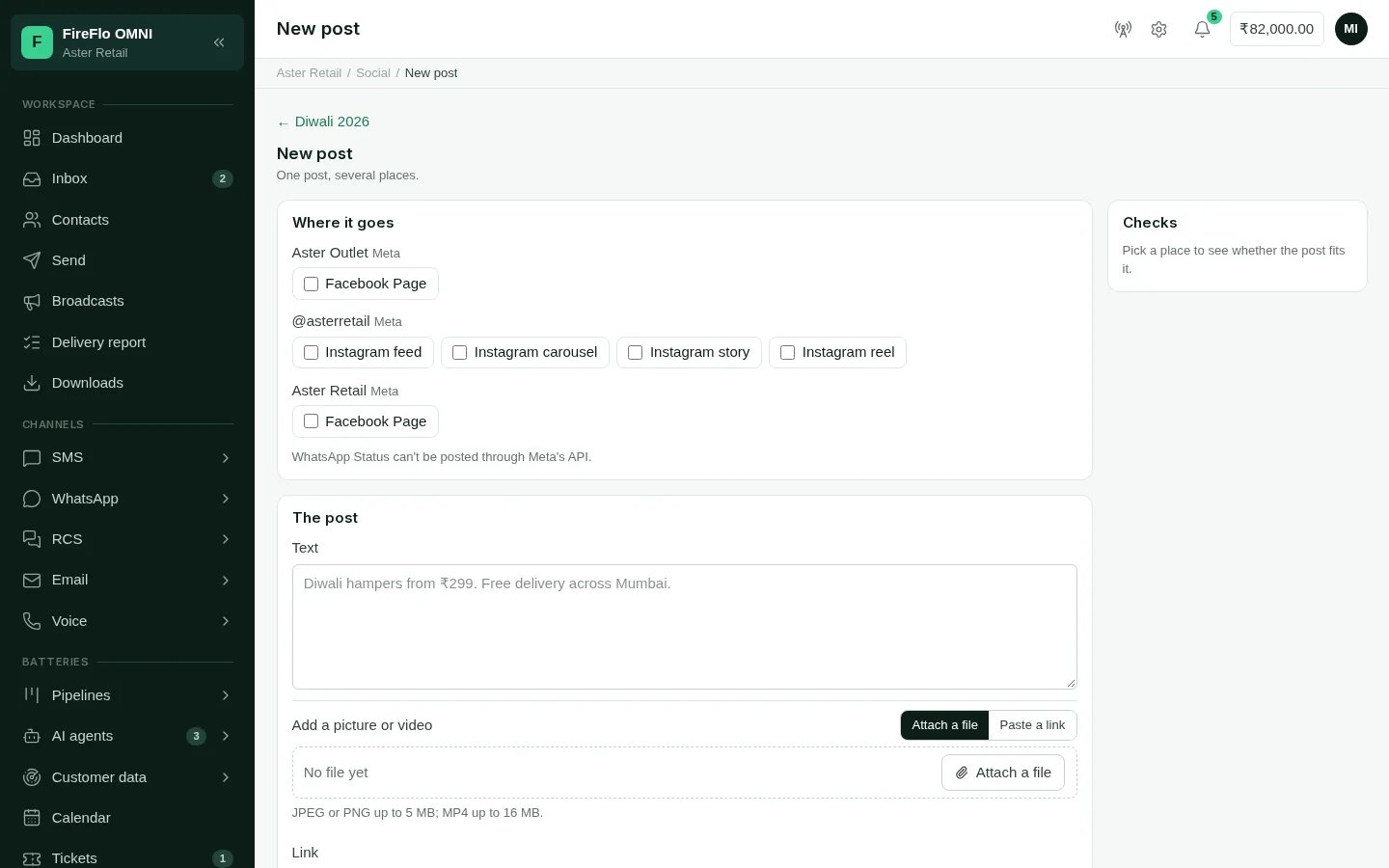
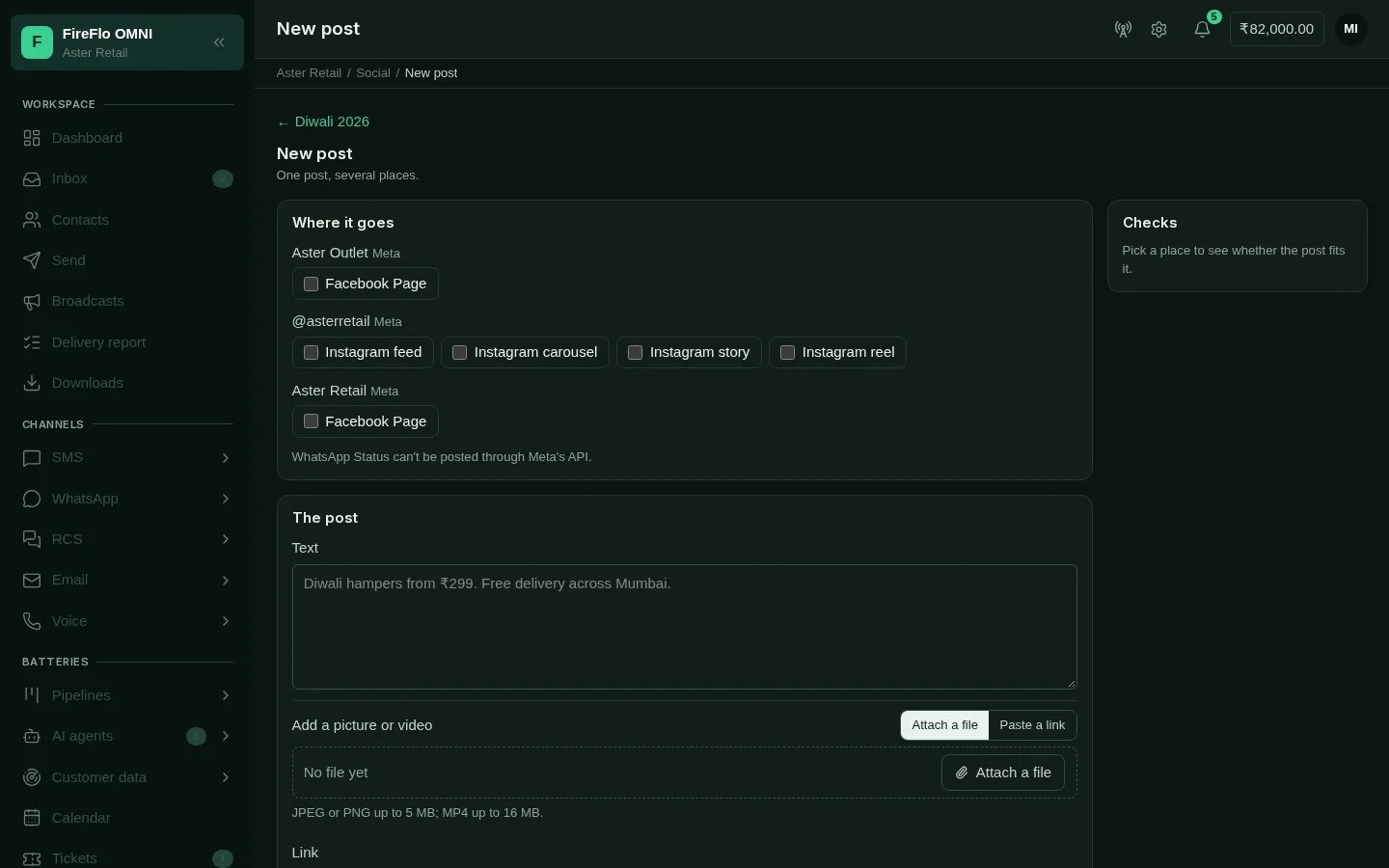
New post: what the post says and where it goes, with a preview for each place.
1
Pick where it goes
Under Where it goes, tick the places: a Facebook Page, or Instagram as an
Instagram feed post, an Instagram carousel, an Instagram story or an
Instagram reel.
2
Write the post
Under The post, write its Text. Give one place its own text when it needs
different words.
3
Add a picture, a link and a first comment
Add a picture or video — attach a file or paste a link. Add a Link and a
first comment if you want them.
4
Check it fits
Checks shows, for the place you pick, whether the post fits it before it goes.
The calendar
Social → Calendar shows the posts of every project: planned, waiting for approval and published. Switch between Month, Week and List, and narrow it with the places and states filters. Each post shows its state, from draft to published.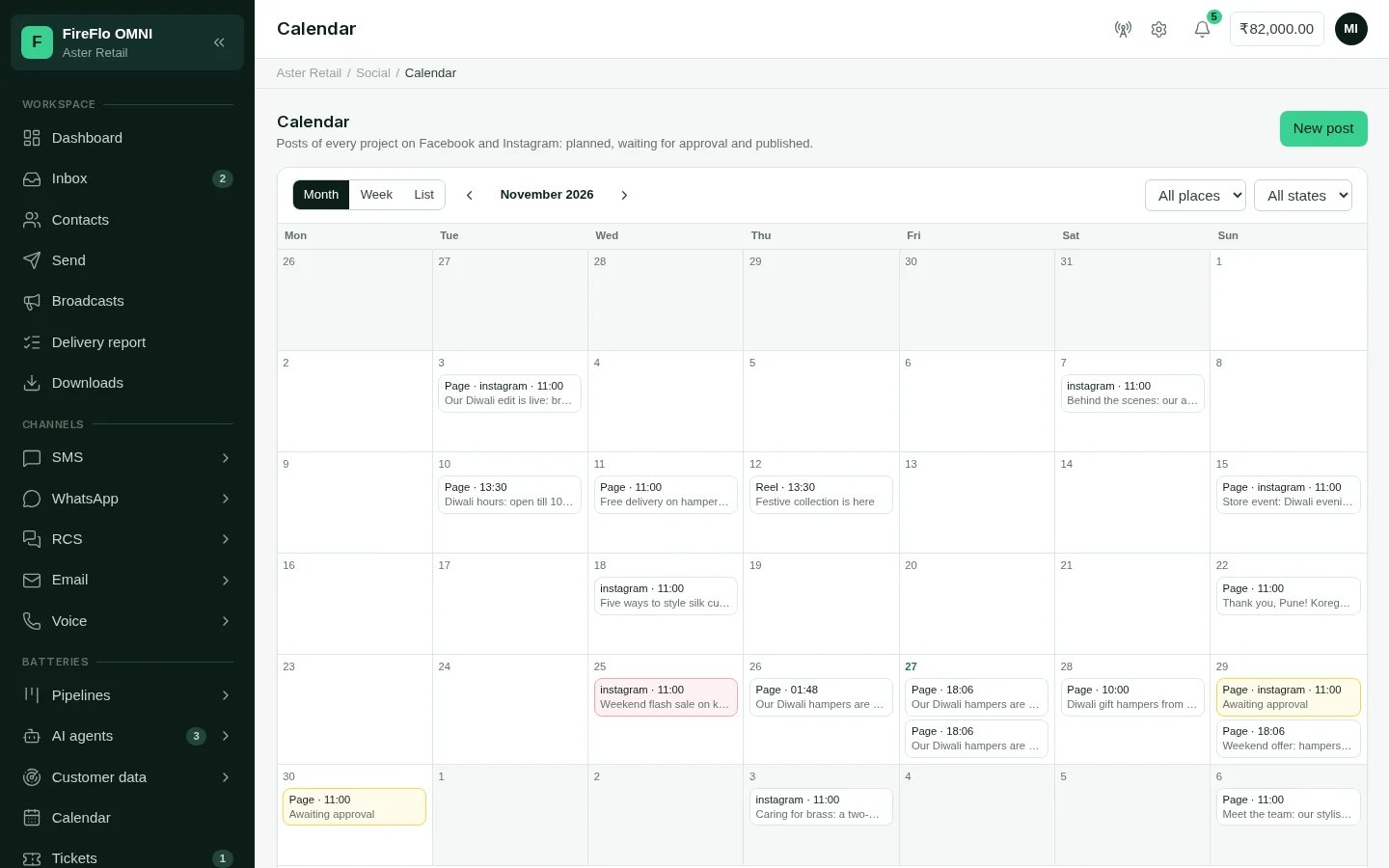
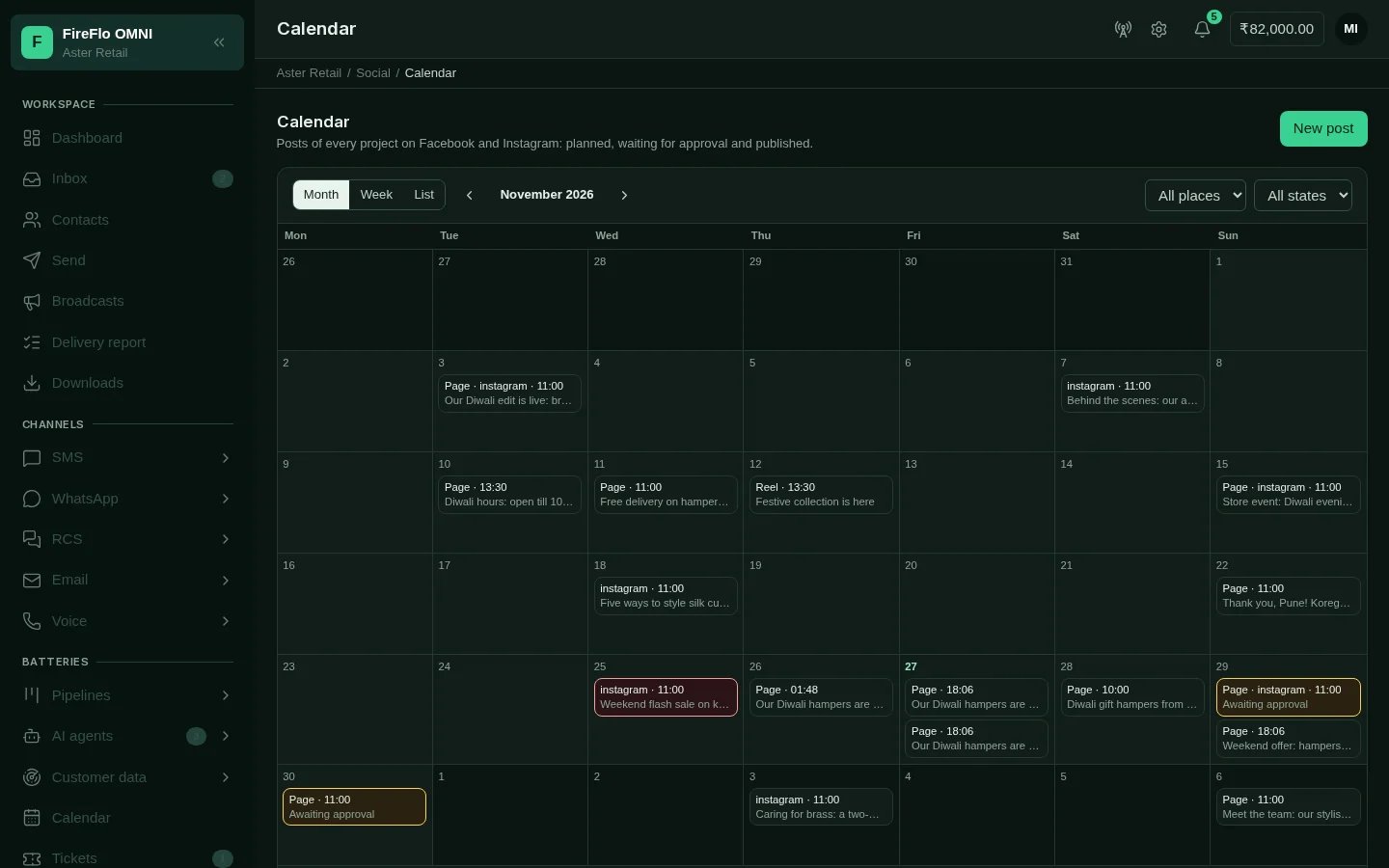
Social → Calendar: every project's posts on their days.
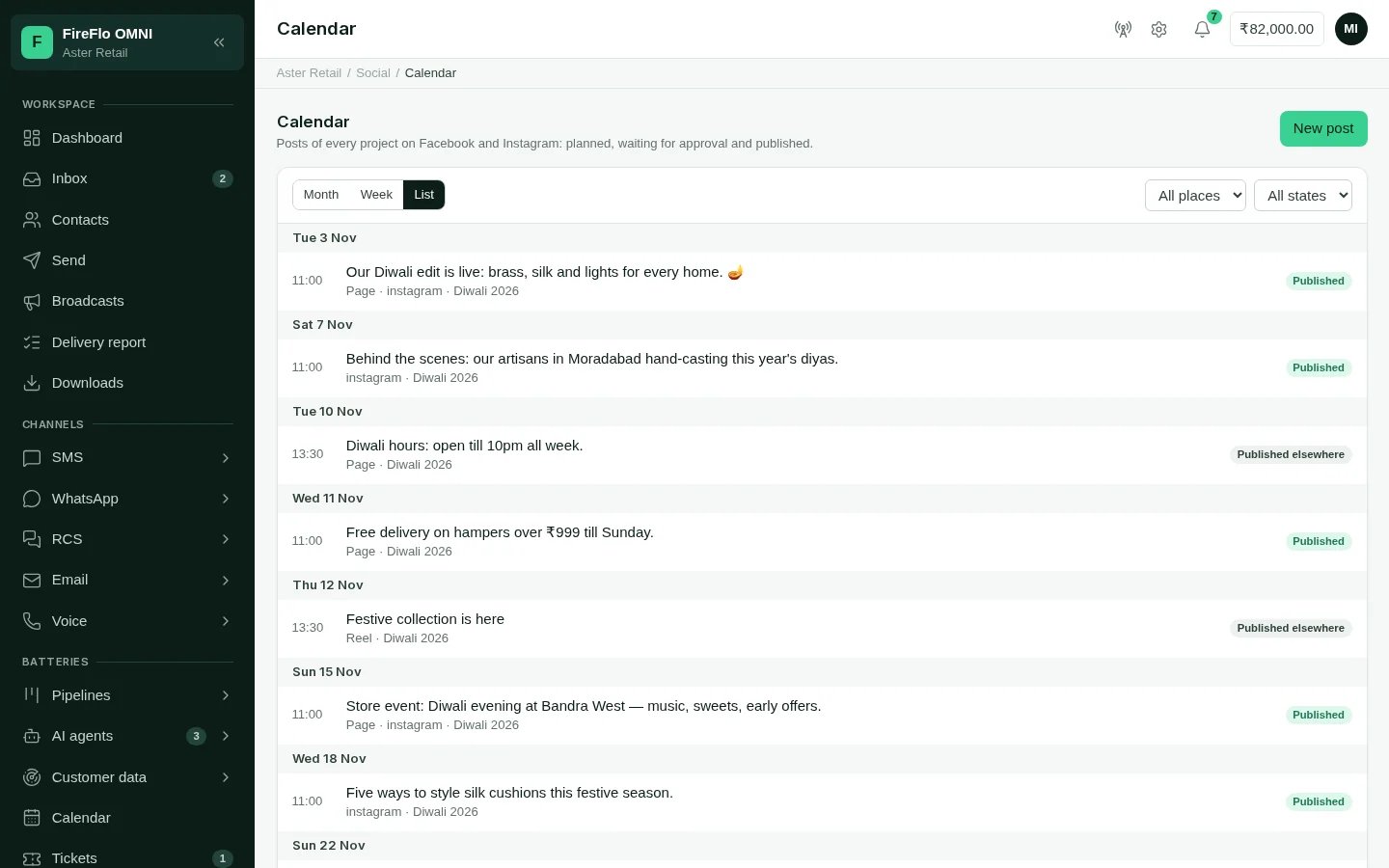
The calendar as a list: each post's places, project and state.
A failed post
When a post fails to publish, its page says why — for each place, beside that place. Fix the cause, then choose Try again. Edit, Duplicate and Delete are there too.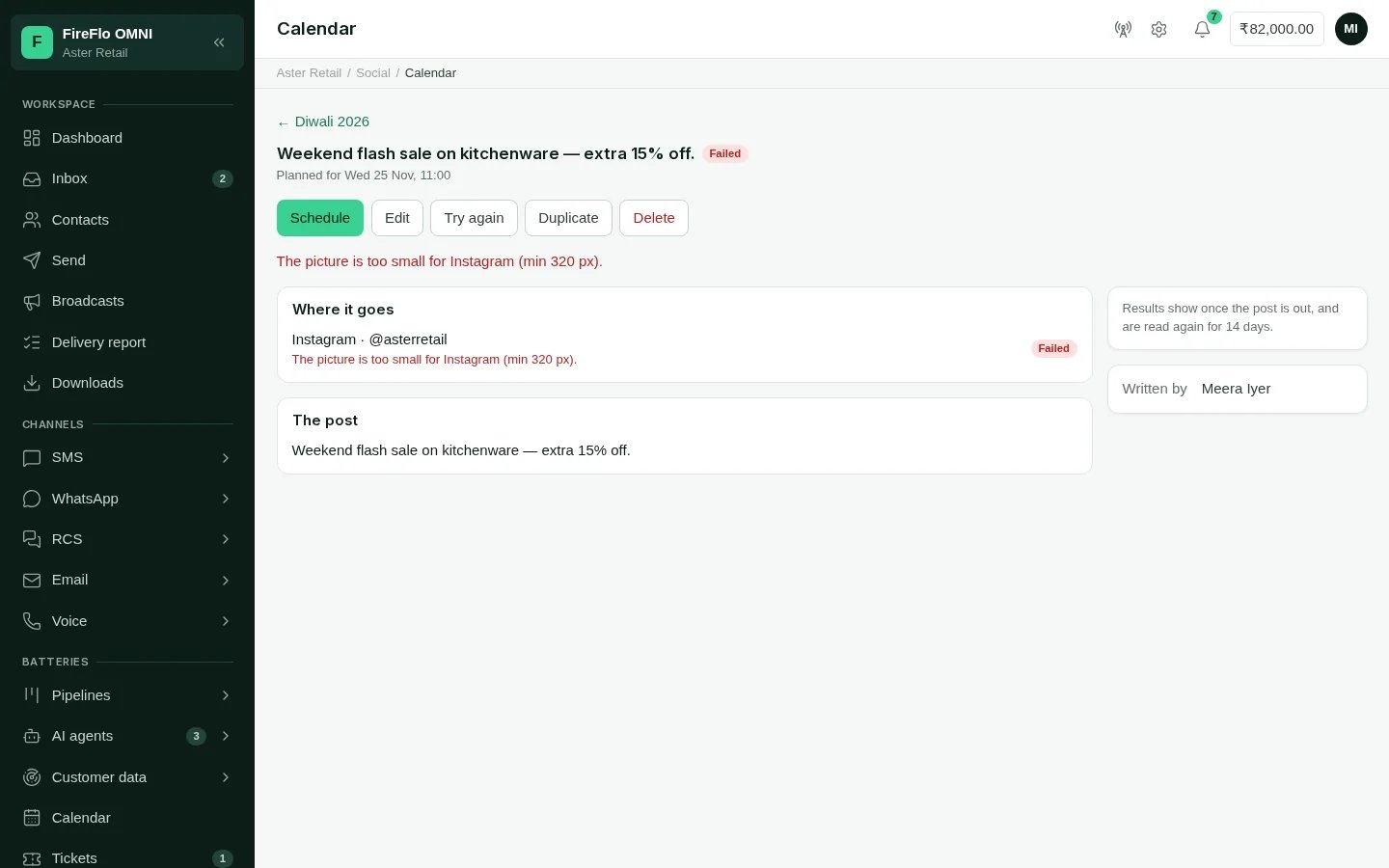
A failed post: the reason it failed, and Try again.
Approvals
Social → Approvals lists what waits for a second person, who asked for each, and Approve and Turn down beside it. Waiting shows what is still open; All shows everything that was asked.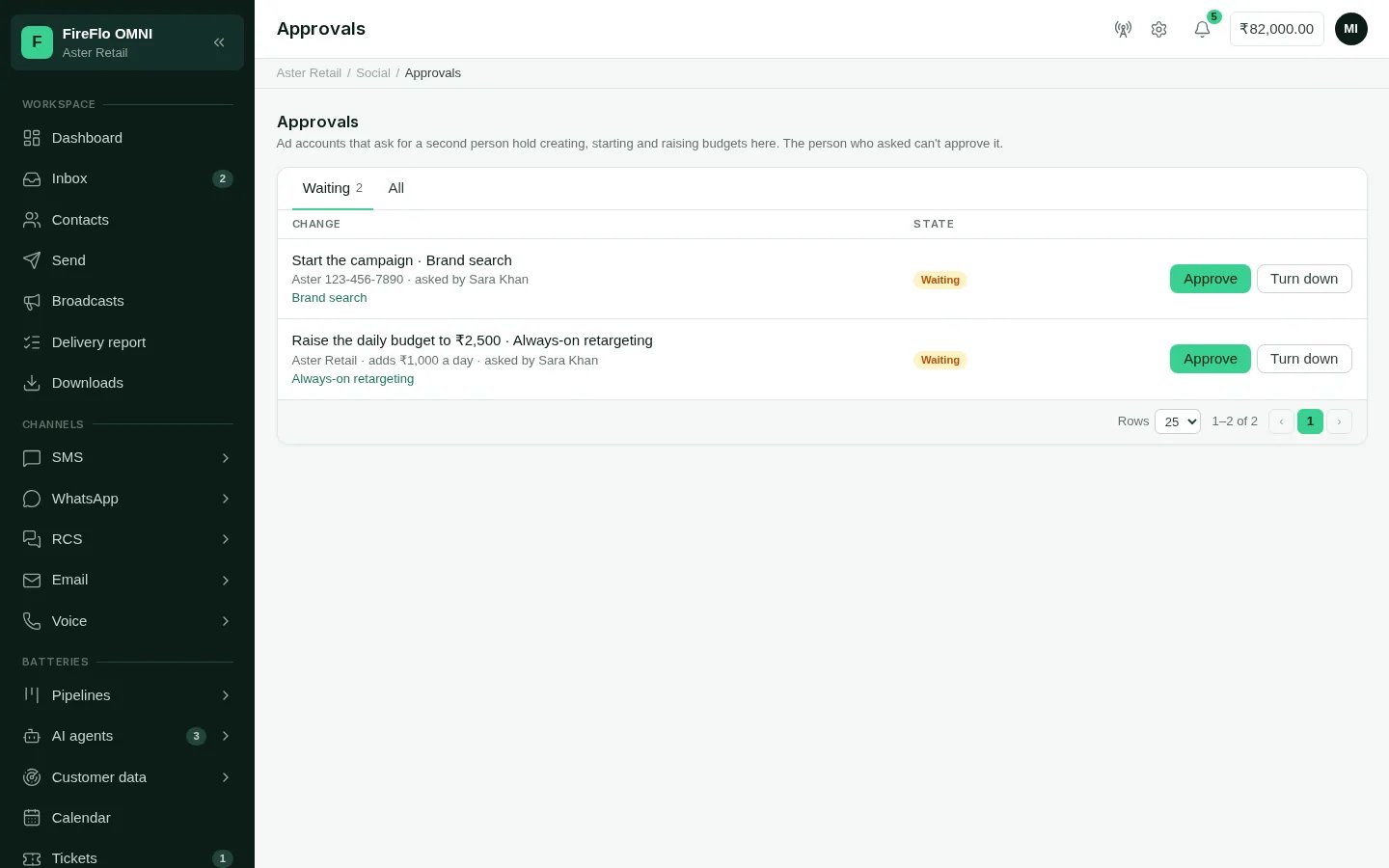
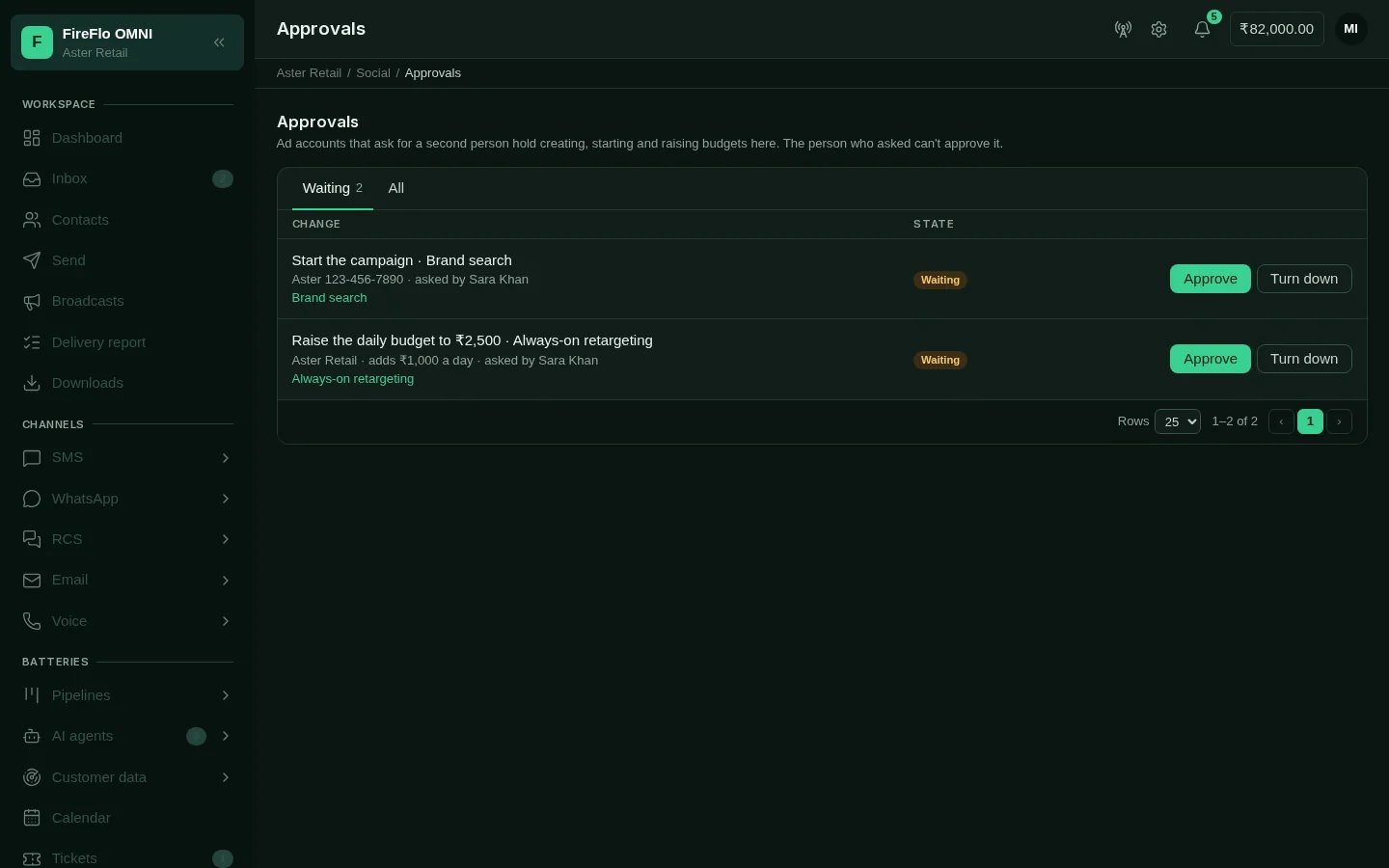
Social → Approvals: what waits, who asked, Approve or Turn down.
- Changes on an ad account that asks for approval — creating a campaign, starting it, and raising a budget. The person who asked can’t approve it.
- Posts and landing pages of a project that asks for approval — a project can ask a second person to approve them before they go.
A post waiting for approval
A post sent for approval shows Awaiting approval, and each place waits until it is approved. Its page shows who wrote it and who sent it for approval.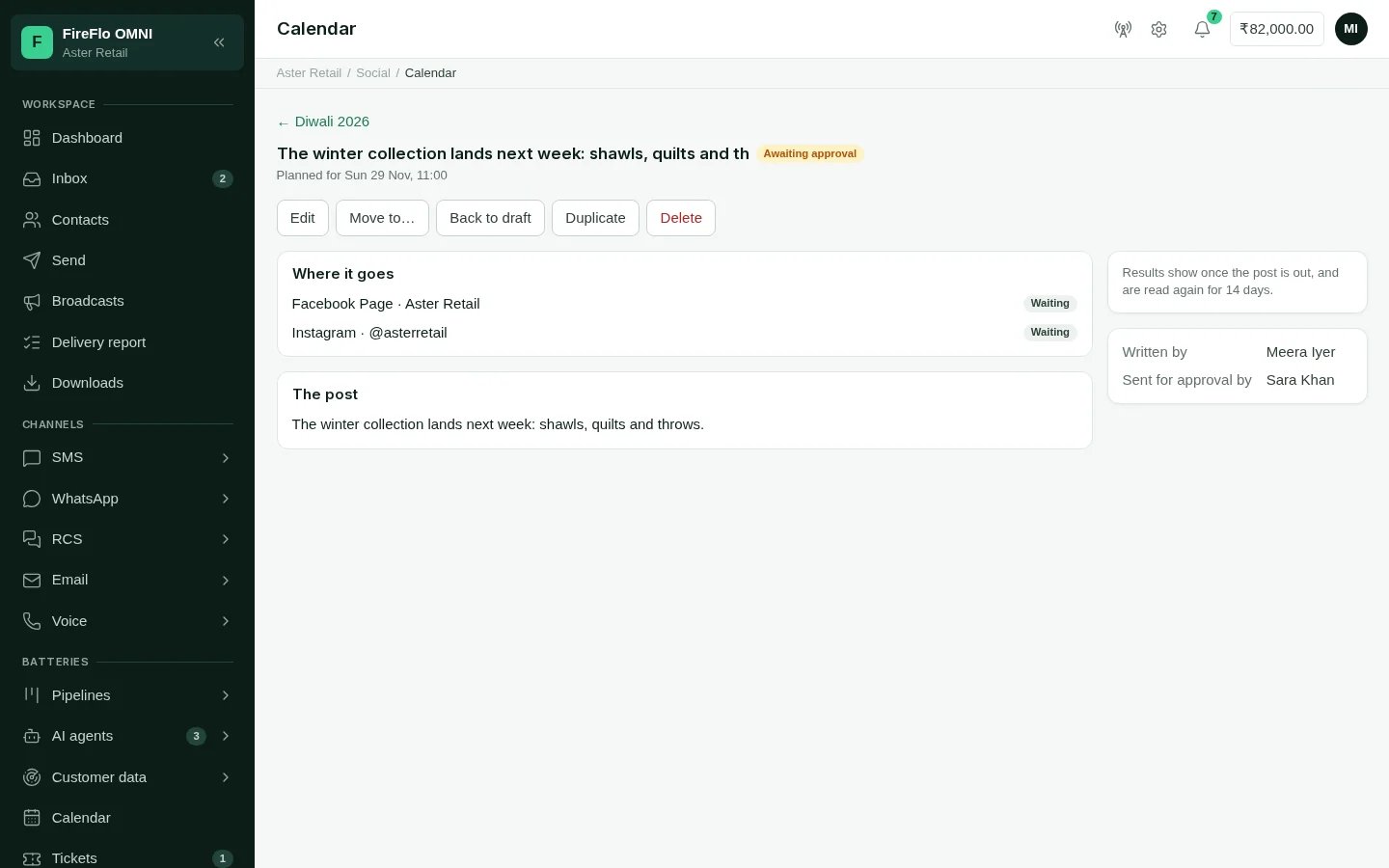
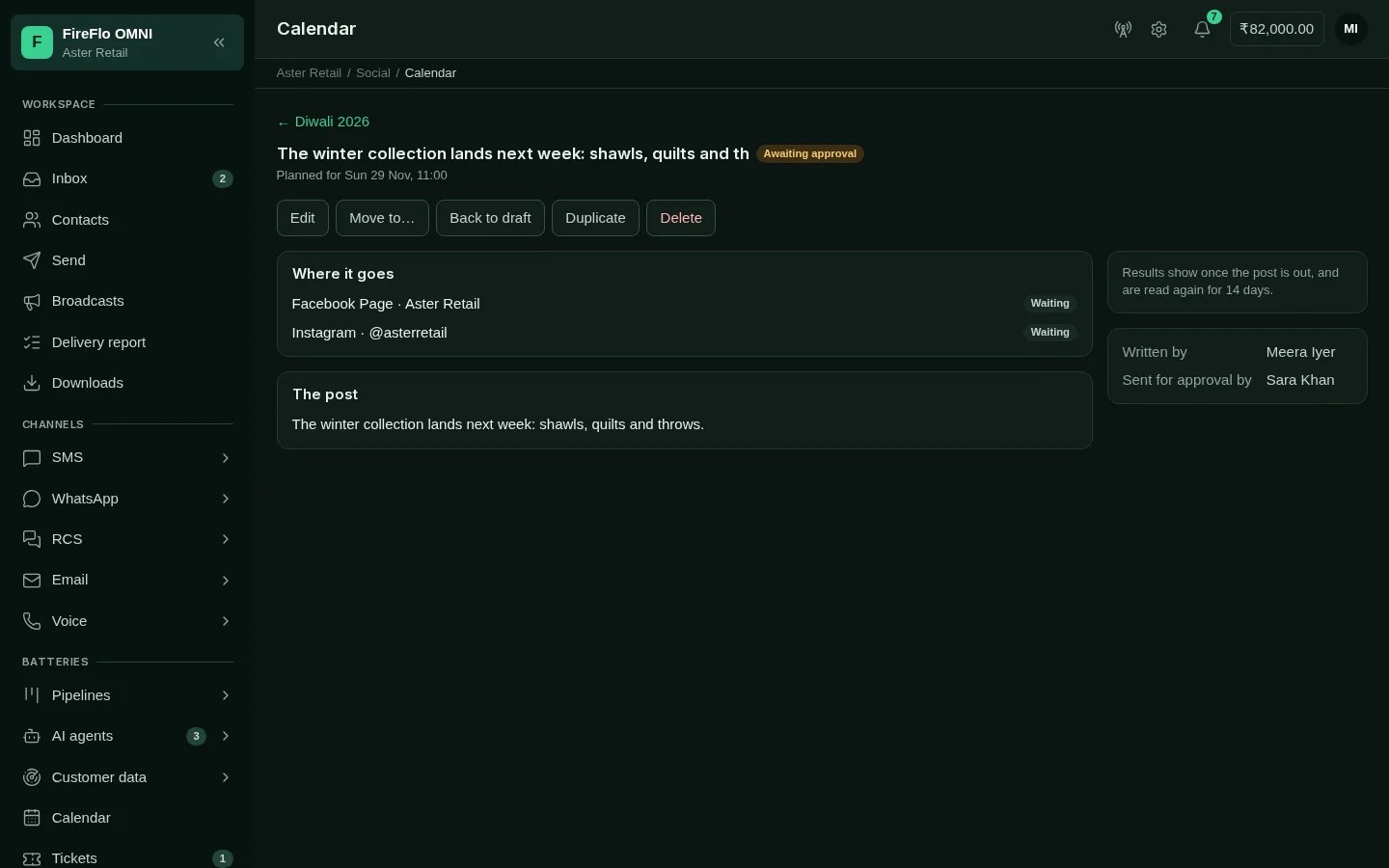
A post waiting for approval: where it goes, who wrote it and who sent it.