
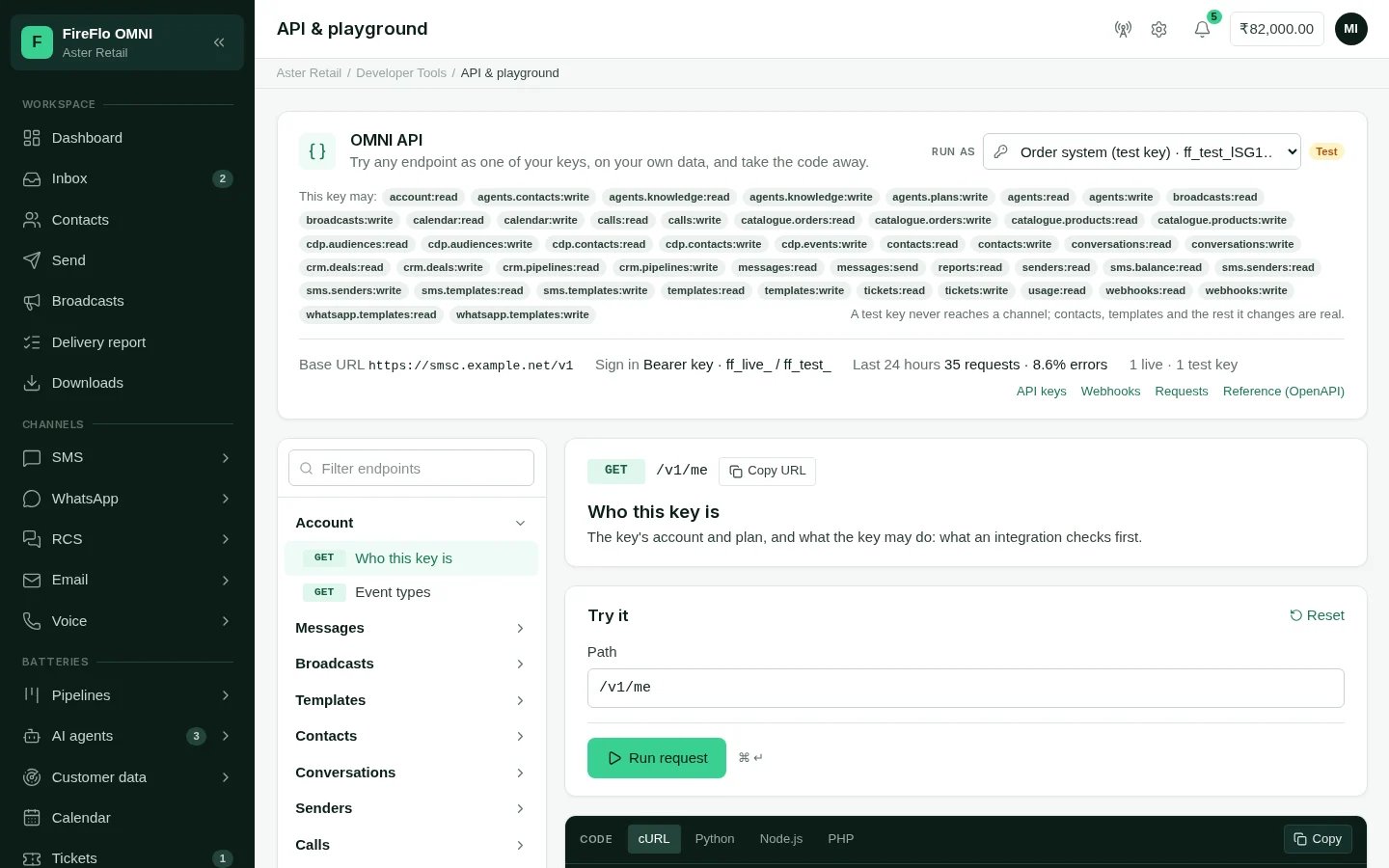
API & playground
Using it
1
Choose the key to run as
Run as lists your keys that are still in use. A request runs exactly as that key
would from your server: its scopes, and whether it is a test key. With no keys yet,
the playground offers to make one.
2
Pick an endpoint
The list on the left groups every endpoint, then each of your channels’ own. The
middle shows what it does, its parameters, and the scope it needs — and warns when
the chosen key doesn’t have it.
3
Try it
The path and body come filled in from your own account — a real contact, template
or message — so the first run works. Sample from your account switches to
another record; Reset puts the sample back. Add an
Idempotency-Key and run
twice to see a replay.4
Run it
With a live key, anything that reaches people asks first: Send a real message to
+91…? Removing something always asks.
5
Take the code
cURL, Python, Node.js or PHP, built from the same request. The key is read from the
OMNI_API_KEY environment variable — never written into the code.